
1. Introduction
This manual provides detailed instructions for the installation, operation, and maintenance of your Roinvou 4G+64G Android 15 Autoradio. This unit is designed for specific vehicle models: Fiat Ducato, Peugeot Boxer, and Citroen Jumper manufactured between 2006 and 2023. Please read this manual thoroughly before installation and use to ensure proper functionality and safety.
2. Package Contents
Before beginning installation, verify that all components listed below are present in your package. Refer to the 'Package List' image for visual confirmation of the included items.
- Autoradio Unit (9-inch Incell Touchscreen)
- Double Power Cable
- Original USB Cable
- Radio Antenna
- CANBUS Decoder
- RCA Cable
- Rear Camera Input Cable
- GPS Antenna
- Double USB Cable
- Rear View Camera
- External Microphone
- Installation Tool
- User Manual (this document)

3. Setup and Installation
3.1. Vehicle Compatibility Check
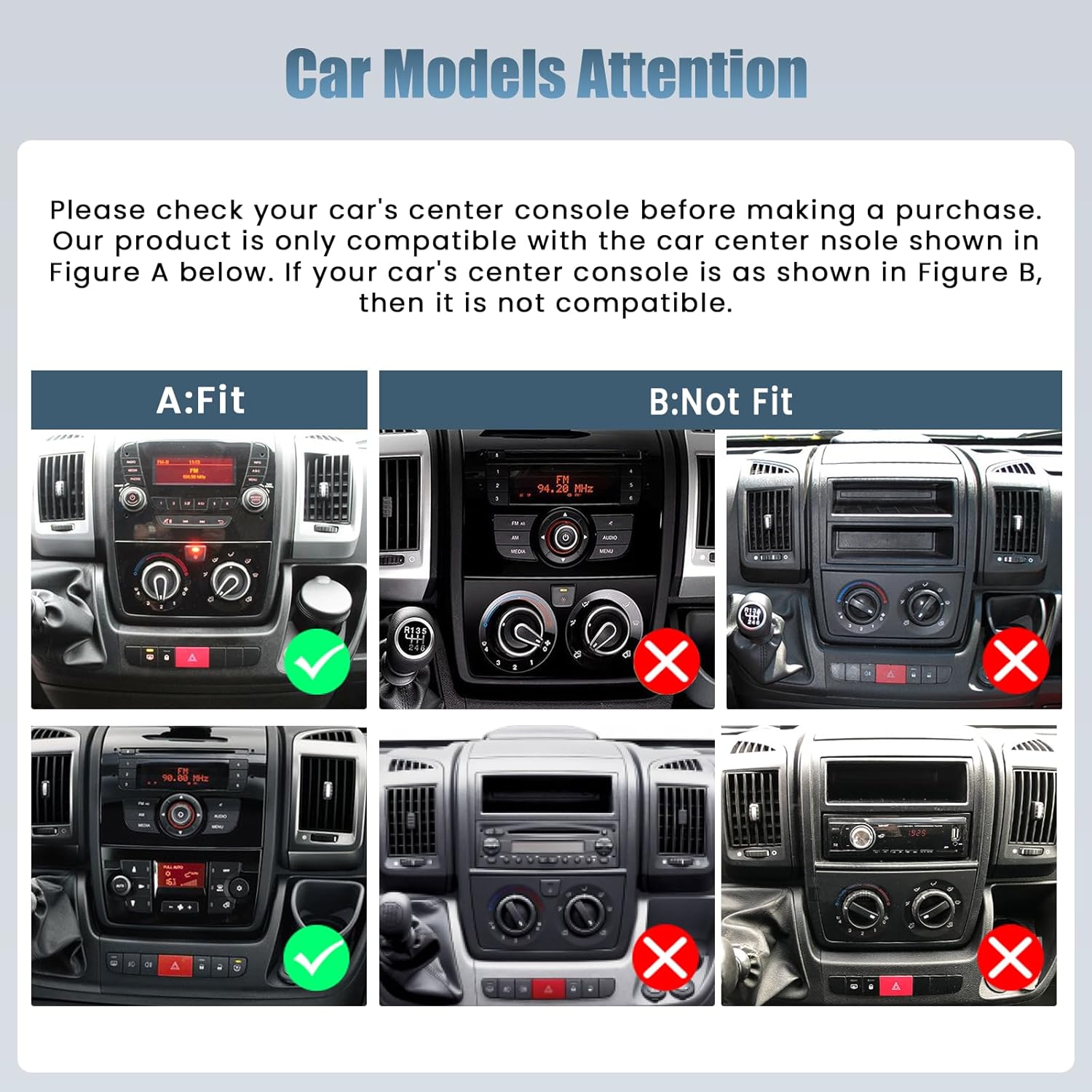
It is crucial to verify your vehicle's center console design before installation. This autoradio is specifically designed for Fiat Ducato, Peugeot Boxer, and Citroen Jumper models from 2006-2023. Compare your vehicle's dashboard with the provided images to ensure compatibility.

3.2. Pre-Installation Steps
- Disconnect Battery: Always disconnect the vehicle's negative battery terminal before starting any electrical work to prevent short circuits.
- Remove Old Unit: Carefully remove your existing car radio or blank panel using the provided installation tool.
- Test Fit: Temporarily place the new autoradio unit into the dashboard opening to ensure a proper fit.
3.3. Wiring Connections
Connect the cables as follows:
- Power Cable: Connect the double power cable to the vehicle's wiring harness. Ensure all connections are secure.
- USB Cables: Connect the original USB cable and the additional double USB cable for data transfer and charging.
- Radio Antenna: Connect the radio antenna for FM/RDS reception.
- CANBUS: Connect the CANBUS decoder. This is essential for integrating with vehicle features like steering wheel controls.
- RCA Cable: Connect the RCA cable for audio output to external amplifiers or subwoofers, if applicable.
- Rear Camera: Connect the rear camera input cable and the rear view camera for parking assistance.
- GPS Antenna: Mount the GPS antenna in a location with a clear view of the sky for optimal signal reception.
- External Microphone: Connect the external microphone for improved call quality.
3.4. Post-Installation Check
After making all connections, reconnect the vehicle's battery. Turn on the ignition and test the unit's basic functions: power on/off, audio, touchscreen response, and radio reception. Ensure the unit is securely mounted in the dashboard.
4. Operating Instructions
4.1. Touchscreen Interface
The unit features a 9-inch Incell touchscreen with a 1280x720 resolution. This technology provides a fast response, true color reproduction, and high saturation for a clear and responsive user experience.

4.2. Wireless CarPlay and Android Auto
Connect your iPhone or Android smartphone wirelessly to access navigation, make calls, send messages, and play music directly on the autoradio screen. The unit also supports wired and wireless Mirror Link functionality.

4.3. System Performance and Connectivity
The autoradio runs on Android 15, powered by a 4-core processor with 4GB RAM and 64GB of internal storage. It supports 5G WiFi for fast internet access and a wide range of applications. Bluetooth and GPS functionalities are integrated for seamless connectivity and navigation.

4.4. Audio and Customization
Utilize the equalization (EQ) settings to fine-tune your audio experience. The FM/RDS radio ensures clear sound and easy access to your preferred stations. The user-friendly interface supports split-screen functionality, allowing you to run navigation and music simultaneously. Multiple UI options are available for personalization.

4.5. Safety Features
The included rear camera provides a clear, wide-angle view for safer parking and reversing. The unit also supports steering wheel controls (SWC), allowing you to manage audio and other functions without taking your hands off the wheel. Ensure SWC is configured correctly via the CANBUS settings.

5. Maintenance
To ensure the longevity and optimal performance of your Roinvou Autoradio, follow these maintenance guidelines:
- Screen Cleaning: Use a soft, lint-free cloth to gently wipe the touchscreen. For stubborn smudges, slightly dampen the cloth with water or a screen-safe cleaner. Avoid harsh chemicals or abrasive materials.
- General Cleaning: Keep the unit free from dust and debris. Use a soft brush or compressed air to clean vents and crevices.
- Temperature Control: Avoid exposing the unit to extreme temperatures, both hot and cold, for extended periods.
- Software Updates: Periodically check for available software updates to ensure you have the latest features and bug fixes. Follow the on-screen prompts or consult the manufacturer's website for update procedures.
- Cable Connections: Occasionally check all cable connections to ensure they remain secure and free from damage.
6. Troubleshooting
If you encounter issues with your Roinvou Autoradio, refer to the following troubleshooting steps:
- Unit Does Not Power On:
- Check the power cable connections to ensure they are securely attached.
- Verify the vehicle's fuse box for any blown fuses related to the radio.
- Ensure the vehicle battery is properly connected and charged.
- Touchscreen Unresponsive:
- Restart the autoradio unit.
- Ensure the screen is clean and free from obstructions.
- If the issue persists, a factory reset might be necessary (consult the settings menu).
- No Audio Output:
- Check speaker wire connections.
- Verify volume levels and mute settings on the unit.
- Ensure EQ settings are not configured to an extreme that might cause silence.
- Steering Wheel Controls Not Working:
- Confirm the CANBUS decoder is correctly installed and configured for your specific vehicle model (e.g., Fiat Ducato).
- Access the steering wheel control learning function in the unit's settings and re-program the buttons.
- GPS Signal Issues:
- Ensure the GPS antenna is mounted in a location with a clear, unobstructed view of the sky.
- Check the GPS antenna connection to the unit.
- Incompatibility with Vehicle:
- Double-check the vehicle's make, model, and year against the product's compatibility list.
- Re-examine the center console design against the compatibility images provided in Section 3.1.
7. Specifications
| Feature | Specification |
|---|---|
| Brand | Roinvou |
| Model Number | 23920b85-757e-46af-a079-f66fe345e532 |
| Operating System | Android 15 |
| RAM | 4 GB |
| Storage | 64 GB |
| Screen Type | 9-inch Incell Touchscreen |
| Screen Resolution | 1280x720 |
| Connectivity Technology | RCA, USB, Bluetooth, WiFi |
| Wireless Technology | Bluetooth, WiFi (5G) |
| Special Features | CarPlay, Android Auto, Mirror Link, EQ, FM/RDS, GPS, UI, SWC, Rear Camera Support |
| Compatible Devices | Smartphone |
| Audio Output Mode | Stereo |
| Surround Sound Channels | 4 |
| Output Power | 45 Watts |
| Digital Media Format Support | AVI, WAV, WMA, MKV, RMVB, MP4, MDV |
| Country of Origin | China |
8. Warranty and Support
8.1. Warranty Information
This Roinvou Autoradio comes with a 24-month warranty from the date of purchase. This warranty covers manufacturing defects and malfunctions under normal use. Please retain your proof of purchase for warranty claims.
8.2. Customer Support
For any inquiries, technical assistance, or warranty claims, Roinvou offers lifetime online support. Our support team aims to respond to all inquiries within 24 hours. Please refer to the contact information provided with your purchase or visit the official Roinvou website for support details.


