
1. Introduction and Overview
The SABLUTE Ergonomic Wireless Keyboard and Mouse Combo is designed for enhanced comfort and efficiency in various work environments, including home offices and business teams. This combo features an ergonomic wave design keyboard with a soft palm rest, ultra-quiet keys, and a sculpted mouse with customizable DPI settings and shortcut buttons. It offers broad compatibility across multiple operating systems and devices, ensuring a seamless plug-and-play experience.
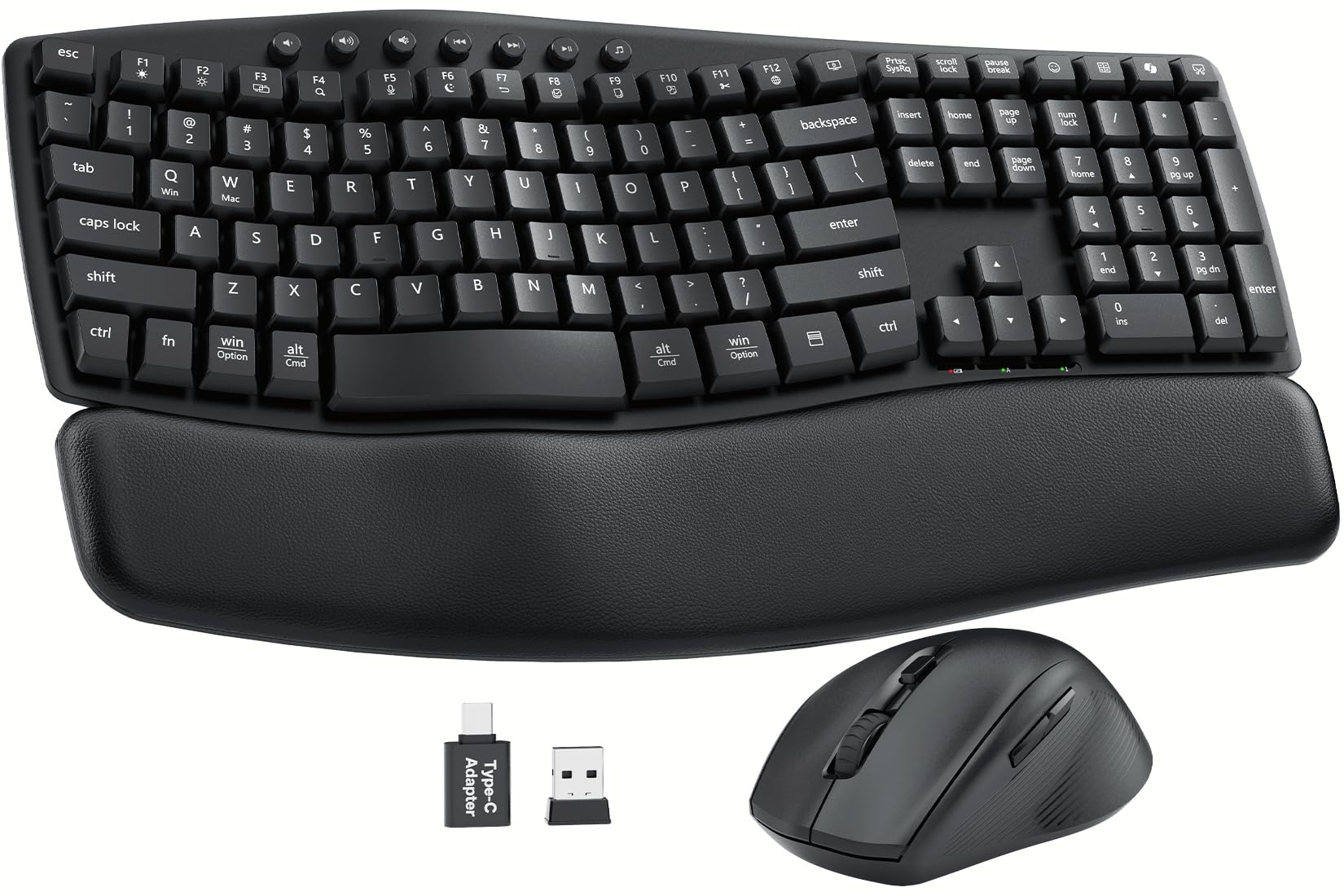
Image: The SABLUTE Ergonomic Wireless Keyboard and Mouse Combo, showcasing its wave-shaped keyboard and ergonomic mouse on a desk setup.
2. Setup Guide
Follow these steps to set up your SABLUTE Ergonomic Wireless Keyboard and Mouse Combo:
- Install Batteries: The keyboard requires 2 AAA batteries and the mouse requires 1 AA battery (batteries are not included). Open the battery compartments on the underside of both devices and insert the batteries, ensuring correct polarity.
- Locate USB Receiver: The 2.4G USB-A/C receiver is conveniently stored in the battery compartment of the mouse. Carefully remove it.
- Connect Receiver: Plug the USB receiver into an available USB-A port on your computer, laptop, or tablet. If your device only has USB-C ports, use the provided USB-A to USB-C adapter.
- Power On Devices: Locate the ON/OFF switches on the underside of both the keyboard and the mouse. Slide them to the "ON" position.
- System Recognition: Your computer should automatically detect and install the necessary drivers. The keyboard and mouse are plug-and-play, requiring no additional software installation.
- Adjust Keyboard Tilt: For optimal comfort, use the foldable stands on the underside of the keyboard to adjust the typing angle to 0°, 4°, or 8° as preferred.

Image: Illustration showing the adjustable tilt legs on the underside of the keyboard, allowing for 0°, 4°, or 8° typing angles.
Setup Video Overview
Video: An official product video from SABLUTE Inc. demonstrating the setup and features of the MA22 Plus Ergonomic Wireless Keyboard and Mouse.
3. Operating Instructions
Keyboard Usage
- Ergonomic Wave Design: The contoured wave shape of the keyboard is designed to align with your hands' natural posture, reducing wrist strain and promoting comfortable typing for extended periods.
- Soft Keys: The low-pressure soft keys absorb impact, minimizing finger fatigue.
- Quiet Typing: Enjoy an ultra-quiet typing experience (30dB), ideal for shared workspaces or late-night use.
- Multimedia Hotkeys: Utilize the dedicated multimedia keys located at the top of the keyboard for quick access to volume control, play/pause, and other functions.
- Dual-System Switch: Easily switch between Windows and Mac operating modes using the dedicated function keys (Fn + Q for Windows, Fn + W for Mac).
- Integrated Device Holder: The keyboard includes a versatile slot holder to securely accommodate your phone or tablet, keeping it visible and accessible during work.
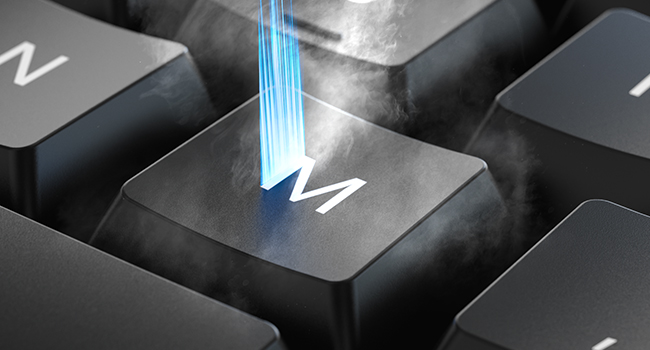
Image: Close-up of the keyboard showing the function keys for switching between Windows (Fn+Q) and Mac OS (Fn+W) modes.
Mouse Usage
- Ergonomic Design: The raised-left design of the mouse supports a natural hand posture, reducing wrist strain during prolonged use.
- Adjustable DPI: Cycle through three DPI levels (800 / 1200 / 1600) using the DPI button to adjust cursor sensitivity for different tasks.
- 11 One-Touch Shortcuts: The mouse features programmable shortcut buttons for faster and more efficient task execution. (Note: Some shortcuts may not be Mac-compatible; core functions work smoothly).
- Silent Click: The mouse buttons are designed for silent clicking, minimizing distractions.

Image: A close-up of the ergonomic mouse, highlighting its sculpted design for all-day comfort and thumb rest.
4. Maintenance
- Cleaning: Use a soft, dry cloth to wipe down the keyboard and mouse. For stubborn dirt, a slightly damp cloth with mild soap can be used, ensuring no liquid enters the device. The keyboard is spill-resistant, but not waterproof.
- Battery Replacement: Replace batteries when the low battery indicator light appears. For the keyboard, replace 2 AAA batteries. For the mouse, replace 1 AA battery. Always use fresh, high-quality batteries.
- Storage: When not in use for extended periods, turn off both devices using their ON/OFF switches to conserve battery life. Store the USB receiver in the mouse's battery compartment to prevent loss.
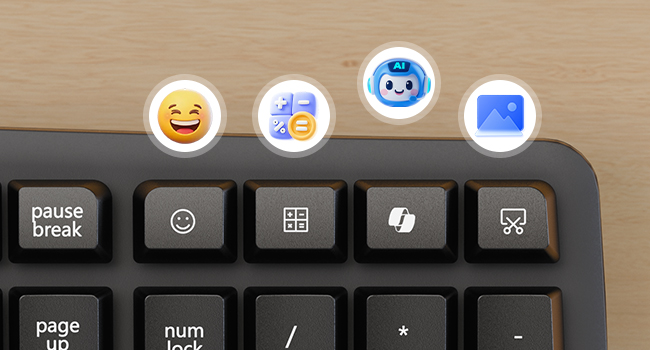
Image: Close-up of the keyboard surface showing water droplets, illustrating its spill-resistant design.
5. Troubleshooting
- No Connection:
- Ensure both the keyboard and mouse are powered ON.
- Check if the USB receiver is securely plugged into a working USB port on your device.
- Try plugging the USB receiver into a different USB port.
- Replace the batteries in both the keyboard and mouse.
- Restart your computer.
- Lag or Intermittent Connection:
- Ensure the devices are within the 33ft wireless range of the receiver.
- Minimize interference from other wireless devices (e.g., Wi-Fi routers, other wireless peripherals).
- Ensure there are no large metal objects between the devices and the receiver.
- Mouse Cursor Not Moving:
- Check mouse batteries.
- Ensure the mouse is on a clean, non-reflective surface.
- Try adjusting the DPI settings on the mouse.
- Keyboard Keys Not Responding:
- Check keyboard batteries.
- Ensure the keyboard is powered ON.
- Verify the correct system mode (Windows/Mac) is selected using Fn + Q/W.
6. Specifications
| Feature | Detail |
|---|---|
| Product Dimensions | 11 x 1.88 x 17 inches |
| Item Weight | 2.3 pounds |
| Connectivity Technology | 2.4G USB Wireless |
| Wireless Range | Up to 33 feet (10 meters) |
| Keyboard Battery | 2 AAA batteries (not included) |
| Mouse Battery | 1 AA battery (not included) |
| Keyboard Features | Ergonomic Wave Design, Soft Palm Rest, 30dB Ultra-Quiet Typing, 11 One-Touch Shortcut Keys, Dual-System Switch (Windows/Mac), Spill-Resistant, Integrated Device Holder |
| Mouse Features | Ergonomic Sculpted Design, 3 Adjustable DPI Levels (800/1200/1600), Silent Click, 11 One-Touch Shortcuts |
| Compatible Devices | PCs, Laptops, MacBooks, Tablets (Windows, macOS, Chrome OS, Linux, Android) |
7. Warranty and Support
Your SABLUTE Ergonomic Wireless Keyboard and Mouse Combo is backed by a 30-day return policy and a 1-year free replacement warranty. For any product inquiries, technical support, or warranty claims, please contact SABLUTE Inc. customer service.
Manufacturer: SABLUTE
Contact: Refer to the product packaging or official SABLUTE website for the most current support information.