Introduction
This manual provides comprehensive instructions for the installation, operation, and maintenance of your Inefala 4+128GB Android 15 Car Stereo. This unit is specifically designed for Peugeot 3008 models manufactured between 2009 and 2015, featuring a 9-inch In-Cell screen and advanced functionalities like wireless CarPlay, Android Auto, Mirror Link, GPS navigation, WiFi, Bluetooth 5.0, FM/RDS radio, equalizer, rear camera support, and steering wheel control integration. Please read this manual thoroughly before use to ensure proper functionality and safety.
Product Overview
The Inefala Car Stereo enhances your driving experience with its powerful Android 15 operating system, offering fast performance and a fluid interface. The 9-inch In-Cell screen provides a thinner, clearer, and more responsive display. Key features include:
- Android 15 System: Latest and most advanced operating system for vehicle devices.
- 4GB RAM + 128GB Storage: Powerful and stable performance with ample storage.
- 9-inch In-Cell Screen: Thinner, clearer, and more responsive display with integrated touch sensors.
- Wireless CarPlay & Android Auto: Seamless smartphone integration for navigation, music, calls, and messages.
- Mirror Link: Display your smartphone screen on the car stereo via WiFi (for iOS and Android).
- GPS Navigation: Supports online and offline maps, with real-time road conditions.
- WiFi Connectivity: High-speed internet access for app downloads, online shopping, and music streaming.
- Bluetooth 5.0: Wireless music streaming, hands-free calling, and file transfer.
- FM/RDS Radio: Supports 54 preset radio stations and online music transmission.
- 32-Band EQ DSP: Advanced sound tuning for an optimized audio experience.
- Rear Camera Support: Automatic display of the rear view when reversing (AHD camera included).
- Steering Wheel Controls (SWC): Integrate with existing vehicle controls for safe operation.
- Dual Screen & Picture-in-Picture: Run two applications simultaneously.
- UI Desktop Themes: Customizable interface with a large selection of wallpapers.
Setup and Installation
This section outlines the general steps for installing your Inefala Car Stereo. Professional installation is recommended. Ensure the vehicle's power is disconnected before beginning installation.
Package Contents
Verify that all components are present in the package:
- Peugeot 3008 Radio Unit
- Power Cable
- Canbus Box
- RCA Cable
- GPS Antenna
- Rear Camera Input Cable
- AHD Rear Camera
- External Microphone
- 2 USB Cables
- USB Adapter Cable
- Radio Antenna
- 2 Accessories
- Support Brackets
- Installation Tools

Image: Package List and Unit Dimensions. This image illustrates the various components included in the package and the dimensions of the 9-inch car stereo unit.
Wiring and Connections
Refer to the wiring diagrams for correct connections. Ensure all cables are securely connected to prevent signal interference.

Image: Port Details. This diagram labels the various ports on the back of the car stereo unit and provides a detailed view of the RCA cable connections.
Rear Camera Wiring
Important: The reversing input must be plugged in even if the reversing camera is not used. Otherwise, your WiFi and Bluetooth signals may be affected.
- Connect Cable 1 and Cable 5 to the positive pole of the car reversing light cable.
- Connect Cable 2 to the negative pole of the car reversing light cable.
- Connect Cable 3 and Cable 4 to the reverse trigger wire of the power cable. (No need to connect if this wire is not used. Pull it out and connect it if the last step doesn't work).

Image: Reversing Camera Wiring. This technical diagram shows the installation steps and wiring configuration for the backup camera system.
Steering Wheel Control (SWC) Setup
- Without CANBUS box: Activation of steering wheel controls requires key learning in settings.
- With CANBUS box:
- Connect the 20-pin white port in the power cable to the Canbus itself, and the remaining 8-pin white port to the corresponding port on the back of the radio.
- Match the car model. CANBUS Matching Path: Settings -> Factory Setup (Password 1234) -> Can Settings.

Image: Steering Wheel Control Setup. This image displays the steering wheel and the corresponding on-screen menu for customizing control functions.
Installation Effect
After installation, the product screen will be positioned higher than the center control frame, providing an elevated display effect.

Image: Installation Effect. This comparison shows the dashboard before and after the car stereo installation, highlighting the integrated look.
Operating Instructions
Wireless CarPlay and Android Auto
Connect your smartphone to the car stereo via WiFi or Bluetooth to use Wireless CarPlay or Android Auto. This allows you to access navigation, make calls, send messages, and listen to music directly from your phone's interface on the car's screen. Note: For Huawei and some Samsung phones, Google Services and the Android Auto app must be supported and installed on the phone.

Image: Wireless CarPlay and Android Auto. This image highlights the various functions available through wireless smartphone integration, such as music, navigation, and communication.
Mirror Link
Mirror Link allows you to display your smartphone's screen directly onto the car stereo's display. This feature supports both iOS and Android devices, enabling you to view apps and content from your phone on the larger car screen.

Image: Mirror Link. This image demonstrates how a smartphone's display can be wirelessly or wired mirrored onto the car stereo screen.
GPS Navigation and WiFi
The unit supports both online and offline GPS navigation. You can download navigation apps via WiFi and receive real-time road condition updates to avoid traffic. High-speed internet access through WiFi also allows for app downloads, online streaming, and browsing.

Image: GPS Navigation. The car stereo displays a detailed map with navigation routes and points of interest.
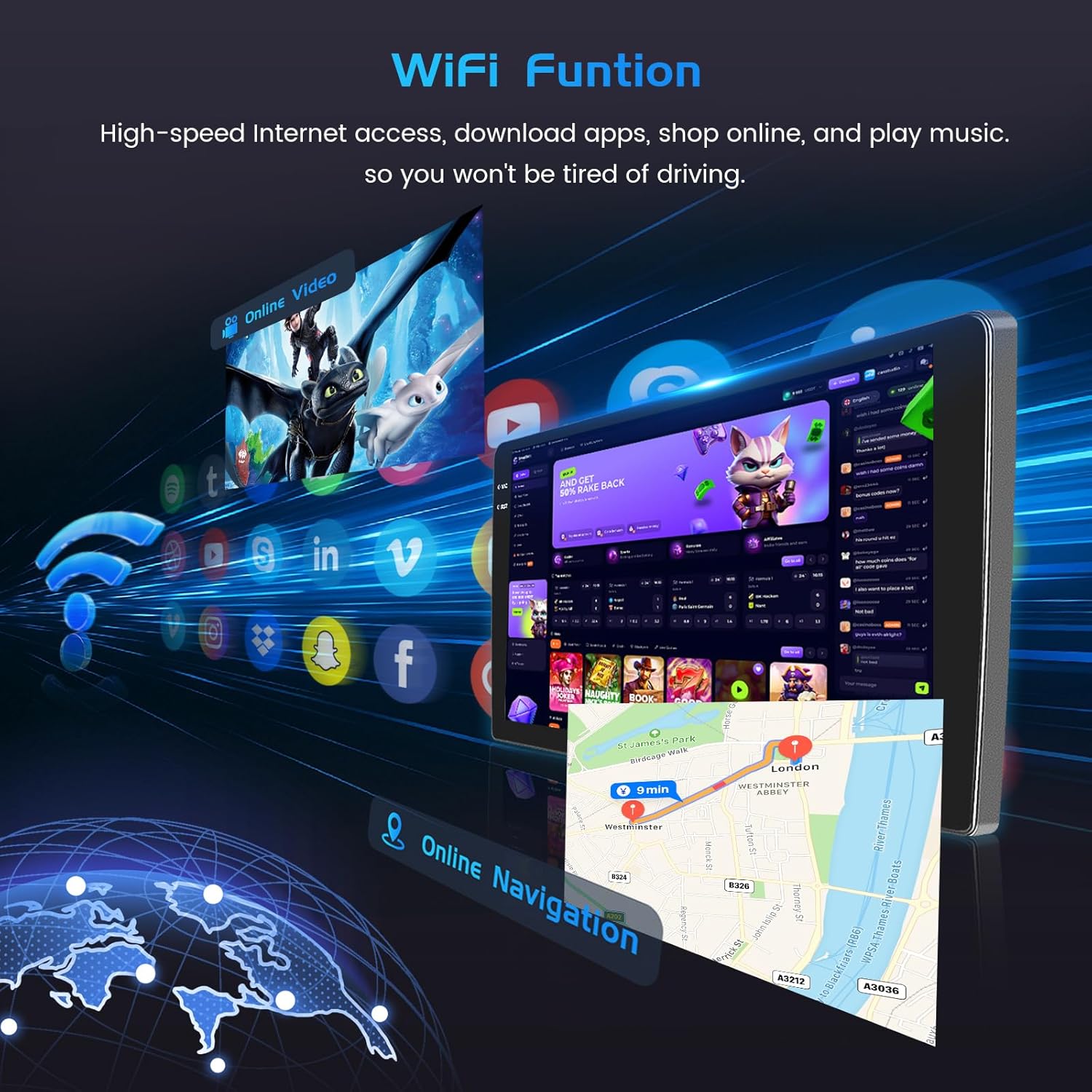
Image: WiFi Function. This image illustrates the car stereo's ability to connect to WiFi, enabling online navigation and access to various applications.
Bluetooth 5.0 and FM/RDS Radio
Pair your device via Bluetooth 5.0 for wireless music streaming, hands-free calls, and file transfers. The FM/RDS radio supports 54 preset stations and allows for online music transmission, ensuring a quality audio experience.

Image: FM/RDS Radio and Bluetooth. This image displays the radio tuning interface and a hands-free Bluetooth call screen on the car stereo.
Voice Control
The system supports voice control, enhancing driving intelligence and security. Use voice commands to operate various functions, keeping your hands on the wheel and eyes on the road.
Video: Product Features Exhibit. This video demonstrates various features of the car stereo, including UI themes, CarPlay/Android Auto music and navigation, video playback, hands-free calls, voice control, dual screen functionality, FM/RDS radio, weather forecast, network radio, Bluetooth calls, 32-band EQ, GPS navigation, and rear view camera display.
Dual Screen and UI Themes
Utilize the dual screen feature to run two applications simultaneously, such as navigation and music. Customize your interface with a wide selection of UI desktop themes and wallpapers to personalize your driving experience.

Image: In-Cell Touch Screen Features. This image highlights the high resolution of the In-Cell screen and its capabilities for split-screen multitasking and picture-in-picture viewing.

Image: UI Desktop Themes. This image showcases a selection of customizable desktop themes for the car stereo's user interface.
Maintenance
To ensure the longevity and optimal performance of your Inefala Car Stereo, follow these general maintenance guidelines:
- Cleaning: Use a soft, dry cloth to clean the screen and exterior. Avoid abrasive cleaners or solvents.
- Software Updates: Periodically check for software updates to ensure the system runs efficiently and has the latest features.
- Environmental Conditions: Avoid exposing the unit to extreme temperatures, direct sunlight for prolonged periods, or excessive moisture.
- Cable Connections: Regularly check all cable connections to ensure they are secure and free from damage.
Troubleshooting
If you encounter issues with your car stereo, refer to the following common troubleshooting steps:
- No Power: Check all power connections. Ensure the vehicle's ignition is on. Verify fuses.
- No Sound: Check speaker connections. Ensure volume is not muted or too low. Verify audio settings.
- Bluetooth Connection Issues: Ensure Bluetooth is enabled on both the stereo and your phone. Delete previous pairings and try reconnecting.
- GPS Signal Loss: Ensure the GPS antenna is properly installed and has a clear view of the sky.
- Steering Wheel Controls Not Working: Recheck CANBUS connections or perform key learning in settings if no CANBUS is used.
- Screen Unresponsive: Try restarting the unit. If the issue persists, a factory reset might be necessary (note: this will erase all user data).
- WiFi Issues: Ensure the WiFi antenna is connected. Check network settings and password.
For persistent issues, please contact customer support.
Specifications
| Feature | Detail |
|---|---|
| Manufacturer | Inefala |
| Model Number | Inefala-A7506A4294H6MI2IT53-C490 |
| ASIN | B0FJQKX22L |
| Dimensions (Package) | 41 x 26.8 x 14.9 cm |
| Item Weight | 2.45 kg |
| Screen Size | 9 Inches |
| Screen Type | In-Cell Screen |
| Operating System | Android 15 |
| Memory Capacity | 128 GB |
| Connectivity Technology | Bluetooth, USB, Wi-Fi |
| Special Features | In-Cell Screen, 4+128G, Carplay, Android Auto, Mirror Link, Radio FM/RDS, EQ, WIFI, Bluetooth, GPS, SWC |
| Vehicle Service Type | Automobile |
| Mounting Type | On Dashboard, On Panel |
Warranty and Support
Your Inefala Car Stereo comes with a standard manufacturer's warranty. For specific warranty terms and conditions, please refer to the documentation included with your purchase or contact Inefala customer support. For technical assistance, troubleshooting, or any product-related inquiries, please reach out to the seller or manufacturer directly. Keep your purchase receipt as proof of purchase for warranty claims.


