
1. Introduction
This manual provides detailed instructions for the installation, operation, and maintenance of your Roinvou 10-inch Incell Touchscreen Car Stereo. Designed specifically for Peugeot 208 and 2008 models manufactured between 2012 and 2018, this system integrates advanced features such as Wireless CarPlay, Android Auto, GPS navigation, Bluetooth connectivity, and a rear camera for an enhanced driving experience. Please read this manual thoroughly before installation and use to ensure proper function and safety.
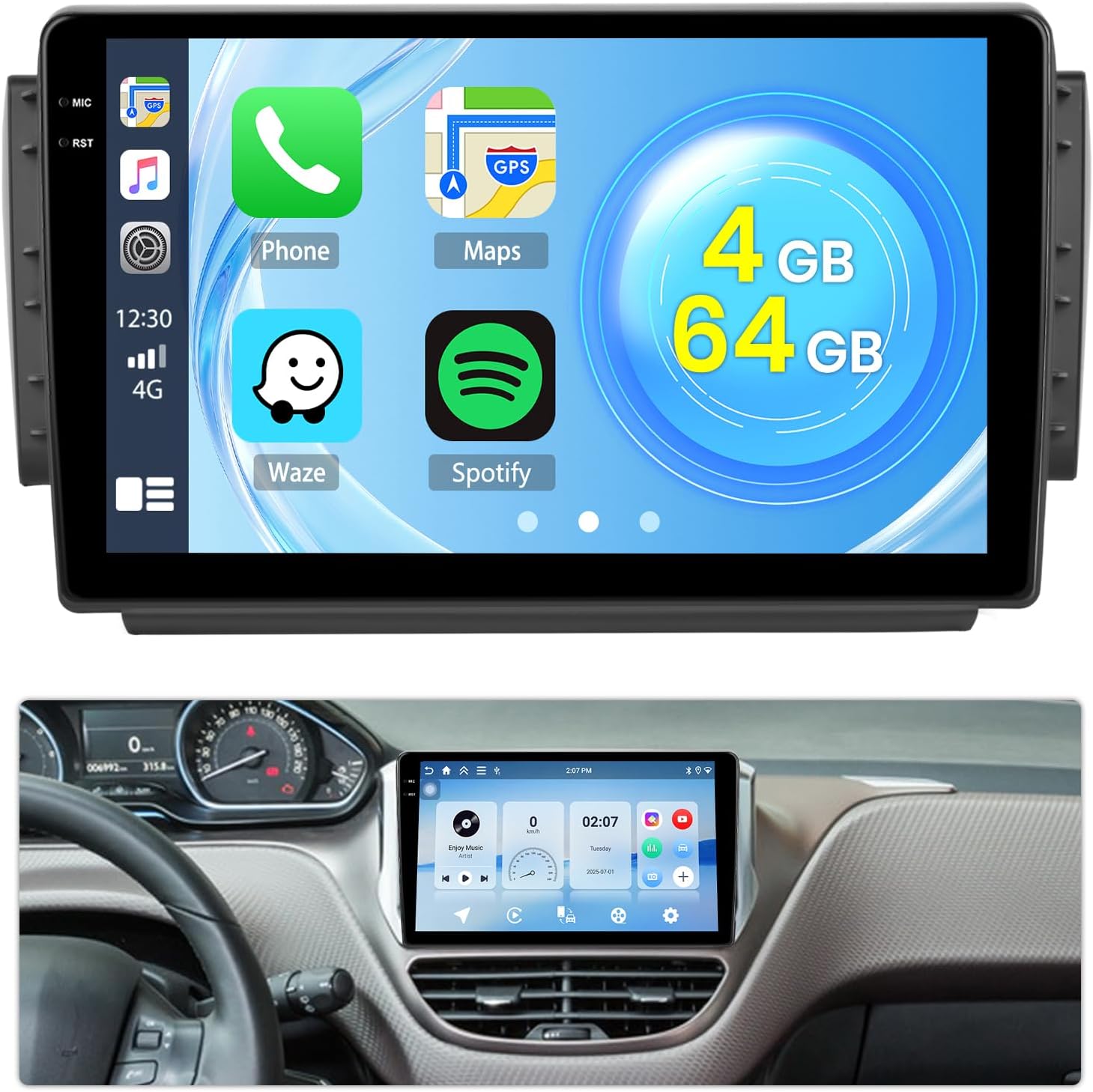
Image 1.1: Roinvou 10-inch Incell Touchscreen Car Stereo main unit.
2. Package Contents
Verify that all items listed below are included in your package. If any components are missing or damaged, please contact customer support.
- Roinvou Car Stereo for Peugeot 208/2008 (2012-2018)
- Dual Power Cable
- Dual Original USB Cable
- Radio Antenna
- Canbus Decoder
- RCA Cable
- Rear Camera Input Cable
- GPS Antenna
- Rear Camera
- External Microphone
- Accessories (mounting brackets, screws)
- User Manual (this document)
- Installation Tool

Image 2.1: Included components and main unit dimensions.
3. Setup and Installation
Proper installation is crucial for optimal performance. If you are unsure about any steps, it is recommended to seek professional assistance.
3.1 Pre-Installation Checks
- Ensure the vehicle's ignition is off and the battery is disconnected before starting installation.
- Confirm compatibility with your Peugeot 208/2008 model (2012-2018).
- Verify all package contents are present and undamaged.
3.2 Physical Installation
The Roinvou car stereo is designed for a perfect fit in your vehicle's dashboard. Use the provided installation tool and accessories to secure the unit.

Image 3.1: Before and after installation view in a Peugeot 208/2008 dashboard.
3.3 Wiring Connections
Carefully connect all cables according to the diagrams. Ensure secure connections to prevent malfunctions.

Image 3.2: Main wiring diagram for the car stereo.
3.3.1 Power and Main Connections
- Connect the dual power cable to the vehicle's power harness.
- Connect the radio antenna.
- Connect the GPS antenna and position it for optimal signal reception.
- Connect the dual USB cables for external device connectivity.
3.3.2 Rear Camera Wiring
The rear camera provides a wide-angle view for safer parking and reversing.
- Connect the rear camera input cable to the stereo.
- Connect the camera's power cable to the reversing lamp power source.
- Connect the camera's video output to the RCA input on the stereo.
- The third wire from the block in the power cord is the reverse trigger wire; connect it to the reversing lamp signal.

Image 3.3: Backup camera wiring diagram.
3.3.3 Canbus Decoder and Steering Wheel Control (SWC)
The Canbus decoder enables integration with your vehicle's existing systems, including steering wheel controls.
- With CANBUS Decoder: Connect the Canbus decoder before powering on the unit. Navigate to Apps > Settings > Factory Settings (password: 1234) > CAN Settings. Select the brand and model year of your Canbus decoder according to your vehicle's actual situation to ensure SWC functions correctly.
- Without CANBUS Decoder: Connect the plugs or steering wheel control wires (Key1/Key2) in the power cable to the corresponding port or wire of your original car. Then, go to the 'Steering Wheel Key' manual match setting to activate the button functions.

Image 3.4: Steering Wheel Control (SWC) and Canbus setup.
4. Operating Instructions
4.1 Power On/Off and Basic Interface
- The unit will power on automatically with the vehicle's ignition.
- The 10-inch Incell touchscreen offers a responsive and clear display (1280x720 resolution). Navigate the interface by tapping, swiping, and pinching.

Image 4.1: Incell Touchscreen features.
4.2 Wireless CarPlay and Android Auto
Connect your iPhone or Android smartphone wirelessly for seamless integration of navigation, calls, messages, and music.
- Ensure Bluetooth and Wi-Fi are enabled on your smartphone.
- On the car stereo, select the CarPlay or Android Auto application.
- Follow the on-screen prompts to pair your device.
- Wired and wireless Mirror Link functionality is also supported for screen mirroring.

Image 4.2: Wireless CarPlay, Android Auto, and Mirror Link features.
4.3 GPS Navigation
The system supports multiple global navigation satellite systems (GPS, BeiDou, Glonass, Galileo) for accurate positioning. Both online and offline navigation options are available.
- Access navigation applications from the main menu.
- Download offline maps for areas with limited internet connectivity.

Image 4.3: GPS Navigation features.
4.4 FM/RDS Radio and EQ Settings
Enjoy clear audio with the built-in FM/RDS radio. Customize your listening experience with the equalizer (EQ) settings.
- Access the FM/RDS radio application.
- Long press to save favorite stations.
- Switch between FM1/FM2 bands.
- Use the search function to find stations.
- Adjust audio output using the EQ settings for optimal sound quality.

Image 4.4: FM/RDS Radio and EQ settings interface.
4.5 Bluetooth Connectivity
Connect your smartphone via Bluetooth for hands-free calling and audio streaming.
- Enable Bluetooth on your device and the car stereo.
- Search for and pair with the car stereo's Bluetooth name.
- Once connected, you can make/receive calls and play music through the stereo speakers.

Image 4.5: Bluetooth interface for calls and music.
4.6 Wi-Fi and App Usage
Connect to Wi-Fi for internet access, allowing you to download and use various applications.
- Access Wi-Fi settings to connect to a hotspot or home network.
- The system supports popular apps like YouTube, Netflix, and social media platforms.

Image 4.6: Wi-Fi connectivity and supported applications.
4.7 Split Screen Technology and UI Options
The split-screen function allows you to run two applications simultaneously, such as navigation and music playback. The system also offers multiple customizable user interface (UI) options.
- Activate split-screen mode from the quick settings or by long-pressing an app icon.
- Explore different UI themes and layouts in the settings menu to personalize your experience.

Image 4.7: Split screen and customizable UI options.
5. Maintenance
To ensure the longevity and optimal performance of your Roinvou car stereo, follow these maintenance guidelines:
- Cleaning the Screen: Use a soft, lint-free cloth slightly dampened with water or a screen cleaner specifically designed for electronic displays. Avoid abrasive materials or harsh chemicals.
- General Cleaning: Wipe the unit's exterior with a soft, dry cloth. Do not use excessive moisture or spray cleaners directly onto the unit.
- Software Updates: Periodically check for available software updates through the system settings or the manufacturer's website to ensure you have the latest features and bug fixes.
- Avoid Extreme Temperatures: Do not expose the unit to extreme heat or cold, as this can affect its performance and lifespan.
- Protect from Liquids: Prevent any liquids from entering the unit, as this can cause severe damage.
6. Troubleshooting
If you encounter issues with your car stereo, refer to the following common problems and solutions. If the problem persists, contact customer support.
| Problem | Possible Cause | Solution |
|---|---|---|
| Unit does not power on. | Incorrect wiring, blown fuse, vehicle battery issue. | Check power cable connections. Inspect vehicle fuses. Ensure vehicle battery is charged. |
| No sound. | Speaker wiring issues, volume too low, incorrect audio source. | Verify speaker connections. Increase volume. Select correct audio source. Check EQ settings. |
| Touchscreen unresponsive. | System freeze, temporary software glitch. | Restart the unit (turn vehicle ignition off and on). If available, use the reset button (refer to product diagram for location). |
| CarPlay/Android Auto not connecting. | Bluetooth/Wi-Fi off, incorrect pairing, incompatible phone. | Ensure Bluetooth and Wi-Fi are active on both devices. Re-pair the devices. Check phone compatibility. |
| GPS signal weak or inaccurate. | GPS antenna placement, environmental interference. | Ensure GPS antenna has a clear view of the sky. Avoid placing near metal objects. |
| Rear camera not displaying. | Incorrect wiring, camera malfunction, reverse trigger issue. | Check rear camera power and video connections. Verify reverse trigger wire connection. |

Image 6.1: General guidance for problem resolution.
7. Specifications
| Feature | Detail |
|---|---|
| Brand | Roinvou |
| Model Number | Roinvou-A7617A4295H6MI2EU31D |
| Compatible Vehicles | Peugeot 208/2008 (2012-2018) |
| Operating System | Android 15 |
| Processor | Quad-core |
| RAM | 4 GB |
| Internal Storage | 64 GB |
| Screen Size | 10 Inches |
| Display Type | Incell Touchscreen, IPS |
| Resolution | 1280x720 |
| Connectivity | Bluetooth, USB, WIFI (5G), FM RDS |
| Special Features | Wireless CarPlay, Android Auto, Mirror Link, EQ, GPS, UI Customization, SWC, Rear Camera Support, Split Screen |
| Compatible Devices | Smartphone |
| Audio Output Modes | APE/FLAC/WAV/MP3/WMA |
| Audio Output Type | Bluetooth, RCA |
| Surround Sound Channel Configuration | 4 |
| Wattage | 45 watts |
| Output Power | 11 Watts |
| Video Encoding | MKV/RMVB/AVI/MP4/MDV |
| Media Format | AVI, WAV, WMA |
| Item Weight | 2.12 Kilograms |
| Package Dimensions | 29.5 x 20 x 12 cm |
| Batteries Included | No |
| Batteries Required | No |
| Software Updates Guaranteed Until | Unknown |
8. Warranty and Support
Roinvou is committed to providing high-quality products and customer satisfaction.
8.1 Product Warranty
This Roinvou car stereo comes with a One-Year Warranty from the date of purchase. This warranty covers manufacturing defects and malfunctions under normal use. It does not cover damage caused by misuse, accidents, unauthorized modifications, or improper installation.
8.2 Customer Support
For any questions, technical assistance, or warranty claims, please contact our customer service team:
- Email: roinvouservices@163.com
- Our customer service team aims to reply to all messages within 24 hours, including holidays.
- When contacting support, please provide your product model number (Roinvou-A7617A4295H6MI2EU31D) and a detailed description of the issue.


