
1. Introduction
The Ubiquiti UniFi U7 Pro XGS is a professional-grade wireless access point designed to enhance your network infrastructure. It seamlessly integrates into the UniFi ecosystem, offering comprehensive network control and management. This device provides stable and efficient data transmission, making it suitable for demanding home and business environments.
Key Features:
- Network Integration: Seamlessly integrates with the UniFi ecosystem for comprehensive network control and system management capabilities.
- Ethernet Connectivity: Features reliable Ethernet connections for stable, high-performance data transmission between network devices.
- Professional Monitoring: Advanced monitoring capabilities enable enterprise-grade network surveillance and data management.
- Control Interface: Intuitive UniFi control panel provides real-time performance tracking and complete network oversight.
- Compact Design: Measures 6.0 x 4.0 x 2.0 inches with lightweight 4-ounce construction, ensuring straightforward installation.
2. Setup and Installation
The UniFi U7 Pro XGS is designed for simple installation with minimal clutter, utilizing Power over Ethernet (PoE+) for power and data.
What's in the Box:
- Ubiquiti UniFi U7 Pro XGS Access Point
- Mounting Plate (for wall or ceiling installation)
- Mounting Hardware (screws, anchors)
- Quick Start Guide
- Replacement Battery Module
Installation Steps:
- Plan Placement: Choose an optimal location for your access point, considering coverage area and proximity to network infrastructure. The device can be wall-mounted or ceiling-mounted.
- Mounting: Use the provided mounting plate and hardware to securely attach the access point to your chosen surface. Ensure the mounting is stable to prevent accidental dislodgement.
- Connect Ethernet: Connect an Ethernet cable from your PoE+ enabled switch or PoE injector to the Ethernet port on the UniFi U7 Pro XGS. This single cable provides both power and data connectivity.
- Power On: Once connected, the access point will power on. The LED indicator will show its status (typically blue for ready).
- Configuration: Use the UniFi Network Application (available via mobile app or web interface) to discover and adopt the new access point into your UniFi network. Follow the on-screen prompts for initial setup and network configuration.
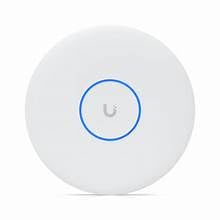
Figure 1: Ubiquiti UniFi U7 Pro XGS Wireless Access Point with blue LED indicator.
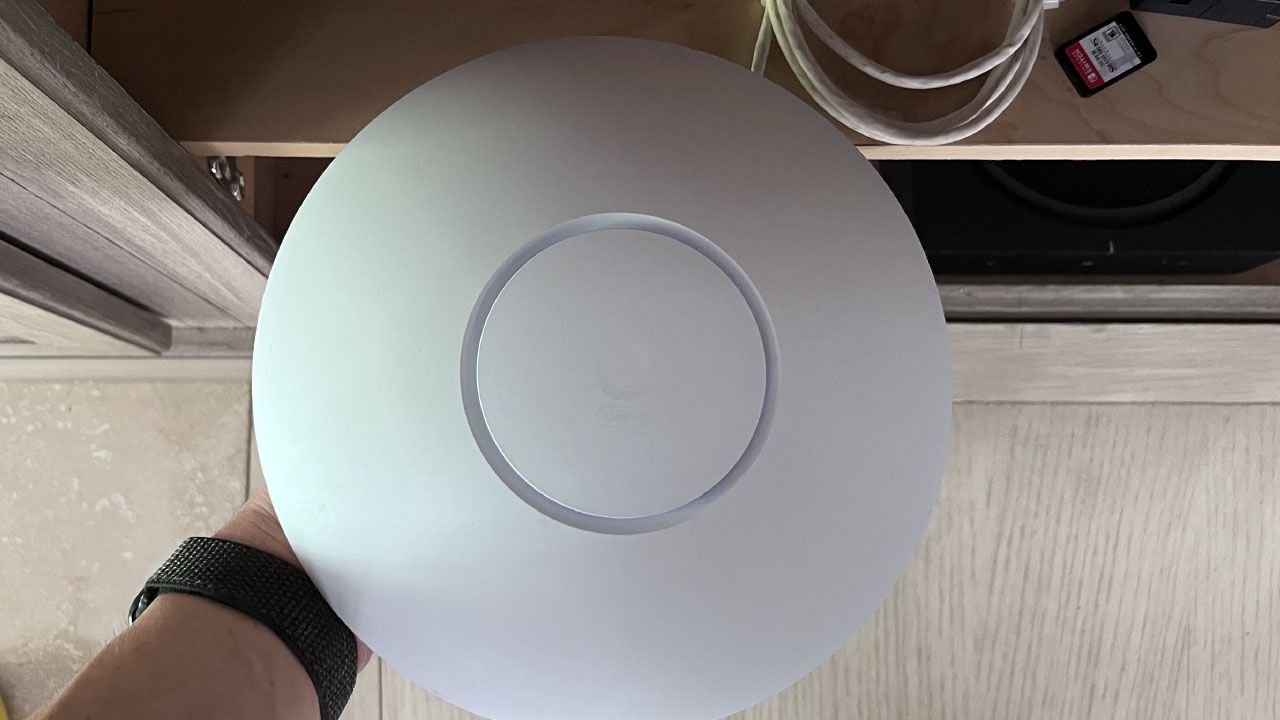
Figure 2: Unboxing the Ubiquiti UniFi U7 Pro XGS, showing the access point and its mounting plate.
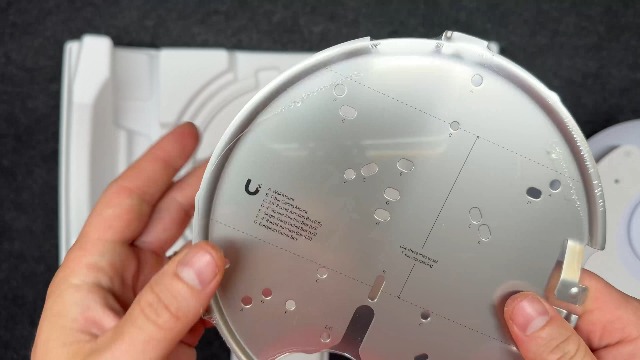
Figure 3: Ubiquiti UniFi U7 Pro XGS access point components, including the device, mounting plate, and hardware.
3. Operating Instructions
The UniFi U7 Pro XGS is managed through the UniFi Network Application, providing a centralized interface for network control.
Using the UniFi Network Application:
- Dashboard Overview: Access real-time network performance, connected clients, and device status from a single dashboard.
- Network Configuration: Configure Wi-Fi networks (SSIDs), security settings (WPA2-Enterprise, WPA3), guest networks, and VLANs.
- Device Management: Monitor individual access points, update firmware, restart devices, and troubleshoot connectivity issues.
- Traffic Monitoring: View detailed traffic statistics and identify bandwidth usage patterns across your network.
The intuitive control panel allows for easy adjustments and deployment of new access points with just a few taps, ensuring optimal system operation and enhanced management capabilities.
4. Maintenance
To ensure optimal performance and longevity of your UniFi U7 Pro XGS access point, regular maintenance is recommended.
- Firmware Updates: Regularly check for and apply firmware updates through the UniFi Network Application. Updates often include performance improvements, security patches, and new features.
- Physical Cleaning: Keep the device free from dust and debris. Use a soft, dry cloth for cleaning. Avoid liquid cleaners directly on the device.
- Network Monitoring: Periodically review network performance and device health within the UniFi Network Application to identify and address any potential issues proactively.
- Replacement Battery Module: The system includes a replacement battery module. Refer to the specific instructions provided with the module for replacement procedures if necessary.
5. Troubleshooting
If you encounter issues with your UniFi U7 Pro XGS, consider the following troubleshooting steps:
- No Power/LED Off:
- Ensure the Ethernet cable is securely connected to both the access point and the PoE+ switch/injector.
- Verify that the PoE+ switch/injector is powered on and functioning correctly.
- Check the Ethernet cable for damage.
- No Network Connectivity:
- Confirm the access point is adopted and configured in the UniFi Network Application.
- Check the network settings (SSID, password, VLANs) for correctness.
- Restart the access point via the UniFi Network Application or by power cycling.
- Ensure there are no IP address conflicts on your network.
- Slow Performance:
- Check for firmware updates and apply if available.
- Monitor client activity in the UniFi Network Application to identify high-bandwidth users or devices.
- Ensure optimal placement of the access point, avoiding obstructions and sources of interference.
- Verify your internet service provider (ISP) connection speed.
- Device Not Adopting:
- Ensure the UniFi Network Application is running and accessible.
- Verify that the access point is on the same network segment as the UniFi Network Application or that appropriate firewall rules are in place.
- Try resetting the access point to factory defaults using the reset button (refer to the Quick Start Guide for location).
6. Specifications
| Feature | Detail |
|---|---|
| Model Name | U7-PRO-XGS |
| Brand | Ubiquiti |
| Manufacturer | Ubiquiti |
| Package Dimensions | 6 x 4 x 2 inches |
| Item Weight | 4 ounces |
| Connectivity Technology | Ethernet, Wi-Fi |
| Wireless Communication Standard | 802.11a, 802.11ac, 802.11ax, 802.11b, 802.11g, 802.11n |
| Frequency Band Class | Single-Band |
| Operating System | UniFi OS |
| Security Protocol | WPA2-Enterprise, WPA3 |
| Recommended Uses For Product | Business |
| Special Feature | UniFi Ecosystem Integration, Professional Monitoring, Intuitive Control Panel |
7. Warranty and Support
The Ubiquiti UniFi U7 Pro XGS comes with a one-year manufacturer warranty. For technical support, warranty claims, or additional product information, please refer to the official Ubiquiti support channels or visit their website.
Note: Always refer to the latest documentation and support resources provided by Ubiquiti for the most up-to-date information.


