
OPPO Reno13 Pro 5G
OPPO Reno13 Pro 5G User Manual
Model: Reno13 Pro 5G (Graphite Grey)
1. Introduction
This manual provides essential information for the safe and efficient use of your OPPO Reno13 Pro 5G smartphone. Please read this guide thoroughly before operating your device to ensure optimal performance and longevity. The OPPO Reno13 Pro 5G features a 12 GB RAM, 256 GB ROM, a 17.35 cm (6.83 inch) display, a powerful 5800 mAh battery, and is powered by the Dimensity 8350 Processor.
2. What's in the Box
Upon unboxing your OPPO Reno13 Pro 5G, please verify that all the following items are included:
- Handset (OPPO Reno13 Pro 5G)
- Charger
- USB Data Cable
- SIM Ejector Tool
- Quick Guide
- Protective Case
3. Device Layout
Familiarize yourself with the physical components of your OPPO Reno13 Pro 5G.
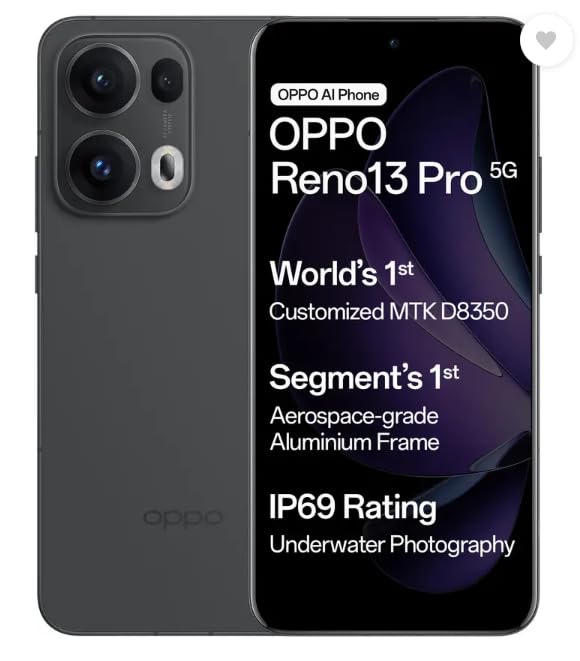
Image: OPPO Reno13 Pro 5G, displaying both the front screen and the rear camera setup.
3.1 Front View
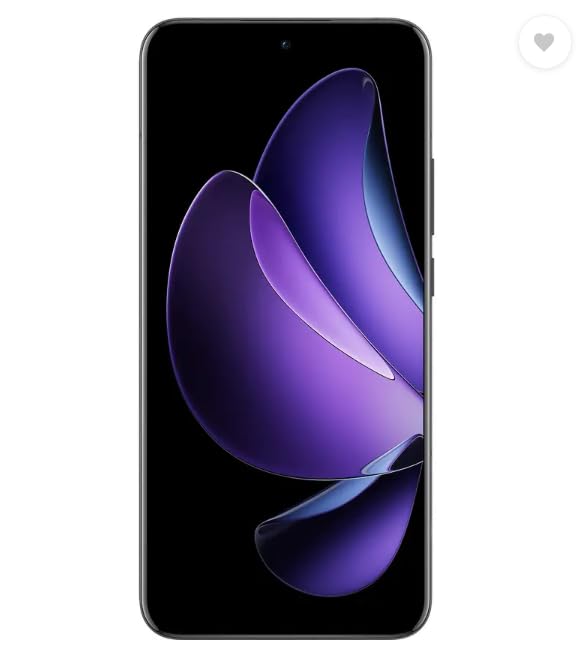
Image: The front of the OPPO Reno13 Pro 5G, highlighting the display and front camera.
- Display: 17.35 cm (6.83 inch) screen.
- Front Camera: 50MP for high-quality selfies and video calls.
- Earpiece: Located at the top edge of the display.
3.2 Rear View
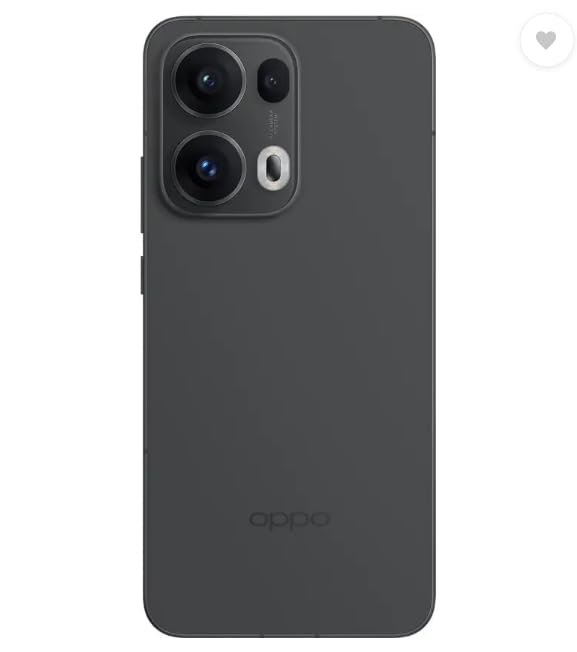
Image: The rear of the OPPO Reno13 Pro 5G, showcasing the camera module and OPPO branding.
- Rear Camera Module: Features 50MP + 50MP + 8MP cameras, including a 3.5x Telephoto lens.
- Flash: For improved low-light photography.
- OPPO Logo: Located at the bottom center of the back panel.
3.3 Side View and Ports
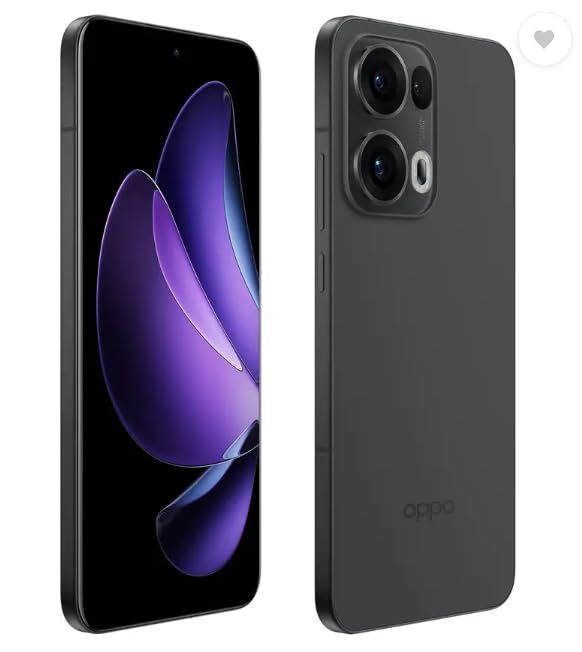
Image: Side profile of the OPPO Reno13 Pro 5G, illustrating its slim design and button placement.
- Power Button: Typically on the right side.
- Volume Buttons: Usually on the left or right side.
- USB Type-C Port: For charging and data transfer, located at the bottom.
- SIM Card Tray: For inserting SIM and/or memory cards.
4. Setup
4.1 Inserting SIM Card
- Locate the SIM card tray on the side of your device.
- Insert the SIM ejector tool into the small hole next to the tray and press gently until the tray pops out.
- Place your Nano-SIM card(s) into the designated slots on the tray, ensuring the gold contacts face downwards.
- Carefully push the tray back into the device until it clicks into place.
4.2 Initial Power On
- Press and hold the Power button until the OPPO logo appears on the screen.
- Follow the on-screen instructions to complete the initial setup, including language selection, Wi-Fi connection, Google account setup, and security settings.
4.3 Charging the Device
Connect the USB Type-C cable to the phone's charging port and the other end to the provided charger. Plug the charger into a power outlet. The battery icon on the screen will indicate charging status. For optimal battery life, use only OPPO-approved chargers and cables.
5. Operating Your Device
5.1 Basic Navigation
- Tap: Touch an icon or option to select it.
- Swipe: Drag your finger across the screen to scroll or navigate between screens.
- Pinch: Use two fingers to zoom in or out on images and web pages.
- Long Press: Press and hold an item for more options.
5.2 Calls and Messaging
To make a call, open the Phone app, enter the number, and tap the call icon. To send a message, open the Messages app, tap the new message icon, enter the recipient and your message, then tap send.
5.3 Connectivity (Wi-Fi & Bluetooth)
Access Wi-Fi and Bluetooth settings from the Quick Settings panel (swipe down from the top of the screen) or through the main Settings app. Enable Wi-Fi to connect to wireless networks and Bluetooth to pair with compatible devices like headphones or speakers.
5.4 Camera Features
The OPPO Reno13 Pro 5G is equipped with advanced camera technology for exceptional photography.
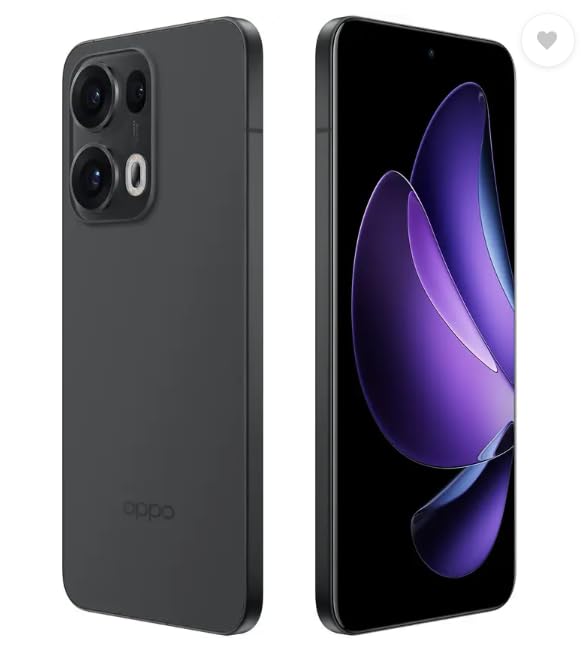
Image: Detailed view of the 50MP 3.5x Telephoto Camera's optical system, illustrating its zoom capabilities.
- 50MP 3.5x Telephoto Camera: Achieve clear images with 3.5x optical zoom, extending up to 30x digital zoom.
- AI Reflection Remover: This feature intelligently removes unwanted reflections from your photos, ensuring a clear and perfect shot.
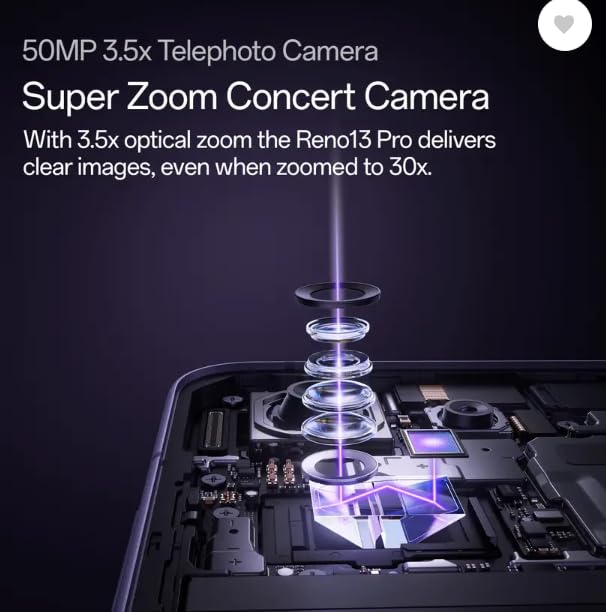
Image: A comparison showing a photo with reflections (OFF) and the same photo with reflections removed (ON) using the AI Reflection Remover feature.
5.5 Advanced Network Technologies
- BeaconLink Technology: Ensures seamless communication even in areas without traditional network coverage, providing connectivity in remote locations. This technology is TUV Rheinland-certified for reliable high-performance networks.
- OPPO SignalBoost Chip X1: This dedicated chip enhances Wi-Fi transmission power by 25%, delivering full signal coverage across larger areas and improving fluency in video streaming.

Image: A visual representation of the OPPO SignalBoost Chip X1, highlighting its role in enhancing signal strength.
5.6 Battery Management
The device features a 5800 mAh battery. To optimize battery life, reduce screen brightness, disable unused features like Wi-Fi or Bluetooth when not needed, and close background applications. Regularly check battery usage in settings to identify power-consuming apps.
6. Maintenance
6.1 Cleaning Your Device
Use a soft, lint-free cloth to clean the screen and body of your phone. Avoid using harsh chemicals or abrasive materials, which can damage the device's finish. For stubborn smudges, slightly dampen the cloth with water or a screen cleaner specifically designed for electronics.
6.2 Software Updates
Regularly check for and install software updates to ensure your device has the latest features, security patches, and performance improvements. Navigate to Settings > About device > Software update to check for available updates.
6.3 Data Backup
It is recommended to regularly back up your important data (photos, contacts, documents) to a cloud service (e.g., Google Drive) or a computer to prevent data loss in case of device malfunction or damage.
7. Troubleshooting
This section addresses common issues you might encounter with your OPPO Reno13 Pro 5G.
- Device not turning on: Ensure the battery is charged. Connect the charger and wait a few minutes before attempting to power on again. If the issue persists, perform a forced restart by holding the Power button for about 10-15 seconds.
- Poor network signal: Check if your SIM card is properly inserted. Move to an area with better network coverage. If using BeaconLink, ensure you are within range of a compatible device or network.
- Apps crashing or freezing: Close the problematic app and reopen it. Clear the app's cache (Settings > Apps > [App Name] > Storage > Clear cache). If the issue continues, consider reinstalling the app.
- Battery draining quickly: Review battery usage in Settings to identify power-hungry apps. Reduce screen brightness, disable background app refresh for non-essential apps, and turn off GPS, Wi-Fi, or Bluetooth when not in use.
7.1 Factory Reset
Warning: A factory reset will erase all data on your phone, including apps, photos, and settings. Back up your data before proceeding.
To perform a factory reset, go to Settings > System settings > Back up and reset > Reset phone > Erase all data. You will need to confirm your decision and enter your screen lock password.
8. Specifications
Key technical specifications for the OPPO Reno13 Pro 5G:
| Feature | Specification |
|---|---|
| Operating System | Android 15 |
| RAM Memory Installed Size | 12 GB |
| Memory Storage Capacity | 256 GB |
| Screen Size | 17.35 Centimetres (6.83 inch) |
| Battery Power Rating | 5800 mAh |
| Rear Camera | 50MP + 50MP + 8MP |
| Front Camera | 50MP |
| Processor | Dimensity 8350 Processor |
| Connectivity Technologies | USB, Wireless |
| Audio Jack | USB Type C |
| Colour | Graphite Grey |
| Item Weight | 230 g |
| Product Dimensions | 15 x 10 x 6 cm |
9. Warranty and Support
9.1 Warranty Information
Your OPPO Reno13 Pro 5G comes with a 1 Year Warranty from the date of purchase. This warranty covers manufacturing defects under normal use. Please retain your proof of purchase for warranty claims. For detailed terms and conditions, refer to the warranty card included in your product packaging.
9.2 Manufacturer and Support
The OPPO Reno13 Pro 5G is manufactured by OPPO Mobiles India Private Limited.
For technical support, service, or further inquiries, please visit the official OPPO support website or contact their customer service. You can also visit the OPPO Brand Store on Amazon for more information.
Related documentsReno13 Pro 5G


Ask a question about this manual
Ask about setup, troubleshooting, compatibility, parts, safety, or missing instructions. Manuals+ will review the question and use this page’s manual context to help answer it.