
1. Introduction
The Enabot EBO Air 2 Plus is an advanced 3K home camera robot designed to provide remote home monitoring, two-way communication, and interactive companionship. This manual provides essential information for setting up, operating, and maintaining your EBO Air 2 Plus to ensure optimal performance and user experience.
2. Safety Information
- Read all instructions: Before operating the EBO Air 2 Plus, carefully read and understand all safety and operating instructions.
- Indoor use only: This device is designed for indoor use. Do not expose it to rain, moisture, or extreme temperatures.
- Avoid water: Keep the EBO Air 2 Plus away from water or other liquids.
- Power supply: Use only the provided power adapter and charging dock.
- Children and pets: Supervise children and pets when they interact with the robot to prevent damage or injury.
- Obstacles: Ensure the robot operates in an environment free of small objects that could obstruct its movement or damage its wheels.
- Maintenance: Refer to the maintenance section for cleaning and care instructions. Do not attempt to disassemble or repair the device yourself.
3. Package Contents
Verify that all items are present in your package:
- EBO Air 2 Plus Robot
- Charging Dock
- Power Adapter
- User Manual (this document)
4. Product Overview
The EBO Air 2 Plus features a compact design with advanced functionalities for home interaction and monitoring.

Image: Overview of EBO Air 2 Plus features, including its 3K camera, two-way video communication, AI chat mode, long battery life, and customizable eye displays. The image also shows the robot's ability to cover multiple rooms.
Key Components:
- 3K Camera: High-resolution camera for clear video monitoring.
- Microphone & Speaker: For two-way audio communication.
- Tracked Wheels: Enable smooth navigation across various indoor surfaces.
- Charging Contacts: Located on the bottom for automatic docking.
- Top Button: Multi-functional button for initiating video calls or AI chat.
- Eye Screens: Customizable displays for expressions and personalization.
5. Setup
5.1 Charging the EBO
Before first use, fully charge your EBO Air 2 Plus. Place the charging dock in an open area with access to a power outlet. Ensure the EBO's charging contacts align with the dock's pins.

Image: The EBO Air 2 Plus robot automatically returns to its charging dock when its 5000mAh battery is low, demonstrating its self-charging capability.
5.2 Downloading the App
Download the official Enabot EBO app from your smartphone's app store (iOS App Store or Google Play Store). Search for "Enabot EBO".
5.3 Connecting to Wi-Fi and Initial Pairing
- Ensure your smartphone is connected to a 2.4GHz Wi-Fi network.
- Open the Enabot EBO app and create an account or log in.
- Follow the on-screen instructions in the app to add your EBO device. This typically involves scanning a QR code displayed by the EBO or manually entering its ID.
- The app will guide you through connecting the EBO to your home Wi-Fi network.
- Once connected, the EBO will be paired with your account and ready for use.
6. Operating Your EBO
6.1 Remote Control and Navigation
Use the Enabot EBO app to remotely control your robot. The app provides a virtual joystick or directional controls to move the EBO around your home.
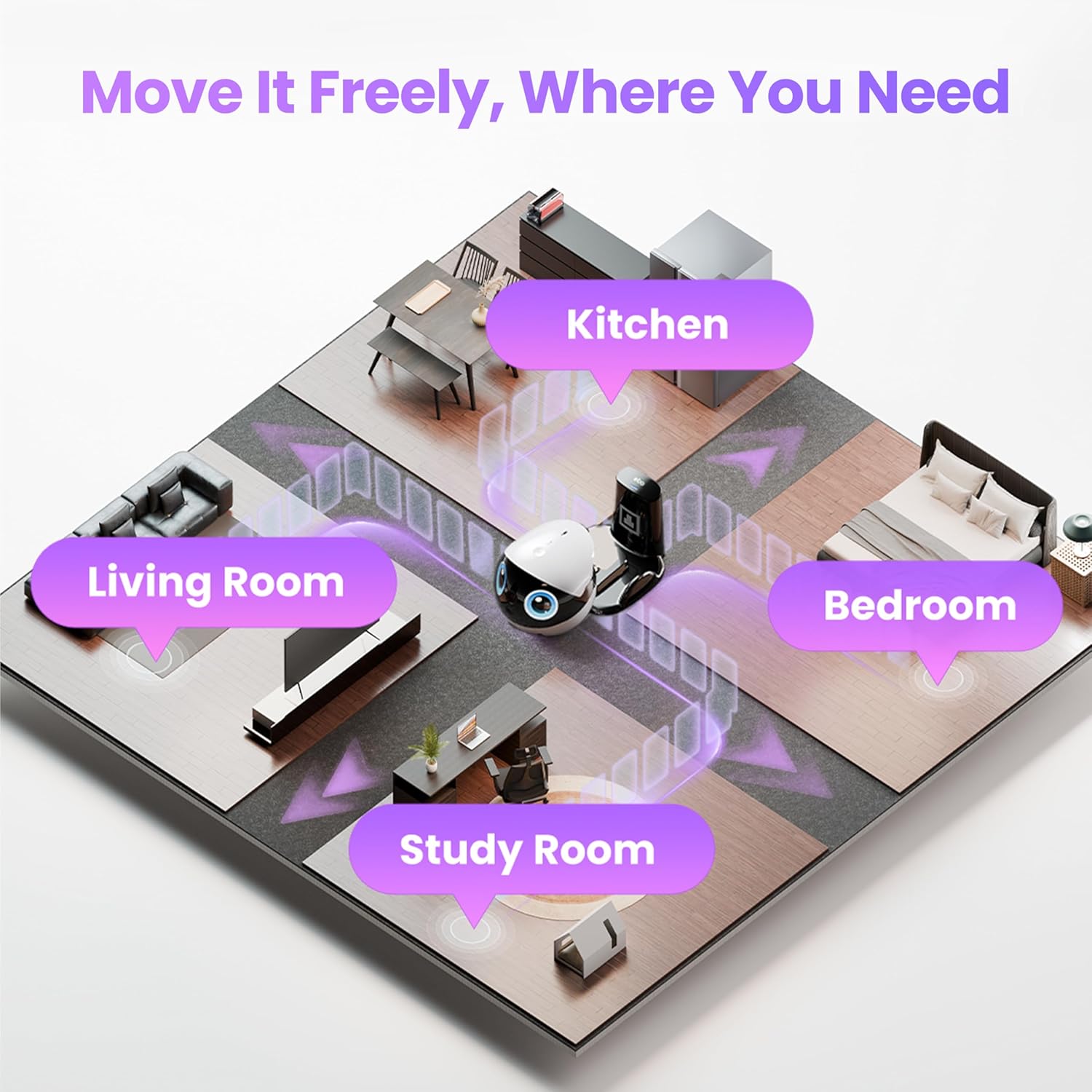
Image: The EBO Air 2 Plus robot demonstrates its mobility, navigating seamlessly between different rooms such as the living room, kitchen, bedroom, and study room.
6.2 3K Camera and Monitoring
The integrated 3K camera provides high-definition video streaming directly to your smartphone. You can view live footage, capture photos, and record videos through the app.

Image: A split view demonstrating the EBO Air 2 Plus's 3K camera capabilities, showing a cat clearly visible in both night vision (monochrome) and daytime (color) modes.
6.3 Two-Way Video Communication
Engage in real-time video calls with family members or pets through your EBO. Long-press the top button on the EBO to initiate a live video call, allowing you to see and speak to those at home.

Image: A woman interacts with the EBO Air 2 Plus, which shows a man's face on its display, symbolizing the two-way video communication feature that allows users to connect with family remotely.
6.4 AI Chat Mode
The EBO Air 2 Plus features a built-in AI chat mode. Tap the top button on the robot to activate it. This allows for interactive conversations, answering questions, and storytelling, powered by advanced AI models.
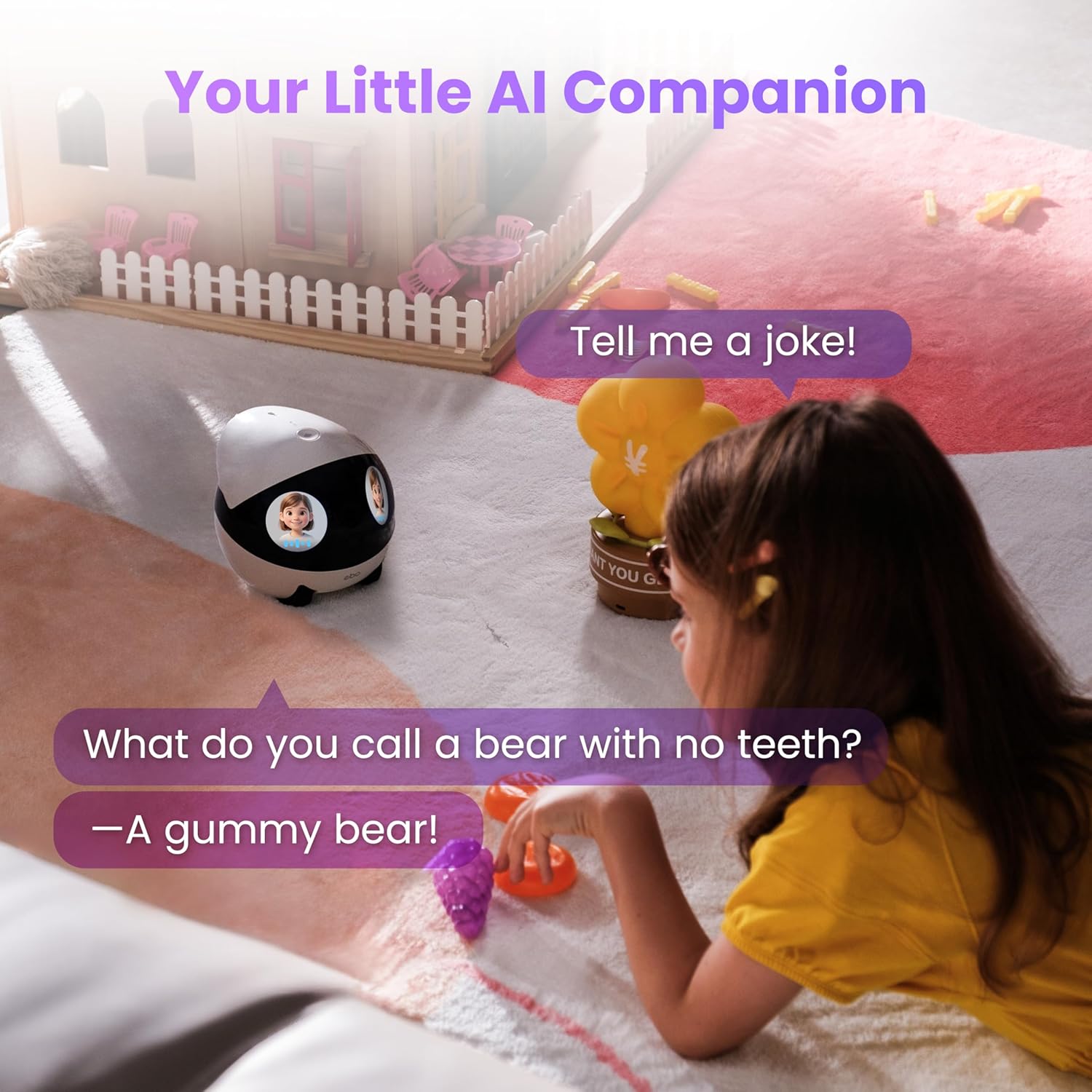
Image: A child engages with the EBO Air 2 Plus, which displays an AI chat interaction, asking a question and providing an answer, highlighting its role as an interactive companion.
6.5 Customizing EBO's Appearance
Personalize your EBO by uploading photos to its eye screens or choosing from various pre-set eye styles available in the app. This allows you to give your EBO a unique look.
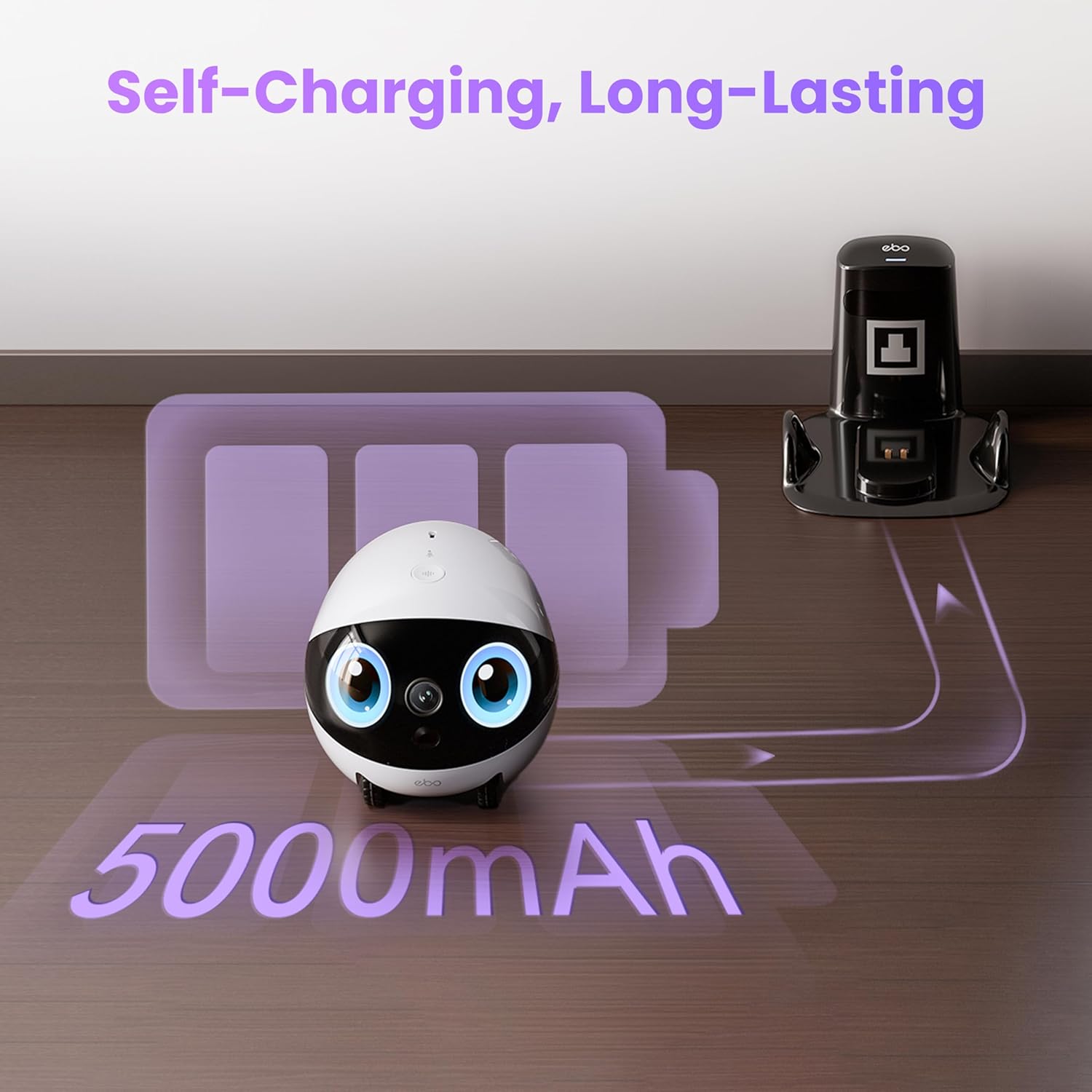
Image: A smartphone interface displaying customization options for the EBO Air 2 Plus's eye screens, allowing users to select from different styles or upload custom images.
6.6 Automatic Recharging
The EBO Air 2 Plus is equipped with infrared scanning to automatically detect its charging dock. When the battery level is low, the robot will autonomously return to its dock to recharge.
7. Maintenance
7.1 Cleaning
- Exterior: Use a soft, dry cloth to wipe the exterior of the EBO. Do not use liquid cleaners or sprays.
- Wheels: Periodically check the tracked wheels for any accumulated dust, hair, or debris. Gently remove any obstructions to ensure smooth movement.
- Camera Lens: Use a microfiber cloth specifically designed for lenses to clean the camera lens if smudged.
7.2 Software Updates
Ensure your EBO's firmware is always up to date. The Enabot EBO app will notify you of available updates. Follow the in-app instructions to download and install updates, which often include performance improvements and new features.
8. Troubleshooting
If you encounter issues with your EBO Air 2 Plus, refer to the following common problems and solutions:
| Problem | Possible Cause | Solution |
|---|---|---|
| EBO cannot connect to Wi-Fi | Incorrect Wi-Fi password, 5GHz network, weak signal | Verify password, ensure 2.4GHz network, move EBO closer to router. |
| EBO is not charging | Improper dock placement, dirty charging contacts, power adapter issue | Ensure EBO is correctly docked, clean contacts, check power connection. |
| Video feed is blurry or choppy | Weak Wi-Fi signal, dirty camera lens, network congestion | Improve Wi-Fi signal, clean camera lens, reduce other network usage. |
| EBO is unresponsive | Low battery, software glitch | Place EBO on charging dock. If fully charged, try restarting the EBO via the app or by holding the top button. |
For further assistance, please refer to the support section or contact customer service.
9. Specifications
| Feature | Detail |
|---|---|
| Model | EBO Air 2 Plus |
| Camera Resolution | 3K |
| Battery Capacity | 5000mAh |
| Connectivity | Wi-Fi (2.4GHz) |
| AI Features | AI Chat (ChatGPT & DeepSeek integration) |
| Navigation | Tracked wheels, Automatic docking |
| Two-Way Audio | Yes |
| Customization | Customizable eye screens |
10. Warranty and Support
The Enabot EBO Air 2 Plus comes with a standard manufacturer's warranty. Please refer to the warranty card included in your package or visit the official Enabot website for detailed warranty terms and conditions.
For technical support, troubleshooting assistance, or any product-related inquiries, please contact Enabot customer service through the official app or website. Keep your purchase receipt and product serial number handy when contacting support.