Introduction
Thank you for choosing the Wielio Smart Projector. This projector combines high-resolution image quality with smart features, providing an immersive home cinema experience. This manual provides essential information for setting up, operating, maintaining, and troubleshooting your device. Please read it thoroughly before use.
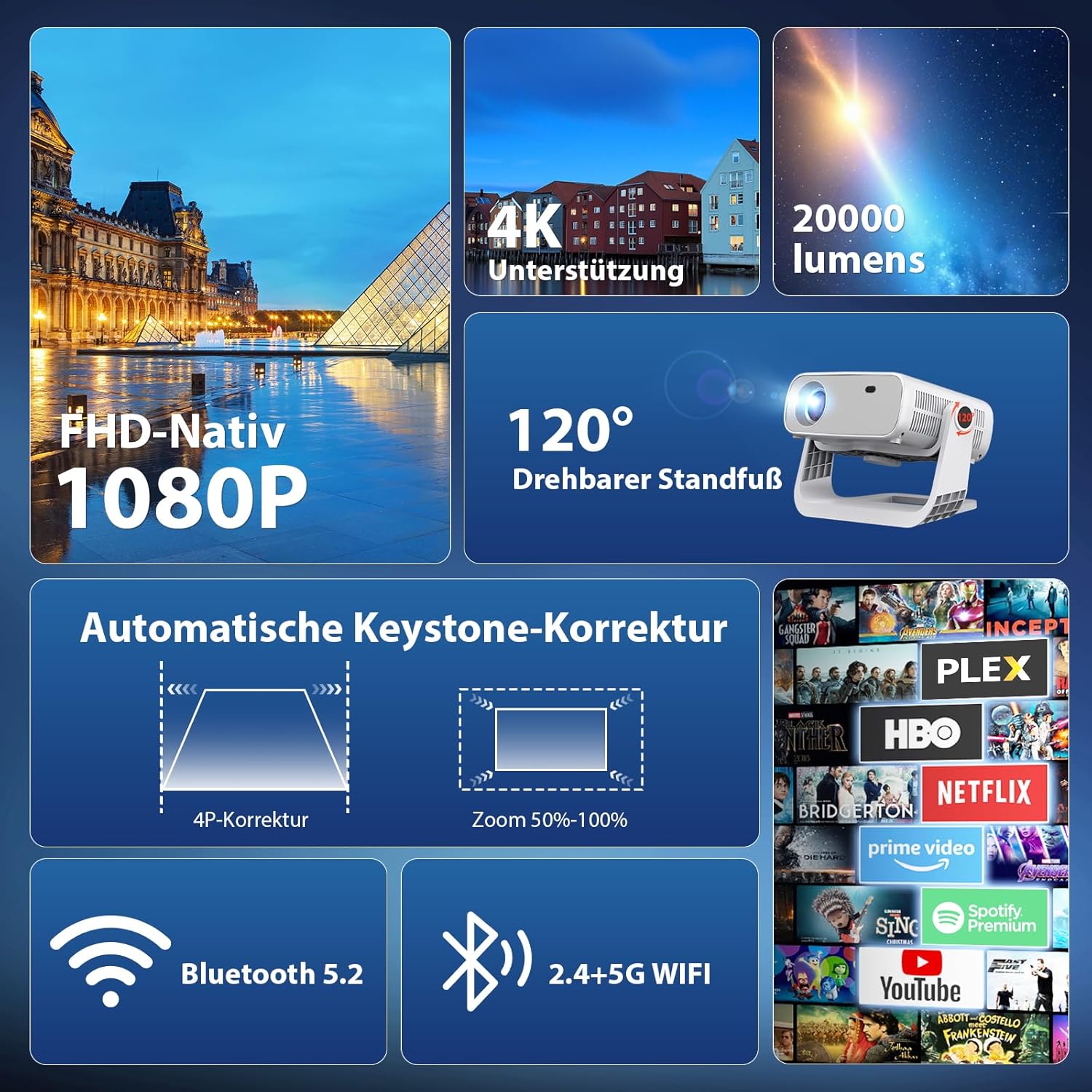
Image: Overview of the Wielio Smart Projector's key features, including its native 1080P resolution with 4K support, 20000 lumens brightness, 120-degree adjustable stand, automatic keystone correction, zoom function, and connectivity options like Bluetooth 5.2 and dual-band WiFi. It also highlights integrated streaming applications.
What's in the Box
Please check the contents of your package. If any items are missing or damaged, contact customer support.
- Wielio Smart Projector (AT-M269E)
- Power Adapter
- Remote Control
- AV Cable
- User Manual
Setup Guide
1. Placement and Power Connection
- Place the projector on a stable, flat surface. The integrated 120-degree adjustable stand allows for flexible projection angles on walls, tents, or ceilings.
- Connect the power adapter to the projector's power input and then to a power outlet.
- Press the power button on the projector or remote control to turn on the device.
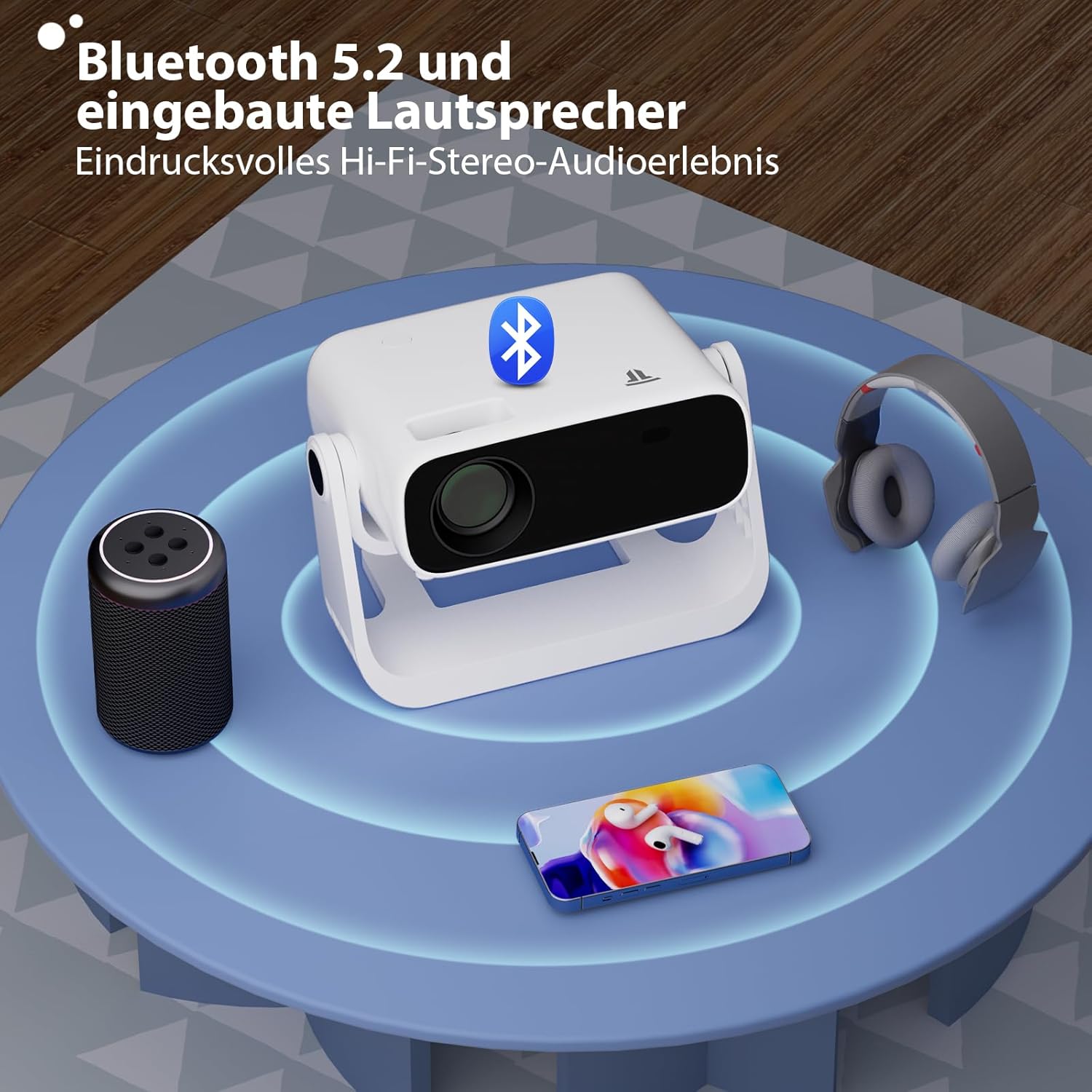
Image: The projector highlighting its Bluetooth 5.2 capability and built-in speakers, demonstrating its impressive Hi-Fi stereo audio experience, with an external speaker and headphones shown for connectivity.
2. Network Connection (WiFi)
To access integrated applications and online content, connect your projector to a Wi-Fi network.
- Navigate to the 'Settings' menu on the projector.
- Select 'Network & Internet'.
- Turn on Wi-Fi and select your desired network from the list.
- Enter the Wi-Fi password if prompted and confirm. The projector supports dual-band WiFi 6 (2.4G and 5G) for faster and more stable transmission.

Image: The projector demonstrating its 5G+2.4G dual-band WiFi connectivity, ensuring faster and more stable data transmission. It also indicates compatibility with Android, iOS, and Windows devices for screen mirroring.
3. Bluetooth Pairing
Connect external audio devices like speakers or headphones via Bluetooth 5.2.
- Go to 'Settings' and select 'Connected Devices' or 'Bluetooth'.
- Turn on Bluetooth.
- Put your Bluetooth device into pairing mode.
- Select your device from the list of available devices on the projector screen to pair.
4. Image Adjustment
Ensure a clear and properly aligned image.
- Automatic Keystone Correction: The projector features automatic keystone correction, adjusting angles up to ±45° in seconds to eliminate distorted images.
- Digital Zoom: Utilize the 50% size adjustment feature to optimize image size without physically moving the projector. This is ideal for various usage scenarios.

Image: The projector's automatic screen adjustment capabilities, illustrating 4-point keystone correction up to ±50° and digital zoom for precise image optimization.
Operating Instructions
1. Android 11 System and Integrated Applications
The projector runs on Android 11, allowing direct app downloads and seamless streaming.
- From the home screen, navigate to the integrated App Store.
- Browse and download your favorite streaming applications (e.g., Netflix, Prime Video, YouTube).
- Launch the applications to enjoy movies and series without additional devices.

Image: The projector showcasing its Android integration, projecting a vibrant display of various streaming applications onto a large screen, indicating that no external TV stick is needed for entertainment.
2. Screen Mirroring
Wirelessly mirror content from your Android, iOS, or Windows devices.
- Ensure both your device and the projector are connected to the same Wi-Fi network.
- On the projector, select the 'Screen Mirroring' or 'Cast' option.
- On your mobile device or computer, initiate screen mirroring (e.g., 'Smart View' on Android, 'AirPlay' on iOS, 'Cast' on Windows).
- Select the projector from the list of available devices.
3. Media Playback and Connectivity
The projector supports native 1080P resolution with 4K video decoding, offering clear and detailed images with a 2000:1 contrast ratio and 20000 lumens brightness.
- HDMI: Connect external devices like gaming consoles, Blu-ray players, or laptops using an HDMI cable.
- USB: Play media files directly from a USB drive. Insert the USB drive into the designated port and use the file manager to browse content.
- AV Cable: Use the included AV cable for connecting older devices.

Image: A visual comparison highlighting the Wielio Smart Projector's superior, realistic, and detailed color reproduction. It contrasts with another projector, emphasizing Wielio's native 1080p resolution, 4K support, 20000 lumens brightness, and 2000:1 contrast ratio.
Maintenance
1. Cleaning
- Lens: Use a soft, lint-free cloth specifically designed for optical lenses to gently wipe the projector lens. Avoid abrasive materials or harsh chemicals.
- Exterior: Wipe the projector's exterior with a soft, dry cloth. Do not use liquid cleaners directly on the device.
- Ventilation: Ensure the ventilation openings are clear of dust and obstructions to prevent overheating.
2. Storage
When not in use for extended periods, store the projector in a cool, dry place, away from direct sunlight and extreme temperatures. Use the original packaging or a protective case to prevent dust accumulation and damage.
Troubleshooting
| Problem | Possible Cause | Solution |
|---|---|---|
| No image displayed | Power cable disconnected, incorrect input source, device not powered on. | Check power connection, select correct input source (HDMI, USB, etc.), ensure projector is powered on. |
| Blurred image | Focus not adjusted, keystone correction needed. | Adjust the focus ring on the lens. Use automatic or manual keystone correction. |
| No sound | Volume too low, external audio device not connected, incorrect audio output selected. | Increase volume. Check Bluetooth connection or external speaker cables. Select correct audio output in settings. |
| Wi-Fi connection issues | Incorrect password, out of range, router issues. | Verify Wi-Fi password. Move projector closer to router. Restart router. |
| Screen mirroring not working | Devices not on same network, mirroring function not activated. | Ensure both devices are on the same Wi-Fi network. Activate screen mirroring on both devices. |
Product Specifications
- Model: AT-M269E
- Operating System: Android 11
- Native Resolution: 1920 x 1080 (Full HD)
- Maximum Display Resolution: 3840 x 2160 (4K Supported)
- Brightness: 20000 Lumens
- Contrast Ratio: 2000:1
- Projection Ratio: 1.3:1
- Projection Size: 40 to 240 inches
- Connectivity Technology: WiFi 6 (Dual-band 2.4G/5G), Bluetooth 5.2
- Special Features: Automatic Keystone Correction (±45°), 50% Digital Zoom, Integrated Apps, 120° Adjustable Stand
- Processor: H713 M
- Memory: 1GB RAM + 8GB Storage
- Dimensions: 26.1 x 19.2 x 18.8 cm
- Weight: 1.7 kg
- Included Components: AV Cable
Warranty and Customer Support
Wielio offers comprehensive customer support for your projector.
- Warranty: The product includes 2 years of support, covering free replacement and repair.
- Technical Support: Professional lifetime technical support is available.
- Contact: In case of any issues, our professional customer service team is available to assist you. We aim to respond within 24 hours.
For assistance, please refer to the contact information provided with your purchase or visit the official Wielio support website.
