1. Product Overview
The UYIKOO GLS12 Sport Camera Sunglasses integrate a high-definition camera into a durable, wearable design. These sunglasses are equipped with UV protective polarized lenses and are designed for capturing video and photos during various outdoor activities. The device features a built-in rechargeable battery and supports loop recording.

Figure 1: UYIKOO GLS12 Sport Camera Sunglasses and included accessories.
Key Features:
- Video Resolution: 1920 x 1080P at 30 frames/second.
- Photo Sensor Technology: CMOS.
- Lenses: UV Protection Polarized Lenses.
- Storage: Supports Micro SD Card (16GB included, up to 32GB).
- Battery: Built-in rechargeable battery with approximately 1.5 hours of working time.
- Recording: Loop recording function (saves video files every 3-6 minutes).
- Connectivity: USB.
2. Setup
2.1 Charging the Device
Before first use, fully charge the sunglasses. Connect the provided USB cable to the charging port located on the frame and plug the other end into a USB power source (e.g., computer, wall adapter). The charging indicator light will show the charging status.
2.2 Inserting the Micro SD Card
- Locate the Micro SD card slot on the inner side of the right temple arm.
- Gently insert the provided 16GB Micro SD card into the slot until it clicks into place. Ensure the card is inserted in the correct orientation.
- To remove the card, gently push it inward until it springs out.
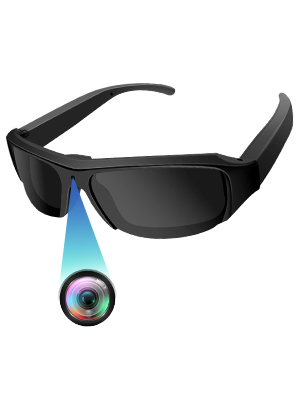
Figure 2: Proper insertion of the Micro SD card into the sunglasses.
3. Operating Instructions
3.1 Power On/Off
- Power On: Long press the power button (located on the inner side of the right temple arm) for a few seconds until the indicator light illuminates.
- Power Off: Long press the power button again until the indicator light turns off.
3.2 Recording Video
- Ensure the device is powered on and in video mode (check the mode switch if available).
- Short press the power button to start video recording. The indicator light will flash to confirm recording is in progress.
- Short press the power button again to stop recording. The indicator light will stop flashing.
3.3 Taking Photos
- Ensure the device is powered on and in photo mode (check the mode switch if available).
- Short press the power button to take a photo. The indicator light will briefly flash.

Figure 3: Simple one-button operation for capturing video and photos.
3.4 Connecting to Computer
Connect the sunglasses to your computer using the provided USB cable. The device will appear as a removable disk, allowing you to access and transfer your recorded video and photo files.
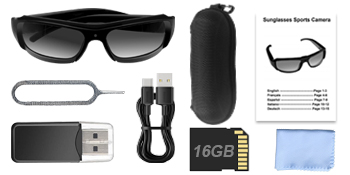
Figure 4: Connecting the sunglasses to a computer via USB for file management.
4. Media Examples
4.1 Product Images

Figure 5: Sunglasses in use, demonstrating discreet camera placement.

Figure 6: Visual representation of battery capacity and loop recording functionality.

Figure 7: Examples of outdoor activities where the camera sunglasses can be utilized.
4.2 Official Product Videos
Video 1: Overview of the mini camera glasses, demonstrating features and usage. This video is provided by the seller, OhOsunshine.
5. Maintenance
- Cleaning Lenses: Use the provided microfiber cloth to gently clean the polarized lenses. Avoid abrasive materials that could scratch the lenses.
- Storage: Store the sunglasses in the portable glasses case when not in use to protect them from dust and damage.
- Battery Care: To prolong battery life, avoid fully discharging the battery frequently. Charge regularly, especially if not used for extended periods.
- Water Exposure: The device is not waterproof. Avoid exposure to heavy rain or submersion in water.
6. Troubleshooting
- Device Not Turning On: Ensure the battery is charged. Connect to a power source and try again.
- Cannot Record: Check if the Micro SD card is properly inserted and has sufficient free space. The device supports loop recording, but a full card might prevent new recordings if the loop function is not active or configured.
- Poor Video/Photo Quality: Ensure lenses are clean. Record in well-lit environments for optimal results.
- Computer Not Recognizing Device: Try a different USB port or cable. Ensure the device is powered on when connected.
7. Specifications
| Feature | Specification |
|---|---|
| Brand Name | UYIKOO |
| Model Name | GLS12 |
| Item Weight | 5 ounces |
| Package Dimensions | 7.01 x 2.68 x 2.6 inches |
| Batteries | 1 A batteries required (included) |
| Color | Yellow |
| Photo Sensor Technology | CMOS |
| Video Capture Resolution | 1080p |
| Video Capture Format | MP4 |
| Supported Audio Format | AAC, MP3 |
| Connectivity Technology | USB |
| Special Features | Wearable Design, Built-in Rechargeable Battery with Loop Recording, UV Protection Polarized Lenses, Easy to Use with Simple On/Off Button |
8. Support
If you have any questions or encounter issues with your UYIKOO GLS12 Sport Camera Sunglasses, please feel free to contact us. We are committed to resolving any problems within 24 hours.


