Introduction
This manual provides detailed instructions for the installation, operation, and maintenance of your Woibugee 10 Inch Double Din Car Stereo. This advanced car stereo system features a 10-inch detachable QLED touchscreen, wireless Apple CarPlay and Android Auto, Bluetooth connectivity, GPS navigation, and voice control capabilities. Please read this manual thoroughly before using the product to ensure proper function and safety.
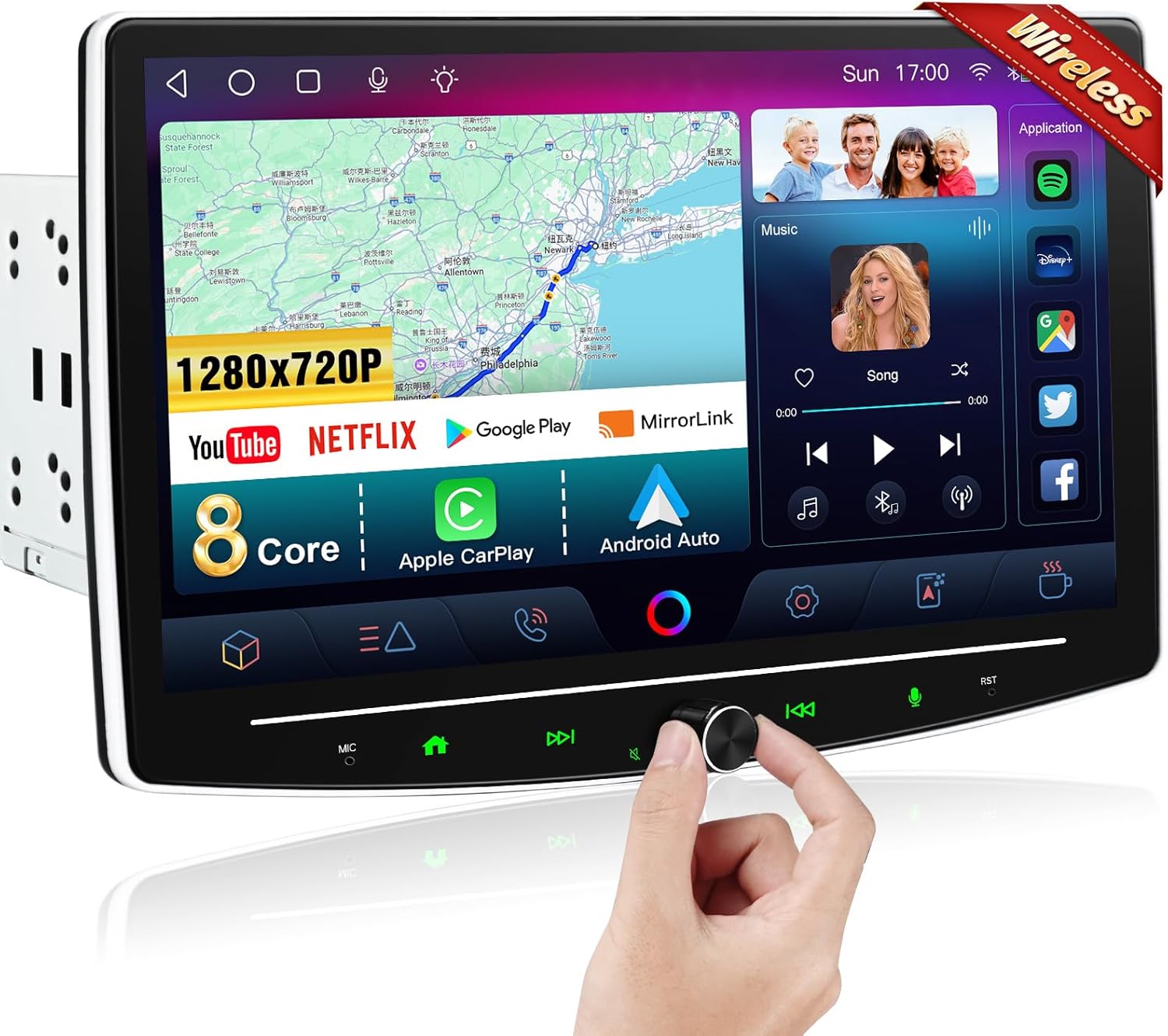
Image: The Woibugee 10 Inch Double Din Car Stereo, showcasing its large QLED touchscreen interface with various applications and a volume knob.
What's in the Box
Verify that all components are present before beginning installation:
- 1 x 10 inch Stereo Touch Screen Head Unit
- 1 x Car Stereo Power Cable
- 1 x Double Din Car Stereo Bracket Set
- 1 x Stereo Screen RCA / Video Input Cable
- 1 x Carplay Stereo 4 Pin USB Cable
- 1 x Carplay Stereo 6 Pin USB Cable
- 1 x GPS Antenna
- 1 x External Microphone
- 1 x User Manual

Image: A visual representation of the packing list, showing the head unit, various cables, antenna, microphone, brackets, and user manual.
Setup
Installation Considerations
The Woibugee car stereo is designed for double din vehicle openings. Due to its 10-inch detachable screen, careful consideration for mounting and screen adjustment is necessary during installation. Professional installation is recommended.
Screen Detachment and Adjustment
The 10-inch QLED touchscreen is detachable and adjustable to optimize viewing angles and fit various vehicle dashboards. The screen can be moved vertically by 1.6 inches, tilted forward and back by ±30°, and tilted right or left by ±30°.

Image: Visual guide demonstrating the vertical, forward/backward, and left/right tilt adjustments for the detachable screen.
Post-Installation Appearance
After successful installation, the stereo integrates into the vehicle's dashboard, providing a modern and functional interface.
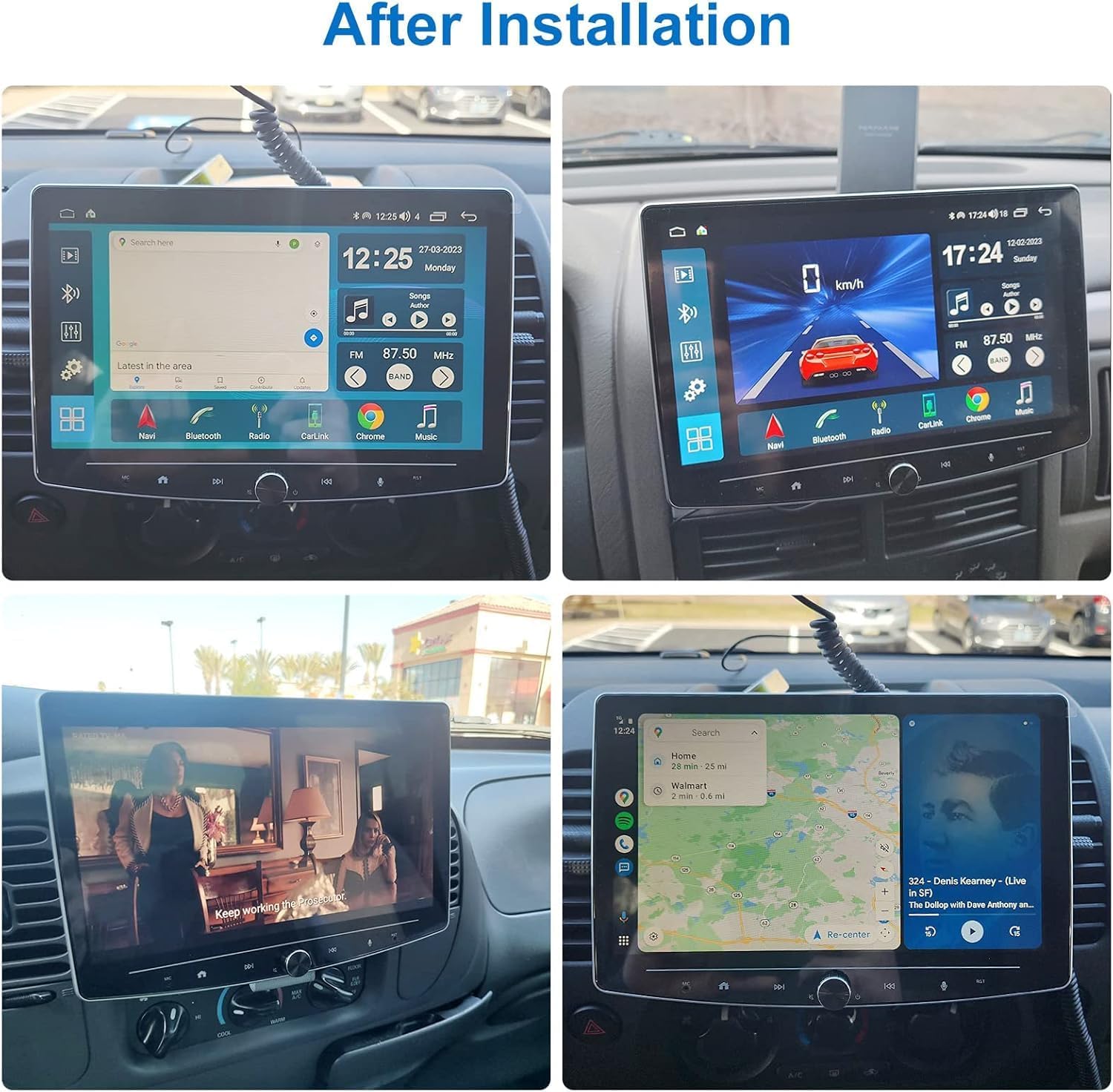
Image: Examples of the 10-inch car stereo installed in various car interiors, displaying navigation, media playback, and app interfaces.
Setup Overview Video
Video: A demonstration of the car stereo's user interface, including the detachable and adjustable screen design. This video provides a visual guide to the initial setup and physical adjustments of the unit.
Operating Instructions
Wireless Apple CarPlay and Android Auto
Seamlessly connect your iOS or Android device wirelessly to access navigation, music, calls, and messages directly on the stereo's display. Utilize voice assistants like Siri or Google Assistant for hands-free control. The system supports Netflix and YouTube playback when the vehicle is parked and connected to Wi-Fi.

Image: The car stereo screen showing the Android Auto interface with various app icons like Google Maps, YouTube Music, Spotify, and Phone.

Image: The car stereo screen showing the Apple CarPlay interface with app icons such as Phone, Music, Maps, and Messages.
Video: A demonstration of connecting a smartphone to the car stereo for wireless Android Auto functionality, showing the pairing process and interface.
GPS Navigation
The stereo comes with preloaded dual GPS/WiFi navigation, supporting applications like Google Maps and Waze. It offers real-time traffic rerouting and estimated time of arrival (ETA) updates.

Image: A multi-panel image displaying the 8-core processor, online and offline GPS navigation, rich online app access, and flexible split-screen functionality.
Audio Settings (DSP & EQ)
Customize your audio experience with the Digital Sound Processor (DSP) and 16-band Equalizer (EQ). Adjust sound field, surround settings, bass enhancement, and sound filters to achieve optimal sound quality.

Image: The car stereo's interface for sound adjustments, including equalizer bands, sound field, surround space, and bass enhancement controls.
Video: A segment from the operation video demonstrating the DSP and equalizer settings, allowing users to fine-tune audio output.
Steering Wheel Controls (SWC)
The stereo supports steering wheel controls, allowing you to manage audio and other functions without taking your hands off the wheel. Configuration is done through the system settings.

Image: A user interacting with steering wheel controls, with the car stereo screen displaying the customizable SWC mapping interface.
Video: A segment from the operation video demonstrating the setup and use of steering wheel controls for the car stereo.
Camera Support (Front Dash Cam & Rear View Camera)
The unit supports both front camera video input and rear view (reverse) camera input, enhancing driving safety and convenience.
Video: A segment from the operation video showcasing the support for front dash cam and back-up camera, displaying the camera feeds on the stereo screen.
AM/FM Radio
Access local radio stations with the integrated AM/FM tuner. The interface allows for easy station scanning and preset management.
Video: A segment from the operation video demonstrating the AM/FM radio interface and functionality.
System Information and Settings
Access various system settings, including Wi-Fi, device information, general preferences, and developer options, to customize your stereo's performance and features.
Video: A segment from the operation video navigating through the system information and general settings menus of the car stereo.
Maintenance
To ensure the longevity and optimal performance of your Woibugee car stereo, follow these maintenance guidelines:
- Screen Cleaning: Use a soft, lint-free cloth to gently wipe the touchscreen. For stubborn smudges, slightly dampen the cloth with water or a screen-safe cleaner. Avoid harsh chemicals or abrasive materials.
- Software Updates: Periodically check for and install software updates to ensure the system has the latest features, bug fixes, and security enhancements.
- Environmental Conditions: Avoid exposing the unit to extreme temperatures, direct sunlight for prolonged periods, or excessive moisture.
- Cable Connections: Ensure all cables are securely connected. Loose connections can lead to intermittent functionality.
Troubleshooting
If you encounter issues with your car stereo, refer to the following common troubleshooting steps:
- No Power: Check all power connections and fuses. Ensure the vehicle's ignition is on.
- No Sound: Verify speaker connections, volume levels, and audio source selection. Check the equalizer and DSP settings.
- Touchscreen Unresponsive: Perform a soft reset of the unit. If the issue persists, check for any physical obstructions or damage to the screen.
- Bluetooth/CarPlay/Android Auto Connection Issues: Ensure Bluetooth is enabled on both the stereo and your smartphone. Delete previous pairings and attempt to reconnect. For wireless connections, ensure Wi-Fi is also active on your phone.
- GPS Not Working: Ensure the GPS antenna is properly installed and has a clear view of the sky. Check GPS settings in the system menu.
- Steering Wheel Controls Not Functioning: Re-enter the SWC learning mode in the system settings and reprogram the buttons. Verify wiring connections.
For persistent issues not resolved by these steps, please contact customer support.
Specifications
| Feature | Specification |
|---|---|
| Display Size | 10 Inches |
| Screen Resolution | 1280x720 QLED |
| Operating System | Android |
| Processor | 8-Core |
| Memory (RAM) | 2GB |
| Storage (ROM) | 32GB |
| Connectivity | WIFI, Wireless Android Auto, Wireless CarPlay, Bluetooth |
| Audio Output Mode | Stereo |
| Special Features | DSP 16EQ, Detachable and adjustable 10 inch touchscreen, Voice Control, HD 720P/1080P rear-view camera input, Volume knob |
| Item Weight | 5.19 pounds |
| Package Dimensions | 11.81 x 10.43 x 7.64 inches |
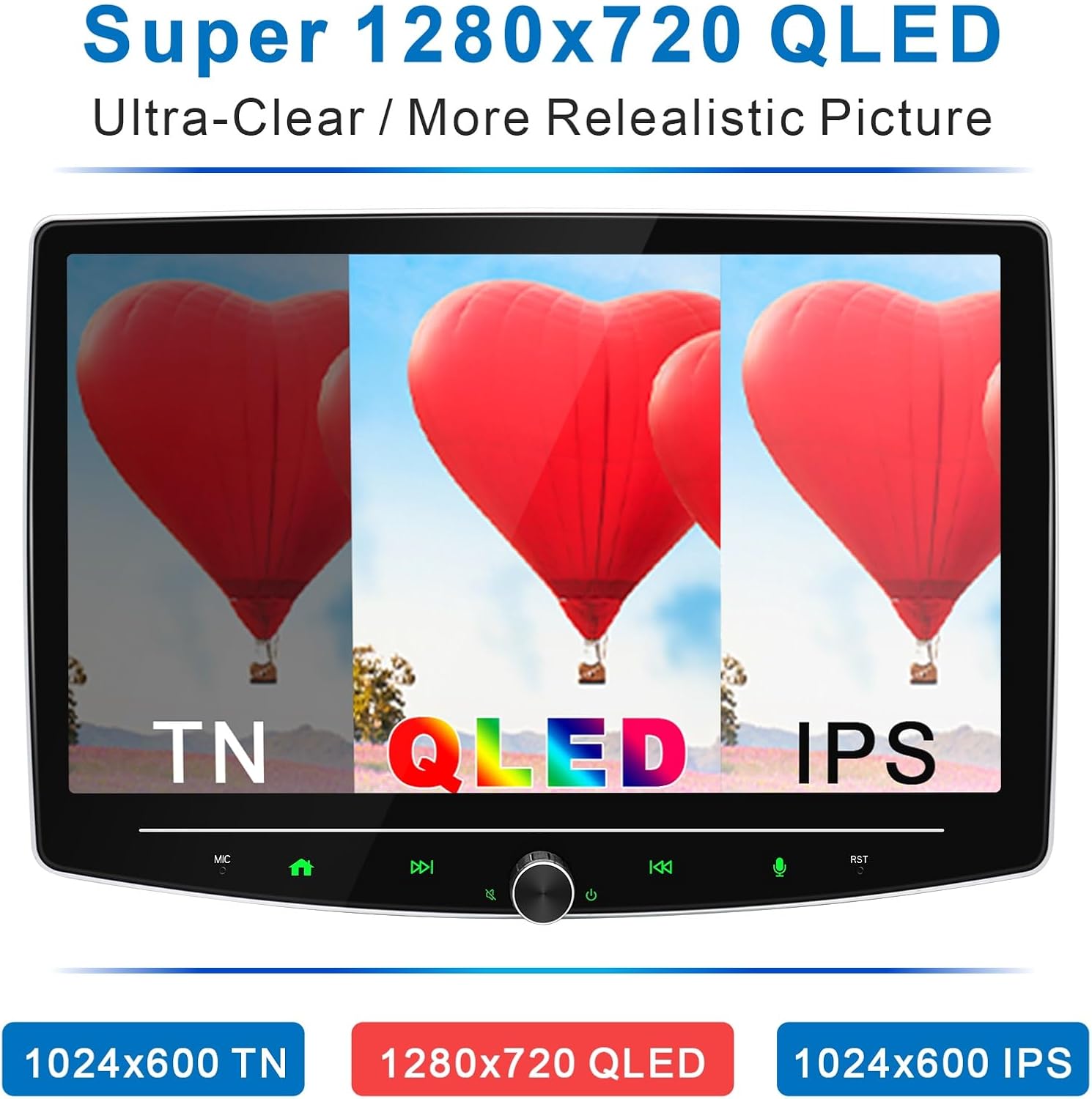
Image: A visual comparison demonstrating the ultra-clear and realistic picture quality of the 1280x720 QLED screen compared to TN and IPS displays.
Warranty
The Woibugee 10 Inch Double Din Car Stereo comes with a 1-year warranty from the date of purchase. This warranty covers manufacturing defects and malfunctions under normal use. Please retain your proof of purchase for warranty claims. The warranty does not cover damage caused by improper installation, misuse, accidents, or unauthorized modifications.
Support
For further assistance, technical support, or inquiries regarding your Woibugee car stereo, please visit the official Woibugee store or contact their customer service department.
Woibugee Store: Visit the Woibugee Store on Amazon