
Introduction
Thank you for choosing the WONLINK NE3503 AC1200 Dual-Band WiFi Repeater. This device is designed to extend your existing Wi-Fi network coverage, eliminate dead zones, and provide stable, high-speed internet access throughout your home or office. This manual will guide you through the setup, operation, and troubleshooting of your new device.
Package Contents
Please check the package for the following items:
- 1 x WONLINK NE3503 AC1200 WiFi Repeater
- 1 x RJ-45 Ethernet Cable
- 1 x User Manual
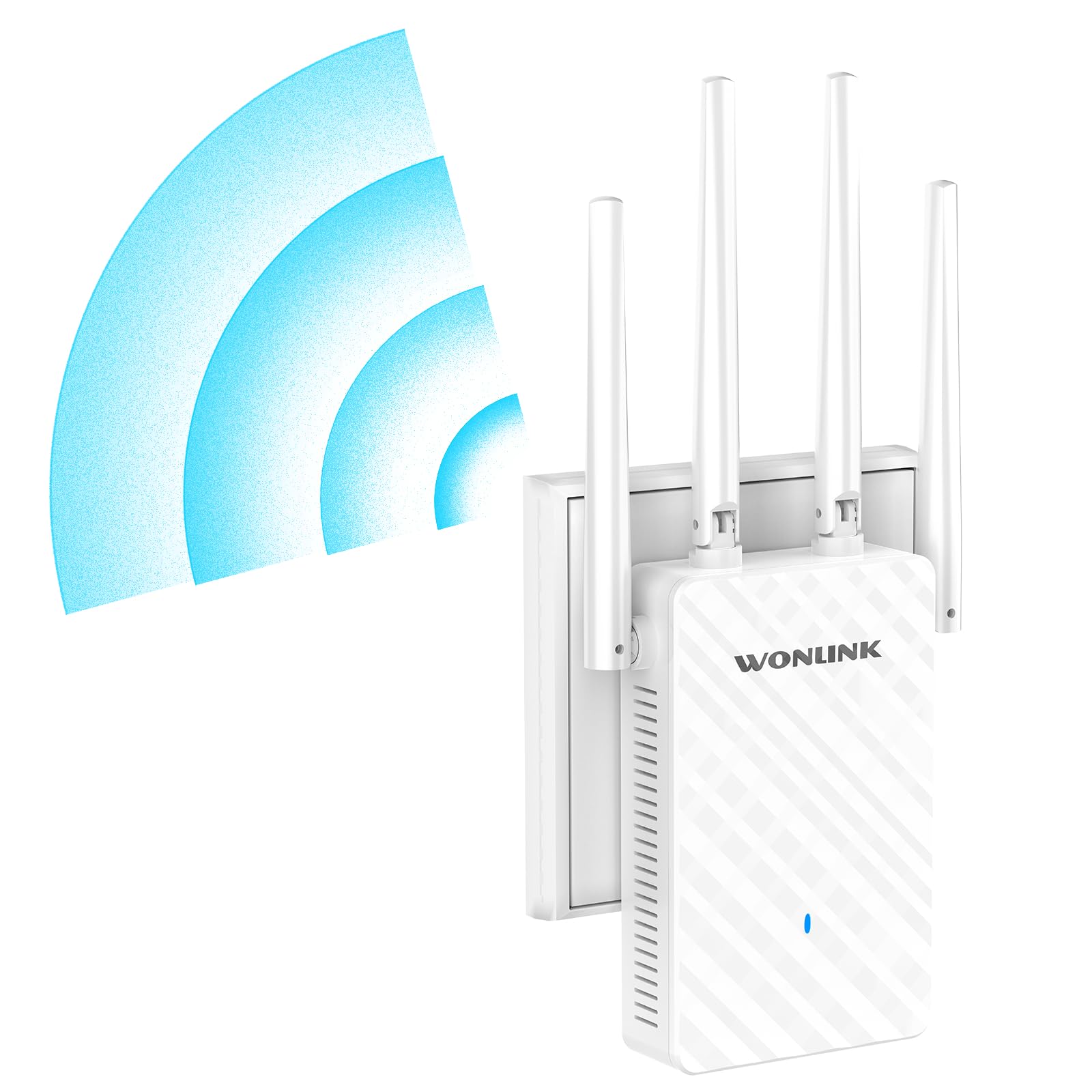
Image: The WONLINK NE3503 WiFi Repeater with its included Ethernet cable and user manual.
Product Features
- AC1200 High Performance: Combined speeds of 1200 Mbps (300 Mbps on 2.4 GHz + 867 Mbps on 5 GHz) for demanding applications like 4K streaming and online gaming.
- Extended Coverage: Four high-performance adjustable external antennas provide maximum coverage up to 120 m² (approximately 1300 sq ft), eliminating Wi-Fi dead zones.
- Easy Installation: Supports WPS one-button setup for instant synchronization with your main router, or configuration via an intuitive web interface.
- Stable Connectivity: Smart connection technology optimizes bandwidth allocation for different devices (5 GHz for HD streaming, 2.4 GHz for smaller devices, dedicated bandwidth for video calls).
- Compact Design: Glossy white finish and compact dimensions allow for discreet integration into any environment.
- Intelligent LED Indicators: Provide visual feedback on signal strength for optimal placement (Blue: Strong signal, Red: Weak signal, Green: Factory default state).
- Multiple Operating Modes: Functions as a WiFi Repeater, Access Point (AP), or Router.
- Broad Compatibility: Compatible with all Wi-Fi devices, internet boxes, Mesh WiFi systems, and WiFi routers, supporting over 64 connected devices.
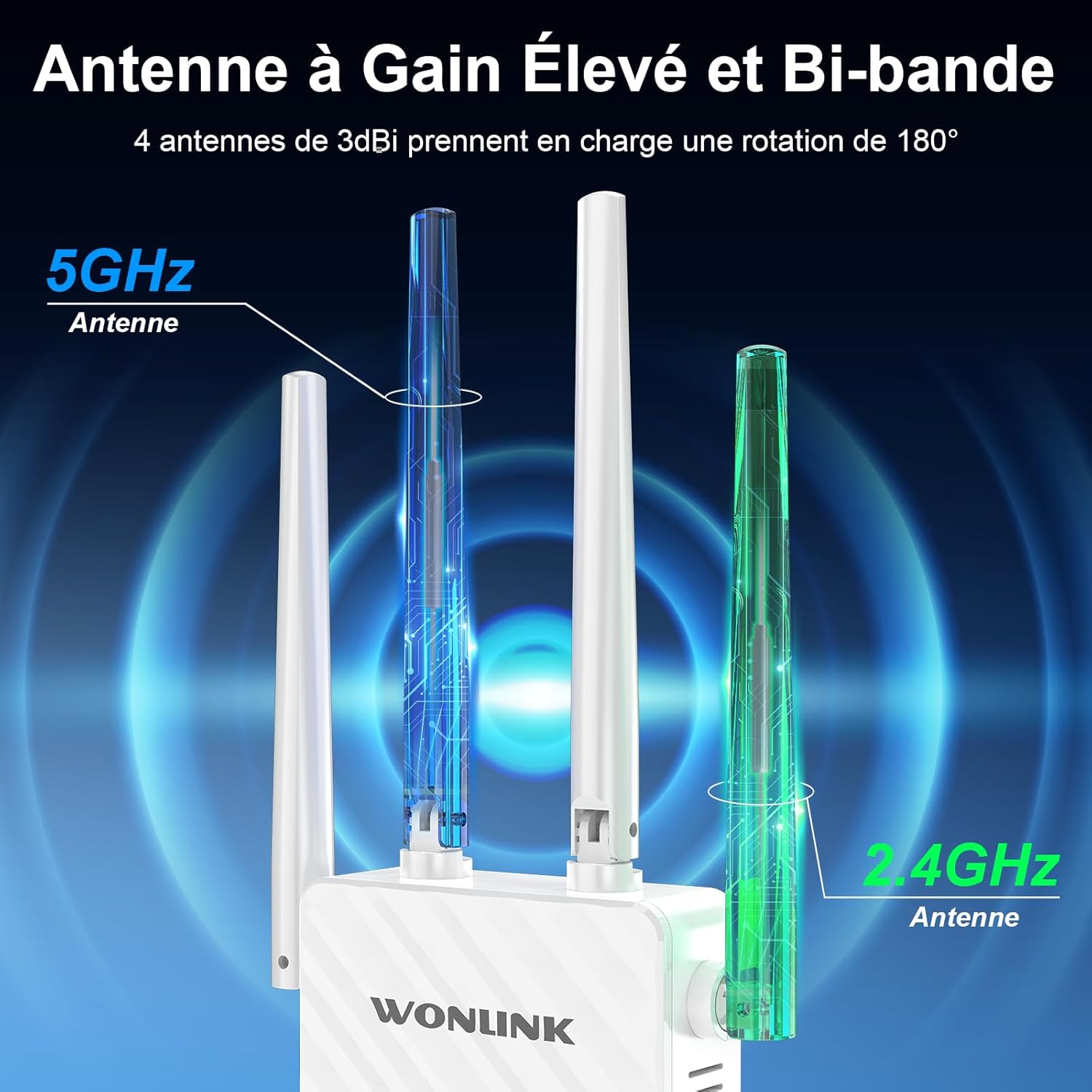
Image: The WONLINK NE3503 WiFi Repeater showcasing its four high-gain, dual-band antennas for enhanced signal.

Image: An illustration detailing the AC1200 performance, combining 867 Mbps on the 5 GHz band and 300 Mbps on the 2.4 GHz band.
Setup Instructions
1. Powering On the Device
- Plug the WONLINK NE3503 WiFi Repeater into a power outlet near your main router.
- Wait for the LED indicator to light up.
2. WPS (Wi-Fi Protected Setup) Configuration (Recommended for quick setup)
- Press the WPS button on your main router.
- Within 2 minutes, press the WPS button on the WONLINK NE3503 WiFi Repeater for 1-2 seconds.
- The LED indicator on the repeater will flash during connection and then turn solid blue or red, indicating a successful connection. Blue indicates a strong signal, red indicates a weak signal.
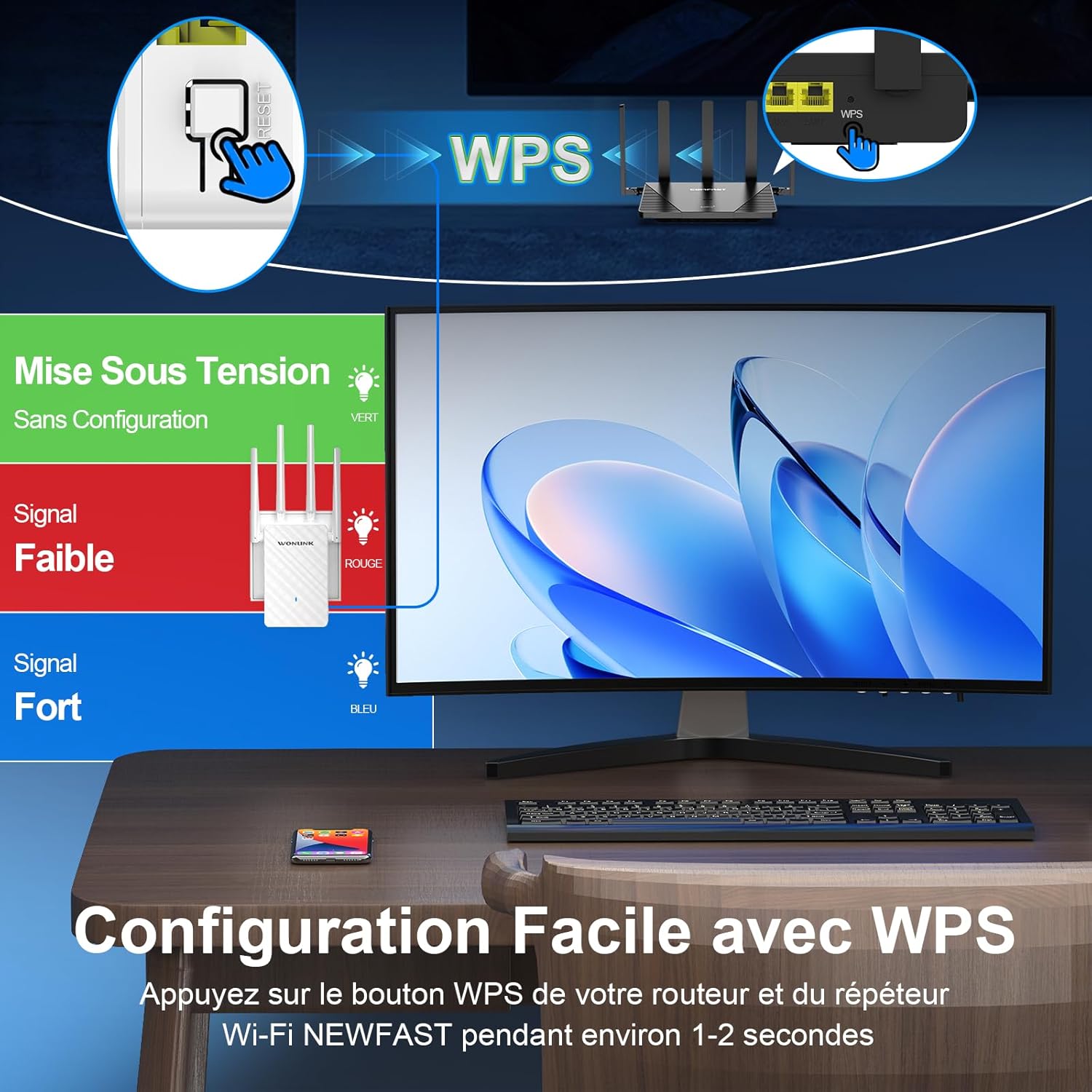
Image: Visual guide for WPS setup, illustrating the WPS button location and the meaning of LED colors (Green for power, Red for weak signal, Blue for strong signal).
3. Web Interface Configuration (For advanced settings or if WPS fails)
- Connect your computer or mobile device to the repeater's default Wi-Fi network (e.g., "WONLINK_Repeater" or similar, usually found on a label on the device). No password is required initially.
- Open a web browser and enter the default IP address (e.g., 192.168.10.1) or domain name (e.g., re.wonlink.com) provided in the manual or on the device label.
- Follow the on-screen instructions to select your desired operating mode (Repeater, Access Point, or Router) and configure network settings, including selecting your main Wi-Fi network and setting a password for the extended network.
- Once configured, the repeater will restart. Reconnect your devices to the new extended Wi-Fi network.
4. Operating Modes
The WONLINK NE3503 supports three operating modes:
- Repeater Mode: Extends the coverage of your existing Wi-Fi network. Ideal for eliminating dead zones.
- Access Point (AP) Mode: Converts a wired internet connection into a wireless network. Useful for adding Wi-Fi capability to a wired-only network.
- Router Mode: Functions as a standard home router, converting a wired signal into a wireless network.

Image: A visual representation of the three operating modes: Repeater, Access Point, and Router, showing how the device integrates into different network setups.

Image: The WONLINK NE3503 plugged into a wall outlet, demonstrating its easy setup and versatility across different environments like home, hotel, and office, utilizing its multiple operating modes.
Operating Instructions
1. Optimal Placement
For best performance, place the repeater halfway between your router and the Wi-Fi dead zone. Use the LED indicator to determine optimal placement:
- Blue LED: Strong signal, ideal placement.
- Red LED: Weak signal, adjust repeater position closer to the router.
- Green LED: Factory default state (before configuration).

Image: An illustration demonstrating how to strategically place the WiFi repeater to extend coverage and enhance signal stability, effectively eliminating dead zones.
2. Connecting Devices
Once the repeater is configured and operational, you can connect your wireless devices (smartphones, tablets, laptops, smart TVs, gaming consoles, etc.) to the extended Wi-Fi network. The network name will typically be your original Wi-Fi network name with "_EXT" or "_Plus" appended, or a custom name you set during web interface configuration.
- Open the Wi-Fi settings on your device.
- Select the extended Wi-Fi network name.
- Enter the network password (if you set one).

Image: The WONLINK NE3503 WiFi Repeater demonstrating its broad compatibility and ability to connect to over 64 devices simultaneously, including TVs, printers, phones, and tablets.

Image: Various scenarios illustrating lag-free internet connectivity for video conferencing, family gaming, remote work, and smart home device control, highlighting stable performance for all connected devices.
Maintenance
- Cleaning: Use a soft, dry cloth to clean the device. Do not use liquid cleaners or aerosols.
- Ventilation: Ensure the device is placed in a well-ventilated area to prevent overheating. Do not block the ventilation slots.
- Firmware Updates: Periodically check the WONLINK official website for firmware updates to ensure optimal performance and security. Follow the instructions provided with the firmware update carefully.
- Resetting the Device: If the device is not functioning correctly, you can perform a factory reset by pressing and holding the reset button (usually a small pinhole button) for about 5-10 seconds until the LEDs flash. This will revert all settings to factory defaults.
Troubleshooting
| Problem | Possible Solution |
|---|---|
| No power/LEDs off | Ensure the repeater is securely plugged into a working power outlet. Try a different outlet. |
| Weak signal (Red LED) | Relocate the repeater closer to your main router. Ensure there are no major obstructions (thick walls, large metal objects) between the router and repeater. |
| Cannot connect to the extended network | Verify the Wi-Fi password. Ensure the repeater is properly configured (check WPS or web interface steps). Try restarting both the router and the repeater. |
| Internet access issues after connecting to repeater | Check if your main router has internet access. Perform a factory reset on the repeater and reconfigure it. Ensure the repeater is not too far from the main router. |
| WPS setup failed | Ensure you press the WPS button on both devices within the 2-minute window. If it continues to fail, use the web interface for manual setup. |
Technical Specifications
| Brand | WONLINK |
| Model | NE3503 |
| Wireless Standard | 802.11a/b/g/n/ac |
| Data Transfer Rate | 1200 Mbps (300 Mbps 2.4GHz + 867 Mbps 5GHz) |
| Frequency Band Class | Dual Band (2.4 GHz, 5 GHz) |
| Antennas | 4 x High-Gain External Antennas (3dBi, 180° rotatable) |
| Special Features | 1-Click Setup (WPS), Access Point Mode, Router Mode, LED Indicator, 360-degree coverage |
| Color | White |
| Ethernet Port | RJ45 |
| Product Dimensions (D x W x H) | 4 x 12 x 20 cm |
| Compatible Devices | WiFi Devices, Internet Box, Mesh WiFi, WiFi Access Point, WiFi Router |

Image: A detailed view of the WONLINK NE3503, highlighting its four high-gain antennas, fast Ethernet port, efficient heat dissipation design, and advanced security protocols.
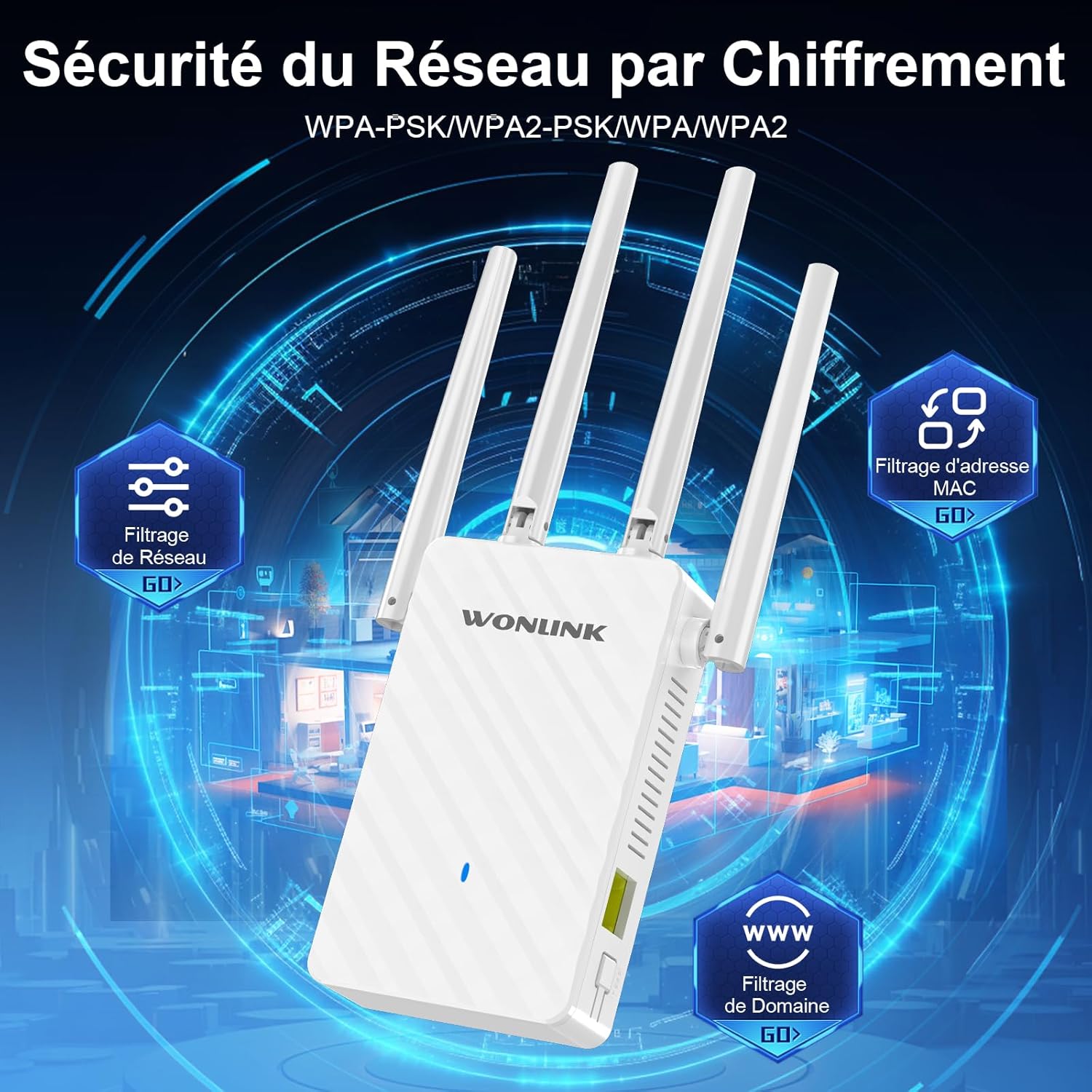
Image: An illustration of the network security features, including WPA-PSK/WPA2-PSK/WPA/WPA2 encryption, network filtering, MAC address filtering, and domain filtering for enhanced protection.
Warranty Information
The WONLINK NE3503 WiFi Repeater comes with a 1-year manufacturer warranty from the date of purchase. This warranty covers defects in materials and workmanship under normal use. It does not cover damage caused by misuse, accidents, unauthorized modifications, or external causes.
Spare parts are available for 2 years from the date of purchase.
Please retain your proof of purchase for warranty claims.
Customer Support
If you encounter any issues or have questions regarding your WONLINK NE3503 WiFi Repeater, please refer to the troubleshooting section of this manual. If the problem persists, please contact WONLINK customer support through the retailer where you purchased the product or visit the official WONLINK website for further assistance.
For the latest information, FAQs, and support resources, please visit: www.wonlink.com (example URL, replace with actual if available).


