
1. Introduction
Thank you for purchasing the WSTER WS-538 Retro Pickup Truck Bluetooth Speaker. This device combines a classic vehicle design with modern audio technology, offering multiple playback options and a unique aesthetic. Please read this manual carefully to ensure proper use and to maximize your enjoyment of the product.
2. Safety Information
- Keep the device away from water, moisture, and extreme temperatures.
- Do not attempt to disassemble or repair the device yourself. Refer all servicing to qualified personnel.
- Avoid prolonged exposure to very high volume levels to prevent hearing damage.
- Clean the device with a soft, dry cloth. Do not use abrasive cleaners or solvents.
- Keep out of reach of small children due to small parts.
3. Package Contents
- WSTER WS-538 Retro Pickup Truck Bluetooth Speaker
- Power Cable (Type-C)
- Quick Start Guide
4. Product Overview
The WS-538 speaker is designed to resemble a retro pickup truck, featuring functional wheels and integrated controls. Below is an image illustrating the main unit and its included accessories.

Image: The WSTER WS-538 Retro Pickup Truck Bluetooth Speaker in blue, shown with its Type-C charging cable and quick start guide.
The rear panel of the speaker houses all the essential ports and control buttons for various functions. Familiarize yourself with these controls for optimal operation.
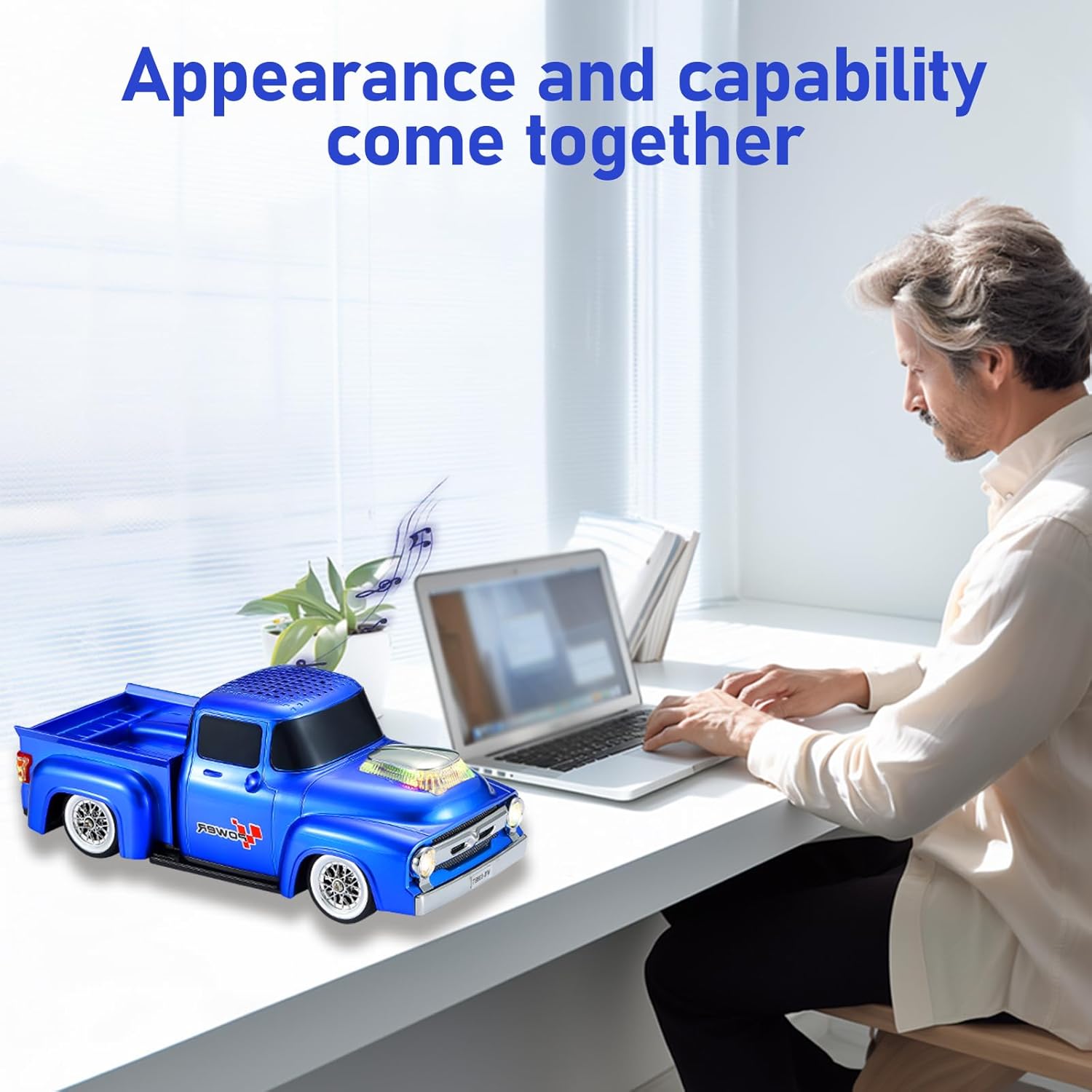
Image: Detailed rear view of the WS-538 speaker, highlighting the control panel with buttons for mode, play/pause, track navigation, and ports for TF card, USB, and Type-C charging.
The speaker's dimensions are approximately 9.45 inches in length, 4.13 inches in width, and 3.62 inches in height, making it a compact and portable device.

Image: The WS-538 speaker with overlaid measurements indicating its length (24cm/9.45in), width (10.5cm/4.13in), and height (9.2cm/3.62in).
5. Setup
5.1 Charging the Speaker
Before first use, fully charge the speaker. Connect the provided Type-C USB cable to the charging port on the rear of the speaker and the other end to a USB power adapter (not included).
5.2 Power On/Off
- To Power On: Press and hold the power button (usually marked with a power symbol) on the rear panel until you hear a startup sound and the display illuminates.
- To Power Off: Press and hold the power button again until you hear a shutdown sound and the display turns off.
6. Operating Instructions
6.1 Bluetooth Pairing
The WS-538 speaker uses Bluetooth 5.4 for wireless connection to your devices.
- Ensure the speaker is powered on and in Bluetooth mode. If not, briefly press the 'M' (Mode) button until 'BLUE' appears on the display.
- On your mobile device (smartphone, tablet, laptop), go to the Bluetooth settings and enable Bluetooth.
- Search for available devices. You should see 'WS-538' in the list.
- Select 'WS-538' to pair. A confirmation sound will indicate successful pairing.
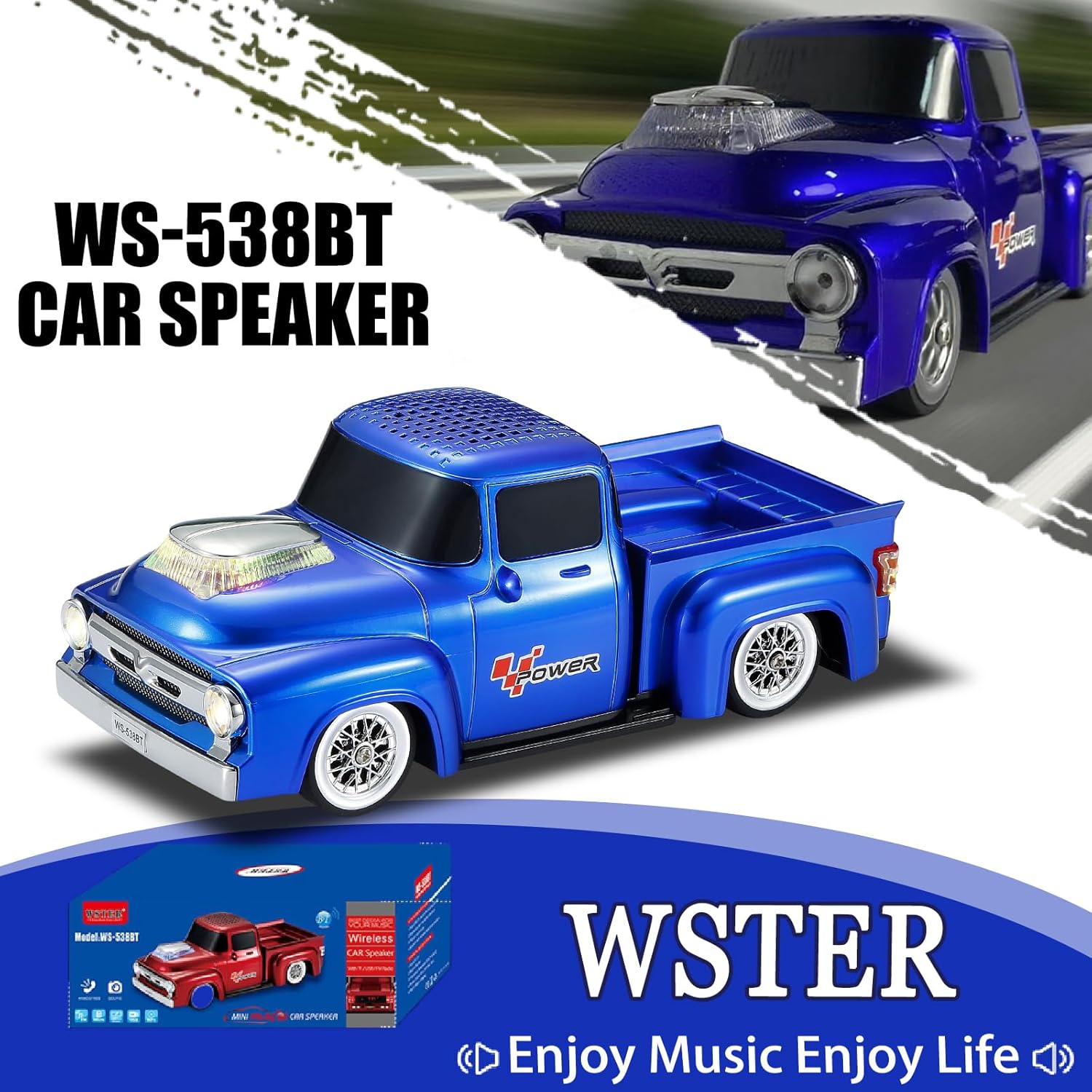
Image: A smartphone screen displaying Bluetooth settings, with the WS-538 speaker nearby, illustrating the wireless connection process.
6.2 TWS (True Wireless Stereo) Pairing
For an enhanced stereo audio experience, you can pair two WS-538 speakers together.
- Ensure both WS-538 speakers are powered on and in Bluetooth mode, but not yet connected to any mobile device.
- On one of the speakers (this will be the primary speaker), double-press the Play/Pause button. You will hear a confirmation tone.
- The two speakers will automatically search and pair with each other. A successful TWS connection will be indicated by a sound.
- Once TWS is established, connect your mobile device to the primary speaker via Bluetooth as described in section 6.1. Audio will now play through both speakers in stereo.
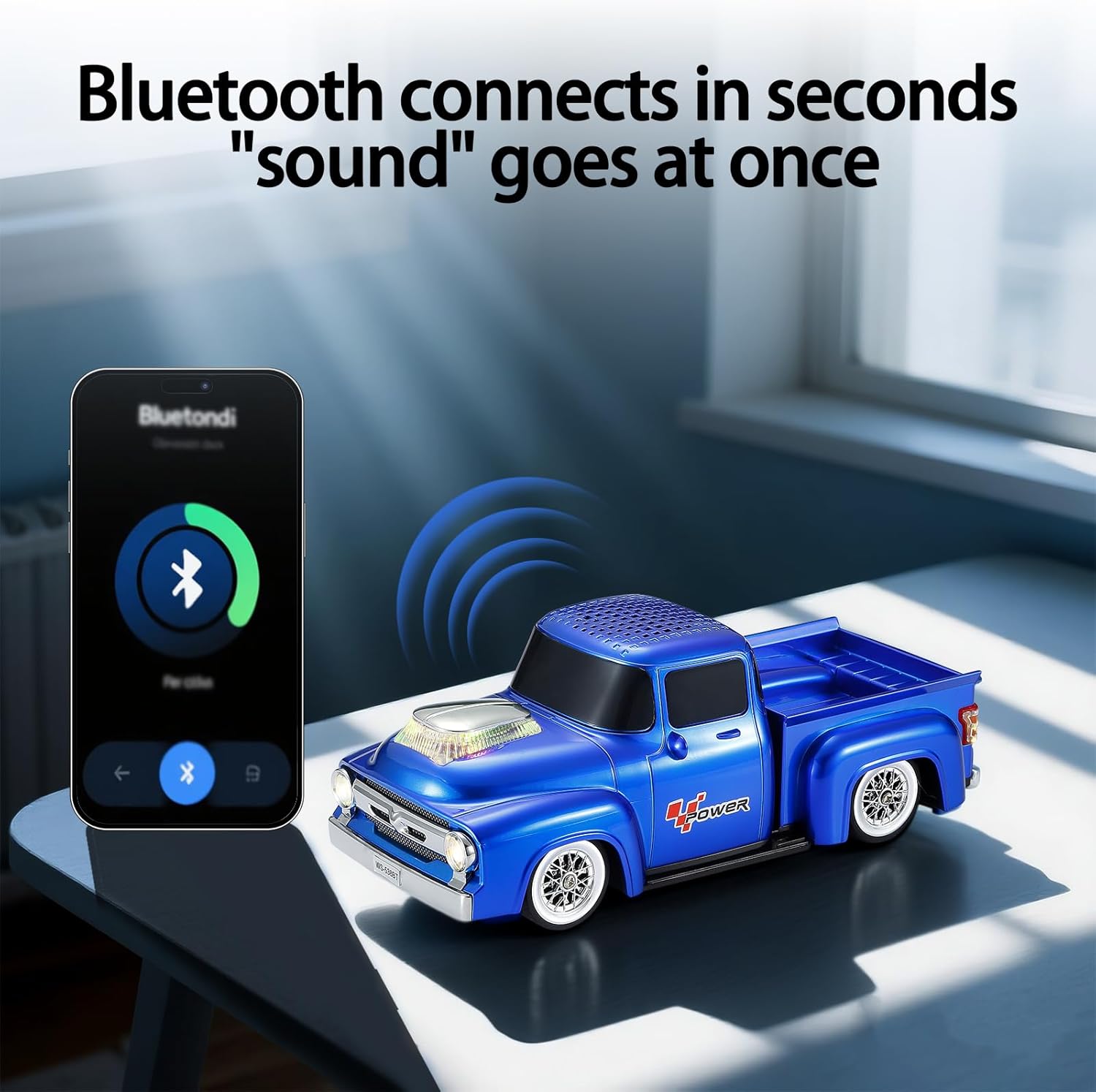
Image: Two WS-538 speakers positioned to demonstrate TWS pairing, with a smartphone in the center showing a Bluetooth connection icon.
6.3 Music Playback
- Play/Pause: Briefly press the Play/Pause button.
- Volume Up: Press and hold the 'Next Track' button.
- Volume Down: Press and hold the 'Previous Track' button.
- Next Track: Briefly press the 'Next Track' button.
- Previous Track: Briefly press the 'Previous Track' button.
6.4 FM Radio Mode
- Press the 'M' (Mode) button repeatedly until 'FM' appears on the display.
- To auto-scan for stations, press and hold the Play/Pause button. The speaker will scan and save available FM stations.
- Use the 'Next Track' and 'Previous Track' buttons to navigate through the saved stations.
6.5 USB/TF Card Playback
Insert a USB drive or TF (MicroSD) card into the respective port on the rear panel. The speaker will automatically switch to USB or TF card mode and begin playing audio files. Use the Play/Pause and track navigation buttons as described for music playback.
6.6 Hands-Free Calling
When connected to your smartphone via Bluetooth, the WS-538 can be used for hands-free calls.
- Answer Call: Briefly press the Play/Pause button when an incoming call rings.
- End Call: Briefly press the Play/Pause button during a call.
- Reject Call: Press and hold the Play/Pause button when an incoming call rings.
- Switch between Speaker/Phone: During a call, briefly press the Play/Pause button to toggle audio output between the speaker and your phone.
6.7 LED Party Lights
The speaker features dynamic LED lights on the hood and headlights that illuminate and flash, enhancing the audio experience. These lights activate automatically when the speaker is in use.

Image: Front view of the WS-538 speaker, showcasing its headlights and hood scoop illuminated with colorful, flashing LED lights.
6.8 Instructional Video
For a visual guide on operating the WSTER WS-538 speaker, please refer to the official instruction video below:
Video: An instructional video demonstrating the various functions and operations of the WSTER WS-538 speaker, including power on/off, Bluetooth pairing, music playback, mode switching, and call handling.
7. Troubleshooting
- No Power: Ensure the speaker is fully charged. Connect it to a power source using the Type-C cable.
- No Sound: Check the volume level on both the speaker and your connected device. Ensure the device is properly paired via Bluetooth or that the correct playback mode (USB/TF/FM) is selected.
- Bluetooth Not Connecting: Make sure the speaker is in Bluetooth pairing mode. Disable and re-enable Bluetooth on your device, then try searching again. Ensure no other devices are currently connected to the speaker.
- Poor FM Reception: Try repositioning the speaker to improve signal reception.
- TWS Pairing Failure: Ensure both speakers are WS-538 models and are not connected to any other Bluetooth device before attempting TWS pairing.
8. Specifications
| Feature | Specification |
|---|---|
| Model Name | WS-538 |
| Brand | WSTER |
| Connectivity Technology | Bluetooth |
| Bluetooth Version | 5.4 |
| Speaker Type | Portable Speaker |
| Special Features | Bluetooth Connection, Built-in Microphone, FM Radio, LED Light, TWS |
| Power Source | Battery Powered |
| Speaker Maximum Output Power | 6 Watts |
| Frequency Response | 18 KHz |
| Audio Output Mode | Stereo |
| Material | Acrylonitrile Butadiene Styrene (ABS) |
| Product Dimensions | 9.44"D x 4.13"W x 3.62"H |
| Item Weight | 1.28 pounds (579 Grams) |
| Compatible Devices | Laptop, Smartphone, Tablet |
9. Maintenance
- Wipe the speaker with a soft, dry cloth to remove dust and dirt.
- Do not use liquid cleaners or aerosols directly on the speaker.
- Store the speaker in a cool, dry place when not in use.
- Avoid dropping the speaker or subjecting it to strong impacts.
10. Warranty and Support
For warranty information or technical support, please refer to the documentation included with your purchase or contact WSTER customer service through their official channels. Keep your purchase receipt as proof of purchase.
