
1. Product Overview
The DEERTiME E15 is a 10-inch Android 15 tablet designed for versatile use, from work and study to entertainment. It features an octa-core processor, ample memory, and a vibrant display, making it suitable for various applications.
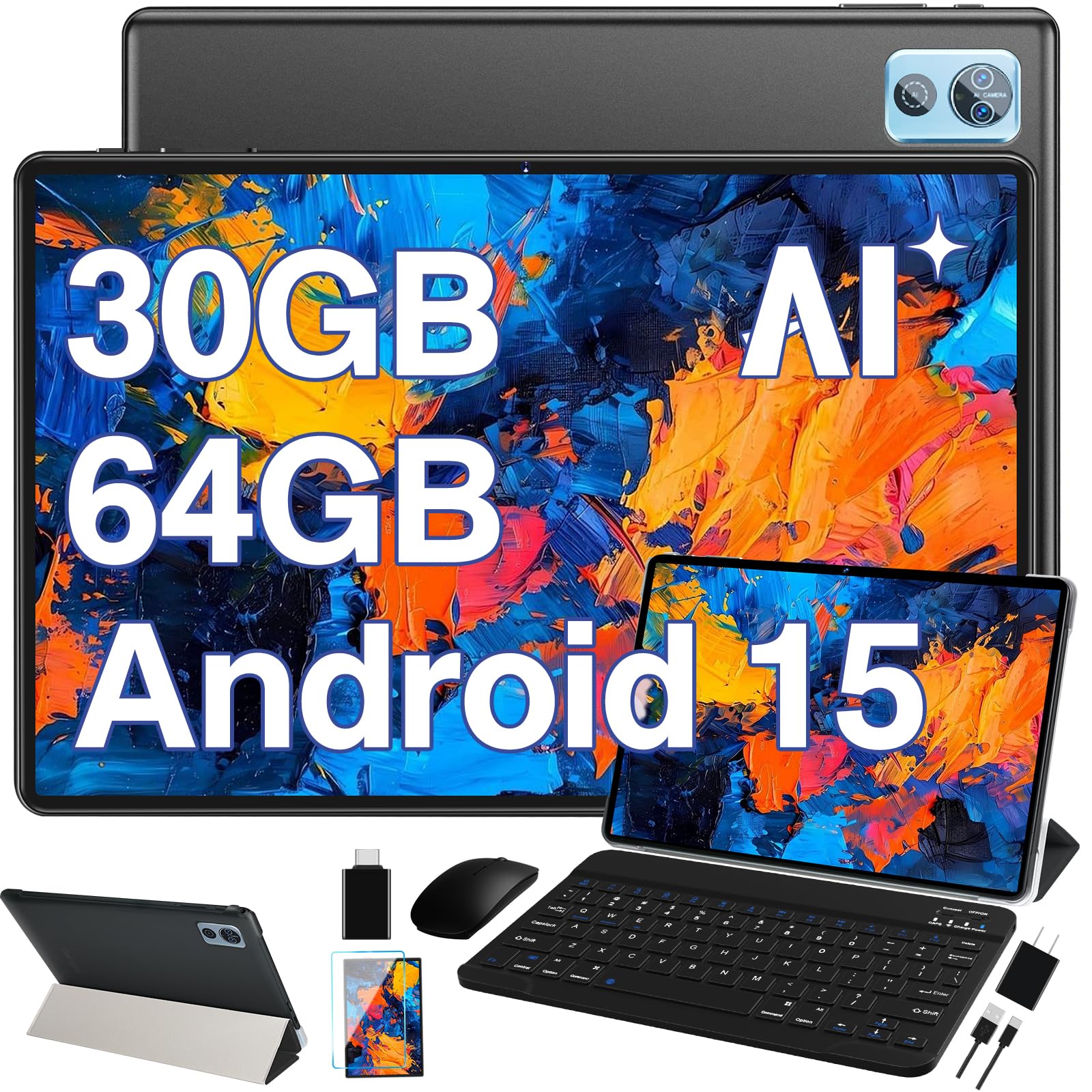
Figure 1.1: DEERTiME E15 10-inch Android 15 Tablet (Black)
Key Features:
- Operating System: Android 15 for enhanced speed, privacy, and power efficiency.
- Performance: Octa-core processor up to 2.0GHz for smooth operation.
- Memory & Storage: 30GB RAM (8GB physical + 22GB virtual) and 64GB internal storage, expandable up to 2TB via microSD card.
- Display: 10.1-inch FHD InCell display (1280x800 resolution) with Widevine L1 support for HD streaming.
- Battery: 6000mAh battery for extended use.
- Connectivity: 2.4G/5G Wi-Fi, Bluetooth 5.0, and GPS.
- Cameras: Dual cameras (Front 5MP, Rear 8MP).
- Included Accessories: Keyboard, mouse, case, screen protector, charger, and USB-C cable.
2. What's in the Box
Upon opening your DEERTiME E15 Tablet package, please verify that all the following items are included:
- DEERTiME E15 10-inch Android 15 Tablet
- Bluetooth Keyboard
- Wireless Mouse
- Tablet Case
- Instruction Manual
- USB-C Data Cable
- Charger
- Protective Film (Screen Protector)
- OTG Cable

Figure 2.1: All items included in the DEERTiME E15 Tablet package.
3. Setup Guide
3.1 Initial Power On and Basic Configuration
- Charge the Tablet: Before first use, connect the tablet to the charger using the provided USB-C cable and power adapter. Allow it to charge fully.
- Power On: Press and hold the Power On/Off button located on the side of the tablet until the DEERTiME logo appears on the screen.
- Initial Setup Wizard: Follow the on-screen prompts to select your language, connect to a Wi-Fi network, and sign in with your Google account.
- Screen Protector: Carefully apply the included protective film to the tablet screen, ensuring no dust or bubbles are trapped underneath.

Figure 3.1: Tablet side view with Power On/Off button and USB-C port.
3.2 Connecting the Bluetooth Keyboard and Wireless Mouse
- Enable Bluetooth: On your tablet, go to Settings > Connected devices > Bluetooth and turn Bluetooth on.
- Pair Keyboard: Turn on the Bluetooth keyboard. Press the 'Connect' button on the keyboard. On your tablet, select the keyboard from the list of available devices and follow any pairing instructions.
- Connect Mouse: Insert the wireless mouse's USB receiver into the tablet's USB-C port using the provided OTG cable if necessary. The mouse should connect automatically.

Figure 3.2: DEERTiME E15 Tablet with keyboard and mouse connected, ready for use.
3.3 Installing the Tablet Case
Gently place your tablet into the provided protective case. Ensure all ports and buttons are accessible and the case fits securely to protect your device from minor impacts and scratches.
4. Operating Instructions
4.1 Android 15 Operating System
The DEERTiME E15 runs on Android 15, offering an intuitive user interface with enhanced features for privacy, security, and performance. Navigate through apps, settings, and content using touch gestures or the connected keyboard and mouse.

Figure 4.1: Android 15 System interface highlighting privacy and security features.
4.2 App Management and Multitasking
- Installing Apps: Download and install applications from the Google Play Store.
- Multitasking: Android 15 allows for efficient multitasking. Use the recent apps button to switch between open applications or utilize split-screen mode for running two apps simultaneously.
- App Lock: Utilize the App Lock feature for enhanced privacy on specific applications.

Figure 4.2: Tablet display demonstrating multitasking capabilities with various applications.
4.3 Connectivity (Wi-Fi & Bluetooth)
- Wi-Fi: Connect to 2.4G or 5G Wi-Fi networks via Settings > Network & internet > Internet.
- Bluetooth: Pair Bluetooth devices like headphones or speakers through Settings > Connected devices > Bluetooth.
4.4 Camera Usage
The tablet features a 5MP front camera and an 8MP rear camera. Open the Camera app to capture photos and videos. Adjust settings for different modes and effects.

Figure 4.3: Tablet camera in use, capturing moments and showing camera specifications.
4.5 Widevine L1 HD Streaming
With Widevine L1 certification, the DEERTiME E15 supports seamless High-Definition (HD) streaming from compatible platforms, ensuring a high-quality viewing experience for movies and shows.

Figure 4.4: Tablet screen showcasing Widevine L1 support for HD content playback.
5. Maintenance
5.1 Battery Care
- Charging: Use only the provided charger and USB-C cable. Avoid overcharging by disconnecting the charger once the battery is full.
- Storage: If storing the tablet for an extended period, ensure it has at least a 50% charge to preserve battery health.
- Temperature: Avoid exposing the tablet to extreme temperatures, as this can degrade battery performance and lifespan.

Figure 5.1: Illustration of the 6000mAh long-lasting battery and typical usage durations.
5.2 Cleaning the Device
Use a soft, lint-free cloth to clean the screen and body of the tablet. For stubborn smudges, slightly dampen the cloth with water or a screen-cleaning solution. Avoid harsh chemicals or abrasive materials.
5.3 Software Updates
Regularly check for and install system updates to ensure optimal performance, security, and access to the latest features. Go to Settings > System > System update.
5.4 Storage Optimization
To maintain smooth performance, periodically review and manage your tablet's storage. Delete unnecessary files, uninstall unused apps, and transfer large media files to external storage or cloud services. The tablet supports up to 2TB microSD card expansion.
6. Troubleshooting
| Problem | Possible Solution |
|---|---|
| Tablet does not power on | Ensure the tablet is charged. Connect to the charger and wait a few minutes before attempting to power on again. If unresponsive, press and hold the power button for 10-15 seconds. |
| Slow performance or apps crashing | Close unnecessary background apps. Clear app caches (Settings > Apps > select app > Storage & cache > Clear cache). Restart the tablet. Ensure sufficient free storage space. |
| Cannot connect to Wi-Fi | Ensure Wi-Fi is enabled on the tablet. Restart your Wi-Fi router. Forget the network and reconnect. Check if other devices can connect to the same network. |
| Bluetooth accessories not pairing | Ensure Bluetooth is enabled on the tablet and the accessory is in pairing mode. Make sure the accessory is charged. Try restarting both the tablet and the accessory. |
| Screen is unresponsive | Restart the tablet. If the issue persists, perform a factory reset (backup data first). |
| Battery drains quickly | Reduce screen brightness. Close background apps. Disable Wi-Fi/Bluetooth when not in use. Check battery usage in Settings > Battery to identify power-hungry apps. |
7. Specifications
| Feature | Detail |
|---|---|
| Brand | DEERTiME |
| Model Name | E15 |
| Operating System | Android 15 |
| Processor | Octa-core, 2.0 GHz |
| RAM Memory | 30 GB (8GB physical + 22GB virtual) |
| Storage Capacity | 64 GB ROM |
| Expandable Storage | Up to 2 TB (via microSD card) |
| Screen Size | 10.1 Inches |
| Display Resolution | 1280x800 Pixels (FHD InCell) |
| Display Type | LCD |
| Front Camera | 5 MP |
| Rear Camera | 8 MP |
| Battery Capacity | 6000 mAh |
| Connectivity | 2.4G & 5G Wi-Fi, Bluetooth 5.0, GPS |
| Hardware Interface | USB Type C |
| Audio Jack | 3.5 mm |
| Item Weight | 1 Pound |
| Item Dimensions (L x W x Th) | 9.6"L x 6.3"W x 0.4"Th |
8. Warranty Information
The DEERTiME E15 Tablet comes with a 2-year warranty. This warranty covers manufacturing defects and malfunctions under normal use. Please retain your proof of purchase for warranty claims. For detailed terms and conditions, refer to the warranty card included in your product packaging or contact DEERTiME customer support.
9. Customer Support
If you encounter any issues or have questions regarding your DEERTiME E15 Tablet that are not covered in this manual, please contact DEERTiME customer support. You can typically find contact information (email, phone, or website) on the product packaging, the official DEERTiME website, or your purchase receipt.
For additional resources, you may visit the DEERTiME Store on Amazon.
10. Video Guide
Watch the official product video for a visual guide on the DEERTiME E15 Tablet, including unboxing and feature highlights.
Video 10.1: An overview of the DEERTiME E15 Android 15 tablet, showcasing its features, keyboard, and mouse accessories.

