
1. Introduction
Thank you for choosing the INFINMIND Wireless Bluetooth Mouse D1091E7Z. This mouse is designed for versatility and comfort, featuring multi-device connectivity, precise control, and an ergonomic design. This manual will guide you through the setup, operation, and maintenance of your new mouse.
2. Product Overview
The INFINMIND D1091E7Z mouse offers a range of features for enhanced productivity and comfort. It includes a high-speed scroll wheel, a side thumb scroll wheel, and customizable DPI settings.
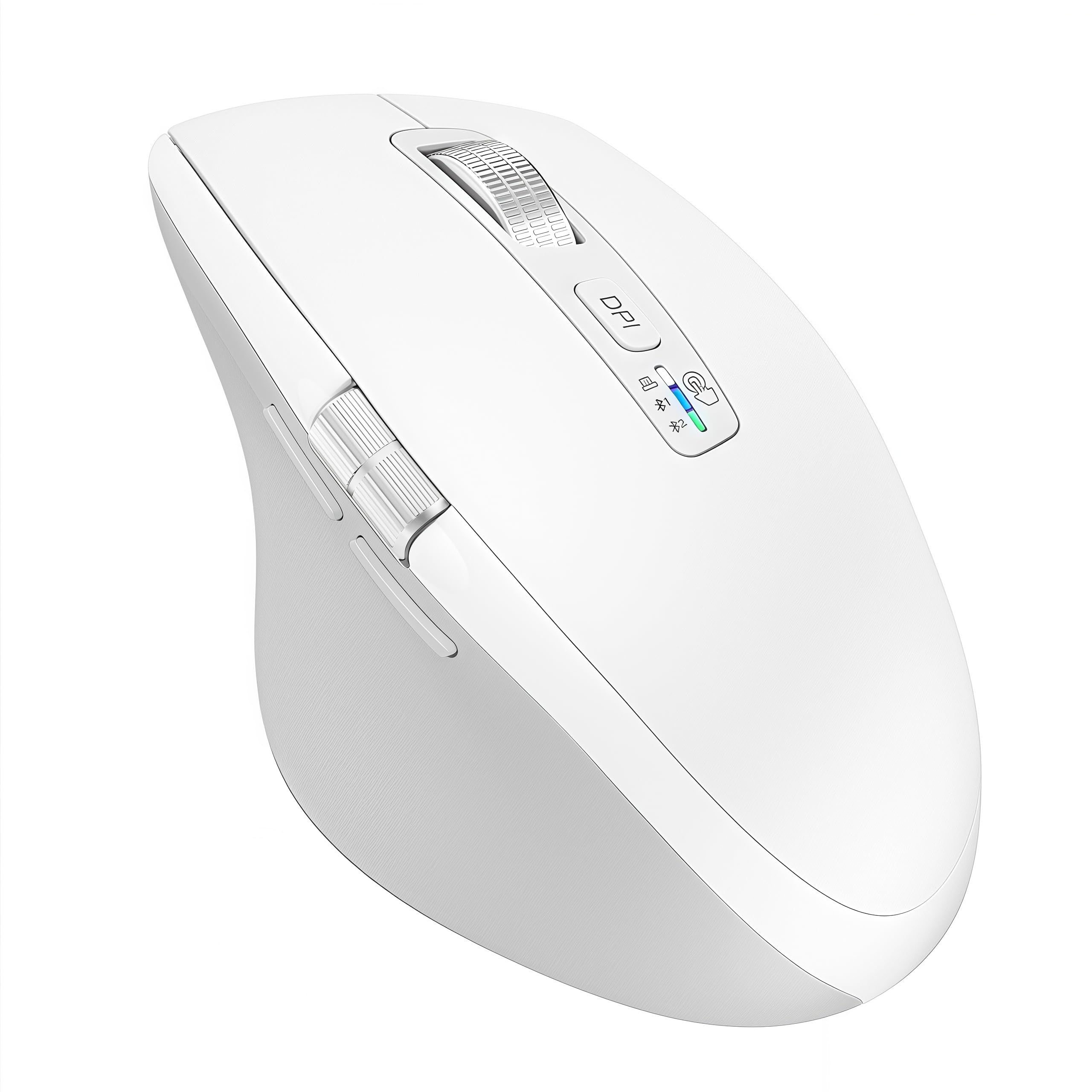
Image 2.1: INFINMIND Wireless Bluetooth Mouse D1091E7Z (White variant)

Image 2.2: Ergonomic design for comfortable grip and reduced hand fatigue.
3. Setup Instructions
3.1. Battery Installation
The mouse requires one or two AA batteries. Two AA batteries are included in the package. You can choose to install one or two batteries based on your preferred mouse weight.
- Open the battery compartment cover located on the underside of the mouse.
- Insert one or two AA batteries, ensuring correct polarity (+/-).
- Close the battery compartment cover securely.
Video 3.1: Demonstrates battery installation and USB receiver placement.
3.2. Connecting to Devices
The INFINMIND D1091E7Z mouse supports simultaneous connection to three devices via 2.4G USB and two Bluetooth channels (BT1, BT2).
3.2.1. 2.4G USB Connection
- Locate the USB receiver inside the battery compartment of the mouse.
- Plug the USB receiver into an available USB-A port on your computer or device.
- Switch the mouse to 2.4G mode using the connection indicator button (usually indicated by a USB icon or '1').
- The device should automatically detect and connect to the mouse.
3.2.2. Bluetooth Connection (BT1 / BT2)
- Switch the mouse to either Bluetooth 1 (BT1) or Bluetooth 2 (BT2) mode using the connection indicator button. The corresponding LED indicator will flash.
- On your device (computer, laptop, tablet, smartphone), go to Bluetooth settings.
- Search for new Bluetooth devices. The mouse should appear as "INFINMIND Mouse" or similar.
- Select the mouse to pair. Follow any on-screen prompts to complete the pairing process.
- Repeat for a second Bluetooth device using the other Bluetooth channel (BT2).

Image 3.1: The mouse supports simultaneous connection to three devices (2.4G USB, Bluetooth 1, Bluetooth 2).
Video 3.2: Demonstrates switching between multiple connected devices.
4. Operating Instructions
4.1. DPI Adjustment
The mouse features 4 adjustable DPI (Dots Per Inch) settings to suit various tasks, from precise graphic design to fast-paced gaming.
- Press the DPI button located on the top of the mouse, below the main scroll wheel.
- Each press cycles through the DPI settings: 1000, 1600, 2400, and 3000 DPI.
- The LED indicator will briefly change color or flash to indicate the current DPI setting.

Image 4.1: Visual representation of 4-stage DPI adjustment (1000/1600/2400/3000).
4.2. Scrolling Functions
The mouse is equipped with two scroll wheels for versatile navigation.
4.2.1. High-Speed Vertical Scroll Wheel
The main metal scroll wheel allows for fast and quiet vertical scrolling, enabling quick navigation through long documents or web pages.
4.2.2. Side Thumb Scroll Wheel
The side thumb scroll wheel provides horizontal scrolling functionality, useful for navigating wide spreadsheets or timelines. Additionally, the side buttons can be used for 'forward' and 'back' actions in web browsers. Note: On Mac OS, the forward/back buttons may function as application switching.

Image 4.2: Illustrates high-speed vertical scrolling and side thumb scrolling.
4.3. Silent Click Design
The left and right click buttons are designed for silent operation, providing a quiet working environment suitable for libraries, offices, or shared spaces.

Image 4.3: The mouse features silent left and right click buttons.
5. Maintenance
5.1. Cleaning
To maintain optimal performance, regularly clean your mouse. Use a soft, dry cloth to wipe the surface. For stubborn dirt, a slightly damp cloth can be used, but ensure no moisture enters the internal components.
5.2. Battery Care
The mouse boasts a long battery life, up to 40 months with two AA batteries (or 20 months with one). When the battery is low, the mouse's LED indicator may flash. Replace batteries promptly to avoid interruption. Remove batteries if the mouse will not be used for an extended period.

Image 5.1: The mouse offers extended battery life, reducing the need for frequent battery changes.
6. Troubleshooting
- Mouse not responding: Ensure batteries are correctly installed and charged. Check that the USB receiver is securely plugged in (for 2.4G mode) or that Bluetooth is enabled and paired on your device (for Bluetooth modes). Try switching to a different connection mode.
- Cursor movement is erratic or slow: Clean the optical sensor on the underside of the mouse. Ensure you are using the mouse on a suitable surface (a mouse pad is recommended). Adjust the DPI setting to a higher value if the cursor is too slow.
- Cannot connect via Bluetooth: Ensure the mouse is in Bluetooth pairing mode (LED flashing). Remove any previous pairings of the mouse from your device's Bluetooth settings and try pairing again. Ensure your device's Bluetooth is turned on.
- Side buttons not working on Mac OS: As noted, on Mac OS, the forward/back buttons may function as application switching. This is a system-level behavior and not a mouse malfunction.
- Mouse feels heavy: The mouse is designed to be slightly heavier than typical mice. If you prefer a lighter mouse, you can operate it with only one AA battery installed instead of two.
7. Specifications
| Feature | Description |
|---|---|
| Model Number | D1091E7Z |
| Connectivity | 2.4G USB (receiver included), Bluetooth x 2 |
| DPI Settings | 1000 / 1600 / 2400 / 3000 |
| Scroll Wheels | High-speed vertical scroll, Side thumb scroll |
| Buttons | Left, Right (silent click), DPI, Forward, Back, Vertical Scroll Click, Side Scroll |
| Battery Type | AA (x1 or x2) |
| Battery Life | Up to 40 months (with 2 batteries, varies by usage) |
| Compatible OS | Windows, Mac OS, Linux, iOS, Android, Chrome OS |
| Dimensions | 11.2 x 7.6 x 0.1 cm |
| Weight | 150 g (with 2 batteries), 125 g (with 1 battery) |
| Material | Plastic |
8. Warranty and Support
INFINMIND products are designed for reliability and performance. If you encounter any issues or have questions regarding your D1091E7Z mouse, please refer to the contact information provided with your purchase or reach out to our customer support team. Please note that the included instruction manual is in English. For any problems during use, please do not hesitate to contact us via your order history.