
1. Introduction
Welcome to the user manual for your new realme 15 Pro 5G smartphone. This guide provides essential information to help you set up, operate, maintain, and troubleshoot your device. Please read this manual thoroughly to ensure optimal performance and longevity of your smartphone.
Package Contents
Upon unboxing, please verify that the following items are included in your package:
- realme 15 Pro 5G Smartphone
- 80W Fast Charger
- USB Type-C Cable
- SIM Ejector Tool
- Quick Start Guide
- Safety Information and Warranty Card
2. Device Overview
Familiarize yourself with the physical components and layout of your realme 15 Pro 5G smartphone.

Image: Front and back view of the realme 15 Pro 5G smartphone, illustrating its sleek design and camera module. The front features a large display with a punch-hole selfie camera, while the back showcases the triple camera setup and realme branding.
Front View
- Display: 6.8-inch FHD+ AMOLED 120Hz screen.
- Front Camera: 50MP selfie camera, located in a punch-hole cutout.
- Earpiece: For calls.
- In-display Fingerprint Sensor: For secure unlocking.
Rear View

Image: Close-up of the realme 15 Pro 5G's rear panel, highlighting the triple AI camera system and the elegant finish of the device.
- Triple AI Camera System: Three 50MP cameras for versatile photography.
- LED Flash: For low-light photography.
- realme Logo: Brand identification.
Side and Bottom Views

Image: Top and bottom edges of the realme 15 Pro 5G, detailing the placement of the USB-C port, speaker grille, microphone, and SIM card tray.
- Right Side: Power button, Volume Up/Down buttons.
- Bottom Edge: USB Type-C port, Speaker grille, Primary microphone, SIM card tray.
- Top Edge: Secondary microphone.
3. Initial Setup
Follow these steps to set up your realme 15 Pro 5G for the first time.
3.1. Installing SIM Cards
- Locate the SIM card tray on the bottom edge of your phone.
- Insert the SIM ejector tool into the small hole next to the tray and press firmly until the tray pops out.
- Place your Nano-SIM cards into the designated slots on the tray. Ensure the gold contacts face downwards. This device supports Dual SIM functionality.
- Carefully reinsert the tray into the phone until it clicks into place.
3.2. Powering On Your Device
- Press and hold the Power button on the right side of the phone until the realme logo appears on the screen.
- Follow the on-screen instructions to complete the initial setup wizard, which includes selecting your language, connecting to Wi-Fi, and setting up your Google account.
3.3. Charging the Battery
Before first use, it is recommended to fully charge your device. Connect the USB Type-C cable to the phone's charging port and the 80W Fast Charger to a power outlet. The charging indicator will appear on the screen.
4. Basic Operation
This section covers fundamental operations of your realme 15 Pro 5G.
4.1. Power On/Off/Restart
- Power On: Press and hold the Power button until the realme logo appears.
- Power Off: Press and hold the Power button, then tap 'Power off' on the screen.
- Restart: Press and hold the Power button, then tap 'Restart' on the screen.
4.2. Touchscreen Gestures
- Tap: Select an item or activate a function.
- Touch and Hold: Access contextual menus or move items.
- Swipe: Scroll through lists or navigate between screens.
- Pinch: Zoom in or out on images and web pages.
4.3. Navigation
Your device uses Android 15 with intuitive navigation gestures or traditional navigation buttons (configurable in Settings).
- Home: Return to the home screen.
- Back: Go back to the previous screen.
- Recents: View and switch between recently used applications.
4.4. Making and Receiving Calls
- Open the 'Phone' app.
- Dial the number or select a contact.
- Tap the call icon to initiate the call.
- To answer an incoming call, swipe up on the green answer icon. To decline, swipe down on the red decline icon.
4.5. Camera Usage
Your realme 15 Pro 5G features a powerful 50MP Triple AI Camera system and a 50MP Selfie Camera.
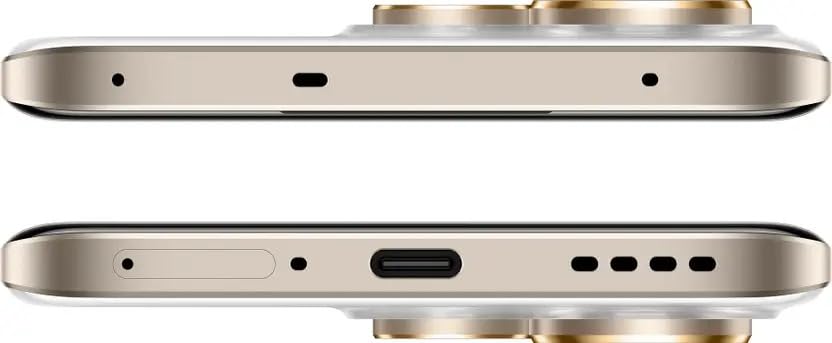
Image: Visual representation of the realme 15 Pro 5G's camera capabilities, highlighting its support for 4K video recording at 60 frames per second.
- Open the 'Camera' app.
- Select your desired mode (Photo, Video, Portrait, Night, etc.).
- Tap the shutter button to capture a photo or start/stop video recording.
- Use the on-screen controls to zoom, switch between lenses, or access settings.
5. Maintenance
Proper maintenance ensures the longevity and optimal performance of your device.
5.1. Battery Care
- Avoid extreme temperatures, as they can degrade battery life.
- Use only the official 80W Fast Charger and USB Type-C cable provided with your device.
- For optimal battery health, avoid frequently draining the battery completely or keeping it at 100% for extended periods.
5.2. Cleaning Your Device
- Use a soft, lint-free cloth to clean the screen and body of the phone.
- Avoid using harsh chemicals or abrasive materials.
- Keep ports free of dust and debris. Do not insert sharp objects into the ports.
5.3. Software Updates
Regularly check for and install software updates to enhance security, stability, and introduce new features.
- Go to Settings > About device > Up to date (or similar path).
- Follow the on-screen instructions to download and install any available updates. Ensure your device has sufficient battery and a stable internet connection during the update process.
5.4. Data Backup
Regularly back up your important data to prevent loss. You can use Google Cloud backup, transfer files to a computer, or use external storage solutions.
6. Troubleshooting
This section addresses common issues you might encounter with your realme 15 Pro 5G.
6.1. Device Not Turning On
- Ensure the battery is charged. Connect the charger and wait a few minutes before attempting to power on.
- Press and hold the Power button for at least 10-15 seconds to force a restart.
6.2. Screen Unresponsive
- Force restart the device (see above).
- If the issue persists, try cleaning the screen.
6.3. Network Issues (No Signal/Wi-Fi)
- Check if Airplane Mode is enabled in Quick Settings.
- Restart your device.
- For mobile data, ensure your SIM card is properly inserted and your plan is active.
- For Wi-Fi, restart your router and ensure you have the correct password.
6.4. Applications Crashing
- Clear the cache and data of the problematic app (Settings > Apps > [App Name] > Storage > Clear cache/Clear data).
- Update the app from the Google Play Store.
- Uninstall and reinstall the app.
6.5. Factory Reset (Last Resort)
Warning: A factory reset will erase all data on your phone. Back up your data before proceeding.
- Go to Settings > System > Reset options > Erase all data (factory reset).
- Follow the on-screen prompts to confirm the reset.
7. Specifications
Detailed technical specifications for the realme 15 Pro 5G (Model: RMX5101).
| Feature | Specification |
|---|---|
| Model Number | RMX5101 |
| Operating System | Android 15 |
| Processor | Snapdragon 7 Gen 4 |
| RAM | 8 GB |
| Internal Storage | 128 GB |
| Display | 6.8 Inches FHD+ AMOLED, 120Hz Refresh Rate, 2800 x 1280 Resolution |
| Rear Camera | 50MP Triple AI Camera |
| Front Camera | 50MP Selfie Camera |
| Battery Capacity | 7000mAh |
| Charging | 80W Fast Charging |
| Connectivity | 5G, Wi-Fi, Bluetooth, GPS |
| SIM Support | Dual SIM |
| Dimensions (LxWxH) | 16.22 x 7.61 x 0.79 cm |
| Weight | 510 g |
| Color | Silver with Purple Accent |
8. Warranty and Support
8.1. Warranty Information
Your realme 15 Pro 5G smartphone comes with a limited warranty. Please refer to the warranty card included in your package for detailed terms and conditions, including the warranty period and coverage. Keep your proof of purchase for warranty claims.
8.2. Customer Support
For further assistance, technical support, or service inquiries, please visit the official realme support website or contact realme customer service. Contact details and service center locations can typically be found on the realme official website.
9. Important Safety Information
Please read the following safety guidelines carefully to ensure safe and proper use of your device:
- Do not attempt to disassemble or modify the device.
- Use only realme-approved chargers and accessories.
- Avoid exposing the device to extreme temperatures, direct sunlight, or liquids.
- Do not use the device while driving or operating heavy machinery.
- Dispose of the device and its battery responsibly according to local regulations.
- Maintain a safe distance from medical implants when using the device.