1. Introduction
The NearStream AMIX20U is an all-in-one audio interface designed for gaming, podcasting, streaming, and music production. It features dual XLR/6.35mm combo inputs with professional preamps, 48V phantom power, multiple voice changer modes, customizable sound pads, and dynamic RGB lighting. This manual provides detailed instructions for setting up, operating, and maintaining your AMIX20U device.

Image: The NearStream AMIX20U Gaming Audio Mixer showcasing its compact design and key features like RGB lighting, voice changer modes, and sound pads.
2. Package Contents
Ensure all items are present in the package:
- AMIX20U Audio Interface (x1)
- USB Cable (6.6 ft) (x1)
- TRRS to TRRS Audio Cable (4.9 ft) (x1)
- TRS to TRS Audio Cable (4.9 ft) (x1)
- User Manual (x1)

Image: A visual representation of the AMIX20U audio interface and its accompanying cables and manual.
3. Setup
3.1 Powering On and Initial Connection
- Power Supply: Connect the provided USB cable to the 5V 1A DC IN port on the AMIX20U and to a power source.
- Power On/Off: Press and hold the power button (located near the main rotary knob) for 2 seconds to turn the device on or off. A short press controls the RGB light.
- OTG Port Connection: Connect the USB-OTG port to your PC, smartphone, or tablet for direct recording or live streaming.
3.2 Connecting Microphones and Instruments
- Microphone Connection: Connect your XLR or 6.35mm microphone to the XLR/6.35mm combo inputs (IN1 or IN2).
- 48V Phantom Power: For condenser microphones, activate 48V phantom power by pressing the dedicated 48V button next to the input. A blue background indicates it's on. Turn it off for dynamic microphones.
- Instrument Connection: Connect your instrument (e.g., guitar) to the XLR/6.35mm combo inputs. Press the 'INST' button to switch between microphone and instrument modes.
3.3 Audio Monitoring and Output
- Headphone Monitoring: Connect your headphones to the 6.35mm audio port for real-time sound monitoring.
- Auxiliary Audio Input: Connect the 3.5mm audio jack to your smartphone, PC, or tablet to play background music.
- Bluetooth Connection: Hold the Bluetooth button for 2 seconds until the blinking icon appears, entering pairing mode. Connect your smartphone to the audio mixer via Bluetooth for music accompaniment.
- Audio Output: Connect your speakers to the 6.35mm Audio Left (L) and Right (R) Output Ports for sound output. Alternatively, connect the 3.5mm audio output to your speaker/PC/smartphone/iPad to play the recorded sound.
Video: Detailed guide on how to connect the NearStream AMIX40U Audio Interface to various devices, including power, OTG, microphones, instruments, headphones, auxiliary audio, and Bluetooth. This video demonstrates setup steps applicable to the AMIX20U model.

Image: Rear panel of the AMIX20U highlighting the various input and output ports for comprehensive connectivity.
4. Operating the AMIX20U
4.1 Controls and Indicators
- Volume Faders: Use the 4 smooth volume faders for MICROPHONE 1, MICROPHONE 2, LINE IN, and LINE OUT channels to control individual input and output levels.
- One-Touch Mute: Quickly mute channels using the dedicated mute buttons.
- Headphone Monitoring Volume: Adjust the dedicated rotary knob for headphone monitoring volume.
- LCD Screen Display: The LCD screen displays current settings for EQ, Denoise, Reverb, and Audio Gain modes. Use the rotary button to adjust volume, reverb, denoise level, and sound mode.
- RGB Lighting Modes: The device features 9 controllable RGB lighting modes via the dedicated RGB button.
4.2 Special Features
- Voice Changer Modes: Access 6 unique voice effects (Male, Female, Robot, Monster, Baby, Elder) via the dedicated Voice Change button.
- Customizable Sound Pads: Utilize 4 customizable sound pads to trigger sound effects or short clips (up to 15 seconds).
- Electric Mode: Offers multiple key options (A, Bb, B, C, Dd, D, Ab, G, Gb, F, Dd, Eb) for accurate tone reproduction.
- Reverb Control: Adjust reverb from 0-100 for vocals and instruments.
- Denoise Mode: Reduces background noise for clearer audio.
- Ducker Mode: Automatically lowers background sound when you speak.
- Loopback Mode: Combines microphone and computer audio for real-time streaming and recording.
- Voice Remover: Transforms any track into a pure instrumental.
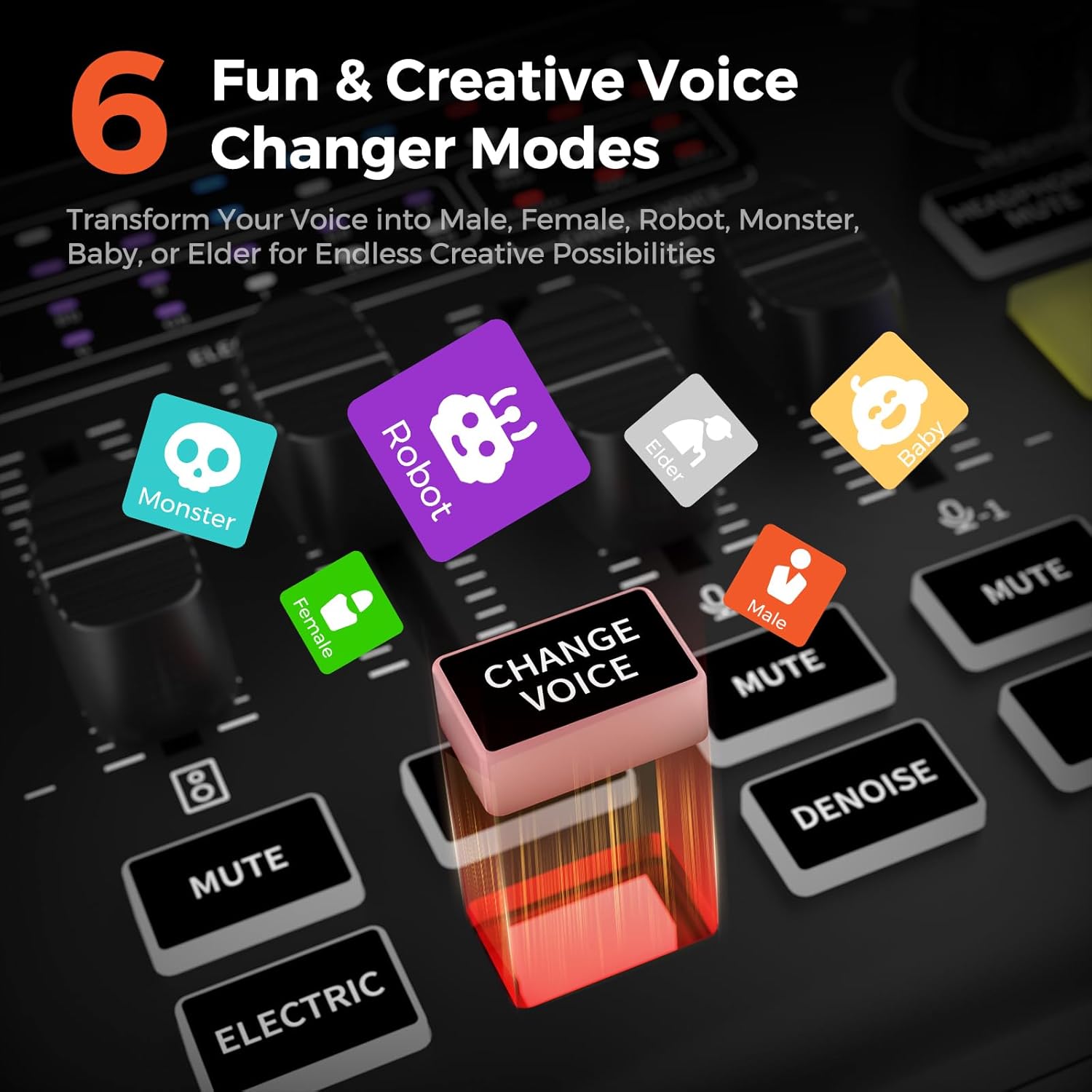
Image: The 6 Voice Changer Modes on the AMIX20U, including Male, Female, Robot, Monster, Baby, and Elder.

Image: The 4 customizable sound pads on the AMIX20U, ready to trigger unique sound effects.
5. Maintenance
To ensure the longevity and optimal performance of your NearStream AMIX20U, follow these maintenance guidelines:
- Cleaning: Use a soft, dry cloth to clean the device. Avoid liquid cleaners or abrasive materials.
- Storage: Store the device in a cool, dry place away from direct sunlight and extreme temperatures.
- Handling: Handle the device with care to prevent physical damage to knobs, faders, and ports.
6. Troubleshooting
If you encounter issues with your AMIX20U, try the following steps:
- No Power: Ensure the USB cable is securely connected to a 5V 1A power source.
- No Audio Input: Check all cable connections (microphones, instruments, OTG). Verify 48V phantom power is enabled for condenser microphones. Ensure input gain levels are appropriately set.
- No Audio Output: Check speaker/headphone connections. Verify output volume levels on the device and connected playback systems.
- Bluetooth Pairing Issues: Ensure the AMIX20U is in pairing mode (blinking Bluetooth indicator) and your device's Bluetooth is on and searching.
- Sound Quality Issues: Adjust EQ (Low, Mid, High) and Denoise settings. Ensure microphone is positioned correctly.
- Device Unresponsive: Use a small pin to press the 'RST' (Reset) button on the rear panel.
7. Specifications
| Feature | Detail |
|---|---|
| Item Weight | 1.5 pounds |
| Product Dimensions | 6.8 x 5 x 2 inches |
| Compatible Devices | Guitar, Headphone, Microphone, Personal Computer, Smartphone |
| Operating System | Windows, macOS |
| Connectivity Technology | AUX, Bluetooth, USB |
| Number of Channels | 8 |
8. Warranty and Support
For warranty information and technical support, please refer to the official NearStream website or contact their customer service directly. Keep your purchase receipt for warranty claims.
