
1. Introduction
This manual provides essential information for setting up, operating, and maintaining your DEERTiME Android 15 Tablet E9. Designed for versatile use, this tablet features a powerful Octa-Core processor, ample memory, and a vibrant 10.1-inch HD display. Please read this manual thoroughly to ensure optimal performance and longevity of your device.
2. What's in the Box
Upon unboxing your DEERTiME E9 Tablet, please verify that all the following items are included:
- DEERTiME E9 Tablet
- Bluetooth Keyboard
- Wireless Mouse
- Protective Case
- Screen Protector
- Charger & Cable (Type-C)
- USB to Type-C Adapter
- User Manual

Image: All items included in the DEERTiME E9 Tablet package.
3. Setup
3.1 Initial Charging
Before first use, ensure your tablet is fully charged. Connect the provided Type-C cable to the tablet's charging port and the charger to a power outlet. The battery indicator on the screen will show charging status. A full charge typically takes several hours.
3.2 Power On/Off
- To Power On: Press and hold the Power button (usually located on the side) for 2-3 seconds until the DEERTiME logo appears.
- To Power Off: Press and hold the Power button, then select 'Power Off' from the on-screen options.
- To Restart: Press and hold the Power button, then select 'Restart' from the on-screen options.
3.3 Connecting Accessories (Keyboard & Mouse)
The DEERTiME E9 Tablet comes with a Bluetooth keyboard and a wireless mouse to enhance productivity. Follow these steps to connect them:
- For Bluetooth Keyboard:
- Turn on the keyboard using its power switch.
- On your tablet, go to 'Settings' > 'Connected devices' > 'Bluetooth'.
- Enable Bluetooth and search for available devices.
- Select the keyboard from the list and follow any on-screen pairing instructions.
- For Wireless Mouse:
- Locate the USB receiver for the wireless mouse (often stored inside the mouse itself).
- Connect the USB receiver to the tablet using the provided USB to Type-C adapter.
- Turn on the mouse. It should automatically connect to the tablet.
3.4 Applying the Screen Protector
A screen protector is included to safeguard your tablet's display. Carefully follow the instructions provided with the screen protector for proper application to avoid bubbles and ensure a smooth finish.
Video: Demonstrates the DEERTiME Android 15 tablet with its included keyboard, mouse, and case, highlighting the accessories and their use.
4. Operating Your Tablet
4.1 Android 15 Operating System
Your DEERTiME E9 Tablet runs on the Google-certified Android 15 operating system, offering an enhanced, secure, and user-friendly experience. Key features include split-screen multitasking, casting to TV, customizable widgets, and secure face unlock.

Image: Overview of the Android 15 system features and interface.
4.2 Performance and Storage
The tablet is powered by a 2.0GHz Octa-Core CPU, ensuring smooth performance for various tasks. It features 30GB of RAM (8GB physical + 22GB virtual extension) and 128GB of internal storage. Storage can be expanded up to 1TB using a microSD card (not included).

Image: Details on the tablet's RAM, ROM, and Octa-Core processor.
4.3 Display and Audio
Enjoy crisp visuals on the 10.1-inch HD Incell display with a resolution of 1280x800 pixels. The tablet supports Widevine L1 certification for seamless HD streaming on platforms like Netflix and Amazon Prime. Dual stereo speakers provide immersive audio.

Image: Features of the tablet's high-resolution display and Widevine L1 support.
4.4 Connectivity
The tablet offers robust connectivity options including dual-band Wi-Fi (2.4G & 5G) for stable internet access, Bluetooth 5.0 for connecting wireless peripherals, and GPS for navigation.
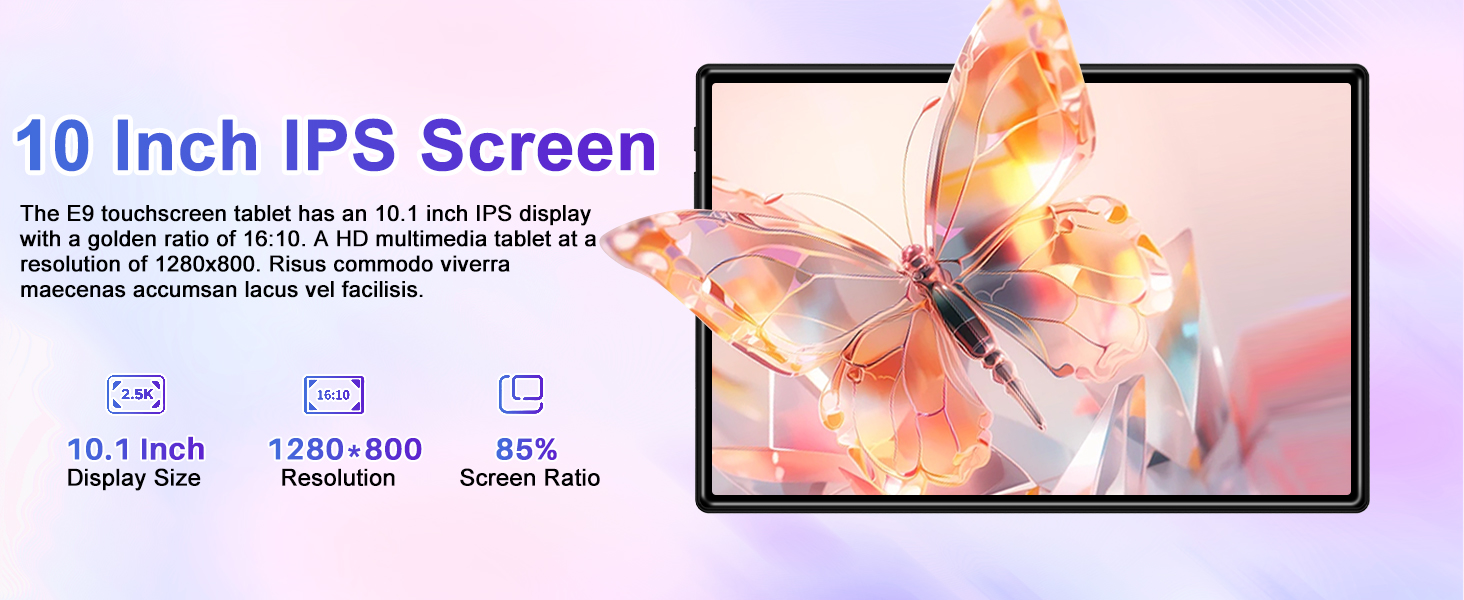
Image: Connectivity features including dual-band Wi-Fi and Bluetooth 5.0.
4.5 Cameras
Equipped with a 5MP front camera and an 8MP rear camera, the tablet is suitable for video calls, online meetings, and capturing everyday moments.
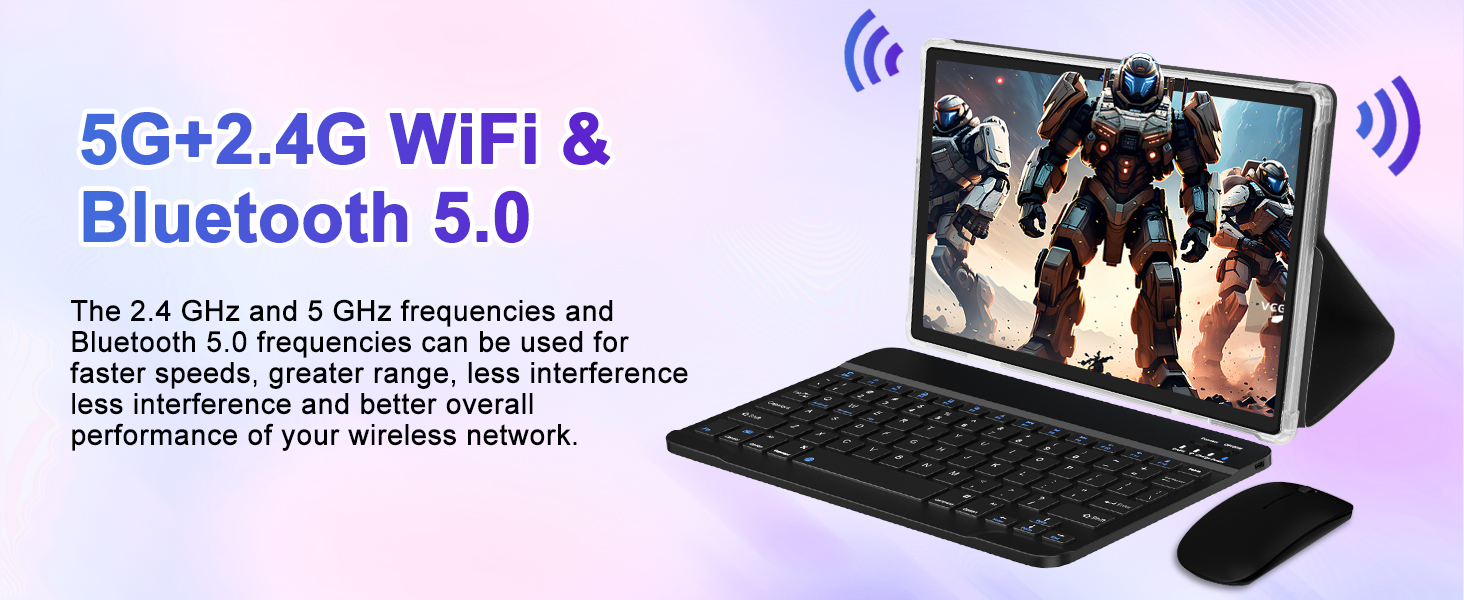
Image: Camera specifications and usage examples.
4.6 Gemini AI and Security Features
The tablet integrates Gemini AI for enhanced user experience and features secure face unlock for convenient and protected access. Robust privacy controls and parental management tools are also included, making it ideal for family use and ensuring secure content access for children (e.g., Disney+, YouTube Kids).
5. Maintenance
5.1 Battery Care
The DEERTiME E9 Tablet is equipped with an 8000mAh Lithium Polymer battery, providing approximately 8 hours of average battery life. To prolong battery lifespan, it is recommended to fully discharge the battery once a month. Avoid exposing the tablet to extreme temperatures or throwing it into fire.

Image: Battery capacity and estimated usage times.
5.2 Storage Management
Regularly manage your tablet's 128GB internal storage to maintain optimal performance. Utilize the built-in storage manager to free up space by deleting unnecessary apps, images, videos, and documents. Consider using a microSD card for expanding storage up to 1TB for large files and media.
6. Troubleshooting
6.1 Common Issues and Solutions
- Tablet not responding: If the tablet becomes unresponsive, press and hold the power button for 5 seconds to perform a forced shutdown. Then, restart the device.
- Connectivity issues (Wi-Fi/Bluetooth): Ensure Wi-Fi and Bluetooth are enabled in settings. Try restarting your router or re-pairing Bluetooth devices.
- App performance: Close unused applications running in the background to free up RAM. Regularly clear app caches.
- Storage full: Use the 'Free up space' option in 'Settings' > 'Storage' to identify and remove large or unnecessary files. Consider moving media to an external microSD card.
- Camera quality: Ensure good lighting conditions for photos and videos. While suitable for casual use, professional-grade photography may require dedicated equipment.
- Virtual RAM vs. Physical RAM: The tablet utilizes both physical RAM (8GB) and virtual RAM (22GB) to achieve 30GB. Virtual RAM uses a portion of the internal storage to temporarily act as RAM, which is a common practice to enhance multitasking capabilities.
7. Specifications
| Feature | Specification |
|---|---|
| Brand | DEERTiME |
| Model Name | E9 |
| Operating System | Android 15 |
| Processor | 2 GHz Octa-Core (Unisoc Chipset) |
| RAM | 30GB (8GB Physical + 22GB Virtual) |
| Flash Memory Size (ROM) | 128 GB |
| Expandable Storage | Up to 1TB via microSD |
| Screen Size | 10.1 Inches |
| Screen Resolution | 1280 x 800 pixels |
| Wireless Type | 802.11a/b/g/n/ac (Dual-band 2.4G & 5G WiFi), Bluetooth 5.0 |
| Rear Webcam Resolution | 8 MP |
| Front Webcam Resolution | 5 MP |
| Battery | 8000mAh Lithium Polymer (included) |
| Average Battery Life | 8 Hours |
| Item Weight | 1.2 pounds |
| Product Dimensions | 9.6 x 0.4 x 6.3 inches |
8. Warranty and Support
The DEERTiME E9 Tablet typically comes with a 2-year warranty, providing peace of mind for your purchase. For any technical assistance, troubleshooting beyond this manual, or warranty claims, please refer to the contact information provided in the 'User Manual & Warranty Card' included in your product packaging. You may also visit the official DEERTiME store on Amazon for further support and resources.