
Canon PowerShot SX740
Contents
Canon PowerShot SX740 HS Digital Camera User Manual
Model: PowerShot SX740 HS
1. Introduction
Welcome to the user manual for your Canon PowerShot SX740 HS Digital Camera. This guide provides essential information on setting up, operating, maintaining, and troubleshooting your camera to help you capture high-quality photos and videos.
The PowerShot SX740 HS is a compact, high-performance camera featuring a 20.3 Megapixel CMOS sensor, 40x optical zoom, and 4K Ultra HD video recording capabilities. Its user-friendly design makes it suitable for various photography needs.
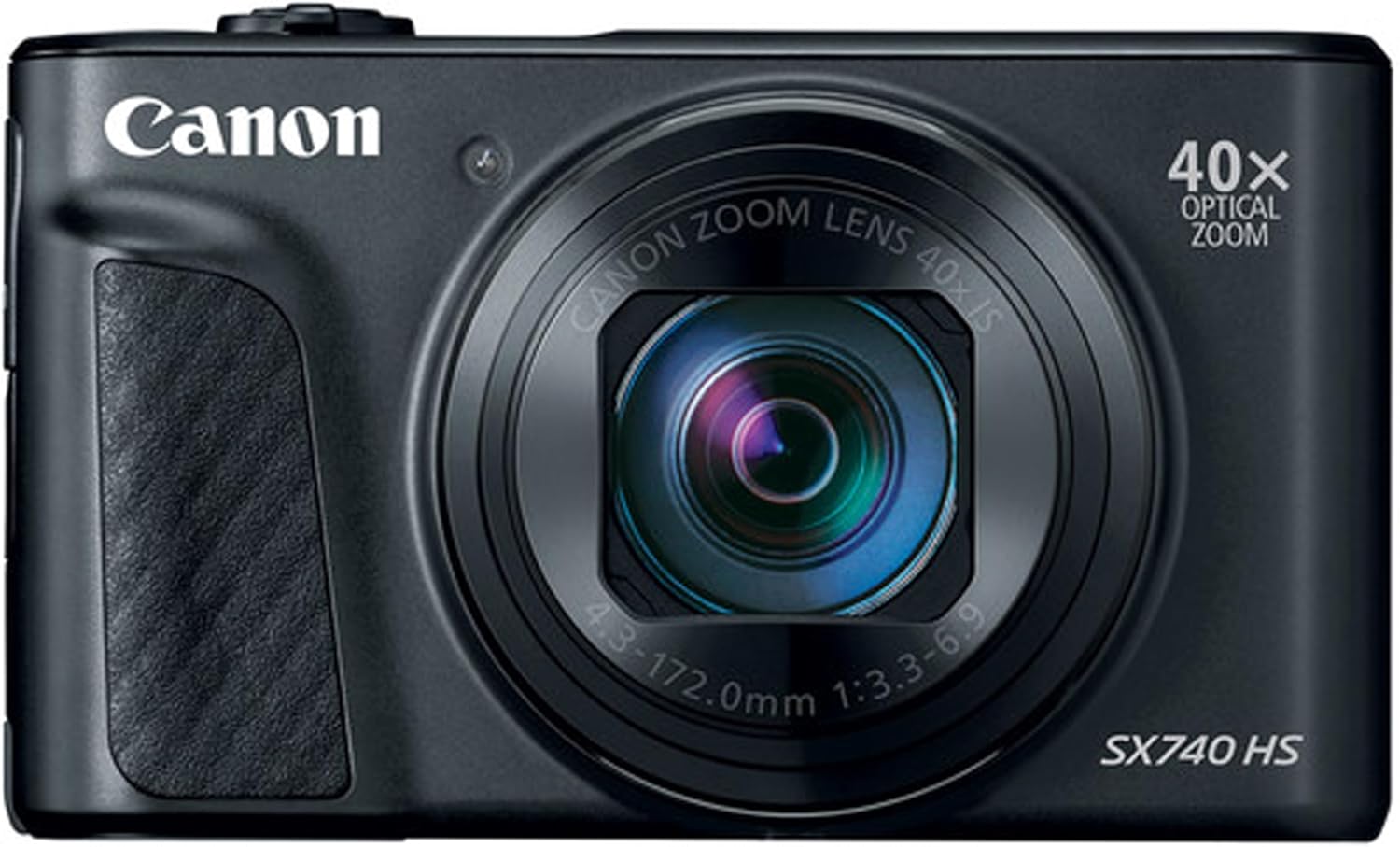
Figure 1.1: Front view of the Canon PowerShot SX740 HS Digital Camera. This image shows the camera's lens, built-in flash (retracted), and grip area.
Key Features:
- 20.3 Megapixel CMOS Sensor: Captures high-resolution images with exceptional detail.
- DIGIC 8 Image Processor: Ensures fast performance and excellent image quality in various lighting conditions.
- 40x Optical Zoom Lens: Provides extensive reach for distant subjects (24-960mm equivalent).
- 4K Ultra HD Video Recording: Records stunning videos with superior clarity.
- Dual Sensing Image Stabilization: Minimizes camera shake for sharp photos and steady videos.
- 3.0-inch Tilt-Type LCD Screen: Offers flexible viewing angles for composing shots and selfies.
- Wi-Fi and Bluetooth Connectivity: Enables seamless sharing and remote camera control.
2. Setup
2.1. Charging the Battery
Before first use, fully charge the supplied battery pack. Insert the battery into the charger and plug the charger into a power outlet. The charging indicator will show the charging status.
2.2. Inserting the Battery and Memory Card
- Open the battery/card compartment cover on the bottom of the camera.
- Insert the fully charged battery pack into the compartment, ensuring the correct orientation.
- Insert an SD, SDHC, or SDXC memory card into the card slot with the label facing the front of the camera until it clicks into place.
- Close the compartment cover securely.
3. Operating the Camera
3.1. Powering On/Off
Press the [ON/OFF] button located on the top of the camera to power it on or off.
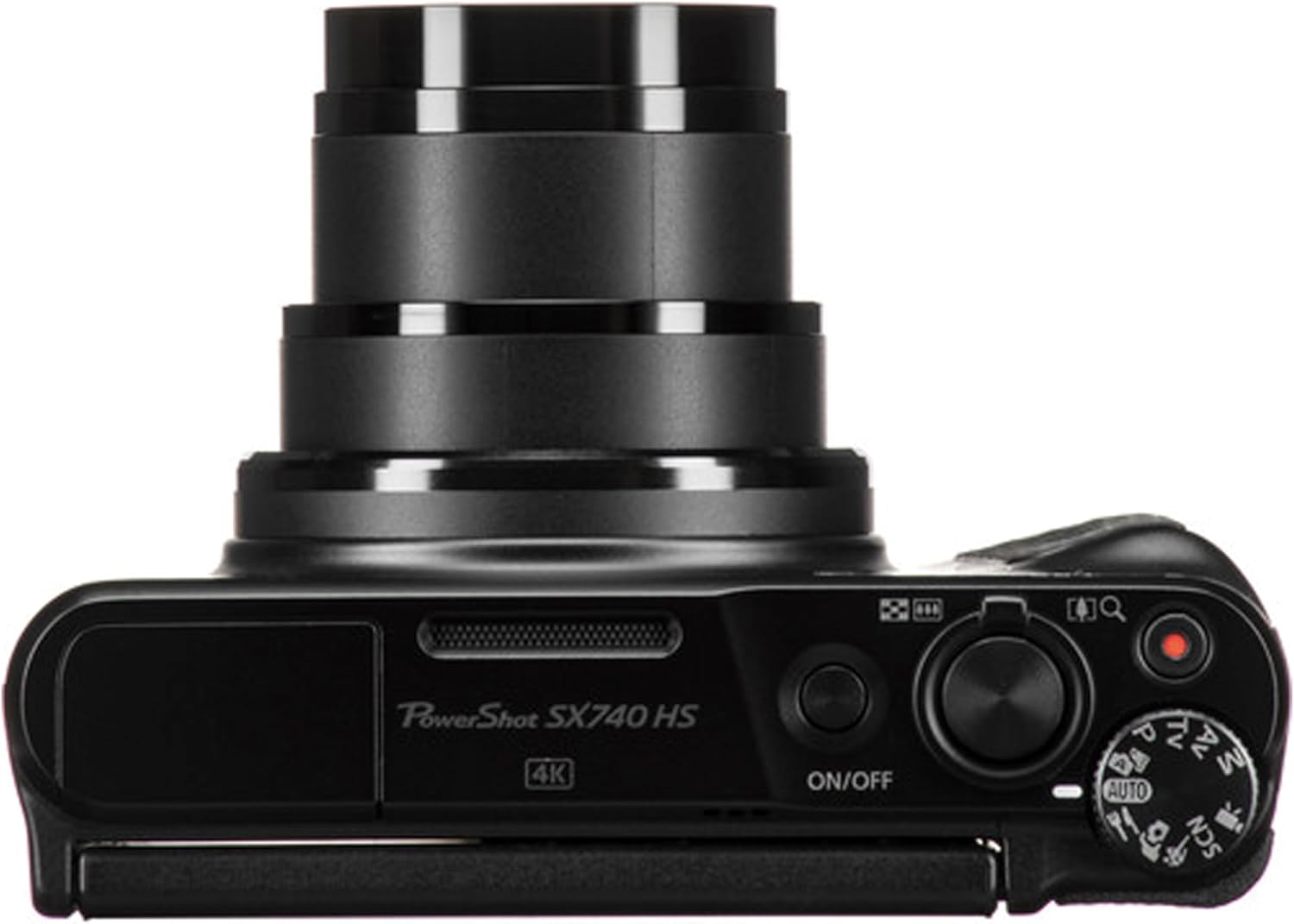
Figure 3.1: Top view of the Canon PowerShot SX740 HS Digital Camera. This image highlights the power button, shutter button, zoom lever, and mode dial.
3.2. Basic Shooting
- Turn the mode dial to [AUTO] for automatic settings.
- Frame your subject using the 3.0-inch LCD screen.
- Press the shutter button halfway down to focus. The focus frame will appear.
- Press the shutter button all the way down to take the picture.
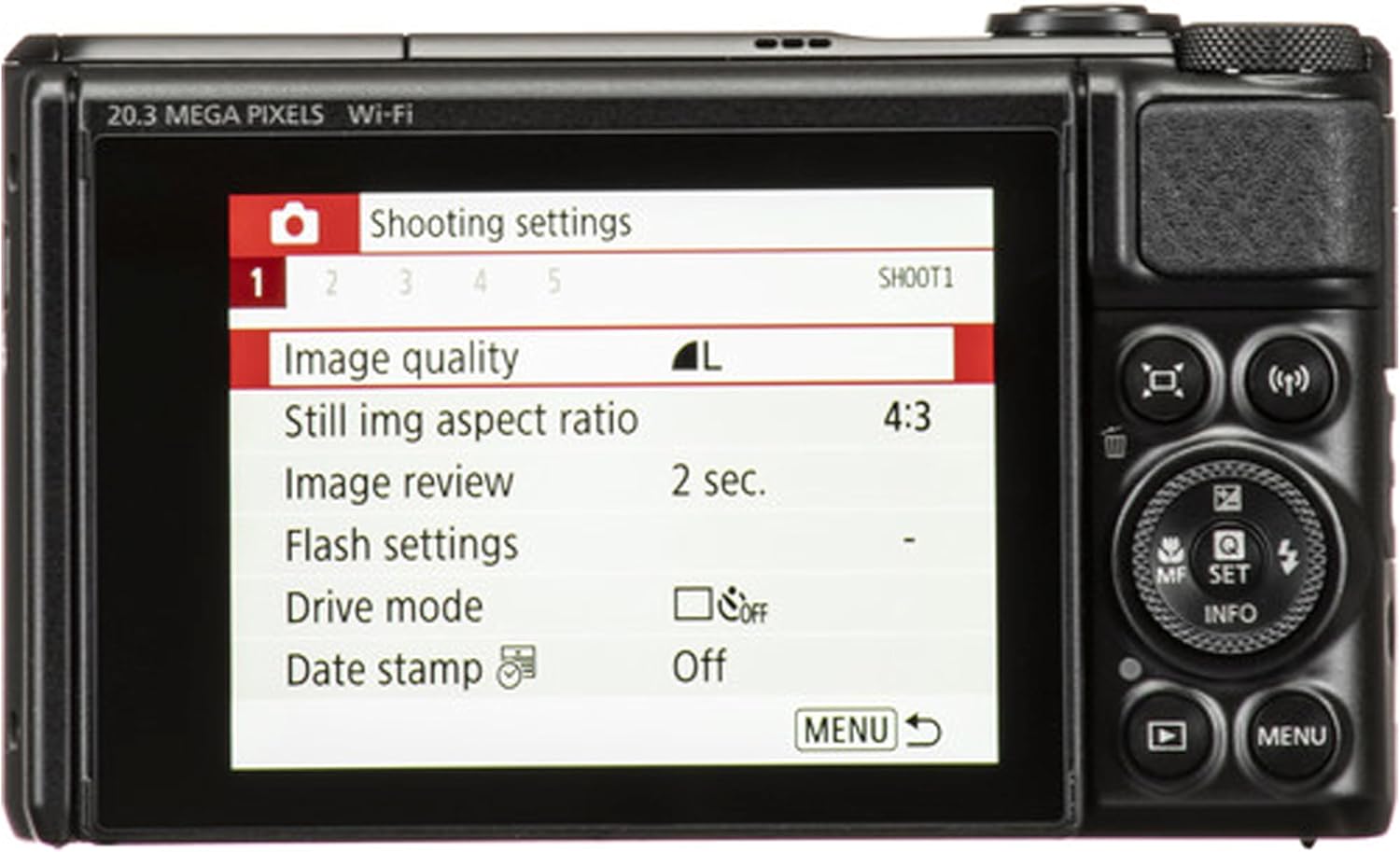
Figure 3.2: Rear view of the Canon PowerShot SX740 HS Digital Camera. The LCD screen displays shooting settings such as image quality, aspect ratio, and flash settings.
3.3. Using the Zoom
Use the zoom lever around the shutter button to adjust the focal length. Push the lever towards [T] (Telephoto) to zoom in on distant subjects, and towards [W] (Wide-angle) to zoom out and capture a wider scene.
3.4. Shooting Modes
Rotate the mode dial to select various shooting modes:
- AUTO: Camera automatically selects optimal settings.
- P (Program AE): Camera sets aperture and shutter speed, you control other settings.
- Tv (Shutter-priority AE): You set shutter speed, camera sets aperture.
- Av (Aperture-priority AE): You set aperture, camera sets shutter speed.
- M (Manual): You control both aperture and shutter speed.
- SCN (Special Scene): Access various scene modes like Portrait, Night Scene, Panorama.
- Creative Filters: Apply various effects to your photos.
3.5. Video Recording
To record videos, press the dedicated [Movie] button. Press it again to stop recording. The camera supports 4K Ultra HD video recording.
3.6. Using the Tilt-Type LCD Screen
The 3.0-inch LCD screen can be tilted up to 180 degrees, allowing for easy self-portraits (selfies) and shooting from various high or low angles.

Figure 3.3: Canon PowerShot SX740 HS with its LCD screen fully tilted upwards. This feature is ideal for self-portraits or shooting from low angles.
3.7. Built-in Flash
The camera features a built-in flash. In low-light conditions or when shooting against bright backgrounds, the flash can be raised manually or set to automatic mode via the camera settings.

Figure 3.4: Canon PowerShot SX740 HS with its built-in flash raised. The flash provides additional illumination for subjects in low-light environments.
4. Connectivity
4.1. Wi-Fi and Bluetooth
The PowerShot SX740 HS features built-in Wi-Fi and Bluetooth connectivity for seamless sharing and remote control:
- Image Transfer: Easily transfer photos and videos to your smartphone, tablet, or computer using the Canon Camera Connect app.
- Remote Shooting: Control the camera remotely from your smart device, allowing you to adjust settings, view live images, and trigger the shutter.
- Geotagging: Use your smartphone's GPS data to add location information to your photos via Bluetooth.
Refer to the camera's on-screen menu for detailed instructions on setting up Wi-Fi and Bluetooth connections.
5. Maintenance
5.1. Cleaning the Camera
- Camera Body: Use a soft, dry cloth to wipe the camera body. For stubborn dirt, lightly dampen the cloth with water and wipe gently.
- Lens: Use a lens blower to remove dust, then gently wipe with a lens cleaning cloth. Avoid touching the lens surface with your fingers.
- LCD Screen: Use a soft, dry cloth specifically designed for LCD screens.
Do not use organic solvents such as paint thinner or benzene to clean the camera.
5.2. Storage
When not in use, store the camera in a cool, dry, well-ventilated area, away from direct sunlight and extreme temperatures. Remove the battery if the camera will not be used for an extended period.
6. Troubleshooting
If you encounter issues with your camera, try the following basic troubleshooting steps:
- Camera does not turn on: Ensure the battery is fully charged and correctly inserted.
- Cannot take pictures: Check if a memory card is inserted and has sufficient free space. Ensure the lens cap is removed.
- Images are blurry: Check focus settings. Ensure the camera is held steady or use a tripod. Clean the lens if dirty.
- Flash does not fire: Check flash settings. Ensure the flash is raised if set to manual pop-up.
- Wi-Fi/Bluetooth connection issues: Ensure the Canon Camera Connect app is installed and updated on your smart device. Restart both the camera and the smart device.
For more complex issues, consult the Canon support website or contact customer service.
7. Specifications
| Feature | Specification |
|---|---|
| Sensor Type | 1/2.3-inch CMOS |
| Effective Pixels | Approx. 20.3 Megapixels |
| Image Processor | DIGIC 8 |
| Optical Zoom | 40x |
| Focal Length | 4.3 - 172.0 mm (24 - 960 mm 35mm equivalent) |
| Maximum Aperture | f/3.3 - f/6.9 |
| Image Stabilization | Dual Sensing IS |
| Video Recording | 4K UHD (3840 x 2160) at 30p/25p |
| LCD Monitor | 3.0-inch Tilt-Type LCD (approx. 922,000 dots) |
| Connectivity | Wi-Fi, Bluetooth |
| Storage Media | SD, SDHC, SDXC memory cards |
| Dimensions (W x H x D) | Approx. 110.1 x 63.8 x 39.9 mm |
| Weight | Approx. 299g (including battery and memory card) |
8. Warranty and Support
8.1. Warranty Information
This product comes with a 90-day limited warranty. Please refer to the warranty card included with your product for specific terms and conditions. Keep your proof of purchase for warranty claims.
8.2. Customer Support
For further assistance, technical support, or service inquiries, please visit the official Canon support website or contact Canon customer service in your region. You can find contact information and FAQs at www.usa.canon.com/support.
Documents and downloads
Ask a question about this manual
Ask about setup, troubleshooting, compatibility, parts, safety, or missing instructions. Manuals+ will review the question and use this page’s manual context to help answer it.