
1. Introduction
This manual provides essential information for the safe and effective use of your GREATEN AP 500 Pro Electronic Wind Instrument. Please read it thoroughly before use and retain it for future reference.
2. Package Contents
Verify that all items listed below are included in your package:
- Carrying Case
- User Manual
- USB Cable
- Internal Recording Cable
- Spare Mouthpiece
3. Product Overview
The GREATEN AP 500 Pro is an advanced electronic wind instrument designed for practice and performance. It features a responsive interface and versatile sound capabilities.
3.1 Key Features
- OLED Color Screen: Provides clear visuals and intuitive control.
- Dual Sound Mode: Blend two different tones simultaneously for a richer sound.
- Upgraded Mouthpiece: Enhanced sensitivity for precise control.
- Built-in Metronome: Master your rhythm with ease.
- Voice Control: Simplify your playing experience with voice commands.
3.2 Component Identification
Familiarize yourself with the main components of the AP 500 Pro.

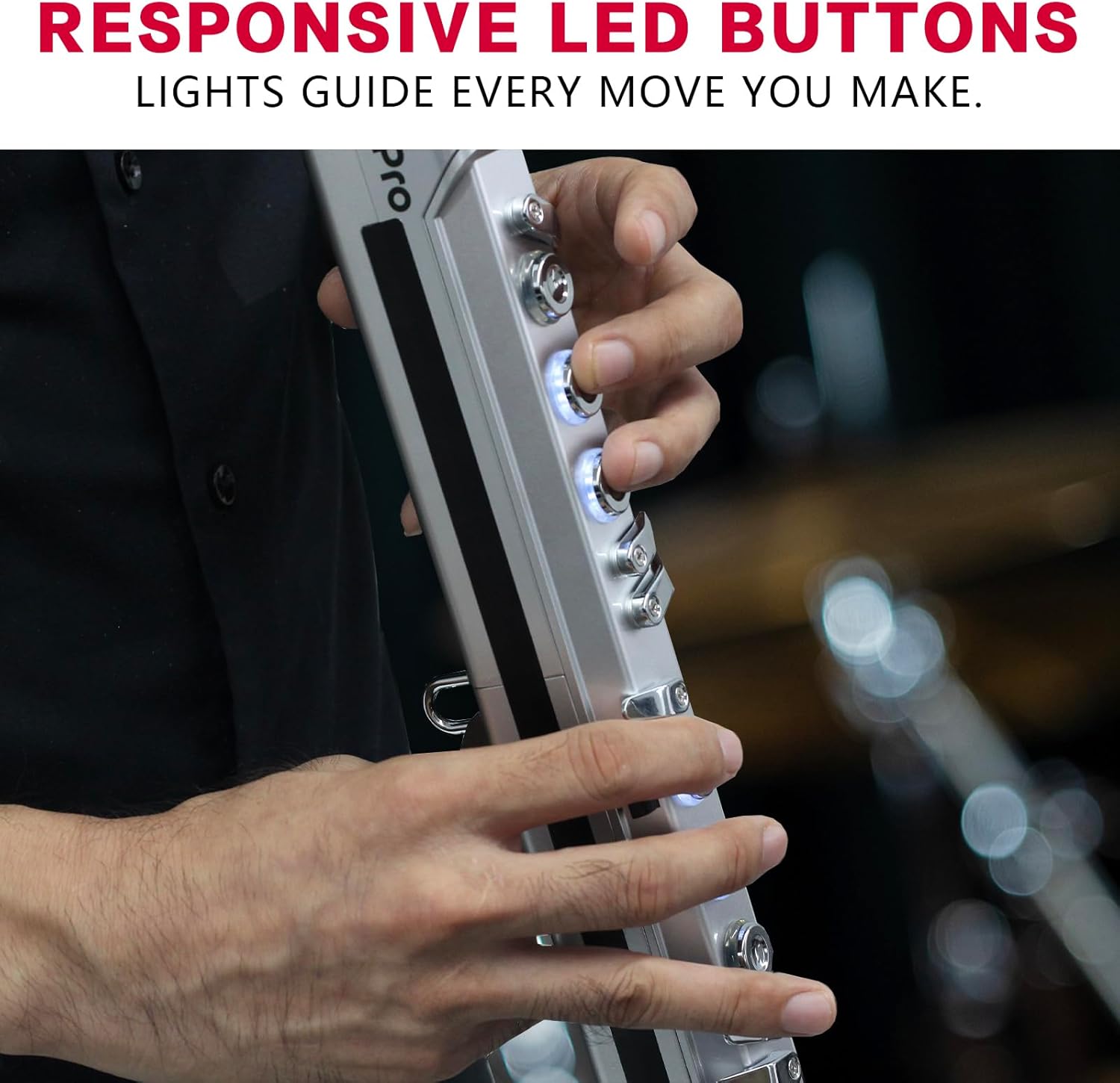
4. Setup and Basic Operation
4.1 Powering On/Off
To power on, long-press the power button located on the back panel. The OLED display will illuminate. To power off, long-press the power button again.
4.2 Mouthpiece and Silicone Tips
The instrument comes with two silicone tips. Slide one onto the mouthpiece and push it into place to protect the mouthpiece and ensure comfortable playing.
4.3 Adjusting Volume
Use the 'Vol +' and 'Vol -' buttons on the control panel to adjust the instrument's volume. The OLED display will show the current volume level.
4.4 Changing Tones (Sounds)
Press the 'Tone' button and then use the '+' and '-' buttons to cycle through the 120 available tones. The OLED display will show the selected tone number.

4.5 Dual Sound Mode
The AP 500 Pro supports Dual Sound Mode, allowing you to layer two different tones. Refer to the on-screen menu for selecting and blending secondary voices.
4.6 Voice Control
The instrument supports voice commands for adjusting tone, timbre, volume, fingering, and Bluetooth settings. Long-press the search dial until the icon lights up, then speak a preset command. A beep confirms success.

4.7 Metronome
The built-in metronome helps with rhythm practice. Access metronome settings via the control panel to adjust beat, tempo, speed, and volume.

5. Fingering and Playability
The AP 500 Pro offers various fingering modes to accommodate different wind instrument players, including saxophone, flute, and standard fingerings.
5.1 Fingering Modes
You can switch between different fingering modes (e.g., saxophone, flute, standard) to match your playing style. This is done via the control panel settings.
5.2 Octave Control
Use the octave roller or dedicated octave buttons to shift the pitch range of your playing. This allows access to lower and higher registers.
5.3 Breath and Key Sensitivity
Adjust the breath sensitivity and note key sensitivity to customize the instrument's response to your playing dynamics.
6. Connectivity
6.1 USB Connectivity (OTG)
The built-in OTG (On-The-Go) functionality allows direct connection to computers for MIDI use. This enables control of software instruments and recording.
6.2 Headphone Output
Connect headphones for silent practice or connect to an external speaker for amplified sound.
7. Specifications
| Feature | Detail |
|---|---|
| Model Name | AP-500 Pro |
| Brand | GREATEN |
| Item Weight | 1.79 pounds |
| Product Dimensions | 29.4 x 1.77 x 1.65 inches |
| Power Source | Battery Powered |
| Connectivity Technology | USB |
| Supported Software | Ableton Live |
| Number of Keys | 20 |
| Skill Level | Beginner, Intermediate |
| Body Material | Plastic |
8. Troubleshooting
If you encounter issues, please refer to the following common solutions:
- No Sound: Check volume levels, ensure headphones/external speakers are connected correctly, and verify the tone is selected.
- Instrument Dripping: It is normal for some moisture to accumulate due to breath. This is expelled through a small hole at the bottom.
- Unresponsive Controls: Try resetting the device to factory settings using the 'Reset' button.
- Connectivity Issues: Ensure USB cables are securely connected and drivers are installed if using with a computer.
9. Maintenance
To ensure the longevity of your AP 500 Pro, follow these maintenance guidelines:
- Cleaning: Wipe the instrument with a soft, dry cloth after each use. Clean the mouthpiece regularly.
- Storage: Store the instrument in its carrying case in a cool, dry place away from direct sunlight and extreme temperatures.
- Battery: Charge the internal battery regularly to maintain its health.
10. Support
For further assistance or warranty information, please visit the official GREATEN website or contact customer support.
Official GREATEN Store: GREATEN Store on Amazon


