
1. Introduction
The UGREEN NASync DXP4800 is a 4-bay desktop Network Attached Storage device designed for centralized data storage, automatic backups, and remote access. It offers robust data management capabilities, including various RAID options for data recovery and protection. This manual provides essential information for setting up, operating, and maintaining your NAS device.
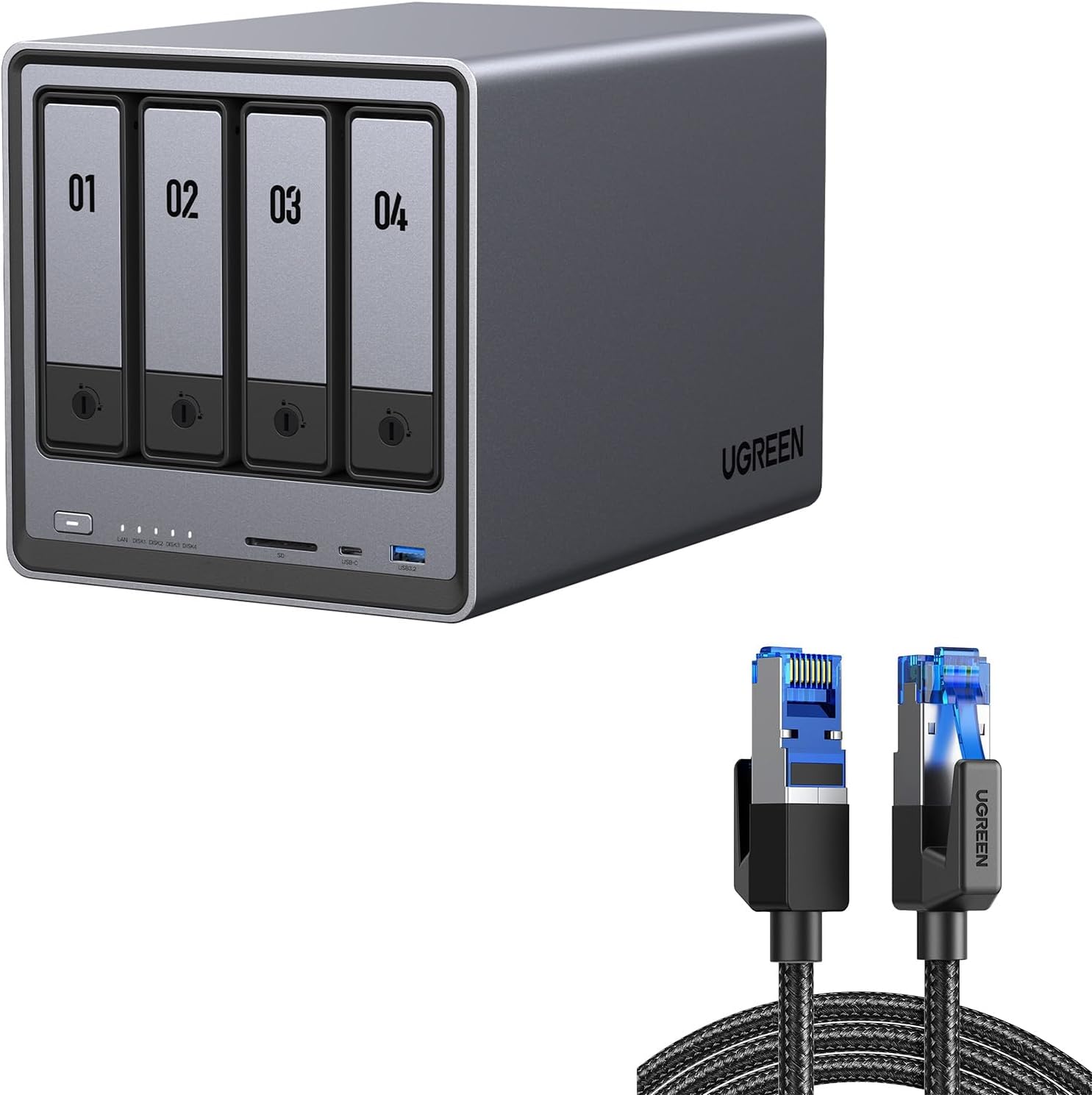
Figure 1: UGREEN NASync DXP4800 4-Bay Desktop NAS with included HDMI cable.
The DXP4800 features a 12th Gen 4-core Intel Processor, expandable DDR5 memory, and multiple high-speed ports for efficient data handling. It supports a massive storage capacity of up to 136TB, making it suitable for extensive photo and video libraries.
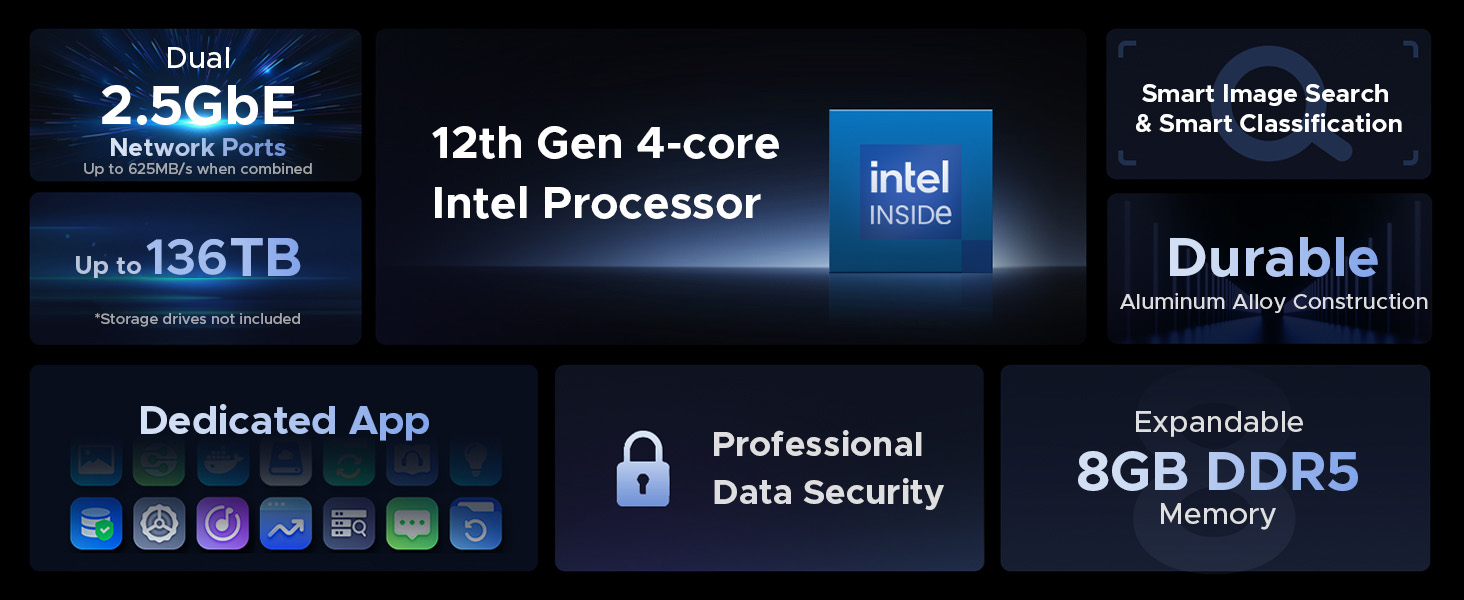
Figure 2: Overview of UGREEN NASync DXP4800 features including ports, processor, and storage capacity.
2. Package Contents
Please verify that all items listed below are included in your package:
- NASync DXP4800 x 1
- User Manual x 1
- After-sales Card x 1
- Hard Drive Tray Keys x 2
- Power Adapter (DC 12V/10A) x 1
- Ethernet Cables (CAT 7) x 2
- SSD Silicone Pads x 2
- Screws & Screwdriver x 1

Figure 3: All items included in the UGREEN NASync DXP4800 package.
3. Specifications
| Feature | Description |
|---|---|
| Brand | UGREEN |
| Model | DXP4800 |
| Drive Bays | 4 |
| Max Storage Capacity | Up to 136TB (with 22TB HDDs) |
| Processor | 12th Gen 4-core Intel Processor |
| RAM | 8GB DDR5 (Expandable up to 16GB) |
| NVMe Slots | 2 (M.2 2280, PCIe Gen 4x4 and PCIe Gen 3x4) |
| LAN Ports | 2x 2.5GbE Ethernet |
| Other Ports | HDMI (4K), USB3.2 Gen1, 2x USB 2.0, SD Card Slot, Type-C Gen 2, USB3.2 Gen 2 |
| Operating System | UGOS Pro (Debian kernel) |
| Drive Compatibility | 3.5" HDD, 2.5" HDD, 2.5" SSD (SATA) |

Figure 4: Comparison table of UGREEN NASync models, including DXP4800 specifications.
4. Setup
4.1 Drive Installation
The DXP4800 supports 3.5-inch HDDs, 2.5-inch HDDs, and 2.5-inch SATA SSDs in its drive bays. It also features two M.2 NVMe slots for high-speed caching or additional SSD storage.

Figure 5: Compatible drive types for the UGREEN NASync DXP4800.
To install drives:
- Unlock the drive bay using the provided key.
- Pull out the drive tray.
- For 3.5-inch HDDs, simply place the drive into the tray. For 2.5-inch drives, secure them with the provided screws.
- For M.2 NVMe SSDs, open the bottom panel of the NAS, insert the SSDs into the M.2 slots, and secure them with the provided screws.
- Slide the filled drive tray back into the bay until it clicks into place.
4.2 Initial Connection
The UGREEN NASync DXP4800 is a Network Attached Storage device and must be connected to a router or network switch to be accessible. It cannot be directly connected to a computer.
- Connect the NAS to your router or network switch using one of the provided Ethernet cables.
- Connect the power adapter to the NAS and plug it into a power outlet.
- Power on the NAS by pressing the power button on the front panel.

Figure 6: Front and rear expansion ports of the UGREEN NASync DXP4800.
4.3 Storage Pool Creation
After initial connection, access the NAS via its web interface or dedicated app to create storage pools and volumes. The NAS supports various RAID options for data protection and performance. You can start with fewer drives and dynamically expand the storage pool by adding more drives later.
Video 1: This video demonstrates the process of setting up storage pools and volumes on the UGREEN NASync, highlighting the user-friendly interface and various RAID options.
5. Operating Instructions
5.1 File Management
The UGREEN NASync runs on UGOS Pro, an in-house developed operating system built on the Debian kernel. It offers a comprehensive beginner's guide and a simplistic control panel for easy navigation.

Figure 7: UGOS Pro interface with beginner's guide and control panel.
The dedicated NASync app simplifies file management, media streaming, and backups across various devices (Windows, MacOS, iOS, Android, Web, Smart TVs).

Figure 8: Dedicated NASync software for cross-platform access.
The NAS supports various file formats (ext4/Btrfs for internal, Btrfs/ext2/ext3/ext4/Vfat/exFAT/FAT16/FAT32/NTFS/XFS for external) and multiple protocols (SMB, Webdav, FTP, NFS, Rsync).

Figure 9: Supported file formats and protocols.
5.2 Photo and Video Sync
You can easily sync photos and videos from your mobile devices to the NAS. In the NASync app, navigate to Tools > Sync and Backup and enable the Photos backup option.
To copy photos from an SD card, simply insert the SD card into the dedicated slot on the NAS (if available on your model) and use the File Manager within the UGOS Pro interface to copy the files to your desired folder.

Figure 10: Securely backup precious family moments to your NAS.
5.3 Remote Access and Syncing
The NAS supports remote access and syncing capabilities:
- UGLink: For syncing between different UGREEN NASync devices.
- RSync: For syncing between a UGREEN NASync and another brand of NAS.
- Cloud Services: The NAS can also sync with various cloud services.

Figure 11: Remote Access via UGREENlink.

Figure 12: Remote access allows you to manage your files from anywhere.
5.4 Media Streaming
The high-speed network ports enable seamless streaming of your media files to any of your devices, including phones, tablets, laptops, and TVs. This allows you to create a centralized home multimedia hub.

Figure 13: The NAS as a Media Streaming Hub.
6. Maintenance
6.1 Cooling System
The NAS is equipped with a Smart Cooling Fan that operates in Default, Quiet, or Full Speed modes to maintain optimal temperatures and minimize noise. The fan also features a magnetic dust filter for easy cleaning and maintenance.

Figure 14: Smart Cooling Fan with different operating modes.
7. Troubleshooting and FAQ
7.1 General Questions
- What is the maximum drive size supported?
The hard drive trays support drives up to 22TB each. The M.2 NVMe slots support NVMe drives up to 4TB each. - Can I dynamically increase the storage pool?
Yes, UGREEN NASync supports dynamic storage expansion. You can start with fewer drives and add more later to expand the same storage pool. - What PCIe version does the NVMe model use?
The NVMe model (DXP4800) uses two PCIe Gen 4x4 and two PCIe Gen 3x4 slots. - Does the photo sync work through the app?
Yes, there is a photo sync/backup option in the NASync app under Tools > Sync and Backup. - Is Time Machine supported?
Yes, Time Machine is supported. - Does it support 2.5-inch drives or only 3.5-inch drives?
It supports both 3.5-inch HDDs and 2.5-inch SSDs/HDDs, as long as they are SATA compatible. - How is desktop syncing over the internet possible?
For syncing between different UGREEN NASync devices, use UGLink. For syncing between a UGREEN NASync and another brand NAS, use RSync. You can also sync between UGREEN NASync and cloud services. - How easy is it to copy photos from an SD card?
It's very easy. Insert the SD card into the dedicated slot (if available on your model) and use the File Manager in UGOS Pro to copy files. - Will the thermal throttle if the CPU is under load (for the i5 version)?
Yes, UGREEN NASync supports thermal throttling to manage CPU temperature under load. - How many users can I add to my NAS?
The maximum number of users for one UGREEN NASync device is 2048. - Can the NAS be directly connected to a computer or does it have to go through a router/switch?
The UGREEN NASync is a NAS, not a DAS (Direct Attached Storage). It must be connected to a router or switch to be accessed.
Video 2: This video addresses common questions about the UGREEN NASync series, including drive compatibility, storage expansion, and connectivity.
8. Warranty and Support
UGREEN offers comprehensive support for your NASync DXP4800:
- 2-Year Coverage: Enjoy a 2-year warranty on your device.
- 24h Specialist Support: Access specialist support around the clock for any technical assistance.
- 30-day Free Returns: Benefit from a 30-day free return policy.
For further assistance, please refer to the contact information provided on your After-sales Card or visit the official UGREEN website.