
UGREEN DXP2800
Contents
UGREEN NASync DXP2800 2-Bay Desktop NAS User Manual
Model: DXP2800
1. Introduction
The UGREEN NASync DXP2800 is a 2-bay desktop Network Attached Storage (NAS) device designed for efficient and secure data management. It provides a centralized solution for storing, backing up, and accessing your files, photos, and videos across various devices and platforms. Equipped with a 12th Gen Intel N100 processor and a 2.5GbE network port, the DXP2800 offers robust performance for multitasking and fast data transfers.

Image: The UGREEN NASync DXP2800 2-Bay Desktop NAS unit shown alongside a bundled right-angle HDMI cable.
This manual provides comprehensive instructions for setting up, operating, maintaining, and troubleshooting your UGREEN NASync DXP2800, ensuring you can maximize its capabilities for your personal or professional data storage needs.
2. What's in the Box
Before proceeding with the setup, please verify that all the following items are included in your package:

Image: A visual representation of the package contents, including the NAS unit, power adapter, cables, and accessories.
- UGREEN NASync DXP2800 Unit x 1
- After-sales Card x 1
- User Manual x 1 (This document)
- Hard Drive Tray Keys x 2
- Screws & Screwdriver x 1 set
- Ethernet Cable (CAT 7) x 1
- Power Adapter (DC 12V/5A) x 1
3. Setup Guide
3.1 Hardware Installation
The DXP2800 supports various types of hard drives for broad compatibility:

Image: The NAS unit demonstrating compatibility with 3.5" HDDs, 2.5" HDDs, and 2.5" SSDs.
- Prepare Hard Drives: Ensure your 3.5" HDDs, 2.5" HDDs, or 2.5" SSDs are ready for installation. The DXP2800 is diskless, so drives are sold separately.
- Install Hard Drives:
- Unlock the drive bays using the provided keys.
- Slide out the drive trays.
- Secure your hard drives onto the trays using the provided screws.
- Slide the trays back into the NAS until they click into place.
- Lock the drive bays.
- Connect Power: Connect the power adapter to the DC 12V/5A port on the rear of the NAS and plug it into a power outlet.
- Connect to Network: Use the provided CAT 7 Ethernet cable to connect the 2.5GbE LAN port on the NAS to your router or network switch.
- Optional HDMI Connection: For direct display output, connect an HDMI cable (such as the bundled right-angle HDMI cable) from the NAS HDMI port to your monitor or TV.

Image: Detailed view of the front and rear ports of the UGREEN NASync DXP2800, including USB-C, USB-A, HDMI, LAN, and power input.
3.2 Initial Software Setup
Once hardware is connected, power on the NAS. You will need to access the NAS through a web browser on a computer connected to the same network to complete the initial software setup and configuration of the UGOS Pro operating system.
- Refer to the quick start guide or the official UGREEN website for detailed instructions on accessing the web interface and initializing the system, including setting up RAID configurations if desired.
4. Operating Your NASync DXP2800
4.1 File Management and Sharing
The NASync DXP2800 allows for easy backup and sharing of your data. Its user-friendly app supports various platforms.

Image: Overview of key features including easy backup, massive storage, user-friendly interface, smooth app performance, and remote access.
- Multi-device Compatibility: Access and manage your files from Windows, macOS, Android, iOS devices, web browsers, and smart TVs using the dedicated UGREEN NASync app.
- Fast Transfers: Leverage the 2.5GbE port for high-speed data transfers, allowing you to back up large files quickly.
- Remote Access: Securely access and manage your stored files remotely from anywhere with an internet connection.

Image: A person accessing files on a tablet, demonstrating the remote access capability of the NAS.
4.2 AI-Powered Features
The NASync DXP2800 integrates advanced AI capabilities to enhance your media experience:
- AI Photo Assistant: Automatically organizes your photos by recognizing faces, scenes, objects, and locations. It can also instantly remove duplicates, freeing up storage space.
- Smart Categorization: Photos are intelligently categorized for easy searching and browsing.
- Auto-Backup: Ensure your precious memories are never lost with automatic photo backup.
- Family Sharing: Easily share photo albums with family and friends.

Image: Screenshots illustrating the AI Photo Assistant's capabilities, including semantic search, duplicate photo cleaning, text recognition, and people recognition.

Image: Screenshots showcasing the "Baby's Growth Album" feature, which automatically curates memories and allows for family sharing and growth timelines.

Image: Screenshots demonstrating the "Family's AI Album" features, including smart categorization, auto-backup, and faster sharing options.
4.3 4K Home Media Hub
Transform your NAS into a powerful home media center:

Image: A living room scene showing people enjoying content on a large screen, with the UGREEN NASync DXP2800 connected, highlighting its use as a 4K home media hub.
- Store all your movies in one place and automatically sort and classify them.
- Connect an HDMI cable to enjoy stunning 4K 60Hz playback directly from the NAS.
4.4 Advanced Features
The NASync DXP2800 offers advanced functionalities for power users:

Image: Screenshots depicting virtual machine and Docker interfaces, showcasing the NAS's capability to run advanced applications.
- Virtual Machine Support: Run Windows, Linux, and other operating systems as virtual machines.
- Docker Support: Deploy applications using Docker, such as video surveillance for home security.
5. Maintenance
Proper maintenance ensures the longevity and optimal performance of your NASync DXP2800.
5.1 Cooling and Noise Management
The DXP2800 is designed with efficient cooling to maintain consistent performance while keeping noise levels low.

Image: An internal view of the NAS highlighting its cooling system and different fan modes (Default, Quiet, Full Speed).
- Optimal Placement: Place the NAS in a well-ventilated area, away from direct sunlight or heat sources, to ensure proper airflow.
- Dust Prevention: Regularly clean the exterior of the NAS with a soft, dry cloth to prevent dust buildup, which can impede cooling.
- Quiet Mode: In quiet mode, noise levels typically stay between 29 and 34 dB, similar to a quiet library environment, ensuring minimal disturbance.
5.2 Software Updates
Keep your UGOS Pro operating system updated to ensure optimal performance, security, and access to the latest features.
- Check for updates regularly through the NAS web interface.
- Updates may include new languages, improved file management, and enhanced video playback capabilities.
6. Troubleshooting
This section addresses common issues you might encounter with your UGREEN NASync DXP2800.

Image: A visual representation of common questions and answers regarding the NASync DXP2800.
- Q1: Why is my phone incompatible or unable to log in to the NAS?
- Upgrade UGOS: Connect to the NAS through the website with a computer and update the UGOS.
- Reset the NAS: If the computer cannot connect to the NAS either, try to restore the NAS to factory settings and reset the system.
- After-sales support: If your problem still cannot be solved, please contact the support team for help.
- Q2: Can I install Plex/Emby/Kodi?
- Our App Store does not support direct downloads of these apps, but you can install them via Docker or a virtual machine.
- Q3: Is configuring Docker and virtual machines complicated?
- Deploying Docker and virtual machines requires configuration files. Please refer to the Knowledge Center or official tutorials for detailed instructions.
- Q4: Can I install Unraid or TrueNAS on UGREEN NAS devices?
- The device can run third-party software, but installing unofficial software may lead to issues.
7. Specifications
Detailed technical specifications for the UGREEN NASync DXP2800:
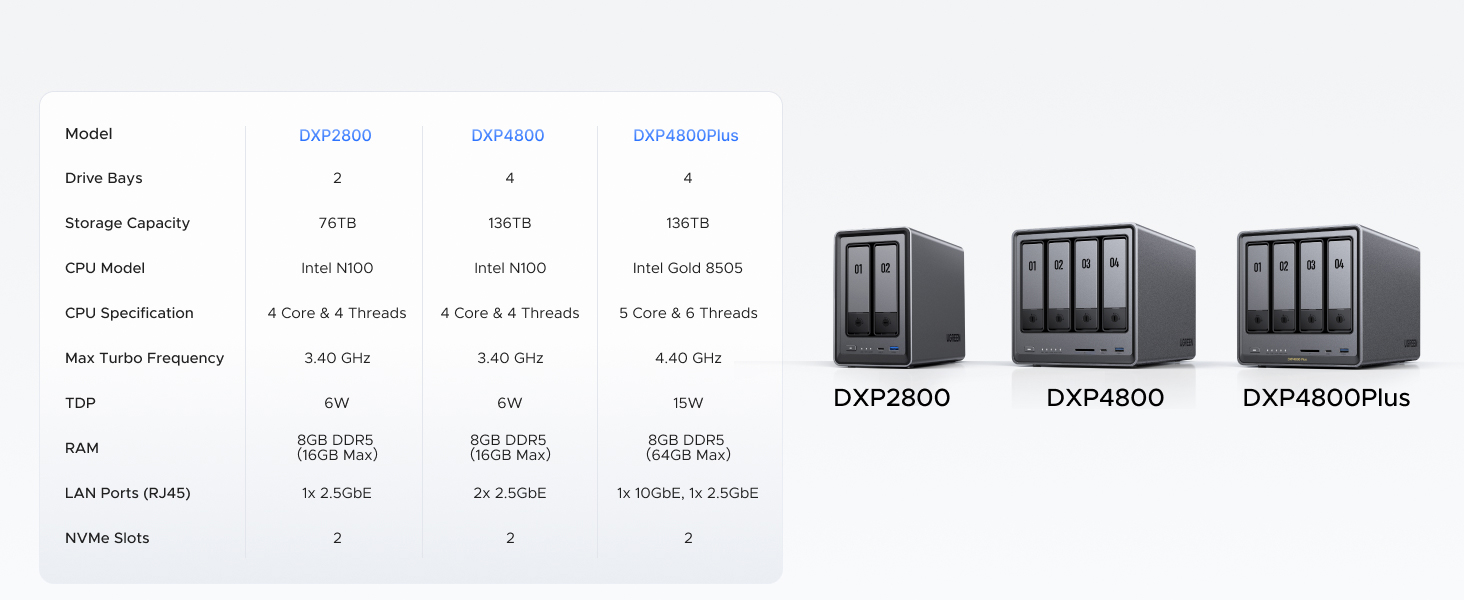
Image: A table comparing specifications across different UGREEN NASync models, including DXP2800.
| Feature | UGREEN NASync DXP2800 |
|---|---|
| Model | DXP2800 |
| Drive Bays | 2 |
| Storage Capacity | Up to 76TB |
| CPU Model | Intel N100 (12th Gen) |
| CPU Specification | 4 Core & 4 Threads |
| Max Turbo Frequency | 3.40 GHz |
| TDP | 6W |
| RAM | 8GB DDR5 (Expandable up to 16GB) |
| LAN Ports (RJ45) | 1x 2.5GbE |
| NVMe Slots | 2 (for high-speed SSD caching) |
| Front Ports | 1x USB-C (10Gb/s), 1x USB-A (10Gb/s) |
| Rear Ports | 1x HDMI (4K), 2x USB 2.0, 1x USB-A (5Gb/s) |
Note: Specifications are subject to change without prior notice.
8. Warranty & Support
UGREEN provides comprehensive support for its products.

Image: The UGREEN NASync DXP2800 unit next to a shield icon, signifying a 2-year coverage period.
- 2-Year Coverage: Enjoy 2 years of protection with UGREEN's warranty. Please refer to the included After-sales Card for detailed warranty terms and conditions.
- Customer Support: For technical assistance, troubleshooting beyond this manual, or warranty claims, please contact UGREEN customer support. Contact information can be found on the After-sales Card or the official UGREEN website.
Ask a question about this manual
Ask about setup, troubleshooting, compatibility, parts, safety, or missing instructions. Manuals+ will review the question and use this page’s manual context to help answer it.