
1. Introduction
This manual provides essential information for the safe and efficient use of your LG 25SR50F-W Smart Monitor. Please read it thoroughly before operating the device and retain it for future reference.
The LG 25SR50F-W is a 25-inch Full HD (1920x1080) IPS Smart Monitor featuring LG's webOS platform, ThinQ Home Dashboard, built-in speakers, and various connectivity options including AirPlay 2 and Bluetooth. It is designed for both productivity and entertainment.
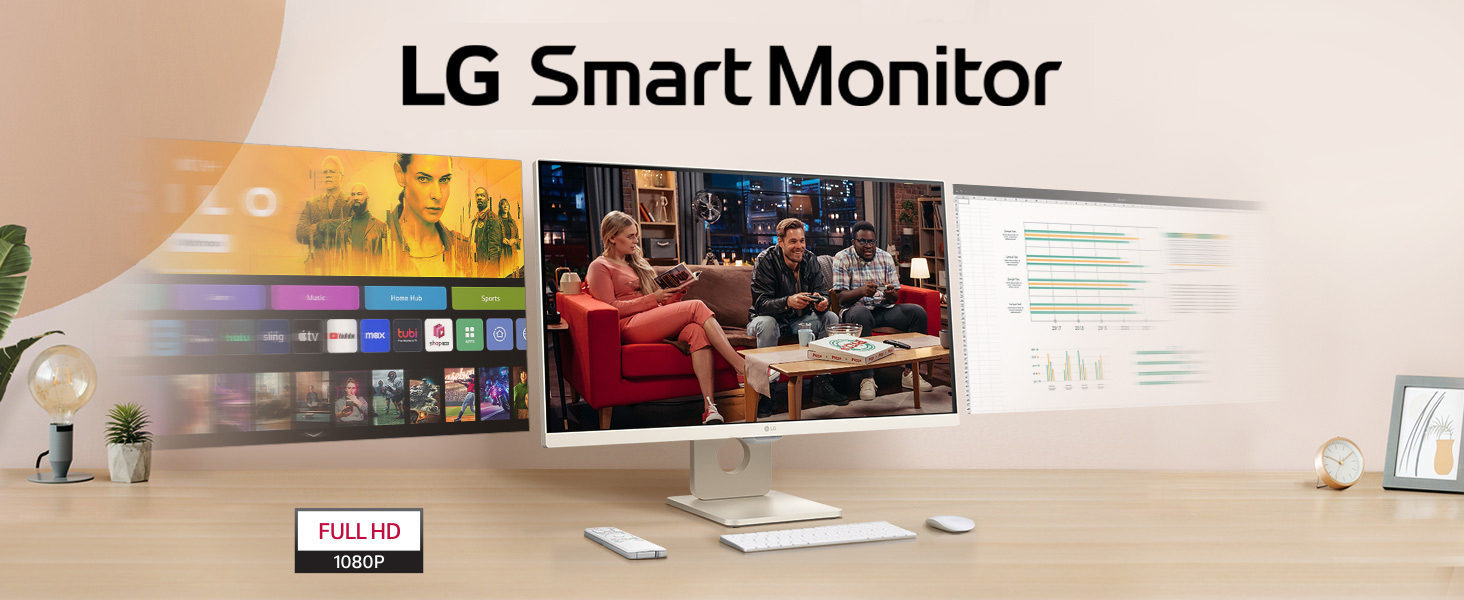
Image: The LG Smart Monitor showcasing its versatility for work, gaming, and streaming content.
2. Package Contents
Verify that all items are present in the box:
- LG 25SR50F-W Smart Monitor
- Monitor Stand (Base and Neck)
- Power Adapter
- Remote Controller
- HDMI Cable
- User Manual (this document)
3. Setup
3.1 Assembling the Stand
- Carefully place the monitor face down on a soft, clean surface to prevent scratches.
- Attach the stand neck to the monitor using the provided screws.
- Connect the stand base to the stand neck, securing it with the designated screw.

Image: Rear view of the monitor with the stand assembly.
3.2 Connecting External Devices
The monitor features multiple ports for various connections:
- HDMI Ports (x2): Connect your computer, gaming console, or other HDMI-enabled devices.
- USB Ports (x2): Connect USB devices such as a keyboard, mouse, or USB storage.
- Connect the HDMI cable from your device to an HDMI port on the monitor.
- Plug the power adapter into the monitor's power input, then into a wall outlet.
- Press the power button on the monitor or remote control to turn it on.

Image: Detailed view of the monitor's rear ports, including HDMI and USB.
4. Operating the Monitor
4.1 Remote Control Functions
Use the included remote control to navigate the monitor's features and settings. The remote allows for easy access to webOS applications, input selection, volume control, and power management.
4.2 webOS Smart Features
The LG 25SR50F-W integrates webOS23, providing direct access to a variety of streaming services and applications without needing an external computer. Key features include:
- Streaming Apps: Access popular services like Netflix, Prime Video, Apple TV, Disney+, and HBO Max.
- LG Channels: Enjoy over 300 free LG channels covering various genres.
- ThinQ Home Dashboard: Manage and monitor compatible smart home devices directly from your monitor.
- AI Concierge: Receive personalized content recommendations based on your viewing habits.
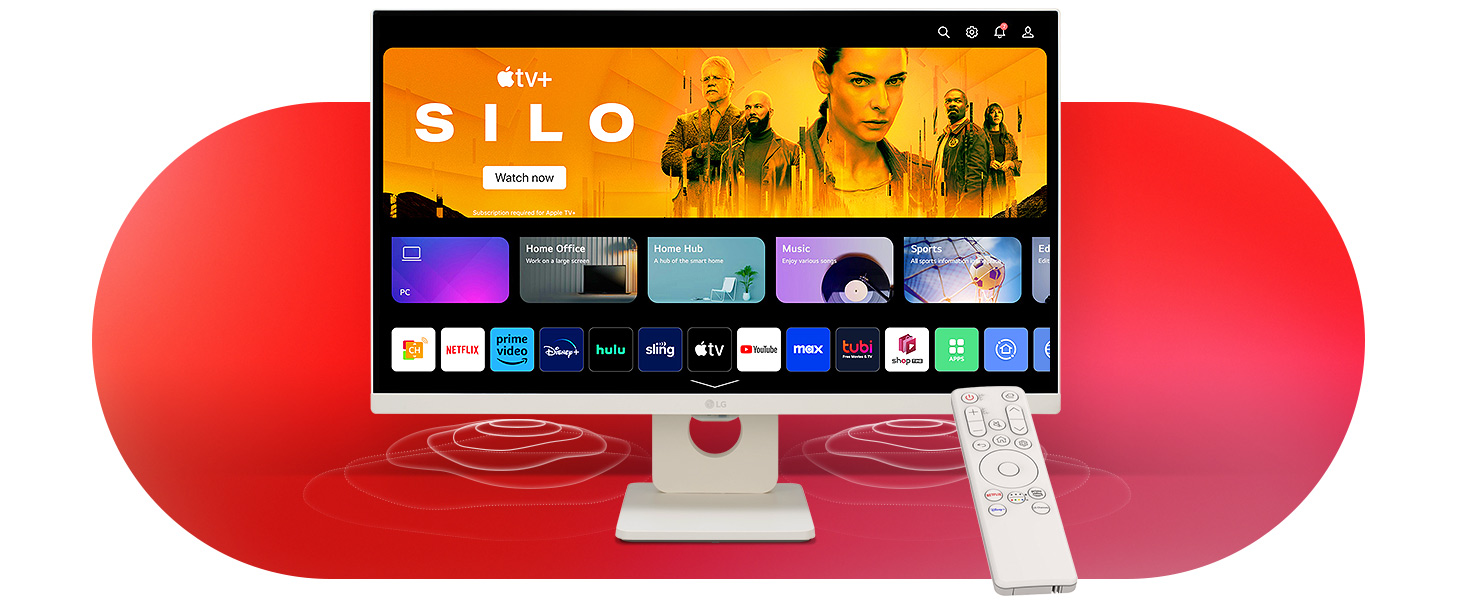
Image: The webOS 23 home screen, showing personalized content and app access.
4.3 Screen Sharing and Connectivity
The monitor supports several wireless connectivity options:
- AirPlay 2: Wirelessly stream content from Apple devices (iPhone, iPad, Mac) to the monitor.
- Screen Share: Mirror your device's screen to the monitor.
- Bluetooth: Connect Bluetooth-enabled audio devices, such as headphones or external speakers.
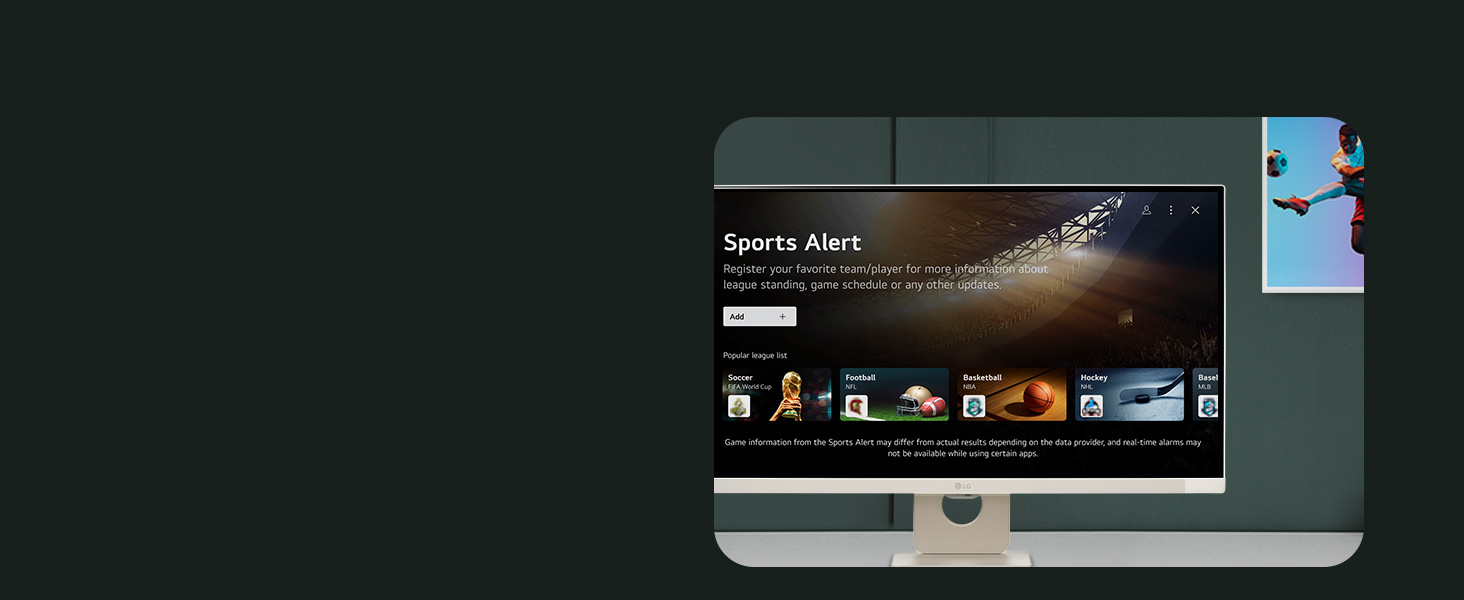
Image: Demonstrating AirPlay 2 functionality for mirroring content from Apple devices.
4.4 Audio Features
The monitor includes two built-in 5W speakers, providing integrated audio for your content. For enhanced audio, external Bluetooth speakers can be connected.
5. Maintenance
5.1 Cleaning the Monitor
- Always unplug the monitor before cleaning.
- Use a soft, lint-free cloth slightly dampened with water or a specialized screen cleaner.
- Do not spray cleaner directly onto the screen.
- Avoid using abrasive cleaners, waxes, or solvents.
5.2 Software Updates
Ensure your webOS software is up to date for optimal performance and security. The monitor can be configured to check for and install updates automatically via its network connection.
6. Troubleshooting
If you encounter issues with your monitor, refer to the following common problems and solutions:
| Problem | Possible Solution |
|---|---|
| No power | Check power cable connections to the monitor and wall outlet. Ensure the power outlet is functional. |
| No signal / Blank screen | Verify that the HDMI cable is securely connected to both the monitor and the source device. Select the correct input source using the remote control. |
| Poor picture quality | Ensure the display resolution on your connected device is set to 1920x1080. Check cable quality. Adjust picture settings (brightness, contrast) in the monitor menu. |
| No sound from speakers | Increase the volume using the remote control. Check audio output settings on the connected device. Ensure no external Bluetooth audio device is connected if you intend to use the internal speakers. |
| Remote control not working | Replace the batteries in the remote control. Ensure there are no obstructions between the remote and the monitor. |
If the issue persists after attempting these solutions, please contact LG customer support.
7. Specifications
| Feature | Specification |
|---|---|
| Model Name | 25SR50F-W |
| Display Size | 24.5 Inches |
| Panel Type | IPS |
| Resolution | 1920 x 1080 (Full HD) |
| Aspect Ratio | 16:9 |
| Contrast Ratio | 1000:1 |
| Operating System | webOS23 |
| HDMI Ports | 2 |
| USB Ports | 2 (USB 3.0) |
| Built-in Speakers | 2 x 5W |
| Wireless Connectivity | AirPlay 2, Bluetooth, Screen Share |
| Color | White |
| Product Dimensions (LxWxH) | 20.99 x 55.78 x 42.33 cm |
| Item Weight | 4.3 kg |

Image: Key features and specifications of the LG Smart Monitor.
8. Warranty and Support
Your LG 25SR50F-W Smart Monitor is covered by a limited warranty. For detailed warranty terms and conditions, please refer to the warranty card included with your product or visit the official LG website.
For technical assistance, service, or further inquiries, please contact LG customer support. Contact information can typically be found on the LG official website or in your product documentation.
LG Customer Support: www.lg.com/support