
SACUMURT CL31
SACUMURT CL31 Solar Wireless Security Camera User Manual
Model: CL31 | Brand: SACUMURT
1. Introduction
This manual provides comprehensive instructions for the installation, operation, and maintenance of your SACUMURT CL31 Solar Wireless Security Camera. Please read this manual thoroughly before using the product to ensure proper functionality and safety.

Image 1.1: SACUMURT CL31 Solar Wireless Security Cameras.
The image displays two black SACUMURT CL31 security cameras, each paired with a rectangular solar panel. Both cameras and panels are shown mounted on a light-colored wall, illustrating their outdoor installation. The cameras feature a sleek, compact design with a lens, motion sensor, and LED lights visible on the front. The solar panels are positioned above the cameras, connected by a white cable, indicating their role in providing continuous power.
2. Package Contents
Verify that all components are present in your package:
- SACUMURT CL31 Solar Wireless Security Camera(s)
- Solar Panel(s)
- Mounting Bracket(s)
- Mounting Screws and Wall Anchors
- USB Charging Cable
- User Manual (this document)
3. Key Features
- 2K Ultra HD Video: Provides clear and detailed video resolution.
- Solar Powered: Equipped with a high-efficiency solar panel and built-in battery for continuous operation.
- 2.4GHz WiFi Connectivity: Ensures stable wireless connection over longer distances.
- Smart AI Motion Detection: Accurately identifies human motion to reduce false alerts.
- Dual Night Vision: Offers full-color night vision with spotlights or infrared night vision.
- Two-Way Audio: Built-in microphone and speaker for real-time communication.
- IP66 Weatherproof: Designed to withstand various outdoor weather conditions.
- Flexible Storage: Supports local SD card storage (up to 128GB, not included) and encrypted cloud storage (30-day free trial available).
- Smart Home Integration: Compatible with Alexa and Google Assistant for voice control and viewing.

Image 3.1: Overview of SACUMURT CL31 Camera Features.
This image illustrates the SACUMURT CL31 camera and its solar panel mounted on a wall, with icons and text highlighting its main features: 2K HD video, motion detection, 2-way talk, color night vision, SD/cloud storage, and IP66 waterproof rating. It also indicates support for 2.4GHz WiFi and non-support for 5GHz WiFi.
4. Setup Guide
4.1 Initial Charging
Before first use, fully charge the camera's built-in battery using the provided USB cable. Connect the USB cable to the camera's charging port (located under the rubber cover) and to a 5V DC power adapter (not included). The indicator light will show charging status.
4.2 App Installation and Account Registration
- Download the "AJCloud" app from your device's App Store (iOS) or Google Play Store (Android).
- Open the AJCloud app and register for a new account. Follow the on-screen prompts to complete registration.
- Allow all requested permissions when prompted by the app to ensure full functionality, including access to wireless data and notifications.
4.3 Adding the Camera to the App
Follow these steps to pair your camera with the AJCloud app:
- Power On the Camera: Open the rubber cover on the camera. Long-press the power button for 5 seconds until you hear a sound and the red and blue indicator lights begin blinking alternately.
- Add Device in App: In the AJCloud app, tap "Add device" or the "+" icon. Select "IP Camera" from the device type list.
- Connect to WiFi: Enter your 2.4GHz WiFi network name and password. Ensure your WiFi signal is strong and stable. Note: The camera only supports 2.4GHz WiFi; 5GHz WiFi is not supported.
- Pairing Process: The app will initiate the pairing process. Wait for the device connection to complete.
- Pairing Success: Once the blue light on the camera blinks, the camera pairing is successful. You will receive a "Pair succeeded" notification in the app.
- Name Your Camera: Assign a name to your camera (e.g., "Front door," "Back yard").
Video 4.1: How to Set up WiFi Security Camera Solar Power.
This video demonstrates the step-by-step process of setting up the SACUMURT WiFi security camera. It covers downloading the AJCloud app, registering an account, powering on the camera, adding the device within the app by selecting "IP Camera," entering 2.4GHz WiFi credentials, and confirming successful pairing. The video visually guides users through the app interface and camera interaction.

Image 4.2: App Setup Steps.
This image displays a four-step visual guide for setting up the camera via the AJCloud app. Step 1 shows downloading "AJCloud" from an app store. Step 2 illustrates turning on the camera by long-pressing the power button under the rubber cover, with red and blue lights blinking. Step 3 shows adding the camera in the app by selecting "IP Camera" and allowing Bluetooth access. Step 4 depicts connecting to the 2.4GHz WiFi network by entering the password and waiting for successful pairing.
4.4 Mounting the Camera and Solar Panel
Choose a location with optimal sunlight exposure for the solar panel and a clear view for the camera. Use the provided mounting brackets, screws, and wall anchors for secure installation.
- Ensure the solar panel is positioned to receive direct sunlight for several hours daily.
- Mount the camera at an appropriate height and angle to cover the desired monitoring area.
- Connect the solar panel cable to the camera's charging port.

Image 4.3: Wireless and Solar Powered Installation.
The image shows a SACUMURT CL31 security camera and its solar panel mounted on an outdoor wall. Text overlays emphasize "100% Wireless Non-stop Solar Powered," along with icons for wireless connectivity, solar power, and a rechargeable battery. This visually confirms the ease of installation without needing electrical wiring.
5. Operating Instructions
5.1 Live View and Two-Way Audio
Access the live feed of your camera through the AJCloud app. Use the two-way audio feature to communicate with visitors or deter intruders.
- Open the AJCloud app and select the desired camera to view its live feed.
- Tap the microphone icon to speak through the camera's speaker.
- Tap the speaker icon to hear audio from the camera's microphone.

Image 5.1: Two-Way Talk Functionality.
This image depicts a scene where a child and a dog are playing in a sunny backyard. A SACUMURT CL31 camera is mounted on the side of the house. Speech bubbles indicate a two-way conversation: "Time for lunch, Tommy!" from the camera and "OK, mom!" from the child, illustrating the camera's two-way audio feature for remote communication.
5.2 Motion Detection and Alerts
The camera utilizes AI technology to detect human motion and send instant alerts to your smartphone.
- Configure motion detection sensitivity and alert preferences within the AJCloud app settings.
- Upon detection, the camera can trigger a siren, activate spotlights, and send a notification to your phone.

Image 5.2: Motion Detection and Intelligent Alarm Push.
The image shows a SACUMURT CL31 camera with its solar panel mounted on a dark wall at night. The camera's spotlights are illuminated, and a person is highlighted within a red detection box near a garage. On a smartphone screen, an "AJCloud" notification indicates "Activity detected," with icons for Siren, Spotlight, and Message, demonstrating the camera's motion detection and alert capabilities.
5.3 Night Vision Modes
The camera offers two night vision modes for clear visibility in low-light conditions:
- Full-Color Night Vision: Activates the camera's spotlights to provide a color image.
- Infrared Night Vision: Uses infrared LEDs for black and white video in complete darkness.
- Switch between modes in the app settings as needed.

Image 5.3: 2K FHD Color Night Vision.
This image presents a split view comparing two night vision modes from the SACUMURT CL31 camera. The top half, labeled "Spotlight On," shows a family dining outdoors at night in full color, illuminated by the camera's spotlight. The bottom half, labeled "Spotlight Off," shows the same scene in black and white infrared vision. This demonstrates the camera's ability to provide clear, colorful night surveillance when spotlights are active.
5.4 Storage Options
Recordings can be stored locally or in the cloud:
- SD Card Storage: Insert a Micro SD card (up to 128GB, not included) into the camera's SD card slot (under the rubber cover).
- Cloud Storage: Utilize the encrypted cloud storage service. A 30-day free trial is typically included with new cameras.
- Playback and download recordings anytime via the AJCloud app.

Image 5.4: Flexible Storage Options.
The image focuses on the side of the SACUMURT CL31 camera, with its rubber cover open to reveal the SD card slot and USB port. Text highlights "Flexible Storage" with icons for "SD Card Storage (Supports to 128GB, Not Included)" and "Cloud Storage (30-day Free Trial)," indicating the dual storage capabilities of the device.
5.5 Smart Assistant Integration
Connect your camera to Alexa or Google Assistant for convenient voice control and viewing on compatible smart displays.
- Follow the instructions in your Alexa or Google Home app to link the AJCloud service.
- Use commands like "Alexa, show me the front door" to view your camera feed.
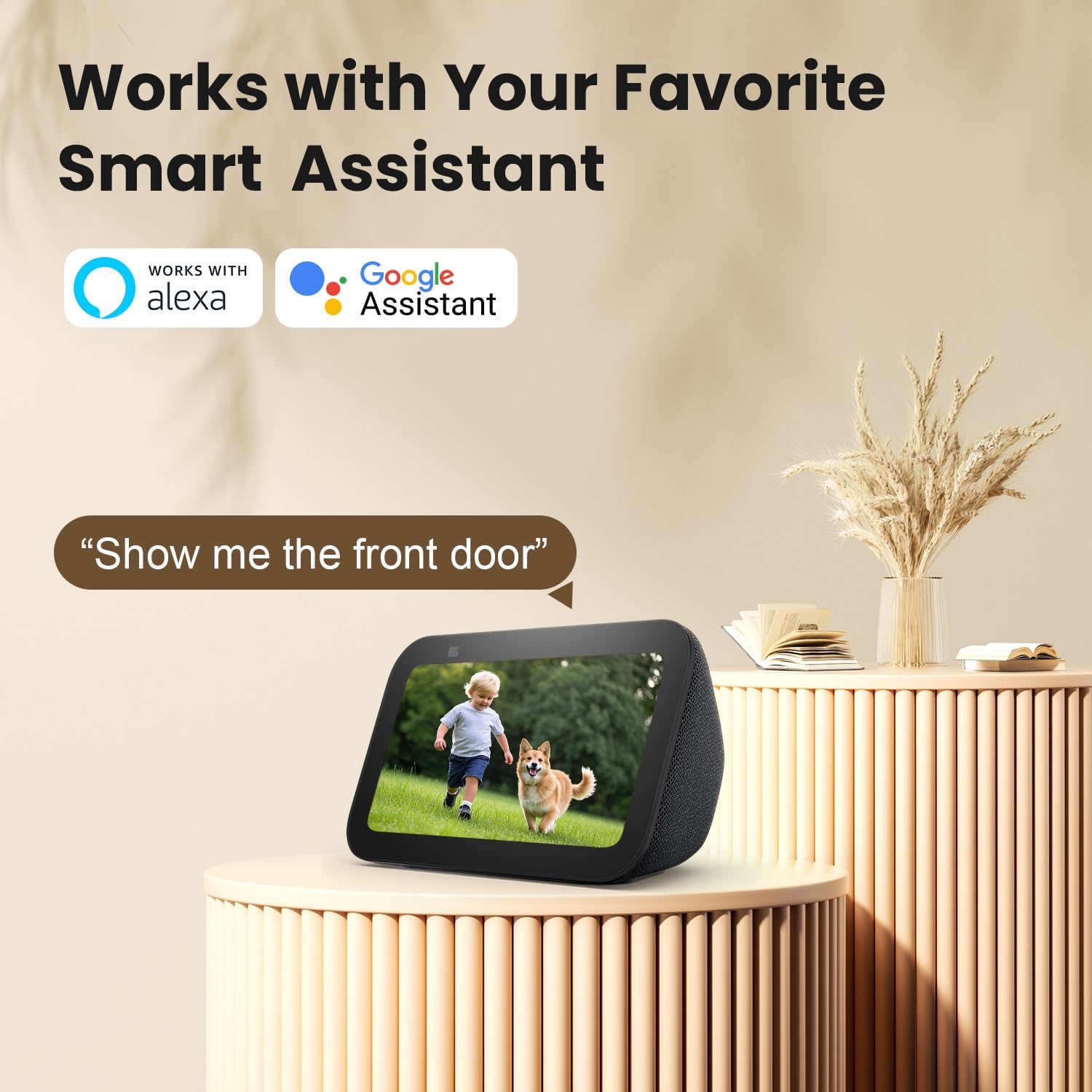
Image 5.5: Works with Smart Assistants.
This image features a smart display device showing a live camera feed of a child and a dog. Above the display, the logos for "Works with Alexa" and "Google Assistant" are prominently displayed. A speech bubble contains the command "Alexa, show me the front door," illustrating the camera's compatibility with popular smart home ecosystems for voice-activated viewing.
5.6 Sharing Camera Access
You can share live view access with other users through the AJCloud app.

Image 5.6: Share Camera with Loved Ones.
The image shows a SACUMURT CL31 camera centrally, with a smartphone displaying its live feed of two children playing. Around this central image, several smaller circular insets show different individuals (a woman, an elderly woman, a man, and a couple) also viewing the camera feed on their respective smartphones. Arrows indicate that the camera feed can be easily shared with multiple users worldwide.
6. Maintenance
- Clean the Lens and Solar Panel: Regularly wipe the camera lens and solar panel with a soft, damp cloth to ensure clear images and efficient charging.
- Check Battery Level: Monitor the camera's battery level in the AJCloud app. Ensure the solar panel receives adequate sunlight to keep the battery charged.
- Firmware Updates: Keep the camera's firmware updated through the AJCloud app for optimal performance and security features.
- Weather Protection: The camera is IP66 weatherproof, but extreme conditions may require additional checks for debris or ice accumulation.

Image 6.1: IP66 Weatherproof Design.
This image is divided into two sections, both featuring the SACUMURT CL31 camera and its solar panel mounted outdoors. The top section shows the camera enduring rain, with icons for "Rainproof," "Snowproof," and "Sunproof." The bottom section illustrates the camera operating in a snowy, cold environment, with a temperature scale indicating its operational range from -4°F to 122°F. This highlights the camera's robust IP66 weatherproof rating.
7. Troubleshooting
| Problem | Possible Cause | Solution |
|---|---|---|
| Camera not connecting to WiFi | Incorrect WiFi password; 5GHz WiFi network; weak signal. |
|
| Battery not charging | Insufficient sunlight on solar panel; faulty cable/panel. |
|
| No motion detection alerts | Motion detection disabled; incorrect sensitivity settings; app notifications off. |
|
| Poor video quality at night | Lens obstruction; night vision mode not optimal. |
|
8. Specifications
| Feature | Detail |
|---|---|
| Model | CL31 |
| Video Capture Resolution | 3 MP (2K Ultra HD) |
| Connectivity Technology | Wireless (2.4GHz Wi-Fi only) |
| Power Source | Solar Powered & Battery Powered (1 Lithium Ion battery included) |
| Night Vision Range | Up to 50 Feet |
| Viewing Angle | 110 Degrees |
| Weather Protection | IP66 Weatherproof |
| Operating Temperature | -4°F to 122°F (-20°C to 50°C) |
| Storage Options | Micro SD Card (Max 128GB, not included), Cloud Storage |
| Compatible Devices | iPhone, iPad, Android Phone/Pad |
| Smart Assistant Support | Alexa, Google Assistant |
| Material | Acrylonitrile Butadiene Styrene (ABS) |
| Dimensions (L x W x H) | 2.4 x 2.2 x 3.8 inches |
| Item Weight | 2.12 pounds |
| UPC | 716032704112 |
9. Warranty and Support
SACUMURT provides a 2-Year Warranty for the CL31 Solar Wireless Security Camera. This warranty covers manufacturing defects and ensures peace of mind for your purchase.
For technical assistance, troubleshooting, or warranty claims, please contact SACUMURT customer support. Refer to the contact information provided on the product packaging or the official SACUMURT website for 24/7 technical support.
Related Documents - CL31
 |
AJCloud Battery Security Camera User Manual User manual for the AJCloud Battery Security Camera, covering product introduction, software installation, pairing process, troubleshooting, and important compliance information. |
 |
Reznor CL31/CL32 Relay Kit Installation Guide for Multiple Heater Control Comprehensive installation guide for Reznor CL31 and CL32 relay kits, enabling multiple heater control for models APD, F, B, UDAP, UDAS, UDBP, UDBS, UEAS, and VR. Includes component lists, safety precautions, and wiring specifications. |
 |
Reznor Relay Kit Installation Guide for Multiple Unit Control (CL31/CL32) Comprehensive installation guide for Reznor CL31 and CL32 relay kits, enabling multiple unit control for various Reznor electric and gas-fired heaters. Includes component lists, detailed installation steps, and wiring specifications. |
 |
Updating CL31/CL51 Firmware Technical instructions for updating the firmware on Vaisala CL31 and CL51 ceilometers, including step-by-step procedures and troubleshooting guidelines. |
 |
Reznor Relay Kit Installation Guide for Multiple Heater Control (CL31/CL32) Installation instructions for the Reznor CL31 and CL32 Relay Kits, designed for multiple heater control with LDAP model heaters. This guide is intended for qualified electricians and covers safety precautions and component installation. |
 |
Reznor Relay Kit Installation for Multiple Heater Control (CL31/CL32) Installation guide for Reznor CL31/CL32 relay kits, enabling multi-heater control for UBX, UBZ, UDX, UDZ, and UEZ models. Covers safety, components, and wiring. |
Ask a question about this manual
Ask about setup, troubleshooting, compatibility, parts, safety, or missing instructions. Manuals+ will review the question and use this page’s manual context to help answer it.