Introduction
Thank you for choosing the HUO JI G98 Wireless Mechanical Keyboard. This keyboard offers versatile connectivity options, customizable RGB backlighting, and a durable design for both gaming and office use. Please read this manual carefully to ensure proper setup and operation.
The G98 keyboard features a compact 96% layout, retaining essential keys while saving desk space. It includes a side rotary knob for convenient control and supports hot-swappable switches for personalized typing experiences.
Package Contents
Before you begin, please ensure all items are present in the package:
- HUO JI G98 Wireless Mechanical Keyboard
- USB-C Cable
- 2.4GHz USB Receiver
- Keycap Puller
- Switch Puller
- User Manual (this document)
Setup
1. Charging the Keyboard
The G98 keyboard is equipped with a built-in 4000mAh high-capacity battery. For optimal performance, fully charge the keyboard before first use.
- Connect the provided USB-C cable to the Type-C port on the keyboard.
- Connect the other end of the USB-C cable to a USB power source (e.g., computer USB port, wall adapter).
- The charging indicator will show the charging status.

Image: The keyboard's 4000mAh battery provides approximately 16 hours of use with backlighting on and 53 hours with backlighting off. It can be quickly recharged when the battery runs low.
2. Connecting the Keyboard (Tri-Mode Connectivity)
The G98 keyboard supports three connection modes: Bluetooth 5.0, 2.4GHz wireless, and USB wired. You can connect to up to five devices simultaneously and switch between them.
2.1. 2.4GHz Wireless Mode
- Locate the 2.4GHz USB receiver, typically stored in a compartment on the keyboard.
- Plug the USB receiver into an available USB port on your computer or device.
- Switch the keyboard's mode selector to 2.4GHz wireless mode. The keyboard should automatically connect.

Image: The keyboard's side view, illustrating the Type-C port for wired connection/charging and the storage slot for the 2.4GHz USB receiver.
2.2. Bluetooth 5.0 Mode
- Switch the keyboard's mode selector to Bluetooth mode.
- On your device (PC, laptop, phone, tablet), enable Bluetooth and search for new devices.
- Select "HUO JI G98" (or similar) from the list of available devices to pair.
- The keyboard can store up to three Bluetooth connections. Use Fn + Q/W/E to switch between paired Bluetooth devices.
2.3. USB Wired Mode
- Connect the provided USB-C cable to the keyboard's Type-C port.
- Connect the other end of the USB-C cable to a USB port on your computer.
- The keyboard will automatically switch to wired mode and function without needing a battery charge.
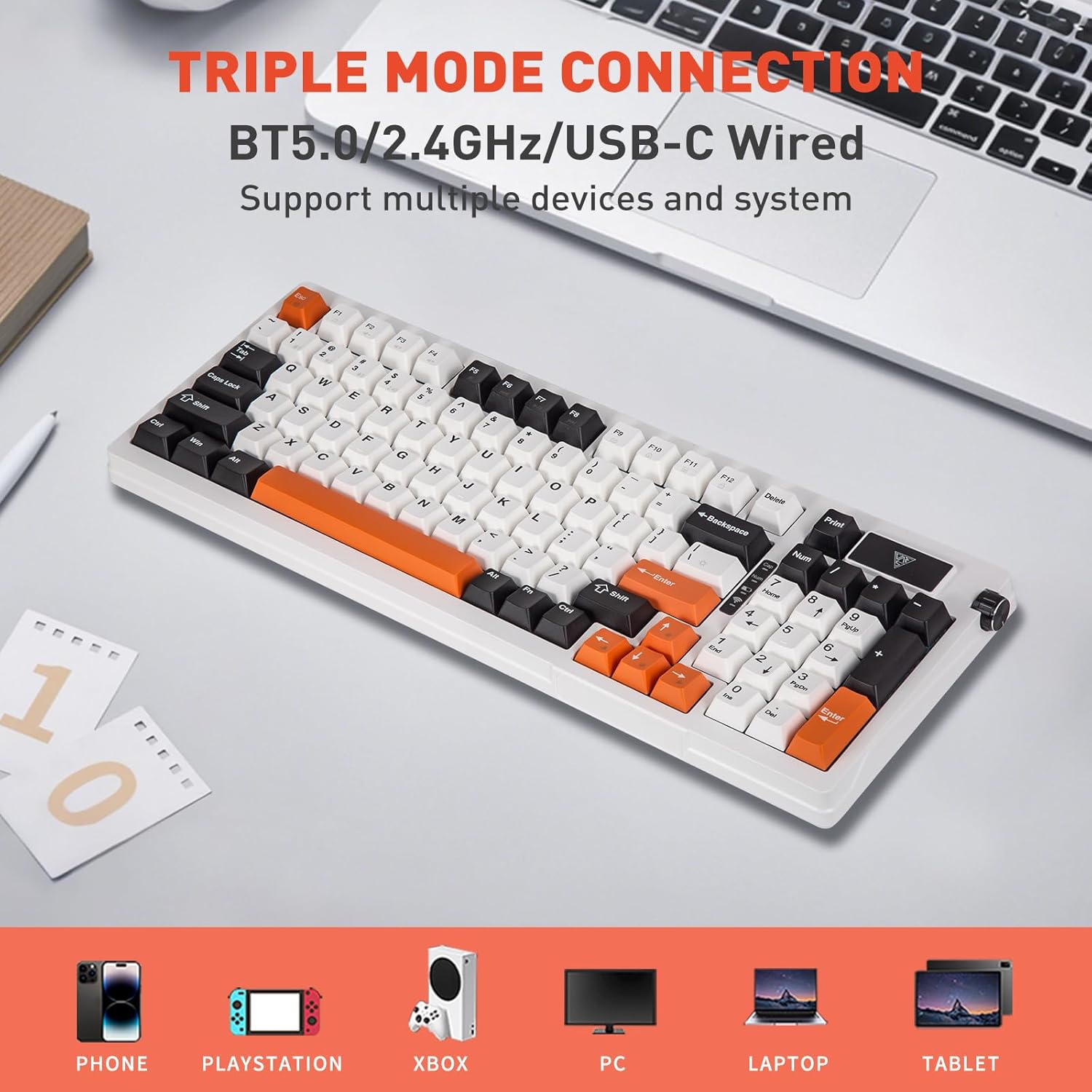
Image: The HUO JI G98 keyboard demonstrating its triple mode connectivity: Bluetooth 5.0, 2.4GHz wireless, and USB-C wired, compatible with various devices like phones, PlayStations, Xboxes, PCs, laptops, and tablets.
Operating Instructions
1. Basic Keyboard Functions
The G98 keyboard features a standard 96% layout with 99 keys, including a dedicated number pad and arrow keys. All keys function as labeled in their primary role.
2. Rotary Knob Functionality
The side rotary knob provides quick access to multimedia controls and lighting adjustments.
- Long press: Power ON/OFF.
- Scroll: Adjust volume (up/down).
- Long press for 3 seconds: Switch to light mode adjustment.
- Rotate one frame: Cycle through light modes when in light mode adjustment.

Image: Detailed explanation of the rotary knob's functions, including power control, volume adjustment, and light mode switching, alongside a small display screen that changes with light patterns.
3. RGB Backlighting Control
The keyboard features 1.6 million RGB color combinations and various lighting effects. Use the following Fn key combinations to control the backlighting:
- Fn + Space: Switch light bar mode or turn off the bar backlight.
- Fn + \|: Switch between 18 RGB light effects or turn off the backlight.
- Fn + ↑: Increase lighting brightness.
- Fn + ↓: Decrease lighting brightness.
- Fn + →: Increase lighting speed.
- Fn + ←: Decrease lighting speed.

Image: The HUO JI G98 keyboard showcasing its 16.8 million RGB backlight capabilities and the corresponding Fn key combinations for controlling brightness and speed.
4. Hot-Swappable Switches and Keycaps
The G98 keyboard features a hot-swappable PCB, allowing you to easily replace 3-pin or 5-pin mechanical switches without soldering. Keycaps can also be replaced.
- Use the included keycap puller to carefully remove the desired keycap.
- Use the included switch puller to gently grasp and pull out the switch.
- Align the pins of the new switch with the holes on the PCB and press firmly until it clicks into place.
- Place the new keycap onto the switch stem.
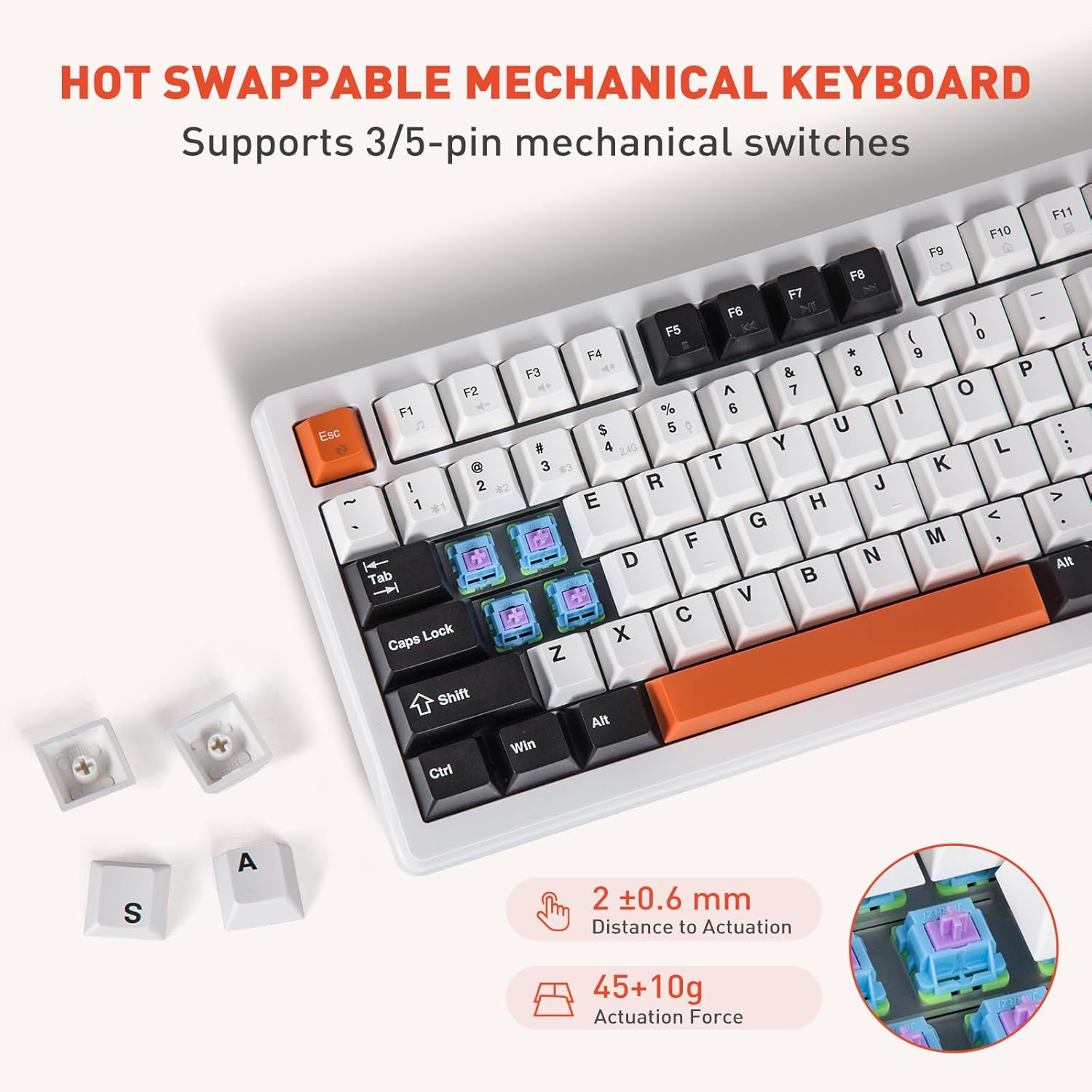
Image: The HUO JI G98 keyboard highlighting its hot-swappable mechanical switches, showing individual switches and keycaps removed, along with specifications for actuation distance and force.
5. Two-Stage Kickstand Adjustment
The keyboard features a two-stage kickstand, offering three different typing angles for enhanced comfort during long typing sessions.
- Flat: Kickstands fully retracted.
- Low Section Tripod: Extend the smaller kickstand for a moderate angle.
- High Section Tripod: Extend the larger kickstand for a steeper angle.

Image: The HUO JI G98 keyboard from a side view, illustrating the two-stage kickstand providing three height options for ergonomic typing.
Maintenance
1. Cleaning the Keyboard
- Disconnect the keyboard from all power sources and devices before cleaning.
- Use a soft, lint-free cloth slightly dampened with water or a mild cleaning solution to wipe the keycaps and surface.
- For dust and debris between keys, use compressed air or a small brush.
- Avoid using harsh chemicals, abrasives, or solvents, as these can damage the keyboard's finish.
2. Battery Care
- To prolong battery life, avoid fully discharging the keyboard frequently.
- Store the keyboard in a cool, dry place when not in use for extended periods.
- If the keyboard will not be used for a long time, charge it to about 50% before storing.
Troubleshooting
1. Keyboard Not Connecting
- Check Mode: Ensure the keyboard is in the correct mode (2.4GHz, Bluetooth, or Wired) for your connection type.
- Battery Level: Verify the keyboard has sufficient battery charge. Connect via USB-C to check if it powers on.
- 2.4GHz: Ensure the USB receiver is securely plugged into a working USB port. Try a different USB port.
- Bluetooth: Ensure Bluetooth is enabled on your device. Forget the device in your device's Bluetooth settings and re-pair.
- Wired: Ensure the USB-C cable is securely connected to both the keyboard and the computer. Try a different USB-C cable or port.
2. Backlighting Not Working or Incorrect
- Brightness: Use Fn + ↑ to increase brightness.
- Mode: Use Fn + \| to cycle through lighting effects or turn the backlight on/off.
- Battery: Low battery can affect backlighting performance. Charge the keyboard.
3. Keys Not Responding
- Connectivity: Re-establish the connection as described in the "Setup" section.
- Switch Issue: If only a few keys are affected, the switch might be faulty or improperly seated. Use the switch puller to remove and re-insert the switch, or replace it if necessary.
- Software Conflict: Restart your computer or device.
Specifications
| Model Number | G98 |
| Connectivity Technology | Bluetooth 5.0, 2.4GHz Wireless, USB Wired (Type-C) |
| Keyboard Description | Mechanical |
| Layout | 96% (99 Keys) |
| Special Features | RGB Backlit, Hot-Swappable Switches, Rotary Knob, Gasket Structure, PCB Single Key Slotting |
| Battery Capacity | 4000mAh |
| Keycap Material | PBT |
| Product Dimensions | 15.8 x 5.98 x 1.53 inches (40.13 x 15.19 x 3.89 cm) |
| Item Weight | 2.1 pounds (0.95 kg) |
| Compatible Devices | Laptop, PC, Phone, Tablet, Gaming Consoles |
Warranty and Support
HUO JI products are designed and manufactured to the highest quality standards. For information regarding warranty coverage, technical support, or customer service, please refer to the warranty card included with your product or visit the official HUO JI website.
If you encounter any issues not covered in this manual, please contact HUO JI customer support for assistance.


