Introduction
Welcome to your MangoKit SR10 Smart WiFi Internet Radio. This manual provides detailed instructions for setting up, operating, and maintaining your device. The SR10 offers a versatile listening experience with Internet Radio, Podcast playback, Bluetooth streaming, and FM radio capabilities, all controllable via the device or the OKTIV app.
What's in the Box
- MangoKit SR10 Smart WiFi Internet Radio
- User Manual
- Quick Start Guide
- Power Supply
- USB-C Cable
Product Overview
The MangoKit SR10 is designed for comprehensive audio entertainment. It features a color display, intuitive controls, and multiple connectivity options.
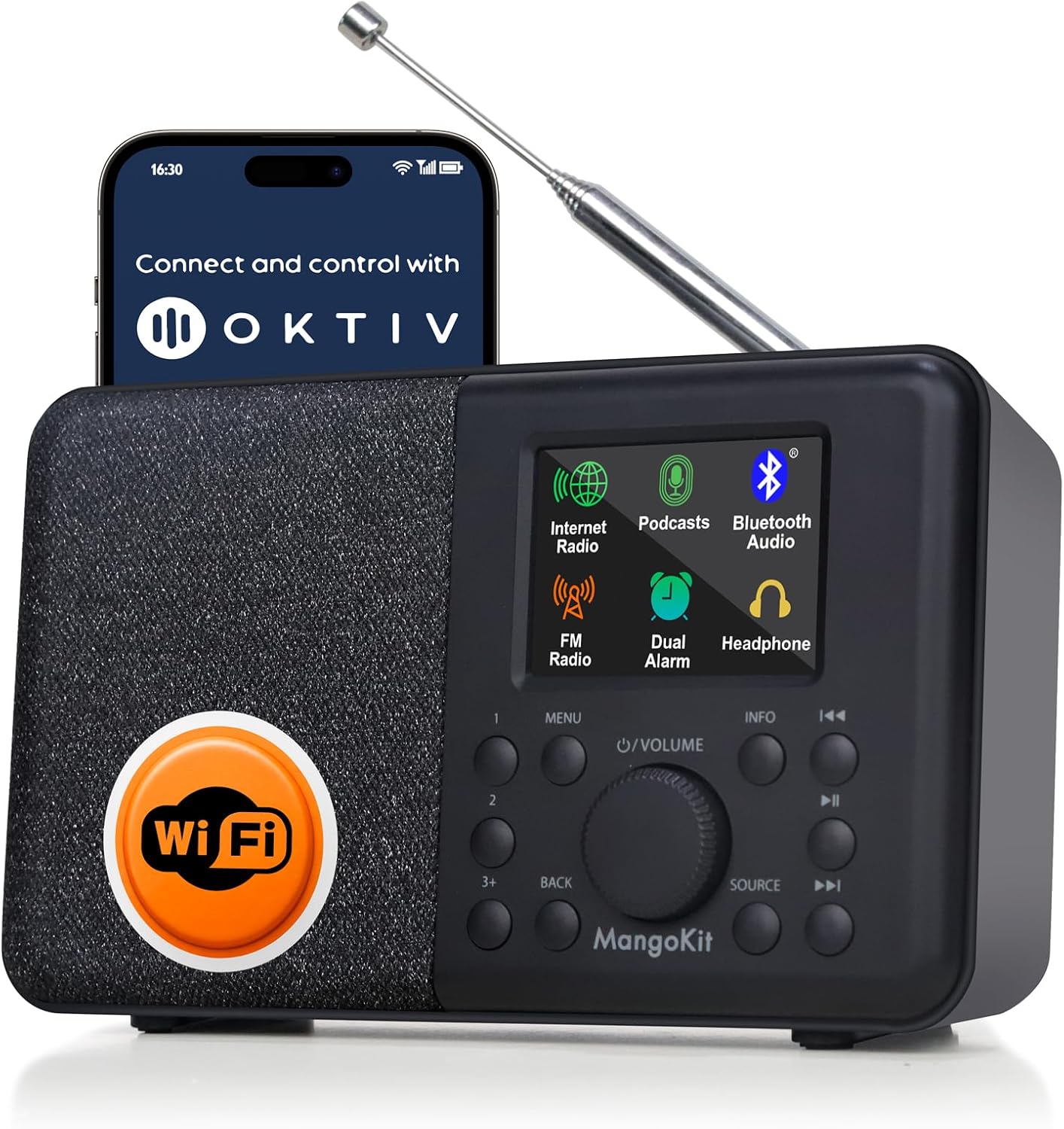
Figure 1: MangoKit SR10 Smart WiFi Internet Radio with its control app displayed on a smartphone.
Key Features:
- Internet Radio & Podcast & FM: Access over 30,000 internet radio stations, podcasts, and local FM broadcasts.
- Bluetooth Streaming: Connect your smartphone or tablet wirelessly via Bluetooth 5.0.
- OKTIV App Control: Manage all functions remotely using the dedicated OKTIV application.
- Powerful Speaker: Delivers clear, balanced audio with adjustable EQ for bass and treble.
- Dual Alarms & Sleep Timer: Set two independent alarms with various wake-up options and a sleep timer.
- Mains & Battery Powered: Operates on AC power or 4xAA batteries (not included) for portable use.
- Headphone Port: For private listening without disturbing others.
- TFT Color Screen: Provides clear menu navigation and information display.
- Telescopic Antenna: 360-degree rotating antenna for optimal FM signal reception.
Setup
1. Powering On
- Mains Power: Connect the included power adapter to the DC IN port on the back of the radio and then to a wall outlet.
- Battery Power: For portable use, insert 4xAA batteries (not included) into the battery compartment. Ensure correct polarity.
- Press the Power button to turn on the radio.
2. Initial Network Connection (for Internet Radio/Podcast)
- Upon first power-on, the radio will guide you through the network setup.
- Select "Network Wizard" from the menu.
- The radio will scan for available Wi-Fi networks. Select your network from the list.
- Enter your Wi-Fi password using the rotary dial and buttons. Confirm your selection.
- Once connected, the radio will display a confirmation message.

Figure 2: The SR10 radio displaying its various modes, including Internet Radio and Bluetooth.
Operating Instructions
1. Mode Selection
Press the SOURCE button to cycle through available modes: Internet Radio, Podcast, Bluetooth, and FM Radio.
2. Internet Radio
- Select "Internet Radio" mode.
- Use the MENU button and rotary dial to browse stations by location, genre, or search.
- Press the rotary dial to select a station.
- Presets: To save a station, LONG PRESS one of the preset buttons (1, 2, or 3+). To recall a saved station, SHORT PRESS the corresponding preset button.

Figure 3: The SR10's clear display showing an internet radio station.
3. Podcast Player
- Select "Podcast" mode.
- Browse or search for podcasts using the MENU button and rotary dial.
- Select a podcast episode to play. The device supports bookmarking and follow functions.
4. Bluetooth Streaming
- Select "Bluetooth" mode. The radio will enter pairing mode.
- On your smartphone or tablet, enable Bluetooth and search for "MangoKit SR10".
- Select the device to pair. Once connected, you can stream audio from your device to the radio.

Figure 4: The SR10 connected to a smartphone via Bluetooth for audio streaming.
5. FM Radio
- Select "FM Radio" mode.
- Extend and adjust the telescopic antenna for optimal reception.
- Use the Tuning buttons (left/right arrows) to manually tune or LONG PRESS to auto-scan for stations.
- Presets: Similar to Internet Radio, LONG PRESS a preset button to save, SHORT PRESS to recall.
6. Alarms and Sleep Timer
- Dual Alarms: Access alarm settings via the MENU. Set two independent alarms with options for weekday/weekend, gradual volume, and wake-up source (Internet Radio, FM, or buzzer).
- Sleep Timer: Set a timer for the radio to automatically turn off after a specified duration.
- Snooze: Press any button (except Power) when an alarm sounds to activate snooze.

Figure 5: The SR10 radio functioning as a bedside alarm clock.
7. OKTIV App Control
- Download the OKTIV App from your smartphone's app store.
- Ensure your smartphone and the SR10 radio are connected to the same Wi-Fi network.
- Open the OKTIV App and follow the on-screen instructions to connect to your SR10 radio.
- The app allows wireless control of modes, presets, volume, and other settings.

Figure 6: Controlling the SR10 radio wirelessly using the OKTIV app.
Maintenance
- Cleaning: Use a soft, dry cloth to clean the radio's surface. Do not use abrasive cleaners or solvents.
- Storage: When not in use for extended periods, store the radio in a cool, dry place. Remove batteries if using battery power.
- Antenna Care: Handle the telescopic antenna gently to prevent damage.
Troubleshooting
| Problem | Possible Solution |
|---|---|
| No power | Check power adapter connection. Ensure batteries are correctly inserted and charged if using battery power. |
| Cannot connect to Wi-Fi | Ensure correct Wi-Fi password. Check router is on and within range. Try restarting the radio and router. |
| Internet radio buffering/dropping | Check Wi-Fi signal strength. Move radio closer to router. Ensure sufficient internet bandwidth. |
| Poor FM reception | Fully extend and adjust the telescopic antenna. Try moving the radio to a different location. |
| Bluetooth pairing issues | Ensure radio is in Bluetooth mode. Make sure no other device is currently connected. Restart Bluetooth on your source device. |
| No sound | Check volume level. Ensure headphones are not plugged in if expecting speaker output. |
Specifications
| Feature | Detail |
|---|---|
| Model Number | SR10 |
| Product Dimensions | 6.89"L x 2.13"W x 4.17"H (17.5 x 5.4 x 10.6 cm) |
| Item Weight | 1.4 pounds (0.64 kg) |
| Connectivity Technology | Bluetooth, USB, Wi-Fi |
| Tuner Technology | FM |
| Power Source | Mains and Battery Powered (4xAA batteries, not included) |
| Special Features | Smart WIFI & Internet Radio, Podcast, OKTIV APP Control, Portable FM Radio, Bluetooth 5.0 Speaker, Dual Alarms, Color Display |
Warranty and Support
For warranty information and technical support, please refer to the official MangoKit website or contact their customer service. Details can typically be found on the product packaging or the manufacturer's website.
Official Product Video
Video 1: Overview of the MangoKit SR10 Smart WiFi Internet Radio, highlighting its features and connectivity options.