Introduction
This manual provides comprehensive instructions for the CAMECHO Android Carplay Autoradio, model 4G+128G, specifically designed for FIAT Bravo vehicles manufactured between 2008 and 2013. It covers essential information regarding product overview, installation, operation, maintenance, troubleshooting, and technical specifications to ensure optimal performance and user experience.
Product Overview
The CAMECHO Autoradio is an advanced in-car entertainment system featuring a 9-inch touchscreen, Android 15 operating system, 4GB RAM, and 128GB ROM. It integrates seamlessly with your FIAT Bravo (2008-2013 models) to enhance your driving experience with modern connectivity and multimedia capabilities.
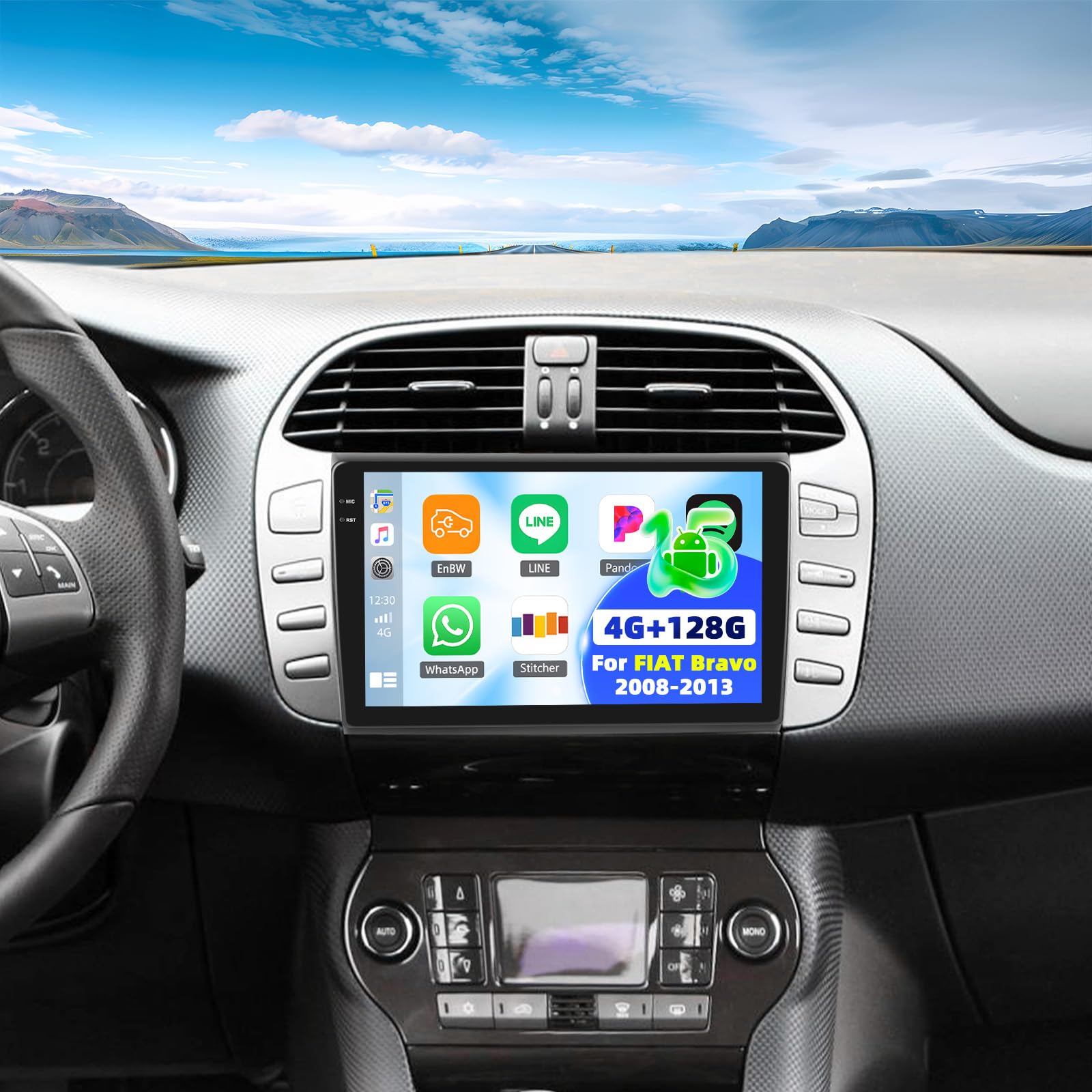
Image: Comparison of the FIAT Bravo dashboard before and after installing the CAMECHO 9-inch touchscreen autoradio.
Video: A brief product demonstration showcasing the CAMECHO Autoradio's display and various angles.
Packing List and Dimensions
Please verify that all components listed below are present in the package before proceeding with installation.

Image: Detailed view of the packing list and the physical dimensions of the autoradio unit and its mounting frame.
Package Contents:
- CAMECHO Autoradio Unit
- Mounting Brackets and Screws
- Power Cable
- CANBUS Decoder Box
- Wired Microphone with Clip
- RCA Cable
- USB Cables (6-pin and 4-pin)
- Rear Camera Cable
- GPS Antenna
- AHD Rearview Camera
- Rear Camera Extension Cable
- Removal Tool for old autoradio
- Small Phillips Screwdriver
- User Manual (English)
Product Dimensions:
The autoradio unit measures approximately 23 cm (length) x 14 cm (width) x 4 cm (thickness). The display is 9 inches. The overall package dimensions are 26 x 17 x 10 cm, with a total weight of 1.4 kg. Refer to the diagram above for detailed measurements of the unit and frame.
Setup and Installation
Professional installation is highly recommended to ensure correct wiring and functionality. Always disconnect the vehicle's battery before beginning any electrical work.
Wiring Connections:
- Power Cable: Connect the main power harness to the vehicle's power supply. Ensure all connections are secure.
- CANBUS Decoder: If your vehicle requires a CANBUS decoder for steering wheel controls or other vehicle data, connect the CANBUS box before powering on the unit. Then, navigate to Apps > Car Settings > Factory Settings (1234) > Protocol settings > Choose Canbus Brand Name > Choose Car's style to configure the SWC properly. Select the matching model and year according to your vehicle's specifications.
- GPS Antenna: Connect the GPS antenna and mount it in a location with a clear, unobstructed view of the sky for optimal signal reception.
- USB Cables: Connect the provided USB cables for data transfer, media playback, or charging external devices.
- RCA Cables: Use RCA cables for connecting external audio/video input or output devices, such as amplifiers or additional displays.
- Microphone: Connect the external microphone to the designated input for improved hands-free calling clarity.
Rearview Camera Wiring:
Proper wiring of the rearview camera is crucial for its automatic activation and display.
Image: Wiring diagram for connecting the AHD rearview camera to the autoradio system.
- Red Cable 1 and 3: Connect these cables to the positive terminal of your car's reverse light power supply.
- Black Cable 2: Connect this cable to the negative terminal (ground) of your car's reverse light power supply.
- Black Cable 4: Connect this cable to the reverse trigger wire on the autoradio's power harness. This signal tells the unit to switch to the camera view when reverse gear is engaged.
Operating Instructions
Wireless Carplay and Android Auto:
The unit supports wireless Carplay and Android Auto for seamless smartphone integration.

Image: The Carplay interface displayed on the 9-inch autoradio screen.
- Ensure Bluetooth and Wi-Fi are enabled on your smartphone.
- On the autoradio, navigate to the Carplay or Android Auto application.
- Follow the on-screen prompts to pair your smartphone via Bluetooth.
- Once connected, you can use voice commands or the touchscreen to access navigation, music, calls, and other compatible apps.
Mirror Link (Wired/Wireless):
Mirror Link allows you to display your smartphone's screen directly onto the autoradio display.

Image: The Mirror Link feature in action, mirroring a smartphone's display to the autoradio.
- For wireless Mirror Link, ensure both the autoradio and your smartphone are connected to the same Wi-Fi network.
- For wired Mirror Link, connect your smartphone to the autoradio using a USB cable.
- Open the Mirror Link application on the autoradio and follow the pairing instructions specific to your smartphone's operating system.
Bluetooth 5.0:
The integrated Bluetooth 5.0 module enables hands-free calling and wireless audio streaming.

Image: The Bluetooth interface, showing options for phone calls and music streaming.
- Enable Bluetooth on both the autoradio and your smartphone.
- Search for available devices on your smartphone and select the autoradio (e.g., "CAMECHO Carplay").
- Confirm the pairing code if prompted.
- Once connected, you can make/receive calls, access your phonebook, and play music wirelessly.
FM/RDS Radio:
Enjoy high-quality FM radio with RDS (Radio Data System) functionality.

Image: The FM/RDS radio interface, displaying current frequency and options for station management.
- Access the Radio application from the main menu.
- Use the scan function to automatically find and save available stations, or manually tune to a specific frequency.
- The RDS feature will display station information (e.g., station name, song title) where available.
32-Band Equalizer (32EQ):
Customize your audio experience with the built-in 32-band equalizer.

Image: The 32-band equalizer interface, allowing detailed audio customization.
- Navigate to the Sound Settings or EQ application.
- Adjust individual frequency bands to fine-tune the audio output to your preference.
- Pre-set equalizer modes (e.g., Pop, Rock, Jazz) may also be available for quick adjustments.
GPS Navigation and WiFi:
The autoradio features integrated GPS for navigation and Wi-Fi for online connectivity.

Image: The GPS navigation interface and Wi-Fi connection capabilities of the autoradio.
- GPS: The unit supports both online and offline navigation. Ensure the GPS antenna is properly installed. You can download offline maps for navigation without an internet connection.
- WiFi: Connect to a Wi-Fi hotspot (e.g., from your smartphone) to access online applications, stream media, browse the internet, and download software updates.
Steering Wheel Control (SWC):
Program your vehicle's steering wheel buttons for convenient control of the autoradio functions.

Image: Instructions for configuring steering wheel controls on the autoradio.
- Access the Steering Wheel Control settings in the system menu.
- Follow the on-screen instructions to map your vehicle's steering wheel buttons (e.g., volume up/down, track skip, mode) to the corresponding autoradio functions.
- If your vehicle uses a CANBUS decoder, ensure it is correctly connected and configured as described in the Setup section for automatic SWC recognition.
Backup Camera:
The included AHD rearview camera provides a wide-angle view for safer parking and reversing maneuvers.

Image: The rearview camera display with parking guidelines, activated when reversing.
- Ensure the camera is properly installed and wired according to the "Rearview Camera Wiring" instructions in the Setup section.
- The display will automatically switch to the camera view when the vehicle is shifted into reverse gear.
- The camera features HD resolution, a wide viewing angle, and night vision capabilities for enhanced visibility.
Maintenance
Regular maintenance helps ensure the longevity and optimal performance of your CAMECHO Autoradio.
- Screen Cleaning: Use a soft, lint-free cloth, slightly dampened with water or a screen-safe cleaner, to clean the touchscreen. Avoid using abrasive materials, alcohol, or chemical solvents, as these can damage the screen surface.
- Software Updates: Periodically check for available software updates through the system settings (requires a Wi-Fi connection). Keeping the software updated ensures you have the latest features, performance improvements, and security patches.
- General Care: Avoid exposing the unit to extreme temperatures, direct sunlight for prolonged periods, or excessive moisture. Ensure proper ventilation around the unit to prevent overheating.
Troubleshooting
This section addresses common issues you might encounter. For more complex problems, please contact customer support.
| Issue | Possible Cause | Solution |
|---|---|---|
| Unit does not power on | Incorrect wiring; Blown fuse in vehicle or unit; Loose connection | Check all power connections. Inspect vehicle fuses and the unit's fuse (if accessible). Ensure the ignition wire is correctly connected. |
| No sound output | Volume too low; Incorrect audio source selected; Speaker wiring issue; Mute activated | Increase volume. Verify the correct audio source (e.g., FM, Bluetooth, USB). Check speaker connections. Ensure the unit is not muted. |
| GPS signal lost or inaccurate | GPS antenna obstruction; Poor satellite reception; Antenna not connected | Ensure the GPS antenna has a clear, unobstructed view of the sky. Relocate the antenna if necessary. Verify the antenna is securely connected. |
| Bluetooth connection unstable or fails to pair | Interference; Device compatibility; Out of range; Bluetooth on phone/unit off | Ensure both devices have Bluetooth enabled and are within range. Restart both the autoradio and your smartphone. Clear previous pairings and try again. |
| Steering Wheel Controls not working | Incorrect CANBUS setup; Wiring issue; Buttons unprogrammed | Verify CANBUS connection and configuration in settings. Ensure buttons are programmed correctly in the SWC settings. Check wiring to the steering wheel control interface. |
| Rearview camera not displaying | Incorrect wiring; Faulty camera; Reverse trigger wire not connected | Check camera power and video signal connections. Ensure the reverse trigger wire is correctly connected to the vehicle's reverse light circuit. Test the camera if possible. |
Technical Specifications
Below are the key technical specifications for the CAMECHO 4G+128G Carplay Autoradio.
| Feature | Detail |
|---|---|
| Brand | CAMECHO |
| Model | 4G+128G Carplay |
| Operating System | Android 15 |
| RAM | 4GB |
| ROM | 128GB |
| Screen Size | 9 Inches |
| Screen Resolution | 1280*720 IPS |
| Connectivity | Bluetooth 5.0, Wi-Fi, GPS |
| Compatible Peripherals | Smartphone |
| Audio Output Mode | Stereo, Surround (5.1) |
| Special Features | Wireless Carplay, Android Auto, Mirror Link, FM/RDS Radio, 32-Band EQ, AHD Rearview Camera, Steering Wheel Control |
| Dimensions | 26 x 17 x 10 cm (Package) |
| Weight | 1.4 Kilograms |
Warranty and Support
CAMECHO is committed to providing excellent customer service and support for your product.

Image: Overview of CAMECHO's customer support and warranty terms.
- Warranty: This product is covered by a 24-month warranty from the date of purchase.
- Replacement Policy: A 30-day replacement policy is available for eligible products.
- Online Response: We offer an 18-hour online response service for all your inquiries.
- Technical Support: Enjoy lifetime technical support for your CAMECHO Autoradio.
Contact Support:
For any questions, technical assistance, or warranty claims, please contact our customer support team:

Image: Customer service contact information.
Email: CAMECHOVIP@126.com


