
BONTEC GDM7505
BONTEC GDM7505 Ergonomic Gas Spring Single Monitor Mount Instruction Manual
For 15-34 Inch Screens
1. Introduction
Thank you for choosing the BONTEC GDM7505 Ergonomic Gas Spring Single Monitor Mount. This manual provides detailed instructions for the safe and efficient installation, operation, and maintenance of your monitor arm. Please read this manual thoroughly before assembly and retain it for future reference.
2. Safety Information
Please observe the following safety precautions during installation and use:
- Ensure all components are present and undamaged before assembly. Do not use if any parts are missing or faulty.
- This monitor mount is designed for screens between 15 and 34 inches, with a maximum weight capacity of 26.5 lbs (12 kg). Do not exceed these limits.
- The gas spring mechanism is under high pressure. Do not attempt to disassemble the gas spring cylinder.
- Always use appropriate tools and follow the instructions carefully. Overtightening screws may cause damage.
- Ensure the desk surface is stable and thick enough to support the mount and monitor weight.
- Keep children and pets away during installation.
3. Package Contents
Verify that all parts listed below are included in your package:

Image: All components of the BONTEC Monitor Arm, including the main arm sections, base, C-clamp, grommet parts, various screws, and Allen keys, are displayed on a white surface.
- A: Upper Arm with VESA Plate
- A1: Cable Cover for Upper Arm
- B: Lower Arm
- C: Base
- D: C-clamp
- E: Brace for C-clamp
- F: Small Screws (for C-clamp/Grommet)
- G: Wingnut (for Grommet)
- H: Carriage Bolt (for Grommet)
- I, J, K: Allen Keys (various sizes)
- L: Small Screws (for VESA plate)
- M-A, M-B, M-C, M-D, M-E: Monitor Screws and Washers (various sizes for VESA mounting)
4. Setup and Installation
This section guides you through the assembly process. An assembly video is available for visual reference.
Video: Assembly Manual for BONTEC Upgraded Single Monitor Arm. This video demonstrates the complete installation process for the monitor arm, including both C-clamp and grommet mounting options, and attaching the monitor.
4.1. Choose Your Mounting Method
The BONTEC GDM7505 supports two installation methods: C-clamp and Grommet Base. Select the method suitable for your desk.

Image: This image illustrates the two available installation methods: C-clamp mounting, suitable for desk thicknesses from 0.39 to 3.15 inches, and Grommet mounting, for desk thicknesses from 0.39 to 2.76 inches and hole diameters from 0.39 to 2.36 inches.
4.1.1. C-clamp Installation
- Attach the Brace (E) to the Base (C) using the small screws (F).
- Fix the C-clamp (D) to the Brace (E) and tighten the screws securely.
- Place the assembled C-clamp onto your desk edge and tighten the clamp screw until the mount is stable. Use an Allen key for a more secure clamp.
4.1.2. Grommet Base Installation
- Remove the clip plate (D2) from the C-clamp (D) if it's attached.
- Tighten the Carriage Bolt (H) to the Base (C).
- Insert the bolt through the grommet hole in your desk.
- Secure the base from underneath the desk using the clip plate (D2) and Wingnut (G).
4.2. Install the Arm onto the Base
- Slide the Lower Arm (B) onto the pole of the installed Base (C).
- Tighten the set screw on the Lower Arm (B) using the appropriate Allen key (I or J) to secure it.
- Slide the Upper Arm (A) onto the Lower Arm (B).
- Tighten the set screw on the Upper Arm (A) using the appropriate Allen key (I or J) to secure it.
4.3. Attach VESA Plate to Monitor
- Carefully place your monitor face down on a soft, clean surface.
- Align the VESA plate on the Upper Arm (A) with the mounting holes on the back of your monitor.
- Insert the appropriate screws (M-A/M-B or M-C/M-D/M-E) and washers loosely, leaving a 3-4mm gap. Avoid using power tools to prevent damage.
- Once all screws are in place, tighten them securely.
5. Operating Instructions
The BONTEC GDM7505 monitor arm offers full motion adjustability for optimal viewing comfort.
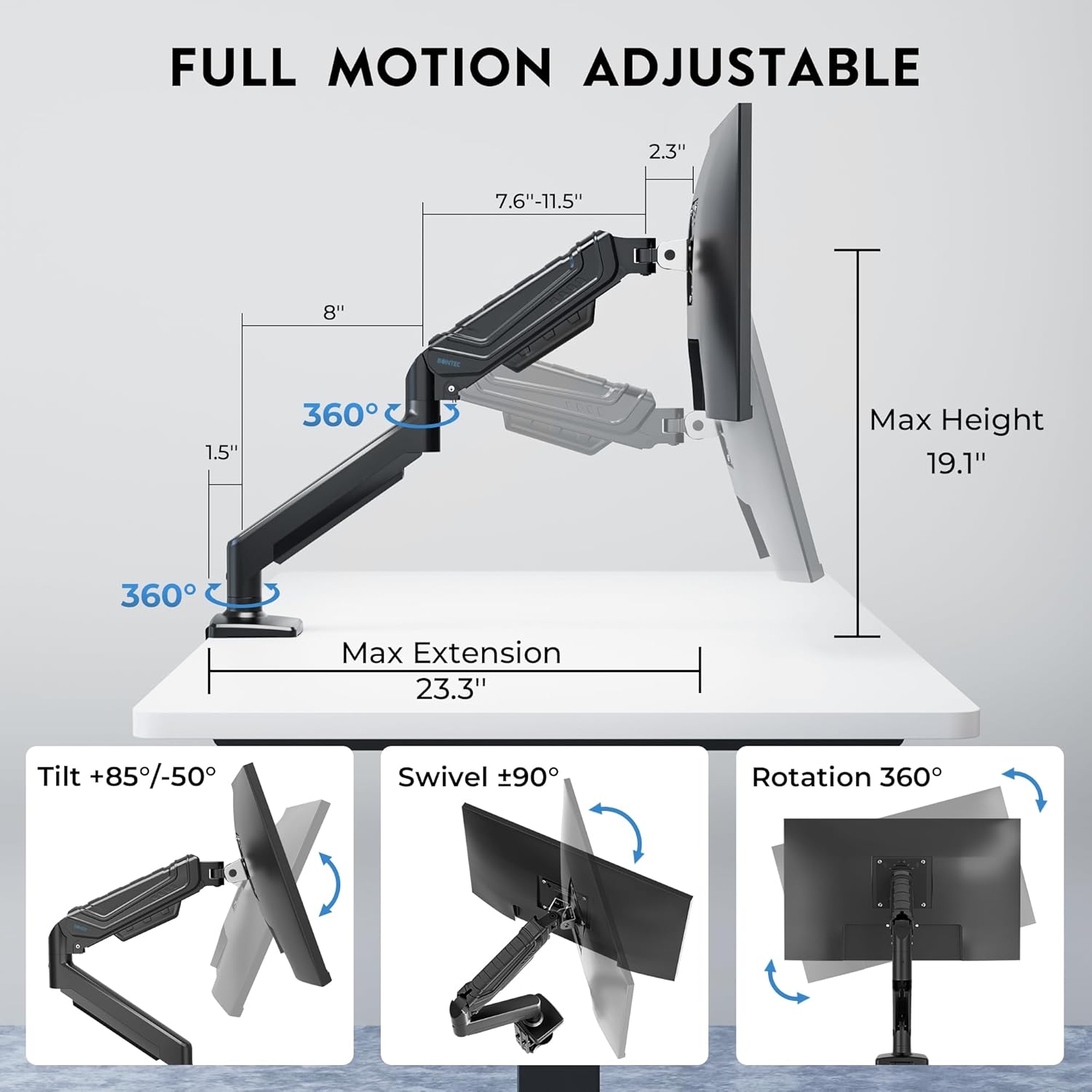
Image: This diagram illustrates the extensive adjustability of the monitor arm, featuring a maximum height of 19.1 inches, a maximum extension of 23.3 inches, tilt angles from +85 to -50 degrees, swivel of +/-90 degrees, and 360-degree rotation for flexible monitor positioning.
Video: Tips for Using BONTEC Upgraded Single Monitor Mount. This video provides guidance on adjusting the tilt, swivel, and gas spring tension of the monitor arm to ensure stable and smooth movement.
5.1. Tilt Adjustment
If the monitor head is dropping down, you may need to tighten the tilt screw. Use the appropriate Allen key (I or J) to turn the screw clockwise until the tilt adjustment is effective and smooth.
5.2. Swivel Adjustment
If the monitor swivels too easily or is too sensitive, tighten the swivel screw. Use the appropriate Allen key (I or J) to turn the screw clockwise until the swivel adjustment is smooth and controlled.
5.3. Tension Adjustment (Gas Spring)
The gas spring tension needs to be adjusted according to your monitor's weight to ensure the arm stays balanced and holds its position.
- Monitor Drooping? If your monitor is too heavy for the current tension and droops, turn the tension screw counterclockwise to increase tension.
- Monitor Rising? If your monitor is too light for the current tension and rises, turn the tension screw clockwise to reduce tension.
- Adjust gradually, with a maximum of 20 turns in either direction. Test the arm's balance after every few turns.
5.4. Cable Management
To maintain a clean and organized workspace, route your cables through the integrated cable management channels on the arm. Open the cable covers, place the cables inside, and snap the covers back into place.
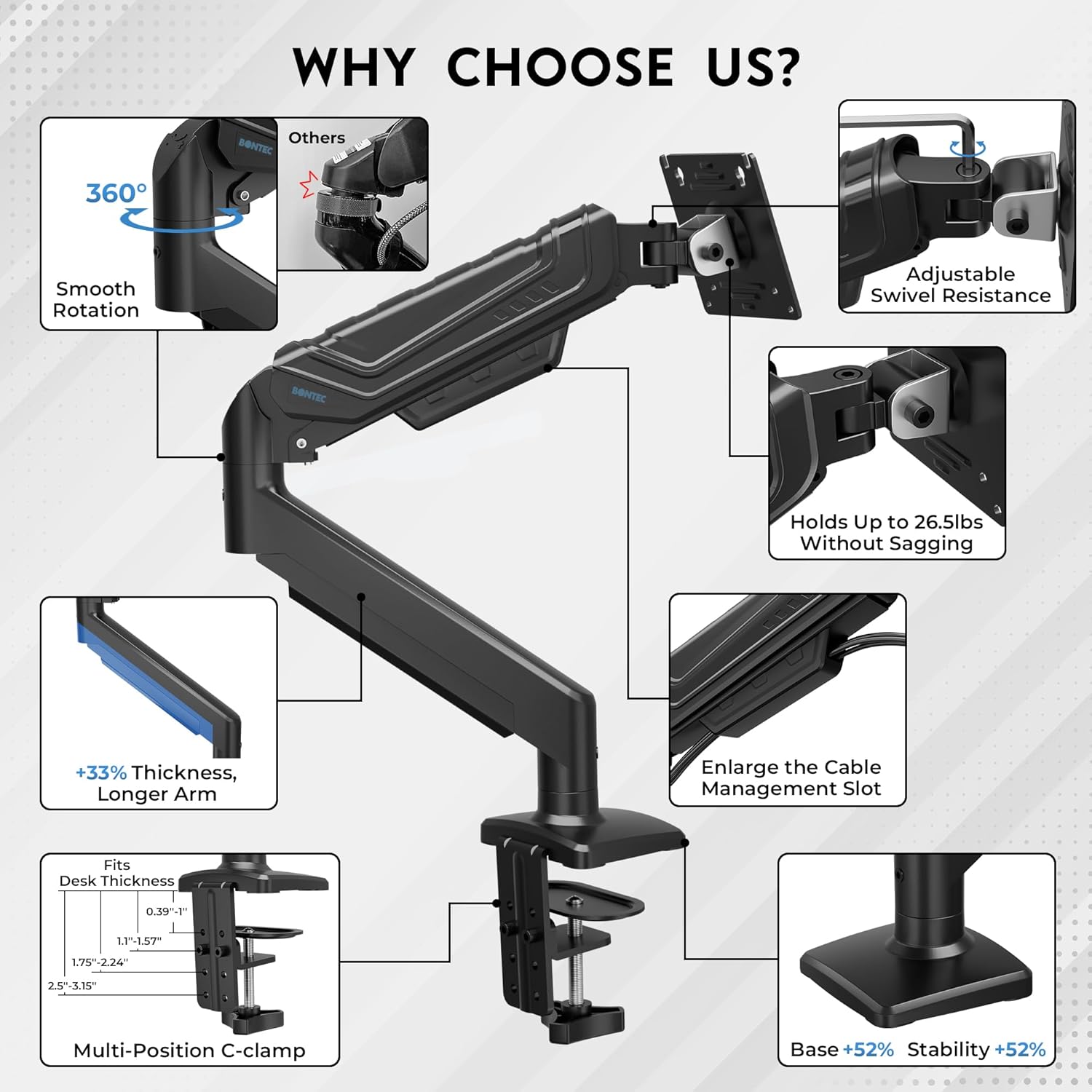
Image: This image highlights the integrated cable management feature, demonstrating how power and data cables can be neatly routed through the arm's channels to keep the desk organized.
6. Maintenance
Regular maintenance ensures the longevity and optimal performance of your monitor arm:
- Periodically check all screws and connections to ensure they are tight and secure.
- Clean the surface of the monitor arm with a soft, damp cloth. Avoid abrasive cleaners or solvents.
- If the arm's movement becomes stiff or loose over time, re-adjust the gas spring tension as described in Section 5.3.
7. Troubleshooting
If you encounter issues with your monitor arm, refer to the following common solutions:
| Problem | Possible Cause | Solution |
|---|---|---|
| Monitor droops or falls | Gas spring tension is too low for monitor weight. | Increase gas spring tension by turning the adjustment screw counterclockwise (refer to Section 5.3). |
| Monitor floats up or is difficult to push down | Gas spring tension is too high for monitor weight. | Decrease gas spring tension by turning the adjustment screw clockwise (refer to Section 5.3). |
| Monitor tilts forward or backward too easily | Tilt mechanism screw is loose. | Tighten the tilt adjustment screw (refer to Section 5.1). |
| Monitor swivels too freely or is too stiff | Swivel mechanism screw is loose or too tight. | Adjust the swivel adjustment screw (refer to Section 5.2). |
| Arm is unstable or wobbles | Mounting base is not securely fastened to the desk. | Re-tighten the C-clamp or grommet base screws (refer to Section 4.1). |
8. Specifications
| Feature | Specification |
|---|---|
| Model Number | GDM7505 |
| Screen Size Compatibility | 15-34 inches |
| Weight Capacity | Up to 26.5 lbs (12 kg) |
| VESA Compatibility | 75x75mm, 100x100mm |
| Tilt Angle | +85° to -50° |
| Swivel Angle | ±90° |
| Rotation | 360° |
| Maximum Height | 19.1 inches |
| Maximum Extension | 23.3 inches |
| Desk Thickness (C-clamp) | 0.39-3.15 inches |
| Desk Thickness (Grommet) | 0.39-2.76 inches |
| Grommet Hole Diameter | 0.39-2.36 inches |
| Material | Metal |
| Color | Black |
9. Warranty and Support
For warranty information or technical support, please refer to the product packaging or contact BONTEC customer service directly. Contact details can typically be found on the manufacturer's official website or through your purchase platform.
Related documentsGDM7505


Ask a question about this manual
Ask about setup, troubleshooting, compatibility, parts, safety, or missing instructions. Manuals+ will review the question and use this page’s manual context to help answer it.