Introduction
The ASUS ROG Harpe II Ace is an ultralight 48-gram semi-symmetrical gaming mouse engineered for esports professionals. It integrates a 42,000-DPI ROG AimPoint Pro optical sensor, durable ROG Optical Micro Switches, and delivers 8,000Hz polling wireless performance through SpeedNova 8K wireless technology. This manual provides comprehensive instructions for setting up, operating, maintaining, and troubleshooting your device to ensure optimal performance.
Setup
1. Unboxing and Components
Carefully remove all components from the packaging. The box should contain the ROG Harpe II Ace mouse, a USB charging cable, a 2.4GHz USB dongle, and optional anti-slip grip tape.
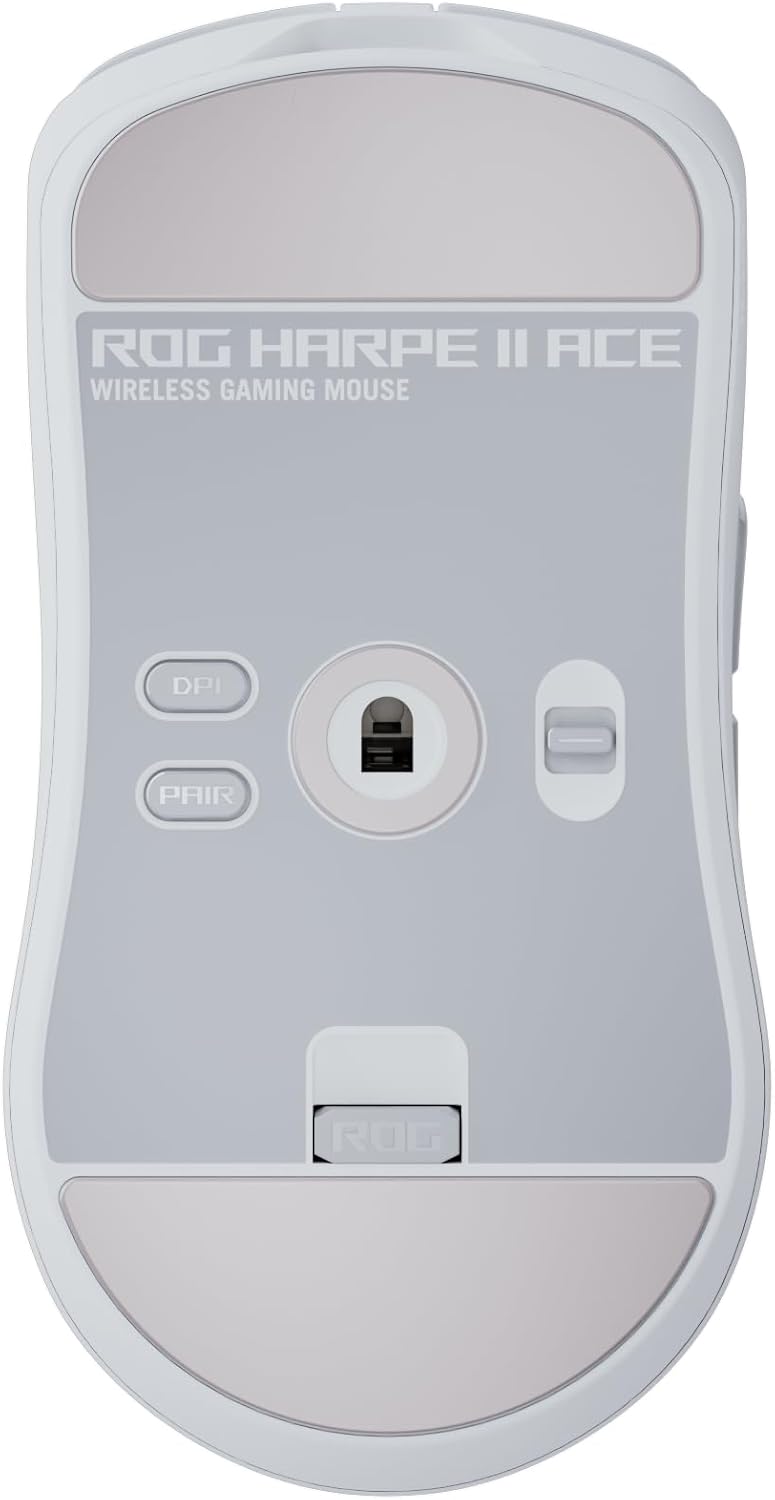
Bottom view of the ASUS ROG Harpe II Ace mouse, highlighting the DPI button, pairing button, and the convenient storage slot for the 2.4GHz USB dongle.
2. Connectivity Options
The ROG Harpe II Ace supports three modes of connectivity:
- Wired Mode: Connect the mouse directly to your PC using the provided USB cable.
- 2.4GHz Wireless Mode: Insert the USB dongle into an available USB port on your computer. Ensure the switch on the bottom of the mouse is set to 2.4GHz mode.
- Bluetooth Mode: Set the switch on the bottom of the mouse to Bluetooth mode. Follow your operating system's instructions to pair the mouse via Bluetooth.

This image illustrates the mouse's versatile tri-mode connectivity (wired, 2.4GHz, Bluetooth), its improved mouse feet for smooth gliding, and the included anti-slip grip tape for enhanced handling.
3. Initial Charging
For optimal performance, fully charge the mouse before first use. Connect the USB cable to the mouse and a powered USB port on your computer. The scroll wheel LED will indicate charging status.
4. Software Installation (ROG Gear Link)
The ROG Harpe II Ace utilizes a web-based configuration tool called ROG Gear Link. Access it via your web browser at gearlink.asus.com. No software installation is required, allowing for quick and easy customization of settings.

A view of the ROG Gear Link web interface, demonstrating how users can quickly set up and customize mouse performance parameters like DPI and polling rate without needing to download software.
Operating Instructions
1. DPI Adjustment
The ROG AimPoint Pro optical sensor offers up to 42,000 DPI. You can adjust DPI settings on-the-fly using the dedicated DPI button on the bottom of the mouse or through the ROG Gear Link software for more granular control.

This image highlights the ROG AimPoint Pro Sensor, capable of up to 42,000 DPI, ensuring exceptional tracking accuracy for competitive gaming.
2. Polling Rate
Leverage ROG SpeedNova 8K wireless technology for an ultra-fast 8,000Hz polling rate, providing minimal latency and highly responsive input. This setting can be configured via ROG Gear Link.

The ROG SpeedNova 8K wireless technology is depicted here, showcasing its capability to deliver an 8,000Hz polling rate for superior wireless precision and reliability.
3. Programmable Buttons
The mouse features ROG Optical Micro Switches for crisp, instant actuation and a 100-million-click lifespan. All buttons can be customized and assigned specific functions using the ROG Gear Link software.

This graphic details the ROG Optical Micro Switches, known for their rapid actuation and extended lifespan of 100 million clicks, crucial for competitive play.
4. Grip Styles
The semi-symmetrical design is optimized for various grip styles, including claw, fingertip, and palm grips, ensuring comfort and control for a wide range of users.

This image demonstrates how the mouse accommodates various grip styles, including claw, fingertip, and palm, ensuring ergonomic comfort for different users.
5. Zone Mode
Activate Zone Mode via ROG Gear Link to optimize performance by boosting polling rate, heightening focus (RGB on/off), and optimizing sensor responsiveness (always on/power saving).

The ROG Zone Mode is explained, detailing how it enhances performance by boosting polling rate, adjusting RGB for focus, and optimizing sensor responsiveness for competitive play.
6. Official Product Videos
Harpe II Ace - Product Overview
This video provides a comprehensive overview of the ASUS ROG Harpe II Ace, detailing its key features, design, and performance benefits for gamers.
ROG Harpe II Ace - Shaped by Esports Pros
Learn about the design philosophy behind the ROG Harpe II Ace, developed in collaboration with esports professionals to meet the demands of competitive gaming.
Harpe II Ace - From Aim Lab Edition to Harpe II Ace
This video traces the evolution of the Harpe II Ace, highlighting improvements and features carried over from the Aim Lab Edition to the current model.
Maintenance
1. Cleaning
The mouse is constructed with bio-based nylon material and features a simplified side surface to prevent dirt buildup. Use a soft, dry cloth to clean the mouse. Avoid harsh chemicals or abrasive materials.

This image focuses on the simplified side walls of the mouse, engineered to minimize grooves and make cleaning easier, preventing dirt and grime buildup.
2. Battery Care
The mouse offers up to 101 hours of battery life. To prolong battery lifespan, avoid fully discharging the battery frequently. Charge the mouse when the battery indicator is low.
3. Mouse Feet and Grip Tape
An extra set of mouse feet is included for replacement when the original feet show wear. The anti-slip grip tape can be applied to the mouse for enhanced grip and control, especially during intense gaming sessions.
Troubleshooting
- Connectivity Issues: If the mouse loses connection, ensure the USB dongle is securely plugged in or re-pair via Bluetooth. Check for interference from other wireless devices.
- Sensor Tracking Problems: Ensure the optical sensor is clean and free from debris. Test on different surfaces. Adjust DPI settings via ROG Gear Link.
- Battery Not Charging: Verify the USB cable is properly connected and the USB port is functional. Try a different cable or port.
- Software Not Detecting Mouse: Ensure the mouse is connected and powered on. Restart the ROG Gear Link web tool or your browser.
- General Advice: If issues persist, restart your computer. Visit the ASUS support website for updated drivers or further assistance.
Specifications
| Feature | Specification |
|---|---|
| Brand | ASUS |
| Model Number | P723 HARPE II ACE WHT |
| Series | P723 ROG HARPE II ACE/WHT |
| Connectivity Technology | USB (Wired), 2.4GHz Wireless (Dongle), Bluetooth |
| Movement Detection Technology | Optical (ROG AimPoint Pro Sensor) |
| Max DPI | 42,000 DPI |
| Polling Rate | Up to 8,000Hz (Wireless) |
| Switches | ROG Optical Micro Switches (100-million-click lifespan) |
| Design | Ultralight 48g, Semi-symmetrical, Right-Handed |
| Material | Bio-based nylon |
| Average Battery Life | 101 Hours |
| Power Source | Battery Powered (1 x 12V battery included) |
| Hardware Platform | PC |
| Operating System Support | Windows, macOS |
| Item Weight | 1.6 ounces (approx. 45g) |
| Product Dimensions (LxWxH) | 4.9 x 2.5 x 1.6 inches |
| Color | White |
Warranty
Your ASUS ROG Harpe II Ace Wireless Esports Gaming Mouse is covered by a limited warranty. Please refer to the warranty card included in your product packaging or visit the official ASUS support website for detailed warranty terms and conditions specific to your region.
Support
For further assistance, technical support, or to download the latest firmware updates, please visit the official ASUS support website:
You can also access the ROG Gear Link web-based configuration tool at gearlink.asus.com for mouse customization.


