1. Introduction
This manual provides essential information for setting up, operating, maintaining, and troubleshooting your HP G9 Laptop Computer. The HP G9 is designed for reliable performance, featuring an Intel Celeron Quad Core N4120 processor, 8GB RAM, 256GB PCIe SSD, and Windows 11 Pro operating system. Please read this manual thoroughly to ensure optimal use of your device.
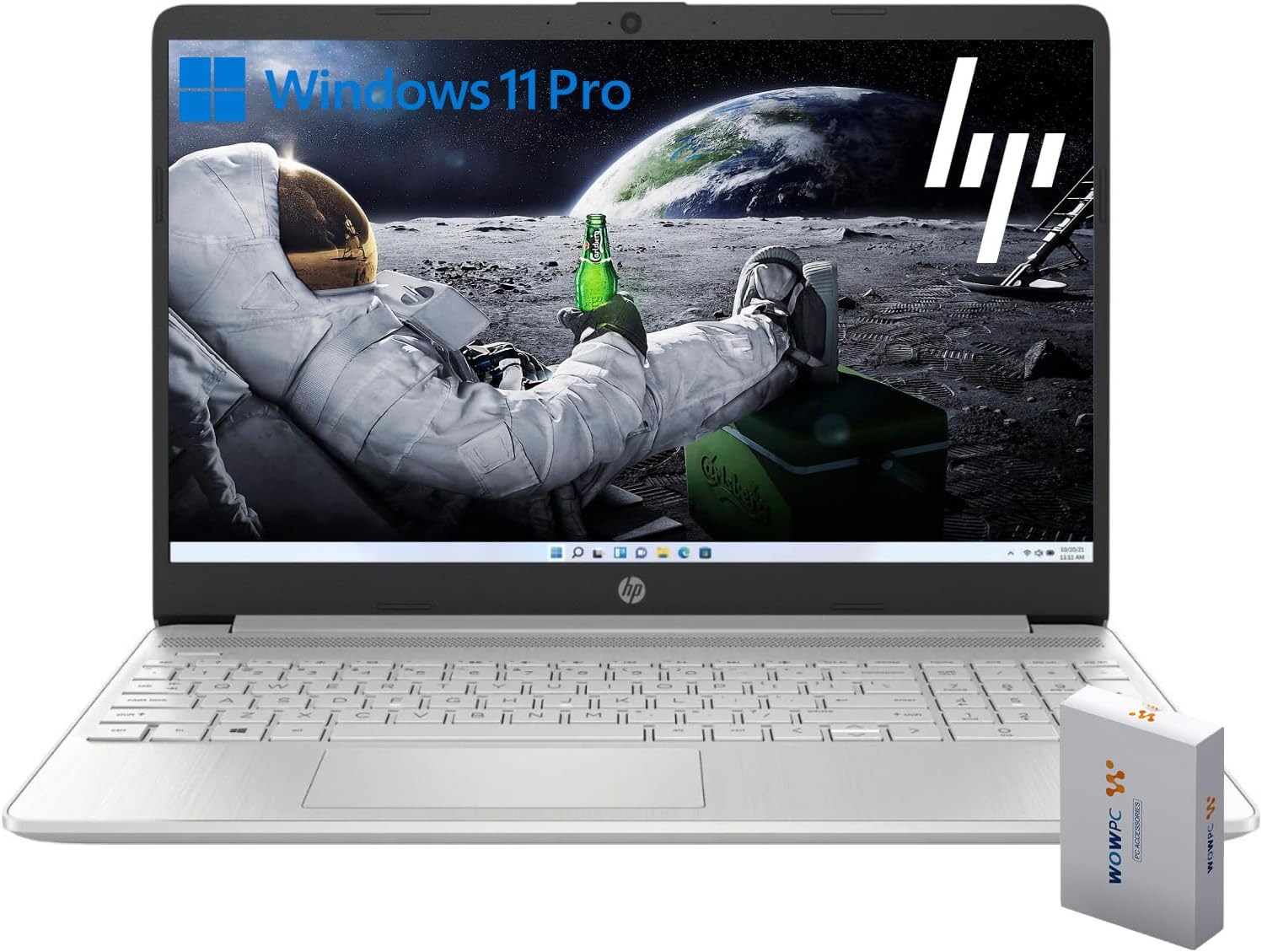
Image 1.1: HP G9 Laptop Computer. This image shows the laptop with its screen displaying the Windows 11 Pro desktop, featuring an astronaut on the moon background. A WOWPC Recovery USB is visible next to the laptop.
2. Package Contents
Verify that all items are present in the product packaging:
- HP G9 Laptop Computer
- Power Adapter and Cable
- WOWPC Recovery USB
- Quick Start Guide (if included)
3. Product Overview
3.1 Key Features
- Processor: Intel Celeron Quad Core N4120 (4 Cores, 4 Threads, up to 2.6 GHz Turbo Speed)
- Operating System: Windows 11 Pro 64 Bit
- Memory (RAM): 8GB DDR4
- Storage: 256GB PCIe-NVMe SSD
- Graphics: Integrated Intel Graphics
- Display: 15.6-inch HD (1366 x 768) anti-glare panel
- Wireless Connectivity: Wi-Fi 6, Bluetooth 5.2
- Audio: Dual stereo speakers, dual array microphones
- Keyboard: Full-size with numeric keypad
- Webcam: Built-in HD 720p

Image 3.1: Key Features Overview. This graphic highlights the Intel Quad-Core N4120 Processor, Windows 11 Pro, Storage options, RAM, WOWPC Recovery USB, USB 3.2, Wi-Fi 6, Bluetooth 5.2, RJ-45, and Ergonomic Design.
3.2 Ports and Connectors
Familiarize yourself with the various ports on your laptop:
- Left Side: Power Connector, USB Type-A (5Gbps signaling rate)
- Right Side: Multi-format SD media card reader, Headphone/microphone combo, USB-C (5Gbps signaling rate), HDMI 1.4b Output, RJ-45 (Ethernet)

Image 3.2: Laptop Port Layout. This image illustrates the location of the Power Connector, USB Type-A port on the left side, and the Multi-format SD media card reader, Headphone/Microphone Combo jack, USB-C port, and HDMI 1.4b port on the right side.
4. Initial Setup
4.1 Connecting Power
- Connect the power adapter to the power connector on the laptop.
- Plug the power cable into an electrical outlet.
- Allow the battery to charge for a few minutes before initial use.
4.2 First Boot and Windows 11 Pro Setup
- Open the laptop lid and press the power button.
- Follow the on-screen instructions to complete the Windows 11 Pro initial setup, including language selection, region, keyboard layout, and network connection.
- Create a user account and set up a password or PIN.
4.3 Connecting to a Network
During the initial setup, you will be prompted to connect to a Wi-Fi network. If you skip this step, you can connect later:
- Click the Network icon (Wi-Fi or Ethernet) in the taskbar.
- Select your desired Wi-Fi network from the list and click Connect.
- Enter the network security key (password) if prompted.
5. Operating Your Laptop
5.1 Basic Navigation
- Touchpad: Use gestures for scrolling, zooming, and switching applications. Refer to Windows settings for touchpad customization.
- Keyboard: The full-size keyboard includes a numeric keypad for efficient data entry. Function keys (F1-F12) provide quick access to system controls.
5.2 Windows 11 Pro Features
Windows 11 Pro offers enhanced security, productivity tools, and performance:
- Snap Layouts and Groups: Organize your open windows efficiently for improved multitasking.
- Advanced Security: Features like Windows Hello, BitLocker, and Windows Security protect your data and device.
- Microsoft Teams Integration: Stay connected with colleagues and friends directly from the taskbar.

Image 5.1: Windows 11 Pro Features. This image highlights the benefits of Windows 11 Pro, including advanced security features and optimized productivity tools for business and professional users.
5.3 Using the WOWPC Recovery USB
The included WOWPC Recovery USB is designed to assist with system recovery in case of software issues. Keep it in a safe place.
- To use, insert the USB into an available port.
- Restart your laptop and access the boot menu (often by pressing F9, F10, or F12 during startup, consult your laptop's specific boot key).
- Select the WOWPC Recovery USB as the boot device and follow the on-screen instructions for recovery options.
6. Maintenance and Care
6.1 Cleaning Your Laptop
- Use a soft, lint-free cloth slightly dampened with water or a screen cleaner for the display.
- For the keyboard and chassis, use a soft cloth. Avoid harsh chemicals.
- Ensure the laptop is powered off and unplugged before cleaning.
6.2 Software Updates
Regularly update your Windows operating system and drivers to ensure optimal performance and security:
- Go to Settings > Windows Update to check for and install updates.
- Allow updates to complete without interrupting the process.
6.3 Battery Care
- Avoid extreme temperatures.
- For long-term storage, charge the battery to approximately 50% and store the laptop in a cool, dry place.
- Periodically discharge and recharge the battery to maintain its health.
7. Troubleshooting
This section addresses common issues you might encounter.
7.1 Laptop Does Not Power On
- Ensure the power adapter is securely connected to both the laptop and a working electrical outlet.
- Verify the power outlet is functional by plugging in another device.
- If the battery is completely drained, allow it to charge for at least 30 minutes before attempting to power on.
7.2 No Wi-Fi Connection
- Check if Wi-Fi is enabled in Windows settings (Settings > Network & internet > Wi-Fi).
- Restart your router and modem.
- Ensure you are within range of your Wi-Fi network.
- Try forgetting the network and reconnecting.
7.3 Slow Performance
- Close unnecessary applications running in the background.
- Check for and install any pending Windows updates.
- Run a disk cleanup to free up storage space.
- Scan for malware using Windows Security.
8. Specifications
| Feature | Detail |
|---|---|
| Model Name | HP G9 |
| Operating System | Windows 11 Pro |
| Processor | Intel Celeron Quad Core N4120 (1.1 GHz base, up to 2.6 GHz turbo) |
| RAM | 8GB DDR4 |
| Storage | 256GB PCIe-NVMe SSD |
| Graphics | Integrated Intel Graphics |
| Display | 15.6-inch HD (1366 x 768 pixels), anti-glare |
| Wireless Connectivity | Wi-Fi 6, Bluetooth 5.2 |
| Ports | 1x SuperSpeed USB-C 10Gbps, 2x SuperSpeed USB-A 10Gbps, 1x Headphone/microphone combo, 1x HDMI 1.4 Output, 1x RJ-45, 1x Audio-out, SD-Reader |
| Webcam | HD 720p |
| Dimensions (L x W x H) | 14.09 x 9.53 x 0.78 Inches |
| Weight | 4 LB |
9. Warranty and Support
9.1 Product Warranty
Your HP G9 Laptop Computer comes with a standard manufacturer's warranty. Please refer to the warranty card included in your product packaging or visit the official HP support website for detailed warranty terms and conditions specific to your region.
9.2 Technical Support
For technical assistance, driver downloads, or further information, please visit the official HP support website. You can typically find support resources by searching for your specific model (HP G9) on their website.
The included WOWPC Recovery USB is a valuable tool for system recovery and troubleshooting software-related issues. Keep it accessible for future use.