
1. Introduction
This manual provides detailed instructions for the FURYCUBE IP98 Wired RGB Gaming Keyboard. Please read this manual thoroughly before using the product to ensure proper operation and to maximize your user experience. This keyboard features a 98-key layout, RGB backlighting, IPX8 water resistance, and durable PBT keycaps.
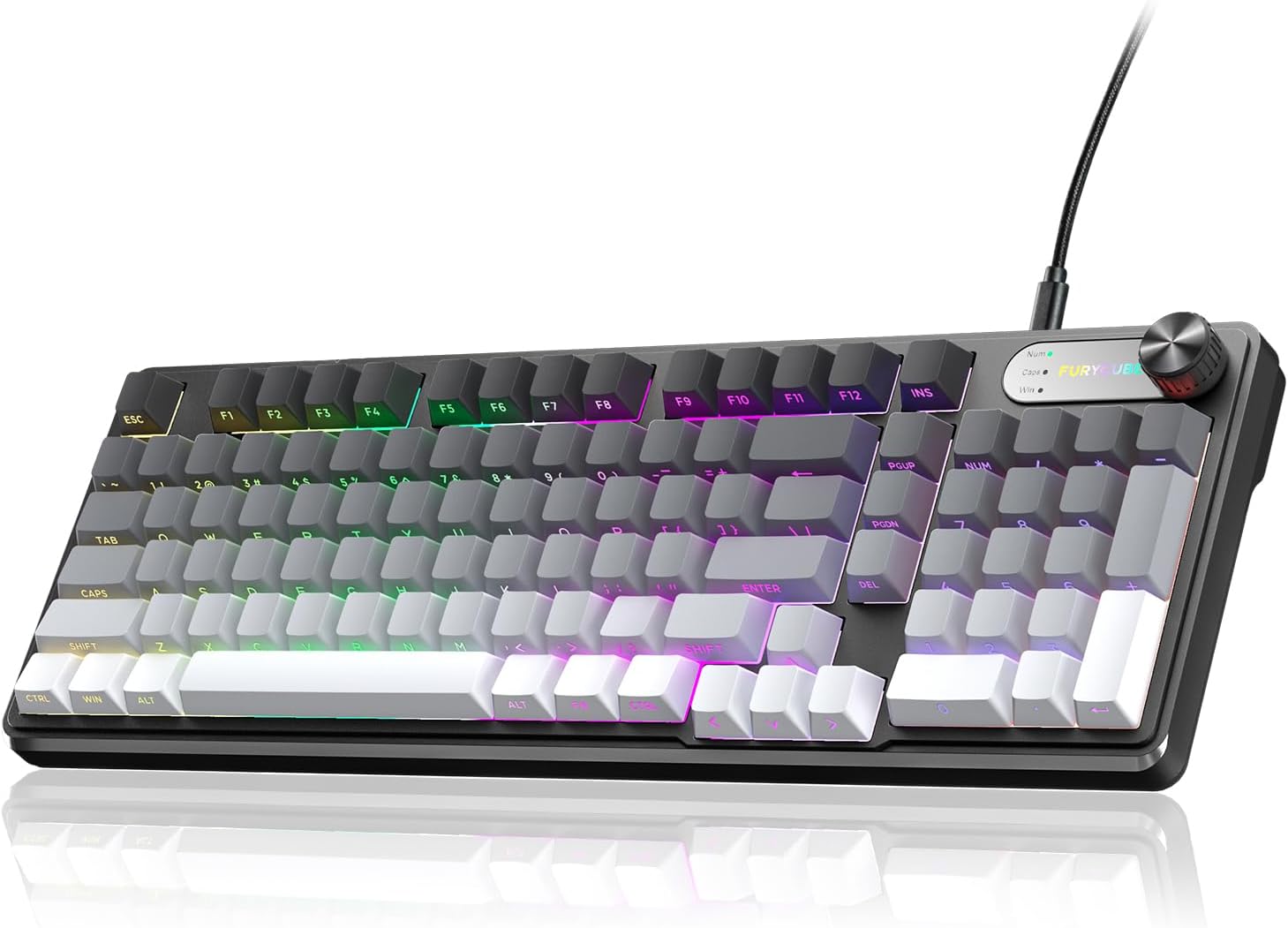
Image 1.1: FURYCUBE IP98 Wired RGB Gaming Keyboard overview.
2. Package Contents
Verify that all items are present in the package:
- FURYCUBE IP98 Gaming Keyboard
- USB Type-C Cable
- User Manual
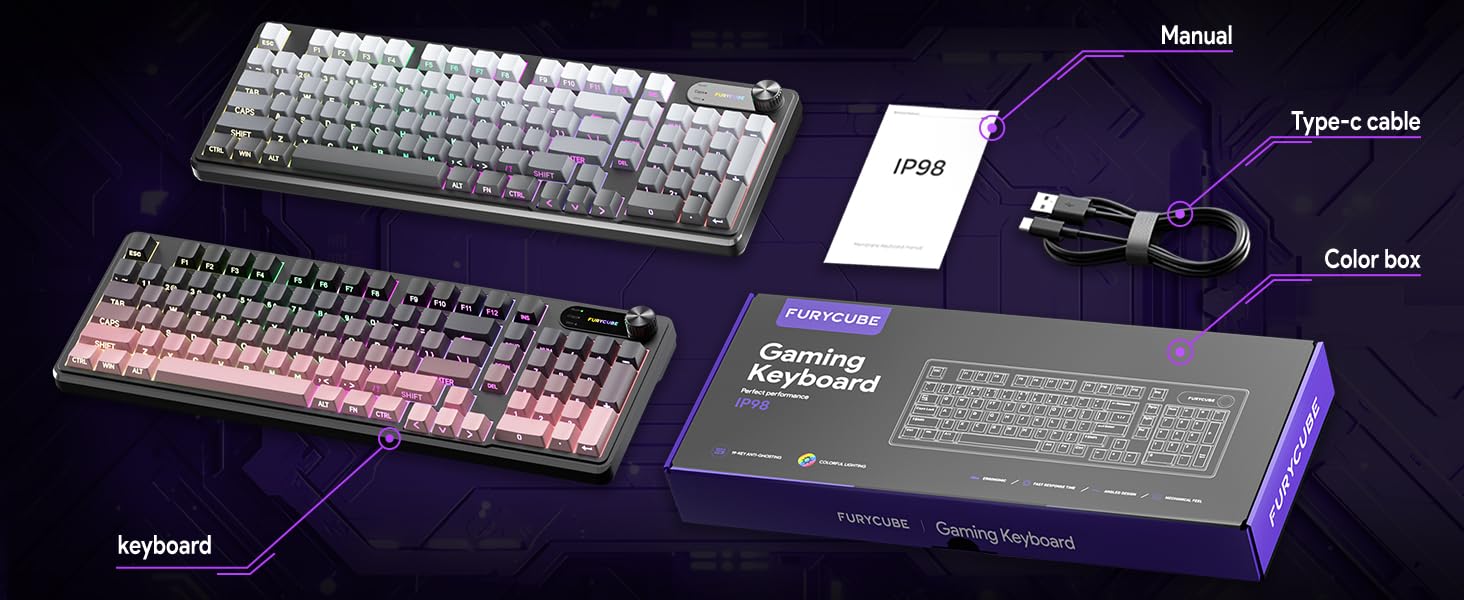
Image 2.1: Contents of the FURYCUBE IP98 keyboard package.
3. Setup Instructions
3.1 Connecting the Keyboard
- Locate the USB Type-C port on the keyboard.
- Connect one end of the provided USB Type-C cable to the keyboard.
- Connect the other end of the USB Type-A connector to an available USB port on your computer (PC, Laptop, Gaming Console, etc.).
- The keyboard is plug-and-play and should be recognized automatically by your operating system.
3.2 System Compatibility
The FURYCUBE IP98 keyboard supports both Windows and Mac operating systems.
- To switch between systems, press Fn + A for Windows or Fn + W for Mac.
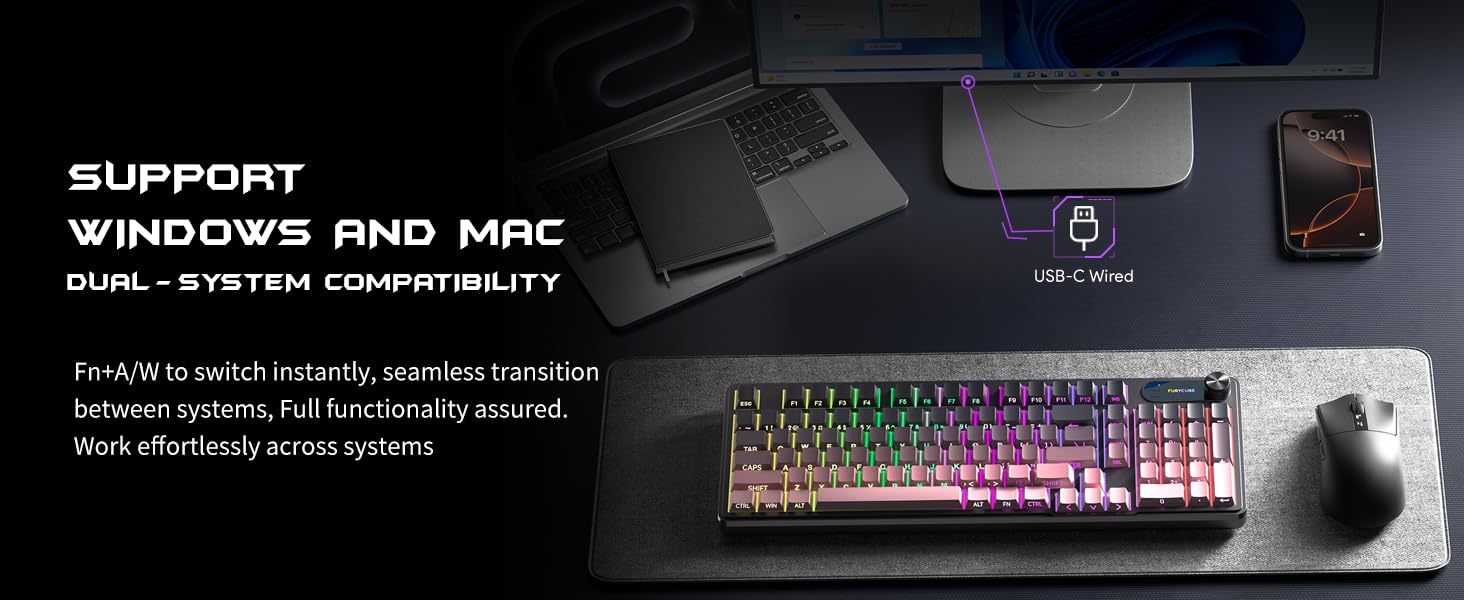
Image 3.1: Dual-system compatibility for Windows and Mac.
4. Operating Instructions
4.1 RGB Backlighting Control
The keyboard features 16.8 million RGB colors with various lighting modes and effects.
- Lighting Modes: The keyboard offers 7 different RGB lighting modes. These can be cycled through by long-pressing the multifunctional knob or using the Fn + Insert key combination.
- Brightness Adjustment: There are 4 backlight brightness levels. Adjust using Fn + Up Arrow (increase) and Fn + Down Arrow (decrease).
- Breathing Speed: Adjust the breathing speed of certain lighting effects using Fn + Left Arrow (decrease) and Fn + Right Arrow (increase).
- Logo Color Changes: The keyboard supports 10 different logo color changes. Use Fn + P to cycle through these options.
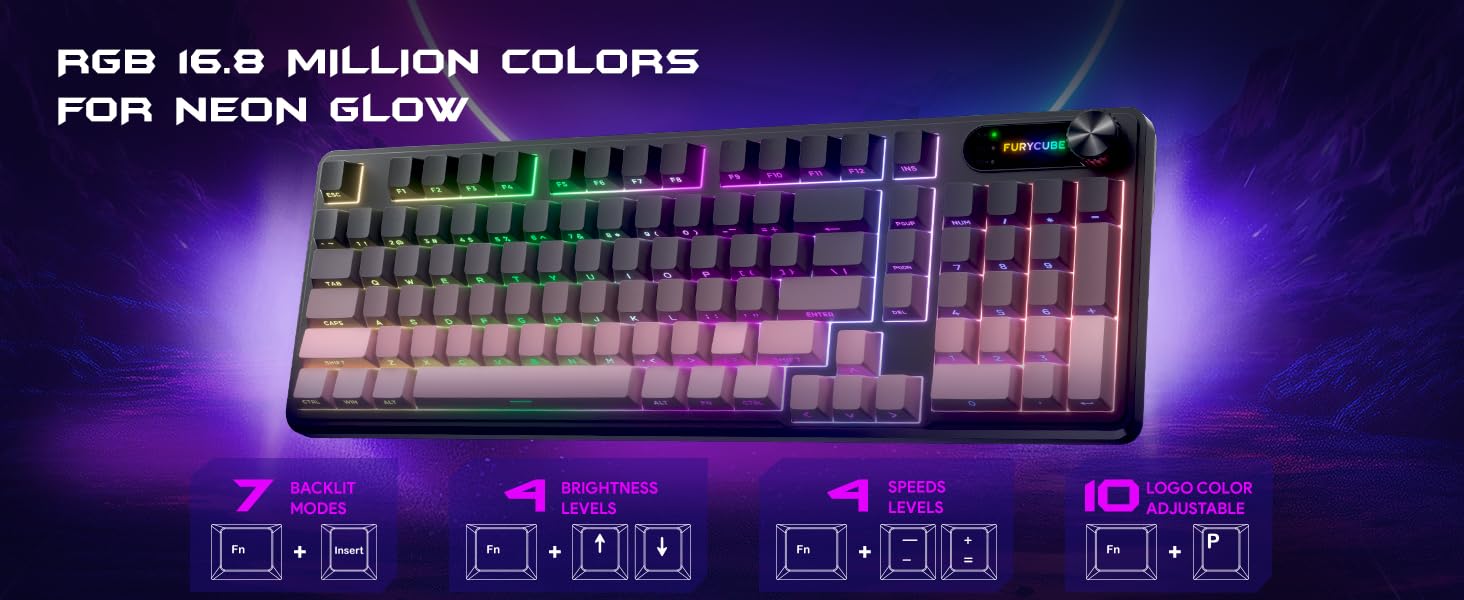
Image 4.1: RGB lighting modes and control key combinations.
4.2 Multifunctional Knob
The integrated knob provides quick access to multimedia and lighting controls.
- Rotate: Adjusts system volume.
- Long Press: Switches between different RGB lighting modes.
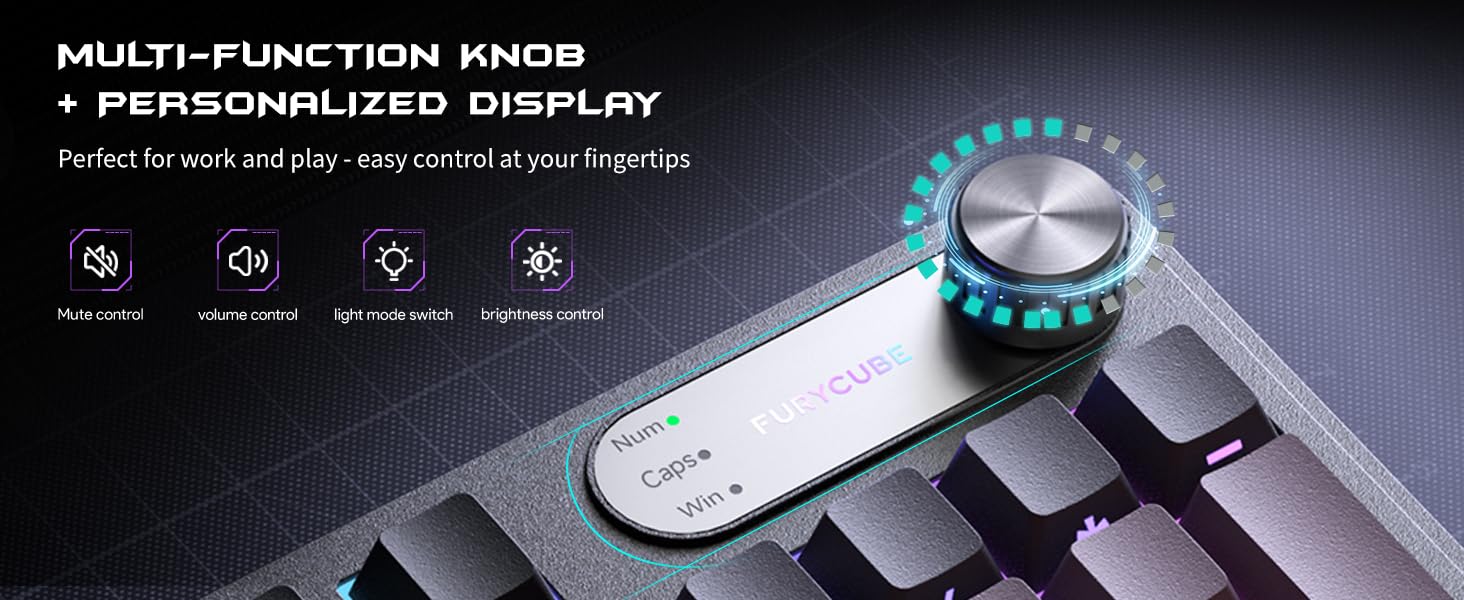
Image 4.2: Functions of the multifunctional knob.
4.3 Anti-Ghosting and Multimedia Keys
The keyboard features 19-key anti-conflict technology, ensuring accurate registration of multiple simultaneous key presses, which is crucial for gaming. Additionally, it includes 12 extra FN multimedia keys for enhanced functionality.
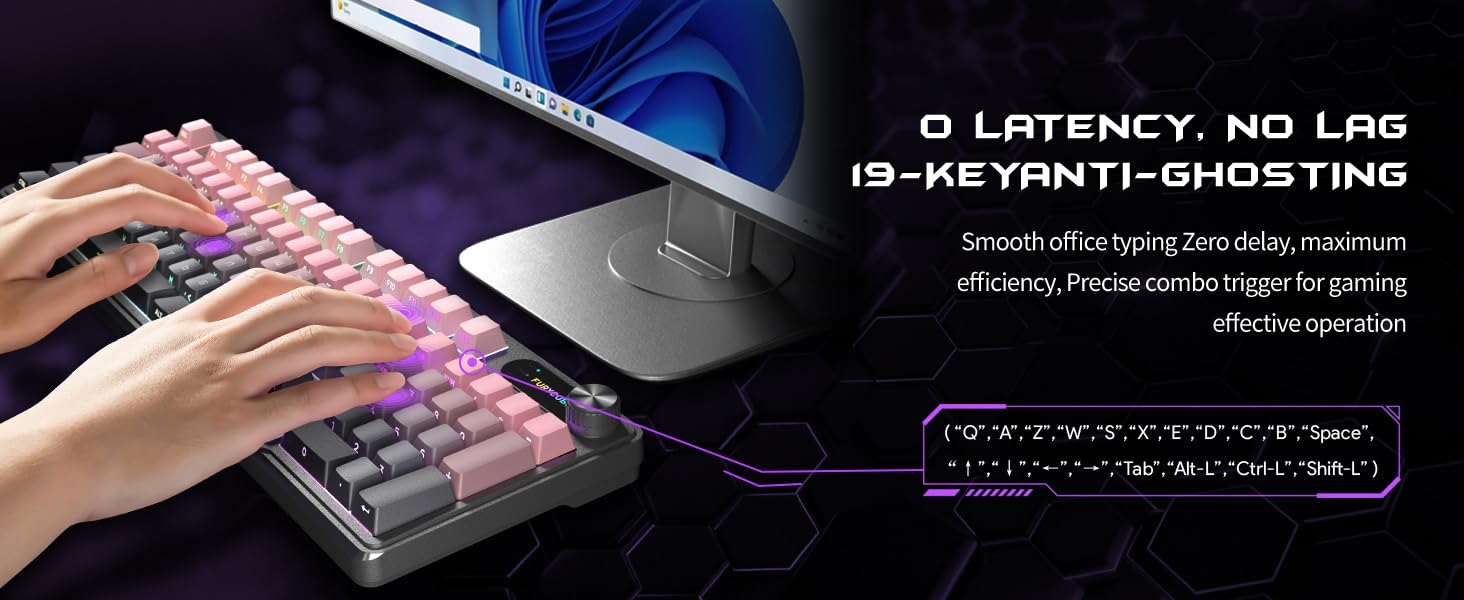
Image 4.3: Illustration of 19-key anti-ghosting capability.
4.4 Ergonomic Design
The IP98 keyboard is designed with an ergonomic angle and features dual-stage adjustable feet to provide a comfortable typing experience and reduce wrist pressure during extended use.
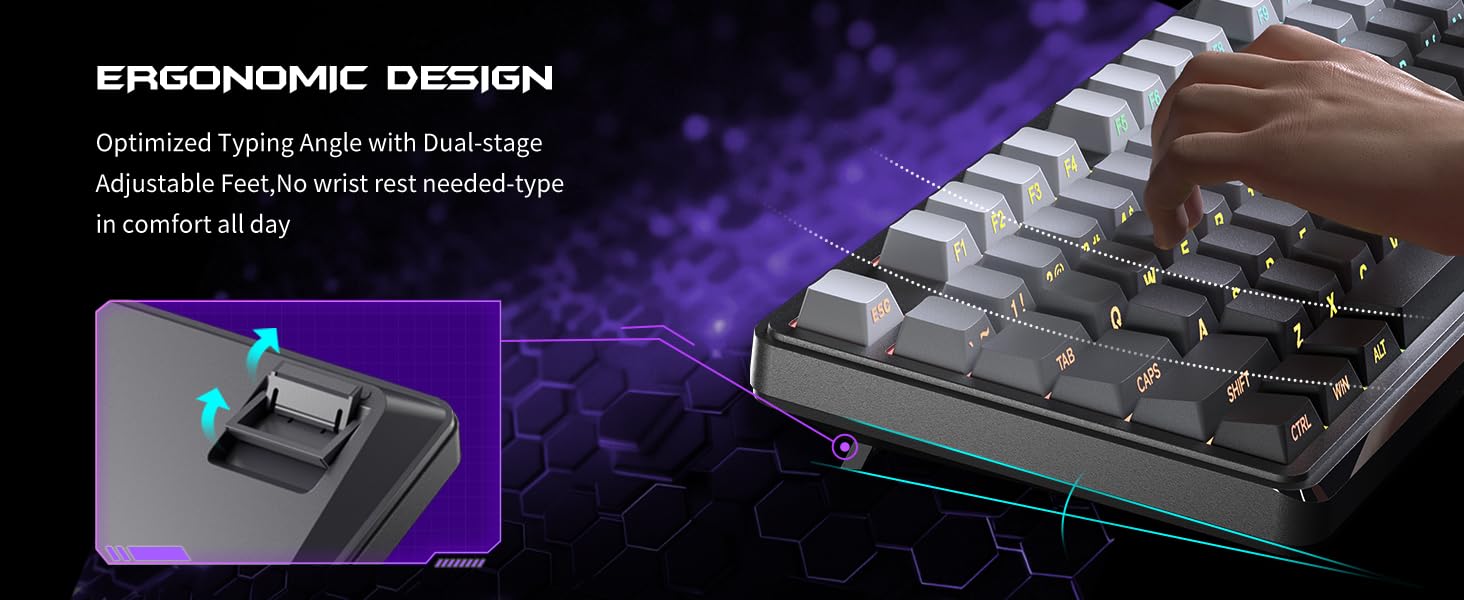
Image 4.4: Ergonomic design with adjustable feet for optimal typing angle.
4.5 Side-Printed PBT Keycaps
The keyboard features side-printed PBT translucent keycaps. This design enhances key legibility, especially in low-light conditions, and prevents fading or blurring over time due to wear. PBT material offers increased durability and resistance to oils compared to standard ABS keycaps.
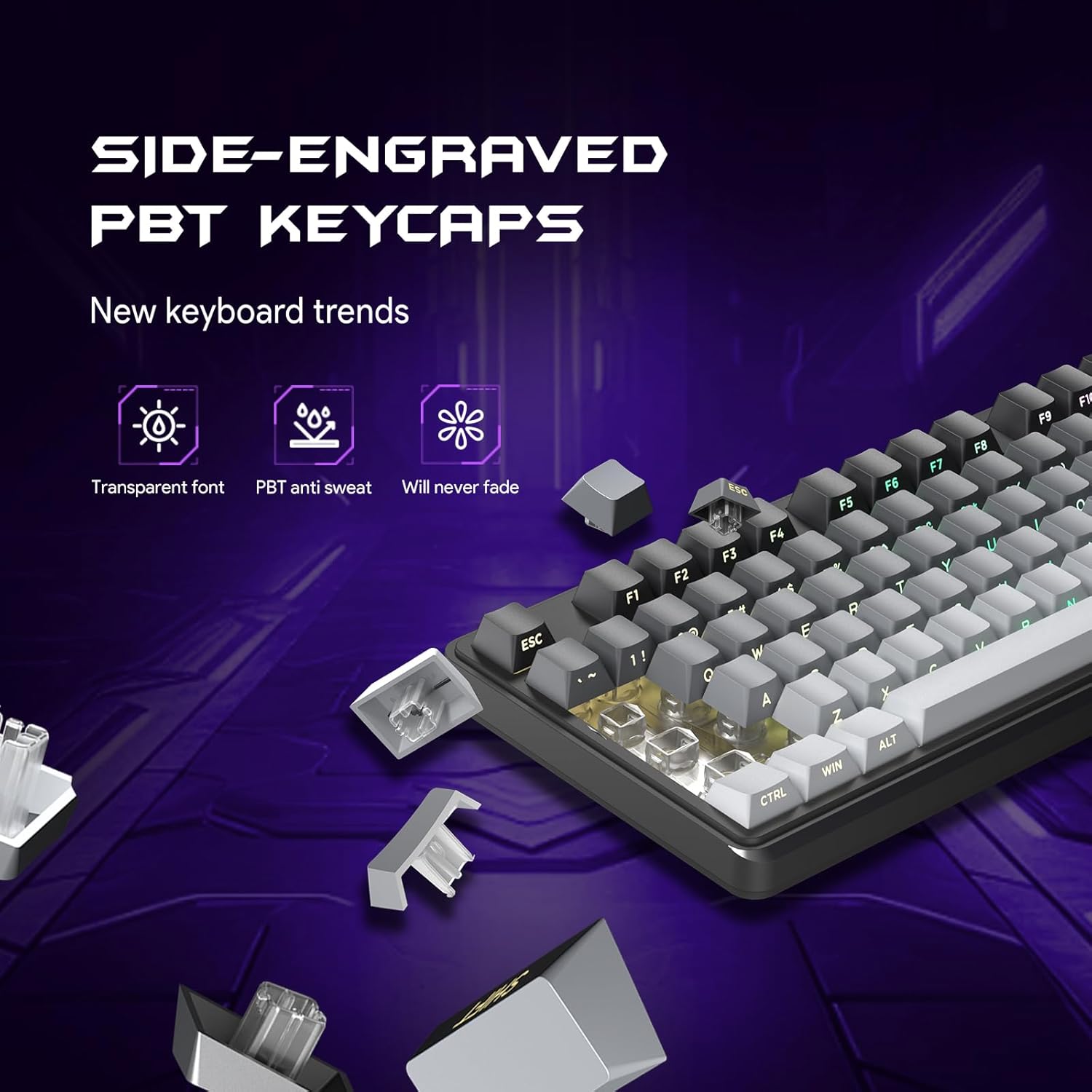
Image 4.5: Close-up of the side-printed PBT keycaps.
5. Maintenance
5.1 IPX8 Water Resistance
The FURYCUBE IP98 keyboard features an IPX8 waterproof rating, providing protection against accidental spills and splashes. This allows for easy cleaning and helps extend the keyboard's lifespan.
- In case of spills, gently wipe the keyboard dry.
- For deeper cleaning, ensure the keyboard is disconnected from the computer.
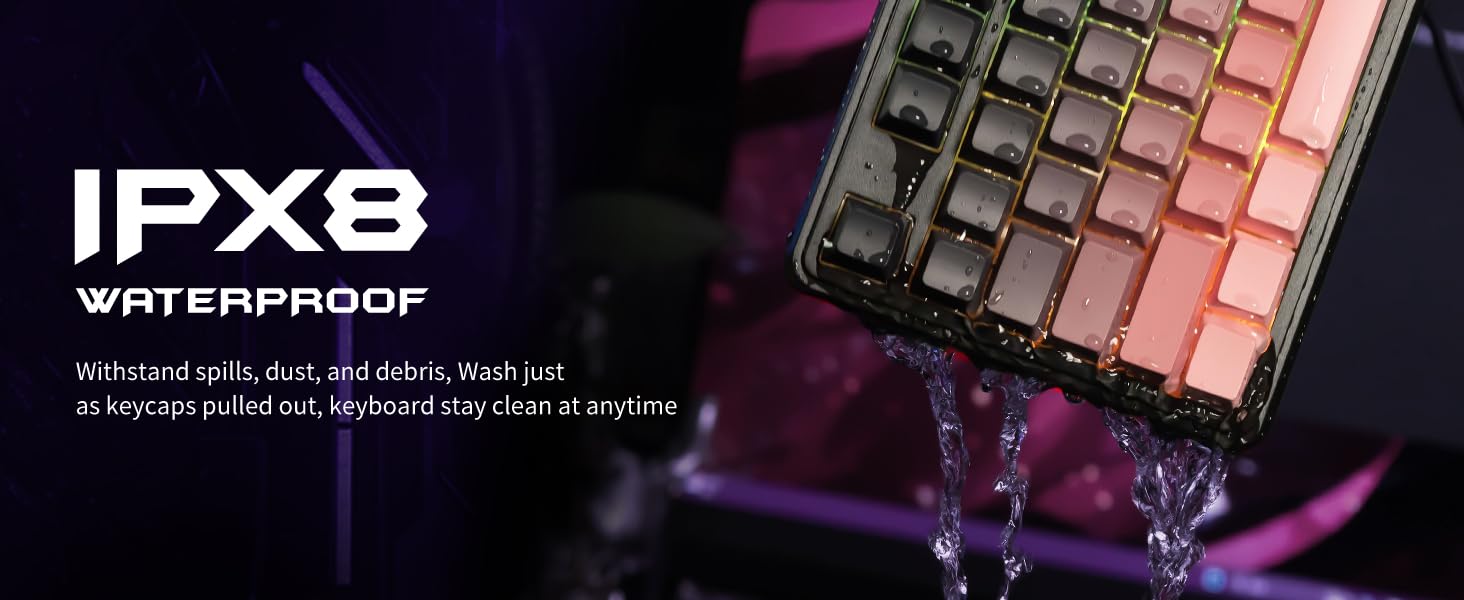
Image 5.1: IPX8 water resistance feature of the keyboard.
5.2 General Cleaning
To maintain the keyboard's appearance and functionality:
- Use a soft, damp cloth to wipe the surface of the keyboard.
- For dust and debris between keys, use compressed air.
- Avoid using harsh chemicals or abrasive materials for cleaning.
6. Troubleshooting
6.1 Keyboard Not Responding
- Ensure the USB Type-C cable is securely connected to both the keyboard and the computer's USB port.
- Try connecting the keyboard to a different USB port on your computer.
- Test the keyboard on another computer to determine if the issue is with the keyboard or the original computer.
- Restart your computer.
6.2 RGB Lighting Not Working or Incorrect
- Check the brightness settings using Fn + Up/Down Arrow.
- Cycle through lighting modes by long-pressing the multifunctional knob or using Fn + Insert.
- Ensure the keyboard is properly powered via the USB connection.
6.3 Keys Not Registering Correctly
- Ensure the keyboard is clean and free from debris that might obstruct key presses.
- If specific keys are not working, contact customer support for assistance.
7. Specifications
| Feature | Detail |
|---|---|
| Model Name | IP98 |
| Brand | FURYCUBE |
| Connectivity Technology | Wired (USB Type-C) |
| Keyboard Description | Gaming |
| Keycap Material | PBT (Side-etched) |
| Backlighting | RGB (16.8 Million Colors, 7 Modes, 4 Brightness Levels) |
| Water Resistance | IPX8 |
| Anti-Ghosting | 19-Key Anti-Conflict |
| Compatible Devices | Gaming Console, Laptop, PC, Smartphone, Tablet |
| Product Dimensions | 16.22 x 5.51 x 1.57 inches |
| Item Weight | 2.12 pounds |
| Manufacturer | FURYCUBE |
8. Warranty and Support
FURYCUBE provides a 3-year after-sales service for the IP98 Gaming Keyboard. If you encounter any quality issues or have questions regarding the product during this period, please contact FURYCUBE customer support.
Our support team aims to resolve your inquiries within 24 hours.
For support, please refer to the contact information provided on the FURYCUBE official website or the product packaging.


