Introduction
Thank you for choosing the ORDRO Z36 4K Video Camera Camcorder. This device is designed to capture high-quality video and photos, offering features such as 4K 30fps video recording, 64MP still image resolution, 18X digital zoom, and a 3.0-inch 270° rotatable IPS screen. This manual provides detailed instructions for setup, operation, maintenance, and troubleshooting to ensure optimal performance and user experience.
Package Contents
Please verify that all items listed below are included in your package:
- ORDRO Z36 4K Camcorder
- User Manual
- Mini Tripod
- Battery x2
- DV Bag
- USB Cable
- Remote Control
Product Overview
Familiarize yourself with the main components of your ORDRO Z36 camcorder.
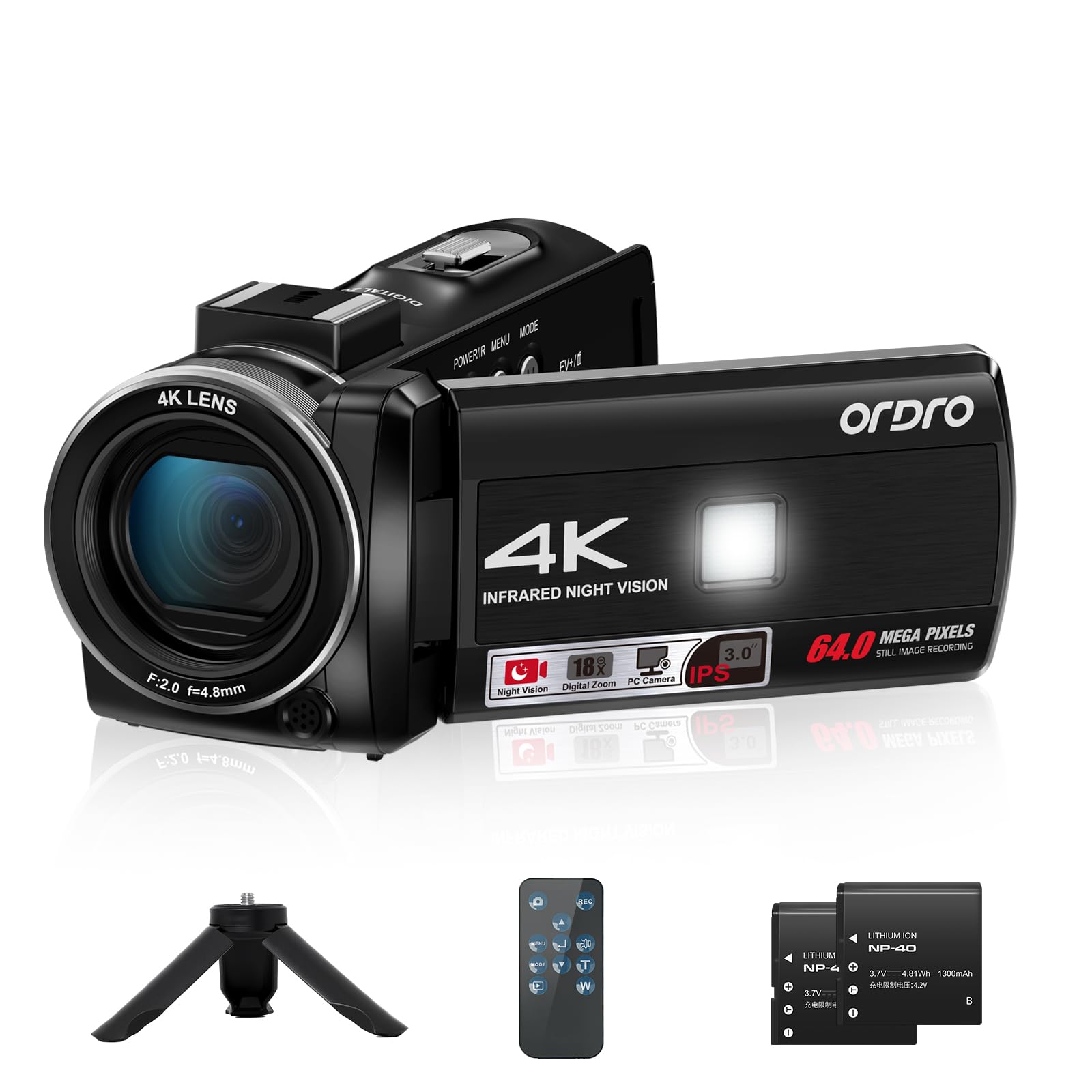
Figure 1: Front view of the ORDRO Z36 4K Video Camera Camcorder.

Figure 2: ORDRO Z36 camcorder with the rotatable screen open.

Figure 3: ORDRO Z36 camcorder on mini tripod.
Setup
1. Battery Installation
- Open the battery compartment cover located on the bottom of the camcorder.
- Insert a fully charged battery, ensuring the correct polarity.
- Close the battery compartment cover securely.
2. Memory Card Insertion
- Locate the SD card slot on the side of the camcorder.
- Insert a Micro SD card (Class 10 or higher, up to 128GB recommended) until it clicks into place.
- To remove, press the card gently until it ejects.
3. Initial Power On
Press and hold the Power button to turn on the camcorder. The 3.0-inch IPS screen will illuminate.
Operating Instructions
Basic Operation
- Power On/Off: Press the Power button to turn the camcorder on or off.
- Recording Video: In video mode, press the Record button to start recording. Press again to stop. The camcorder supports 4K 30fps video resolution.
- Taking Photos: In photo mode, press the Photo button to capture a still image. The camcorder supports 64MP image resolution.
- 18X Digital Zoom: Use the T/W buttons to zoom in or out during recording or in standby mode.
- 270° Rotatable IPS Screen: The screen can be rotated for various viewing angles, including self-recording.

Figure 4: Capturing 4K video with the ORDRO Z36.

Figure 5: Demonstrating 18X Digital Zoom.

Figure 6: The 270° rotatable IPS screen in use.
Recording Modes & Special Features
- IR Night Vision: Activate for clear recording in low-light or dark conditions.
- Built-in LED Fill Light: Provides additional illumination for subjects in dim environments.
- White Balance: Adjusts color temperature for accurate color reproduction.
- Slow-motion: Records video at a higher frame rate for slow-motion playback.
- Time-lapse: Captures images at set intervals to create a time-lapse video.
- Loop Recording: Continuously records, overwriting the oldest files when the memory card is full.
- Self-timer: Sets a delay before capturing a photo or starting a video.
- Continuous Shooting: Captures multiple photos in quick succession.
- Webcam Function: Connect the camcorder to a computer via USB to use it as a webcam.
- Pause Function: Allows pausing and resuming video recording without creating a new file.
- Recording while Charging: The camcorder can operate while connected to a power source.

Figure 7: IR Night Vision capability.

Figure 8: Using the ORDRO Z36 as a Webcam.
Video 1: An overview of the ORDRO Z36 camcorder's features and ease of use, including its 4K recording, digital zoom, and rotatable screen, demonstrated by a user in various outdoor settings.
Specifications
| Feature | Detail |
|---|---|
| Brand | ORDRO |
| Item Model Number | Z36 |
| Item Weight | 9.1 ounces |
| Package Dimensions | 4.7 x 2.4 x 2.4 inches |
| Batteries | 1 12V battery required (included) |
| Photo Sensor Technology | CMOS |
| Video Capture Resolution | 2.7K, 4K |
| Maximum Focal Length | 4.8 Millimeters |
| Maximum Aperture | 2 f |
| Flash Memory Type | Micro SD |
| Video Capture Format | MP4 |
| Screen Size | 3 Inches |
| Connectivity Technology | USB |
| Special Features | Built-In Light, Lightweight, Night Vision |
Maintenance
To ensure the longevity and optimal performance of your ORDRO Z36 camcorder, follow these maintenance guidelines:
- Cleaning: Use a soft, dry cloth to clean the camera body. For the lens, use a specialized lens cleaning cloth and solution. Avoid harsh chemicals.
- Storage: Store the camcorder in a cool, dry place away from direct sunlight and extreme temperatures. Remove the battery if storing for extended periods.
- Battery Care: Fully charge batteries before first use. Do not expose batteries to high temperatures or disassemble them.
- Firmware Updates: Periodically check the official ORDRO website for any available firmware updates to improve performance and add new features.
Troubleshooting
If you encounter issues with your camcorder, refer to the following common problems and solutions:
- Camera does not power on: Ensure the battery is fully charged and correctly inserted. Try using the second included battery.
- Cannot record video/take photos: Check if a memory card is inserted and has sufficient free space. Ensure the camcorder is in the correct mode (video or photo).
- Poor image/video quality: Clean the lens. Ensure adequate lighting. Adjust white balance settings if colors appear off.
- Zoom is slow or choppy: This is characteristic of digital zoom. Ensure stable holding or use a tripod for smoother results.
- Computer does not recognize camcorder: Ensure the USB cable is securely connected to both the camcorder and the computer. Try a different USB port or cable.
For further assistance, please contact ORDRO customer support.
Warranty and Support
The ORDRO Z36 camcorder comes with a standard manufacturer's warranty. Please refer to the warranty card included in your package for specific terms and conditions. For technical support, product registration, or warranty claims, visit the official ORDRO website or contact their customer service department.
Online Support: Visit the ORDRO Store on Amazon


