Introduction
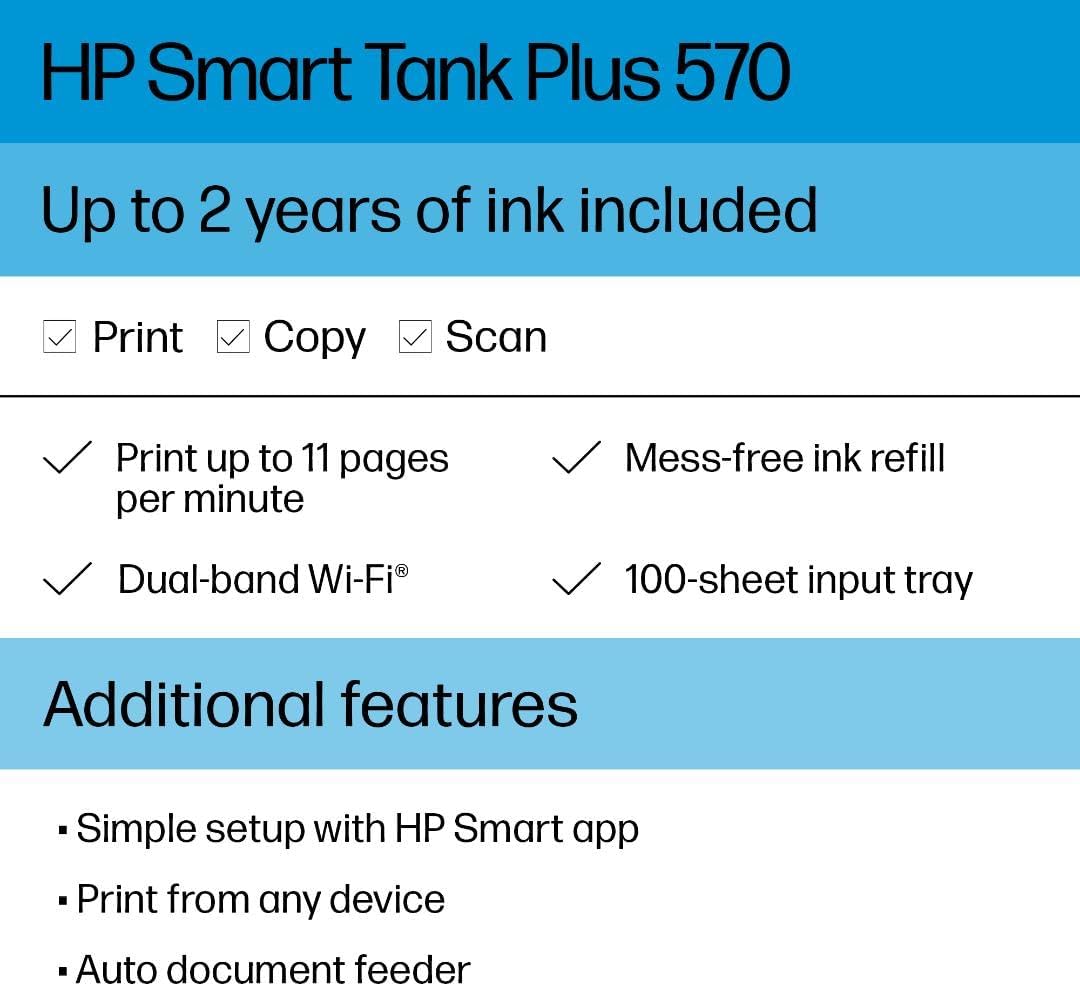
The HP Smart Tank Plus 570 is a versatile all-in-one printer designed for home use, offering print, copy, and scan functionalities. This refillable ink tank printer provides a cost-effective solution for high-volume printing with extended ink yields and wireless connectivity.
Key Features
- Print, copy, and scan capabilities.
- 35-page automatic document feeder for efficient multi-page tasks.
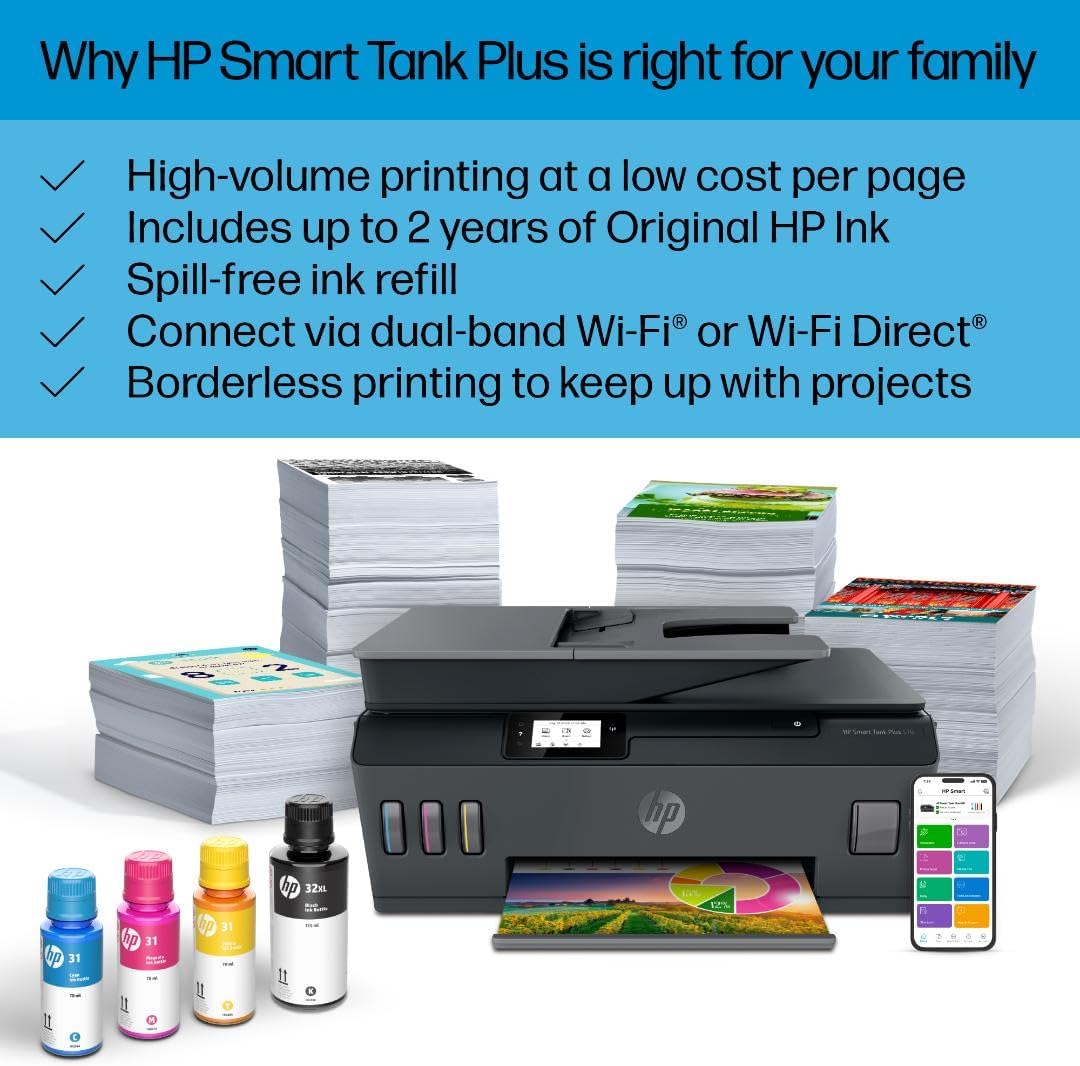
- Borderless printing for professional-looking documents and photos.
- Mobile and wireless printing via dual-band Wi-Fi for reliable connections.
- Best-in-class print quality with exceptional color graphics and sharp text.
- HP Smart app for convenient printing, scanning, and copying from your phone.
- Simple, spill-free ink refill system.
- 2.2-inch mono touchscreen for easy navigation.
What's in the Box
Verify that all components are included in your package:
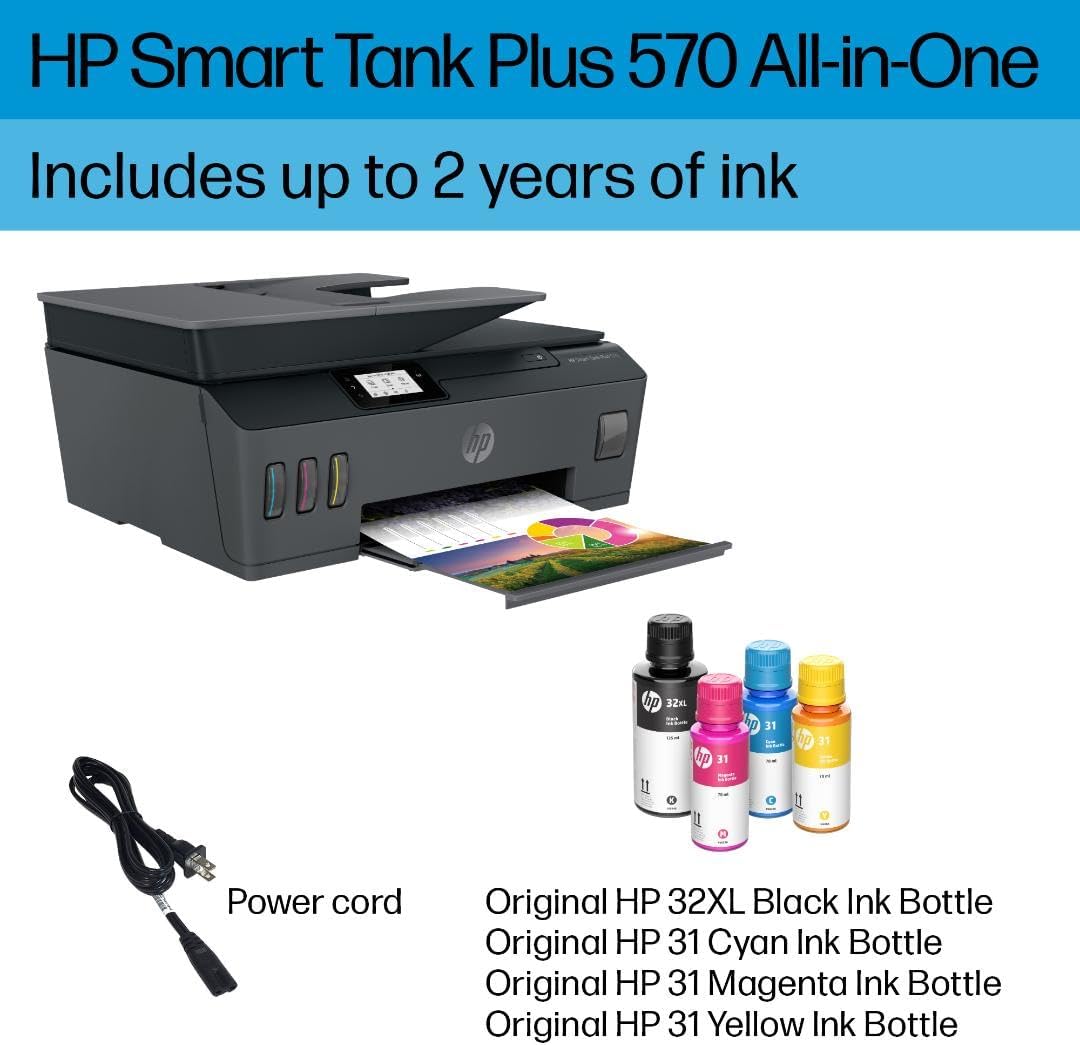
- HP Smart Tank Plus 570 Wireless All-in-One printer (5HX14A)
- HP 32XL 135-ml Black Original Ink Bottle
- HP 31 70-ml Cyan Original Ink Bottle
- HP 31 70-ml Magenta Original Ink Bottle
- HP 31 70-ml Yellow Original Ink Bottle
- HP Black Printhead
- HP Tri-color Printhead
- Ink caution flyer
- Repacking flyer
- Setup guide
- Reference guide
- Regulatory flyer
- Power cord
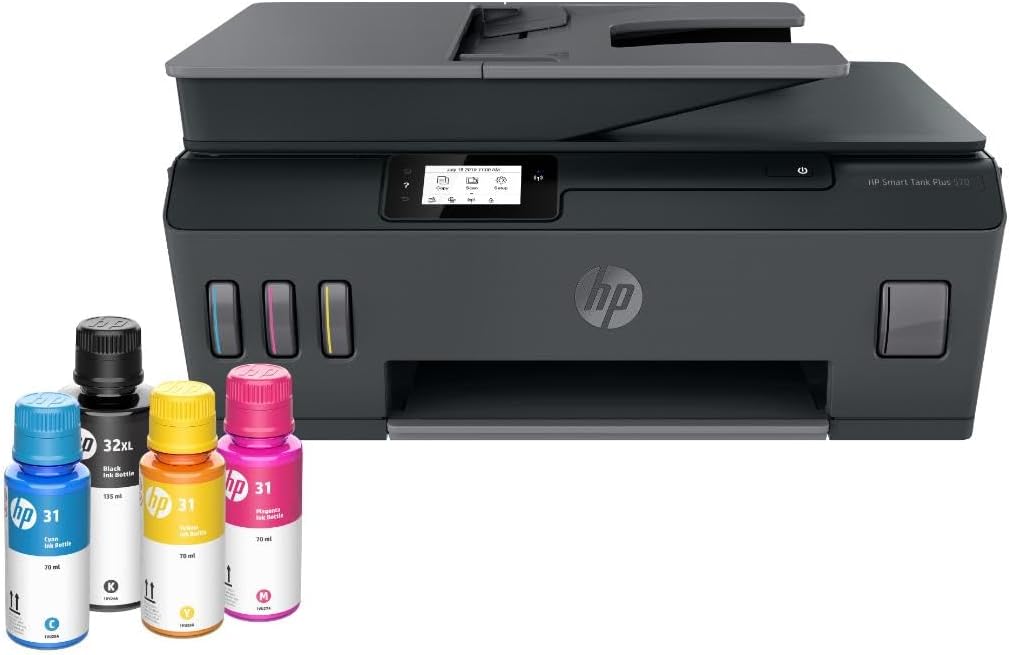
The HP Smart Tank Plus 570 printer, accompanied by HP 32XL Black, HP 31 Cyan, HP 31 Magenta, and HP 31 Yellow Original Ink Bottles, along with the power cord.
Setup Guide
1. Unpacking the Printer
Carefully remove the printer from its packaging. Remove all protective tapes and packing materials from the exterior and interior of the printer.
2. Power On and Initial Configuration
Connect the power cord to the printer and a wall outlet. Press the power button to turn on the printer. Follow the on-screen instructions on the 2.2-inch mono touchscreen to select your language and country/region.
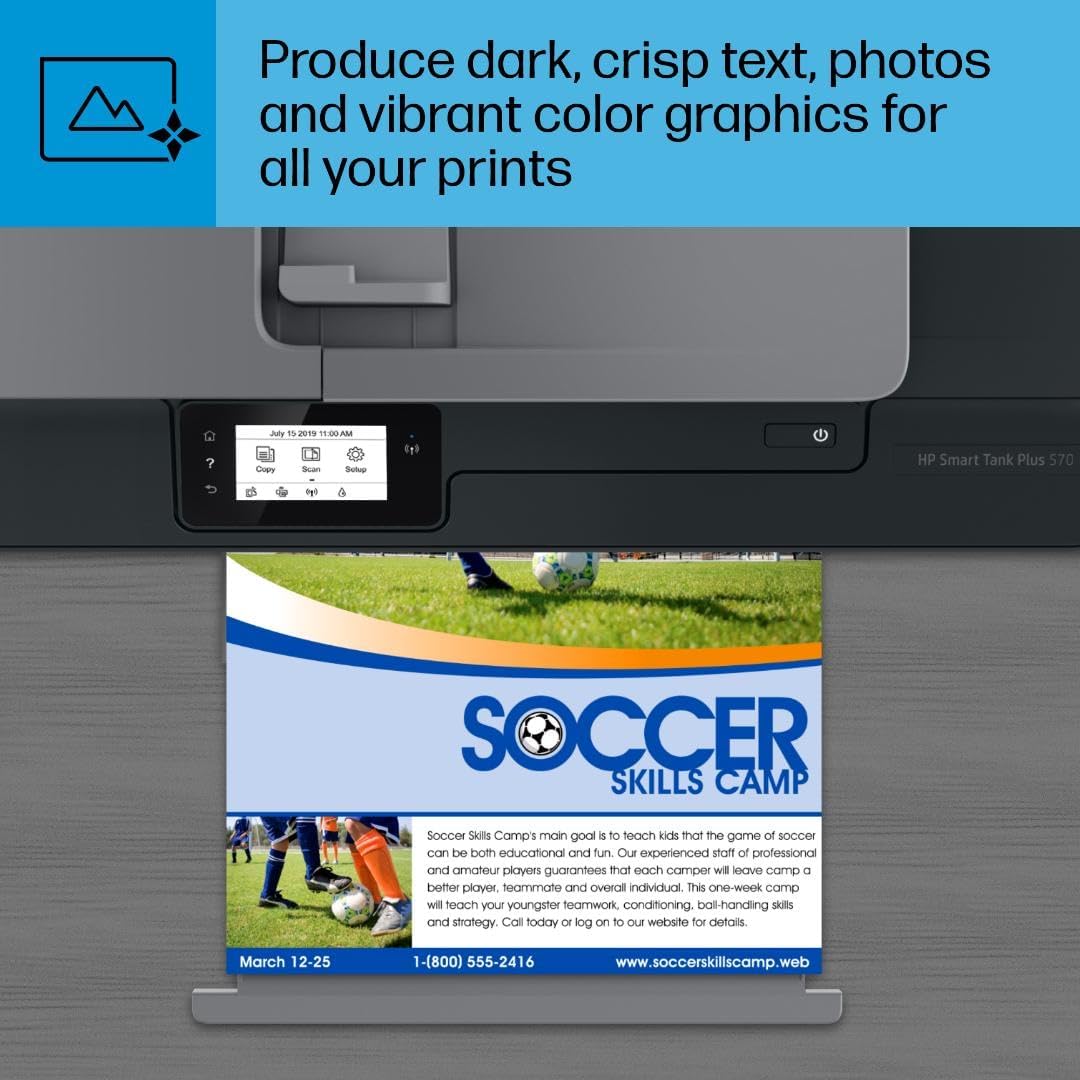
The printer features a 2.2-inch mono touchscreen for easy navigation and task selection, including copying, scanning, and setup.
3. Installing Printheads
Open the ink access door. Install the black and tri-color printheads into their designated slots. Ensure they click into place.

Access the internal components of the printer by lifting the top cover to install or maintain printheads.
4. Filling Ink Tanks
Open the caps of the ink tanks. Match the color of the ink bottle to the corresponding tank. Invert the ink bottle and insert it into the tank opening. The ink will automatically fill the tank without squeezing. Close the caps once filled.
The spill-free refill system allows for easy replenishment of ink by simply inserting the color-matched ink bottle into the tank.
The transparent ink tanks allow users to easily monitor ink levels for all colors.
5. Loading Paper
Extend the input tray. Load plain white paper into the input tray, adjusting the paper guides to fit the paper size.
The printer's input tray can hold up to 100 sheets of paper, supporting various media types.
6. Software Installation and Connectivity
Download the HP Smart app on your mobile device or visit hp.com/start/install on your computer. Follow the app/website instructions to connect your printer to your Wi-Fi network (supports dual-band Wi-Fi for reliable connections). The app facilitates printing, scanning, and copying from your devices.

The HP Smart app enables remote printing, scanning, and copying directly from a mobile device, offering advanced features and ink level monitoring.
Product Overview Video
This video provides a general overview of the HP Smart Tank Plus 570 printer's features and design.
Operating Instructions
Printing
Send print jobs from your computer or mobile device via the HP Smart app. Ensure paper is loaded and ink levels are sufficient. The printer supports borderless prints and prints up to 11 ppm black and 5 ppm color.

The printer delivers high-quality color prints, suitable for various documents and graphics.
Copying
Place the document on the scanner glass or in the 35-page automatic document feeder (ADF). Use the 2.2-inch mono touchscreen to select 'Copy' and adjust settings as needed. Press 'Start' to begin copying.

The 35-sheet automatic document feeder allows for quick and efficient copying and scanning of multiple pages.
Scanning
Place the document on the scanner glass or in the ADF. Select 'Scan' from the touchscreen or the HP Smart app. Choose scan settings and destination (e.g., email, cloud, computer). Press 'Start' to scan.
Maintenance
Ink Refill
Monitor ink levels through the transparent tanks or the HP Smart app. When a tank is low, open the ink access door, match the color-coded bottle to the tank, and allow it to fill. The spill-free design prevents messes.
The spill-free refill system allows for easy replenishment of ink by simply inserting the color-matched ink bottle into the tank.
The transparent ink tanks allow users to easily monitor ink levels for all colors.
Printhead Cleaning
If print quality degrades (streaks, faded colors), perform a printhead cleaning cycle through the printer's maintenance menu on the touchscreen or via the HP Smart app. Refer to the on-screen prompts for detailed steps.
Troubleshooting
Connectivity Issues
Ensure the printer is connected to a dual-band Wi-Fi network. Check your router and printer's Wi-Fi status indicators. Restart both the printer and your router if connection problems persist. Use the HP Smart app for guided troubleshooting.
Paper Jams
If a paper jam occurs, follow the instructions displayed on the printer's touchscreen. Carefully open access doors and remove any jammed paper, ensuring no torn pieces remain inside. Close all doors securely before resuming printing.
Print Quality Problems
If prints are faded, streaky, or incorrect colors, check ink levels and perform a printhead cleaning or alignment. Ensure you are using appropriate paper for your print settings.
Specifications
| Feature | Detail |
|---|---|
| Product Dimensions | 14.7"D x 17.7"W x 7.8"H |
| Maximum Media Size | Legal (8.5 x 14 inches) |
| Print Media | Envelopes, Glossy photo paper, Paper (plain) |
| Scanner Type | Flatbed |
| Max Input Sheet Capacity | 100 |
| Max Copy Speed (Black & White) | 11 ppm |
| Maximum Color Print Resolution | 4800 x 1200 dpi |
| Sheet Size | 8.5 x 11 Inches |
| Dual-sided printing | No (Simplex) |
| Hardware Interface | Ethernet, HDMI, USB 2.0, USB 3.0, USB Type C |
| Ink Color | Black, Cyan, Magenta, Yellow |
| Additional Printer functions | All In One |
| Compatible Cartridge | HP 32XL 135-ml Black Original Ink Bottle; HP 31 70-ml Cyan Original Ink Bottle; HP 31 70-ml Magenta Original Ink Bottle; HP 31 70-ml Yellow Original Ink Bottle; |
| Number of Trays | 1 |
| Processor Count | 1 |
| Number of USB 3 Ports | 2 |
| Total USB Ports | 4 |
| Model Series | Smart Tank |
| Specific Uses For Product | Everyday Use, Student, multimedia |
| Printer Ink Type | dye-based ink, pigment-based ink |
| Memory Storage Capacity | 64 GB |
| Item Weight | 13.61 pounds |
| Connectivity Technology | Wi-Fi |
| Printing Technology | HP Thermal Inkjet |
| Special Feature | Refillable Ink Tank |
| Model Name | Smart Tank 570 |
| Printer Output | Color |
| Maximum Print Speed (Color) | 5 ppm |
| Max Printspeed Monochrome | 11 ppm |
Warranty and Support
This product comes with a Limited Warranty. For detailed warranty information and support, please refer to the official HP website or contact HP customer service.
Online resources and drivers can be found at: www.hp.com/support