
1. Introduction
This manual provides detailed instructions for the installation, operation, and maintenance of your NEWFAST RE516 N300 WiFi Extender. Please read this manual carefully before using the device to ensure proper setup and optimal performance. Keep this manual for future reference.
2. Product Overview
2.1 Package Contents
- 1 x NEWFAST RE516 N300 WiFi Extender
- 1 x Multi-language Instruction Manual
2.2 Device Features
The NEWFAST RE516 N300 WiFi Extender is designed to expand your existing Wi-Fi coverage and eliminate dead zones. Key features include:
- N300 Wireless Speed: Provides up to 300 Mbps data transfer rate on the 2.4GHz band.
- Four External Antennas: Enhances signal stability and coverage.
- Multiple Operating Modes: Supports Repeater, Access Point, Router, and Client modes to suit various networking needs.
- Wide Compatibility: Works with any standard Wi-Fi router or gateway.
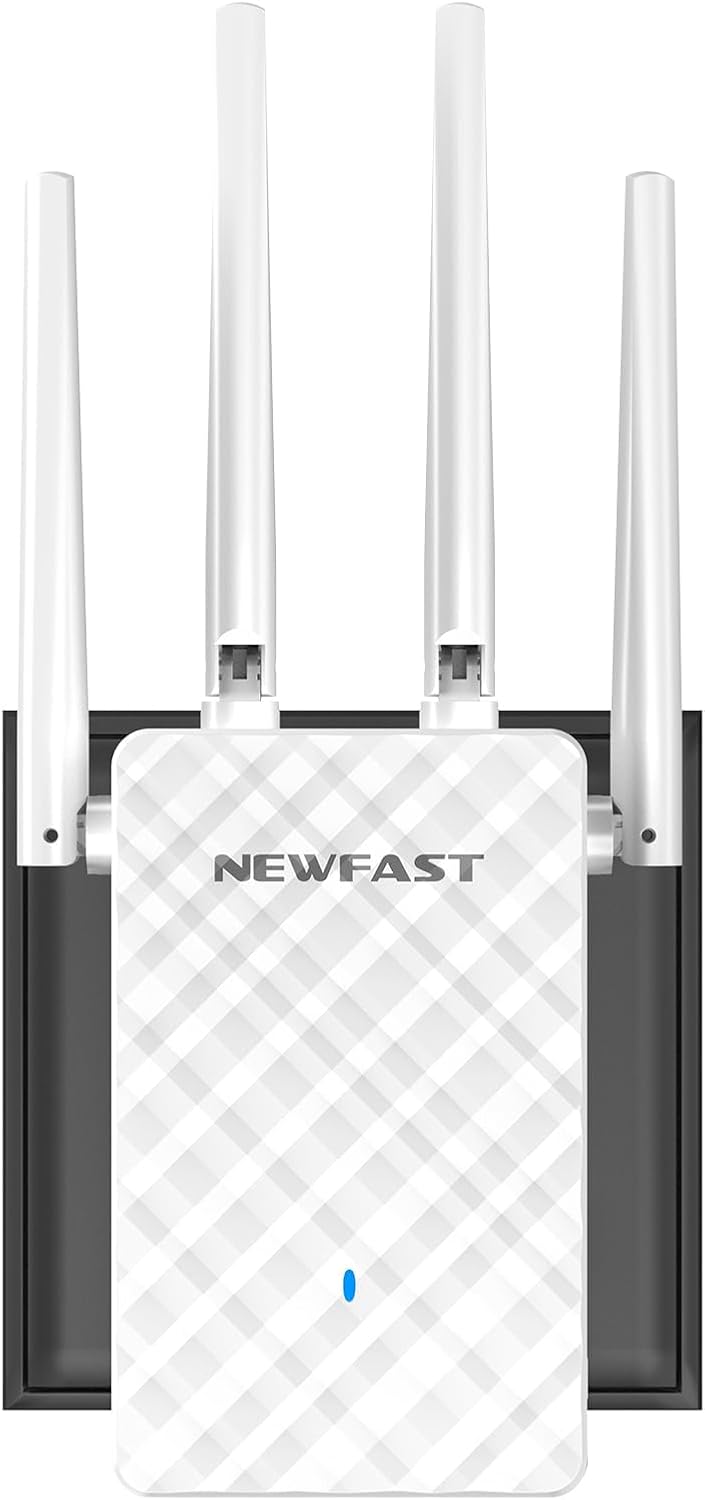
Image 1: Front view of the NEWFAST RE516 N300 WiFi Extender, showcasing its four external antennas and compact design.

Image 2: A diagram showing how the WiFi extender can improve wireless coverage throughout a house, eliminating dead zones.
3. Setup Instructions
Follow these general steps to set up your NEWFAST RE516 WiFi Extender. Specific configuration details may vary based on your chosen operating mode.
3.1 Powering On the Device
- Plug the NEWFAST RE516 into an electrical outlet near your existing Wi-Fi router.
- Wait for the power indicator light to turn on and stabilize.
3.2 Connecting to the Extender
You can connect to the extender via Wi-Fi or an Ethernet cable.
- Wi-Fi Connection: On your computer or mobile device, search for available Wi-Fi networks. Connect to the network named similar to "NEWFAST_Extender" or "NEWFAST_XXXX" (where XXXX are the last four digits of the MAC address).
- Ethernet Connection: Connect an Ethernet cable from your computer to the LAN port on the extender.
3.3 Configuration via Web Browser
- Open a web browser (e.g., Chrome, Firefox, Edge).
- Enter the default IP address (usually
192.168.10.1or192.168.0.1) or the default web address (e.g.,re.newfast.com) into the address bar and press Enter. Refer to the included quick start guide for the exact address. - Log in using the default username and password (typically
adminfor both). - Follow the on-screen wizard to select your desired operating mode (Repeater, Access Point, or Router) and configure the network settings.
- For Repeater mode, select your existing Wi-Fi network and enter its password.
- Once configured, the extender will restart. Relocate the extender to a suitable position between your router and the desired coverage area.
4. Operating Modes
The NEWFAST RE516 supports four primary operating modes:
- Repeater Mode: Extends the range of an existing wireless network. This is the most common mode for eliminating Wi-Fi dead zones.
- Access Point (AP) Mode: Transforms a wired network connection into a wireless one. Ideal for adding Wi-Fi capability to a wired-only router.
- Router Mode: Functions as a primary router, creating a new private network. This mode is typically used when you have a modem but no router.
- Client Mode: Allows wired-only devices (like smart TVs or gaming consoles) to connect to a wireless network. The extender acts as a wireless adapter for the wired device.
5. Maintenance
Regular maintenance helps ensure the longevity and optimal performance of your NEWFAST RE516 WiFi Extender.
- Keep Clean: Gently wipe the device with a dry, soft cloth. Avoid using liquid cleaners or aerosols.
- Ventilation: Ensure the device is placed in a well-ventilated area, free from obstructions that could block airflow.
- Firmware Updates: Periodically check the NEWFAST official website for firmware updates. Updating the firmware can improve performance, add new features, and fix bugs.
- Environmental Conditions: Avoid exposing the device to extreme temperatures, humidity, or direct sunlight.
6. Troubleshooting
If you encounter issues with your NEWFAST RE516, refer to the following common problems and solutions:
- No Power:
Solution: Ensure the extender is securely plugged into a working electrical outlet. Check if the power indicator light is on. - Cannot Access Web Management Page:
Solution: Verify that your device is connected to the extender's Wi-Fi network or via Ethernet. Ensure you are using the correct IP address or web address. Try clearing your browser's cache or using a different browser. - No Internet Access After Setup:
Solution: Check if your main router has internet access. Reconfigure the extender, ensuring you selected the correct host network and entered the correct password. Try moving the extender closer to your main router. - Weak Signal or Frequent Disconnections:
Solution: Relocate the extender to a position that is roughly halfway between your main router and the area with poor coverage. Avoid placing it near large metal objects, concrete walls, or other electronic devices that may cause interference. - Forgot Login Password:
Solution: Perform a factory reset on the extender. Locate the reset button (usually a small pinhole) and press and hold it for 5-10 seconds until the lights flash. The device will revert to factory default settings, and you can log in withadmin.
7. Specifications
| Feature | Detail |
|---|---|
| Brand | NEWFAST |
| Model | RE516 (NF-RE516) |
| Wireless Standard | 802.11a/b/g/n |
| Frequency Band | 2.4 GHz |
| Data Transfer Rate | Up to 300 Mbps |
| Antennas | 4 External Antennas |
| Operating Modes | Repeater, Access Point, Router, Client |
| Compatible Devices | Wi-Fi devices (routers, smartphones, tablets, laptops, computers, smart TVs, game consoles, printers, security cameras) supporting IEEE802.11a/b/g/n standards |
| Dimensions | 20.5 x 9.5 x 6.6 cm |
| Weight | 230 grams |
| Included Components | 1 * Multi-language Instruction Manual, 1 * N300 WiFi Repeater |
8. Warranty and Support
For warranty information, please refer to the documentation included with your product or visit the official NEWFAST website. For technical support or further assistance, you may visit the NEWFAST Store on Amazon or contact NEWFAST customer service directly.


