
1. Introduction
This manual provides detailed instructions for the installation, operation, and maintenance of the MENGQI-CONTROL CH-WIFI30 WiFi Access Control Keypad and Electric Strike Lock system. This system offers secure and convenient access management for various applications, featuring multiple access modes and remote control capabilities via a smartphone application.
2. Product Overview
2.1 Key Features
- WiFi Connectivity: Remote management and control via smartphone application (TuyaSmart or Smartlife).
- IP66 Waterproof Rating: Suitable for outdoor installation, resistant to dust and water ingress.
- Multiple Access Modes: Supports access via Smartphone App, RFID Card, and PIN Code.
- Standalone Operation: Functions independently without requiring a constant network connection for basic access.
- Remote User Management: Add or delete users, check access history records from anywhere.
- Flexible Scheduling: Configure door schedules for 'KEEP OPEN' or 'Lock Back' states, and set time restrictions for specific users.
- Integrated Doorbell: Features a doorbell button and backlight for convenience in low-light conditions.
- Electric Strike Lock: Professional-grade electric strike lock designed for panic bars/push bars, featuring a half-embedded installation for enhanced security.
2.2 Package Contents
Verify that all the following components are included in your package:
- 1 x Waterproof RFID Keypad Control Device
- 1 x Push Bar Electric Strike Lock (Half-embedded design)
- 1 x Power Supply Control Box (110-240V input, 12V/3A or 12V/5A output, with battery interface)
- 1 x Door Bell Unit
- 10 x RFID Key Fobs
- 10 x RFID Cards
- 1 x User Manual with Wiring Diagram
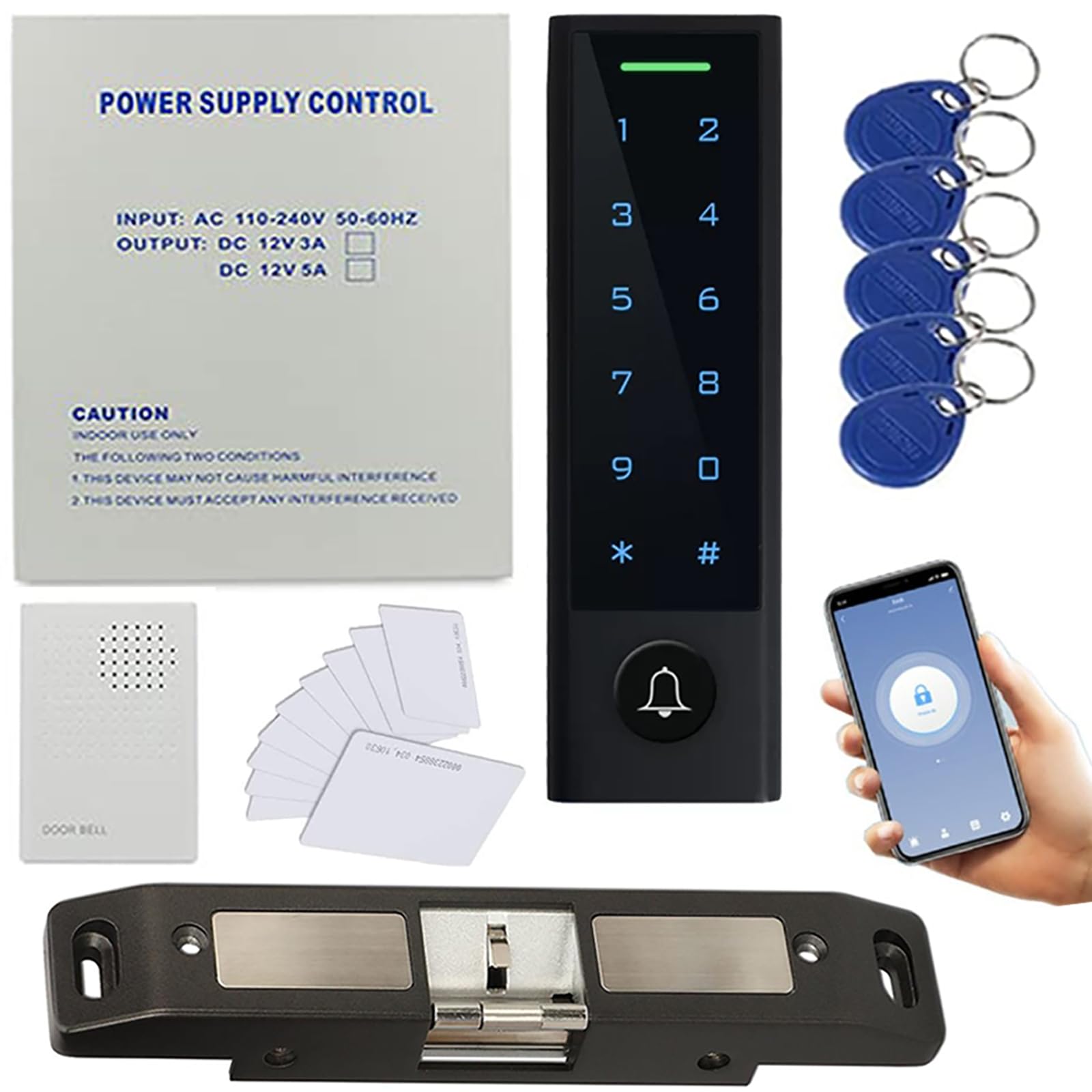
Image: The MENGQI-CONTROL WiFi Access Control Keypad, illustrating its features including RFID card, password, backlight, doorbell, and smartphone app integration.

Image: Views of the power supply control box, showing its external casing and internal circuit board.

Image: The electric strike lock, designed for panic bars, highlighting its fail-safe and fail-secure configuration options.

Image: The external doorbell unit included with the system.

Image: An RFID key fob used for access control.
3. Setup & Installation
Proper installation is crucial for the optimal performance and security of your access control system. Refer to the included detailed wiring diagram and video guide for comprehensive instructions.
3.1 Wiring
Connect all components according to the provided wiring diagram. Ensure all connections are secure and correctly polarized to prevent damage to the system.
3.2 Keypad Installation
The keypad is IP66 rated, allowing for outdoor installation. Mount the keypad securely at the desired entry point. Consider the dimensions for proper placement.

Image: Keypad dimensions (150mm height, 45mm width, 21.5mm depth).
3.3 Electric Strike Lock Installation
The electric strike lock is designed for half-embedded installation. This requires cutting into the door frame to ensure a secure and flush fit, enhancing safety and stability. Verify compatibility with your door type before proceeding.

Image: Diagram showing the half-embedded installation method for the electric strike lock, emphasizing the need to cut the door frame.
3.4 Power Supply Box Installation
The power supply control box converts AC power to DC 12V for the system. It includes a dedicated interface for a backup battery (not included) to ensure continuous operation during power failures. Any DC 12V/5A or 12V/7A rechargeable lead-acid or lithium battery is compatible.

Image: The power supply box, indicating the designated area for installing a backup battery.
4. Operating Instructions
4.1 Initial Setup and App Integration
- Power on the system after completing all wiring.
- Download the TuyaSmart or Smartlife application from the App Store or Google Play.
- Follow the in-app instructions to connect your access control device to your 2.4G WiFi network.

Image: The access control keypad alongside a smartphone displaying the remote access application interface.
4.2 User Management
The smartphone app allows for comprehensive user management, including adding, deleting, and modifying user access permissions.
- Adding Users: Use the app to add new RFID cards or PIN codes for access.
- Deleting Users: Remove access for specific users remotely via the app.
- Admin Roles: Super Admin or Admin users can manage other users within the application.
4.3 Access Modes
- RFID Card: Present a registered RFID card or key fob to the keypad.
- PIN Code: Enter a valid PIN code on the keypad.
- Smartphone App: Remotely open the door using the TuyaSmart or Smartlife app.
4.4 Advanced Features
- Door Schedule: Configure the door to remain 'KEEP OPEN' during specific hours (e.g., business hours) or to 'Lock Back' automatically.
- Time Restrictions: Set specific timeframes during which certain PIN code users are allowed access.
- History Records: View a log of all access events, including successful entries and denied attempts, through the smartphone app.
4.5 Doorbell Function
Pressing the doorbell button on the keypad will activate the internal doorbell unit and can also send a notification to your smartphone app.
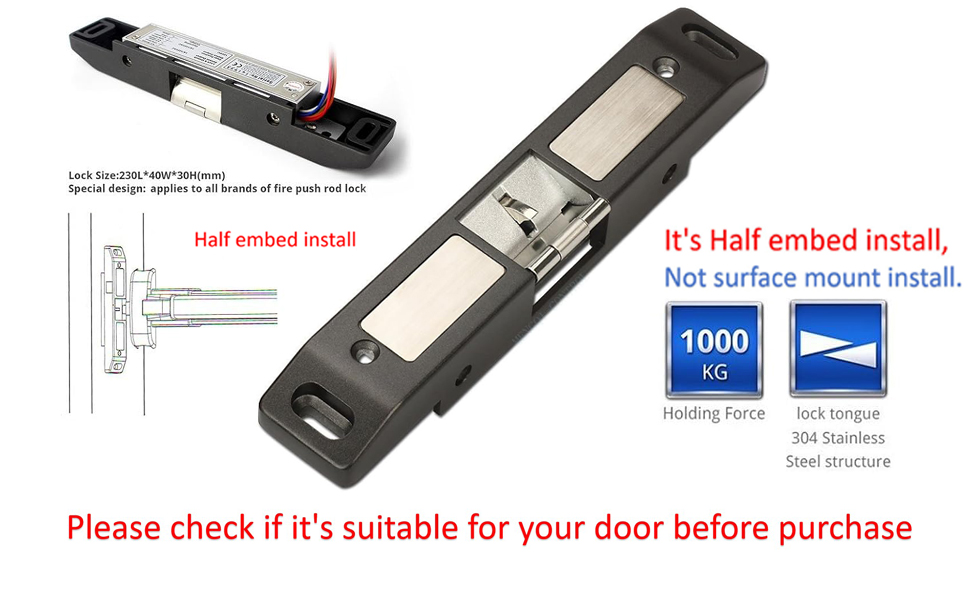
Image: The keypad highlighting the doorbell button and its integration with the smartphone app for notifications.
5. Maintenance
- Cleaning: Wipe the keypad surface with a soft, damp cloth. Avoid abrasive cleaners or solvents.
- Power Supply: Periodically check the power supply connections for any signs of wear or damage.
- Backup Battery: If a backup battery is installed, ensure it is functioning correctly and replace it as needed to maintain power redundancy.
- Firmware Updates: Check the smartphone app periodically for any available firmware updates for the access control device to ensure optimal performance and security.
6. Troubleshooting
- Device Not Connecting to WiFi: Ensure your WiFi network is 2.4GHz. Check WiFi signal strength at the installation location. Restart the device and your router.
- RFID Card/PIN Not Working: Verify that the card/PIN is correctly registered in the system via the app. Check for any time restrictions applied to the user.
- Door Not Unlocking: Check power supply to the electric strike lock. Ensure wiring is correct. Verify that the access mode used is valid and the user has permission.
- No App Notifications: Check app settings for notification permissions. Ensure the device is connected to WiFi and your phone has internet access.
- Keypad Not Responding: Check power connection to the keypad. If issues persist, contact support.
7. Specifications
| Feature | Specification |
|---|---|
| Brand | MENGQI-CONTROL |
| Model Number | CH-WIFI30 |
| ASIN | B0FJ81CZH1 |
| Waterproof Rating | IP66 |
| Power Source | Corded Electric |
| Voltage | 110-240V AC Input (Power Box) |
| Output Voltage | 12V DC (3A or 5A) |
| Connectivity Technology | Wired, WiFi (2.4GHz) |
| Control Method | Remote (Smartphone App), Keypad, RFID Card |
| Compatible Devices | Smartphone (TuyaSmart/Smartlife App) |
| Keypad Dimensions | Approx. 150 x 45 x 21.5 mm |
| Electric Strike Lock Type | Half-embedded for Panic Bar/Push Bar |
8. Warranty and Support
MENGQI-CONTROL provides online support for any questions or issues you may encounter. Detailed video guides are also available to assist with installation and setup. Please refer to the product packaging or official website for specific warranty information.