
1. Introduction
This manual provides essential information for the setup, operation, and maintenance of your Lenovo ThinkStation P2 Gen 2 30JQ002TUS Workstation. The ThinkStation P2 Gen 2 is engineered to deliver high performance, versatility, and reliability for demanding professional workflows. Its modular design facilitates easy upgrades and customization.
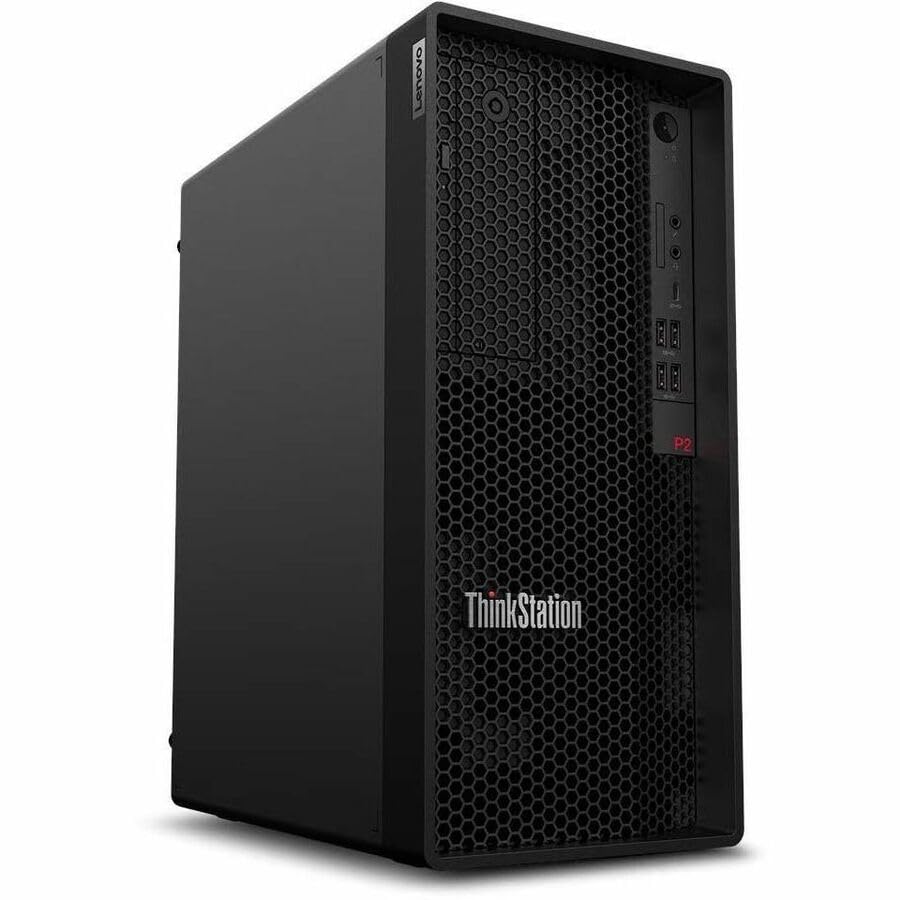
Figure 1: Lenovo ThinkStation P2 Gen 2 Workstation
2. Setup
2.1 Unpacking
Carefully remove all components from the packaging. Ensure the following items are present:
- ThinkStation P2 Tower Gen 2 30JQ002TUS
- Keyboard
- Mouse
- Power Cable
2.2 Connecting Peripherals
Connect your keyboard, mouse, and monitor to the workstation. Refer to the images below for port locations.

Figure 2: Front Panel. Features USB ports, audio jacks, and optical drive bay (if equipped).
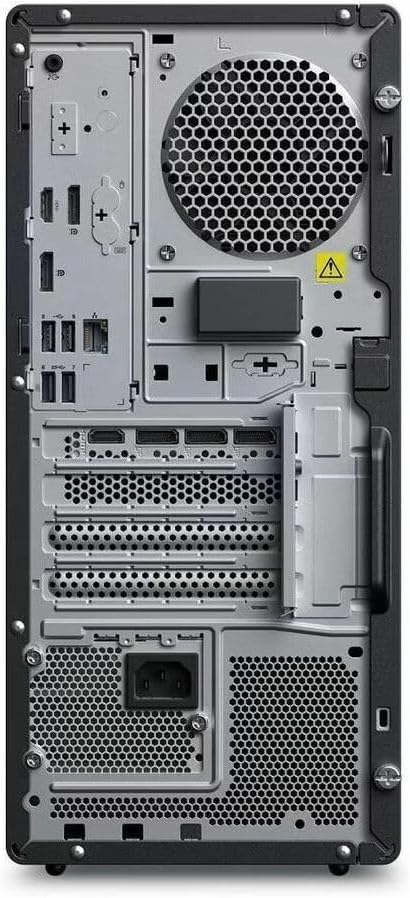
Figure 3: Rear Panel. Includes DisplayPort, HDMI, multiple USB ports (USB 2.0, USB Type C), Ethernet, and power input.
- Keyboard and Mouse: Connect to any available USB ports.
- Monitor: Connect your display using either the HDMI or DisplayPort outputs.
- Network: For wired internet, connect an Ethernet cable to the RJ-45 port. For wireless, ensure Wi-Fi antennas are properly connected (if external) or that the internal Wi-Fi is enabled.
2.3 Powering On
- Connect the power cable to the workstation's power input and then to a power outlet.
- Press the power button located on the front panel of the workstation.
2.4 Initial Operating System Setup
Upon first boot, the Windows 11 Pro operating system will guide you through the initial setup process, including language selection, network configuration, and user account creation.
3. Operating the Workstation
3.1 Power Management
- Power On: Press the power button.
- Shut Down: In Windows, go to Start > Power > Shut down.
- Restart: In Windows, go to Start > Power > Restart.
- Sleep: In Windows, go to Start > Power > Sleep.
3.2 Operating System
Your ThinkStation P2 Gen 2 comes pre-installed with Windows 11 Pro, offering advanced features for productivity, security, and management. Familiarize yourself with the Windows interface and its functionalities.
3.3 Performance Features
The workstation is equipped with an Intel Core Ultra 5 (Tetradeca-core) processor, 16 GB of DDR5 RAM, and a 512 GB SSD. These components ensure efficient data handling, quick transfers, optimized system responsiveness, and the ability to manage multiple programs simultaneously without performance degradation.
3.4 Connectivity
The workstation supports various connectivity options:
- Wireless: Integrated Wi-Fi for high-speed internet and Bluetooth for connecting wireless peripherals.
- Wired: Ethernet port for stable wired network connections.
- USB Ports: Multiple USB 2.0, USB 3.2 Gen 1, and USB Type-C ports for connecting external devices.
- Video Outputs: DisplayPort and HDMI for connecting multiple monitors.
4. Maintenance
4.1 Cleaning
- Exterior: Use a soft, damp cloth to clean the exterior surfaces. Avoid harsh chemicals.
- Ventilation: Regularly check and clean the ventilation grilles to prevent dust buildup, which can impede airflow and cause overheating. Use compressed air to gently clear dust.
4.2 Software Updates
Keep your operating system and drivers updated to ensure optimal performance and security. Windows Update will manage OS updates, and Lenovo's official support website provides the latest drivers for your hardware.
4.3 Hardware Upgrades
The ThinkStation P2 Gen 2 features a modular design, allowing for straightforward upgrades. You can expand RAM up to 128 GB (DDR5) and add additional storage drives (SSD/HDD) as needed. Refer to the official Lenovo service manual for detailed instructions on component installation.
5. Troubleshooting
5.1 No Power
- Ensure the power cable is securely connected to both the workstation and the power outlet.
- Verify the power outlet is functional by plugging in another device.
- Check the power supply unit (PSU) fan for operation.
5.2 No Display
- Confirm the monitor is powered on and connected correctly to the workstation's video output (HDMI or DisplayPort).
- Ensure the monitor's input source is set to the correct port.
- Test with a different monitor or video cable if possible.
5.3 System Slowdown
- Close unnecessary applications running in the background.
- Check Task Manager (Ctrl+Shift+Esc) for processes consuming high CPU or RAM.
- Ensure sufficient free space on the SSD.
- Run a system scan for malware.
5.4 Connectivity Issues
- Wired Network: Check the Ethernet cable connection and router status.
- Wi-Fi: Verify Wi-Fi is enabled in Windows settings and that you are connected to the correct network. Restart your router if necessary.
- Bluetooth: Ensure Bluetooth is enabled and devices are properly paired.
6. Specifications
| Feature | Detail |
|---|---|
| Brand | Lenovo |
| Model Name | ThinkStation P2 Gen 2 |
| Model Number | 30JQ002TUS |
| Operating System | Windows 11 Pro |
| CPU Model | Intel Core Ultra 5 (Tetradeca-core) |
| CPU Speed | Up to 5.5 GHz |
| RAM Memory Installed | 16 GB DDR5 |
| RAM Memory Maximum Size | 128 GB |
| Storage | 512 GB SSD |
| Graphics Coprocessor | Intel Graphics (Integrated) |
| Hardware Interface | Bluetooth, DisplayPort, HDMI, USB, USB 2.0, USB Type C |
| Total USB Ports | 9 |
| Video Output Interface | DisplayPort, HDMI |
| Connectivity Technology | Bluetooth, Ethernet, USB, Wi-Fi |
| Power Consumption | 500 Watts (PSU) |
| Item Dimensions (L x W x H) | 12.4 x 6.7 x 14.8 inches |
7. Warranty Information
The Lenovo ThinkStation P2 Gen 2 30JQ002TUS Workstation comes with a 3-year Manufacturer Warranty. For detailed terms and conditions, including coverage and service procedures, please refer to the official warranty documentation provided with your product or visit the Lenovo support website.
8. Support
For further assistance, technical support, driver downloads, or additional documentation, please visit the official Lenovo support website. You can typically find support resources by searching for your specific model number (30JQ002TUS) on their site.
Lenovo Support Website: https://support.lenovo.com


