
Introduction
The PILSAMAS WiFi Caregiver Pager System is designed to provide reliable emergency alerts for caregivers and individuals needing assistance. This system includes one Wi-Fi enabled hub and three wireless call buttons, offering a communication range of up to 328 feet through walls. It features instant app alerts, caller ID display on the hub, and customizable settings for enhanced safety and peace of mind.
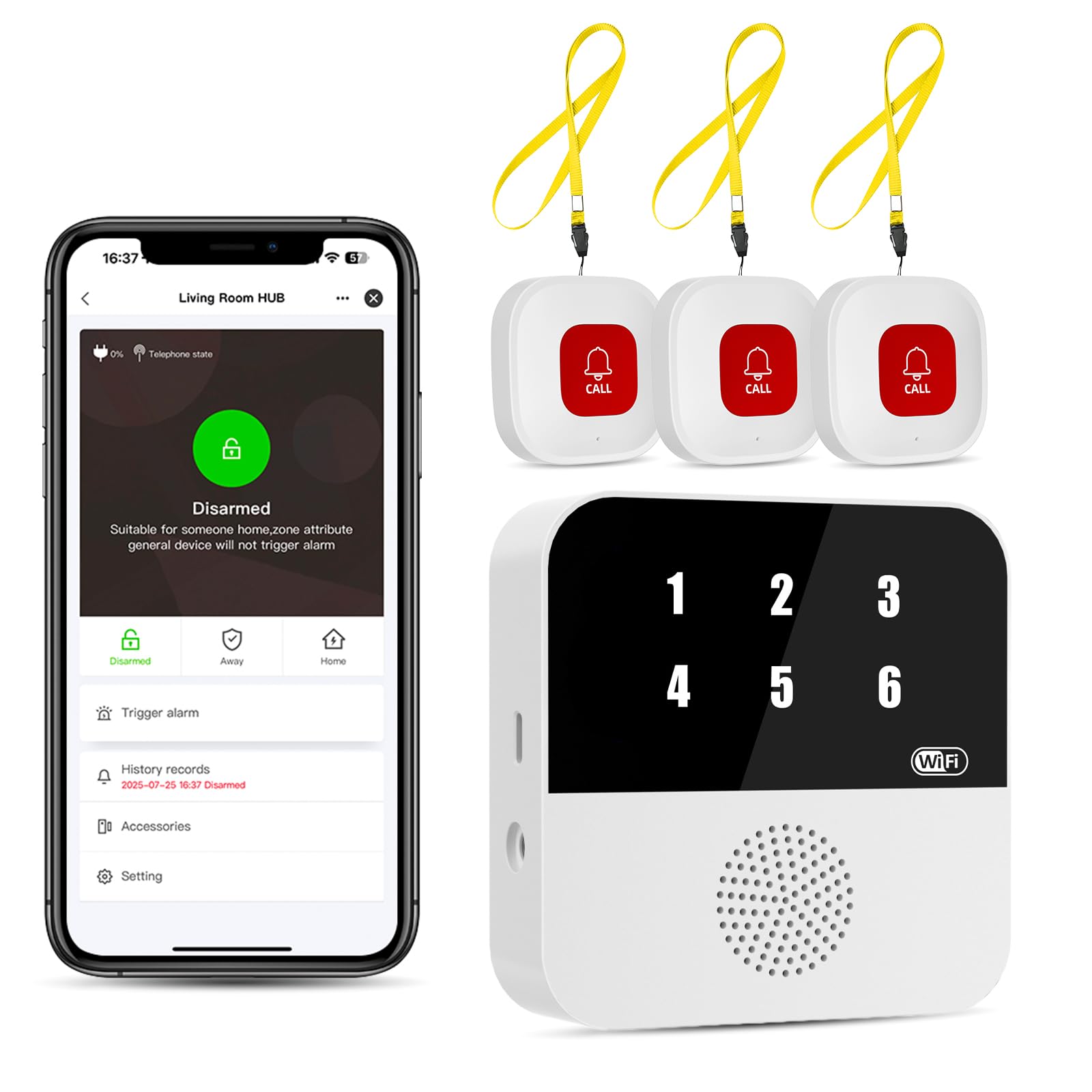
Image: The PILSAMAS WiFi Caregiver Pager System components, including the central hub and three call buttons.
What's Included
- 1 x Wi-Fi Hub
- 3 x Wireless Call Buttons
- User Manual
- Mounting Accessories (if applicable)
Key Features
- Wi-Fi Smart Hub & 328ft Range: The hub connects to 2.4G Wi-Fi for global app access. Wireless call buttons and the hub use 433MHz technology for a 328ft range through walls, suitable for homes, hospitals, and nursing facilities.
- At-A-Glance ID & Instant Locate: Pressing any button causes the hub to flash an assigned number (1-6) in red LEDs and sound an alarm. Instant app alerts display the name and location (e.g., "Grandma - Bathroom"), indicating who and where help is needed within 3 seconds.
- Free Smart APP Control & Alerts: Customize 18 tones and 4 volumes, name devices (e.g., "Bedroom button"), share app alerts with family, and view alert history. Lifetime free updates and notifications are included.
- IP65 Waterproof Call Buttons: Emergency alert buttons can be safely worn in showers or placed in wet zones. Wall-mounted buttons withstand spills and humidity, protecting users in high-risk areas where falls often occur.
- Pre-paired & Versatile: The medical alert system comes ready to use. Alert buttons can be neck-worn, wall-mounted, or placed on a table, making them suitable for bedrooms, clinics, and dementia care settings.

Image: Illustration of the 328ft wall-through range of the system within a typical home environment.
Setup Instructions
1. Hub Wi-Fi Connection
To connect the PILSAMAS hub to your mobile app, ensure your Wi-Fi network is 2.4GHz. Follow these steps:
- Plug in the hub to a power source.
- Download the Smart Life or Tuya Smart app on your smartphone.
- Open the app and register or log in.
- In the app, select 'Add Device' or the '+' icon.
- On the hub, long-press the pairing button (usually located on the back or side) for 6 seconds until the Wi-Fi indicator light flashes rapidly.
- Follow the in-app instructions to connect the hub to your 2.4GHz Wi-Fi network.
Video: Instructions on how to pair the PILSAMAS hub with the mobile application.

Image: Visual representation of the hub connecting to a Wi-Fi network and sending alerts to a mobile app globally.
2. Pairing Call Buttons with the Hub
The call buttons are typically pre-paired with the hub. If re-pairing is needed or for additional buttons, follow these steps:
- Ensure the hub is powered on.
- Briefly press the pairing button on the hub. The hub will emit a "DiDi" sound, indicating it's in pairing mode.
- Press one of the call buttons. The hub will confirm successful pairing, and the "DiDi" sound will stop.
- Repeat for any other call buttons.
Video: Instructions on how to pair a call button with the PILSAMAS hub.
3. App Configuration
Once the hub is connected to the app, you can customize various settings:
- Customize Tones & Volume: Select from 18 chime tones and 4 volume levels (Mute, Low 30dB, Middle 60dB, High 110dB).
- Rename Devices: Assign custom names to each call button (e.g., "Grandma's Bedroom Button", "Bathroom Call"). This name will appear in app alerts.
- Family Sharing: Share access to the device and receive alerts with other family members or caregivers through the app's sharing function.
- View Alert History: Access a record of all past alerts within the app.

Image: The mobile app interface demonstrating customization options for the PILSAMAS system.

Image: Illustration of the family sharing feature, enabling multiple caregivers to receive alerts.
Operating Instructions
1. Using the Call Buttons
To send an alert, simply press the red call button. The button will transmit a signal to the hub and your connected mobile app.
2. Understanding Hub Alerts
When a call button is pressed, the hub will:
- Flash the assigned number (1-6) in red LEDs on its display.
- Sound an audible alarm at the set volume level.
This visual and auditory alert helps caregivers quickly identify which button was pressed and from where the alert originated.

Image: The system in action, showing the hub's caller ID display and app notifications for different call button locations.
3. App Alerts and Family Sharing
Upon an alert, your mobile app will receive an instant notification displaying the custom name and location of the activated button. If family sharing is enabled, all designated caregivers will receive these alerts simultaneously.

Image: Overview of how the system ensures alerts are not missed, combining hub alerts and app notifications.
Maintenance
1. Waterproofing Guidelines
The call buttons are rated IP65 waterproof, meaning they are protected against low-pressure water jets from any direction and dust. This allows for safe use in environments like showers or bathrooms. However, prolonged submersion in water is not recommended.

Image: Demonstrates the IP65 waterproof feature of the call buttons in wet environments.
2. Battery Information
The call buttons require 12V batteries (included). Replace batteries when the button's indicator light no longer illuminates or its range decreases significantly. Use alkaline batteries for optimal performance.
3. Cleaning
Wipe the hub and call buttons with a soft, damp cloth. Do not use harsh chemicals or abrasive cleaners. Ensure devices are dry before use.
Troubleshooting
- Hub not connecting to Wi-Fi: Ensure your Wi-Fi is 2.4GHz, not 5GHz. Check that the hub is within 50ft of your router. Restart your router and the hub, then attempt pairing again.
- Call button not triggering alert: Ensure the button's battery is not depleted. Re-pair the button with the hub following the pairing instructions. Check if the button is within the 328ft range of the hub.
- No app notifications: Verify that the hub is connected to Wi-Fi and the app. Check your phone's notification settings to ensure the app has permission to send alerts. Ensure the app is running in the background or foreground.
- Hub alarm too quiet/loud: Adjust the volume settings through the mobile app.
- Incorrect caller ID on hub/app: Ensure each button is correctly named and assigned in the app settings.
Specifications
| Manufacturer | LORA |
| Part Number | CF106 |
| Item Weight | 8.8 ounces |
| Product Dimensions | 3.1 x 0.8 x 3.1 inches |
| Item Model Number | CF106 1H3B |
| Batteries | 1 x 12V battery required (included) |
| Size | 1 HUB + 3 BUTTONS |
| Power Source | Battery Powered |
| Voltage | 12 volts DC |
| Item Package Quantity | 3 (referring to buttons) |
| Mounting Type | Wall Mount |
| Included Components | 1 X HUB, 3 X CALL BUTTONS |
| Battery Cell Type | Alkaline |
Warranty and Support
PILSAMAS offers a 180-day quality guarantee for this product. For technical support, troubleshooting assistance, or warranty claims, please contact PILSAMAS customer service. Details for contacting support are typically found on the product packaging or the official PILSAMAS website.

Image: PILSAMAS customer care details, including warranty and support information.