
AOCHUAN Smart X2
Contents
AOCHUAN Smart X2 3-Axis Gimbal Stabilizer & P02 Magnetic Fill Light User Manual
Introduction
This manual provides comprehensive instructions for the safe and effective use of your AOCHUAN Smart X2 3-Axis Gimbal Stabilizer and P02 Magnetic Fill Light. Please read this manual thoroughly before operation and retain it for future reference.
Product Overview
The AOCHUAN Smart X2 is a 3-axis gimbal stabilizer designed for smartphones, ensuring smooth and stable video recording. It comes bundled with the P02 Magnetic Fill Light, which provides versatile lighting options for various shooting environments.
Gimbal Components

Image Description: The AOCHUAN Smart X2 gimbal stabilizer in white, holding a smartphone. A small, black magnetic fill light is attached to the top of the smartphone. The gimbal features a telescopic extension rod and control buttons on the handle. A separate yellow-glowing magnetic fill light is shown next to the gimbal.
- Gimbal Handle: Contains control buttons and battery.
- Smartphone Clamp: Secures your smartphone.
- 3-Axis Stabilization System: Motors for pan, tilt, and roll.
- Extension Rod: Built-in aluminum alloy rod for extended reach.
- Control Panel: Buttons for power, mode, zoom, and focus.
Magnetic Fill Light (P02) Components

Image Description: An infographic highlighting the features of the magnetic RGB fill light. It shows the light attached to a smartphone, with text indicating 7 RGB colors, 3 brightness levels, a 3-hour battery life, and a magnetic design. The light emits a colorful glow.
- Magnetic Attachment: For easy connection to metal surfaces or the gimbal.
- LED Panel: Provides illumination.
- Control Buttons: For power, mode, and brightness adjustment.
- Charging Port: USB-C for recharging.
Setup
1. Charging the Devices
Before first use, fully charge both the gimbal and the magnetic fill light.
- Gimbal: Connect the USB-C charging cable to the gimbal's charging port and a power adapter (not included).
- Magnetic Fill Light: Connect the USB-C charging cable to the fill light's charging port and a power source.

Image Description: An image illustrating various charging methods for the magnetic fill light, including a wall adapter, laptop USB port, and power bank. The fill light is shown glowing, indicating power.
2. Mounting Your Smartphone
- Unfold the gimbal.
- Gently pull open the smartphone clamp and insert your smartphone.
- Ensure the smartphone is centered and balanced in the clamp to prevent motor strain.
3. Attaching the Magnetic Fill Light
The P02 Magnetic Fill Light can be attached directly to the top of your smartphone or other metal surfaces.

Image Description: A close-up view of the magnetic fill light attached to the top edge of a smartphone, demonstrating its magnetic design and 180-degree rotation capability. Text highlights 'Magnetic Design,' '3 levels of brightness,' and '180° Fill Light.'
4. Powering On
- Gimbal: Press and hold the power button until the indicator light illuminates.
- Magnetic Fill Light: Press the power button on the light.
Operating Instructions
Gimbal Operation
The Smart X2 gimbal features advanced stabilization and control options.

Image Description: A comparison image showing the difference in video stability with and without the Smart X2 gimbal. The 'Smart X2' section shows a clear, stable image of a person, while the 'Without' section shows a blurred, shaky image of the same person, emphasizing the 'Enhanced 8.0 Stabilization System.'
- Stabilization: The 3-axis system with 8.0 anti-shake mechanism automatically keeps your footage smooth.
- Zoom and Focus Control: Use the roller key combination on the handle to adjust zoom and focus.
- Single click: Adjust focus.
- Roll: Adjust zoom level.
- 280° Automatic Rotation: Double-click the roller combo button to activate a 280-degree automatic rotation for panoramic shots.
- AI Tracking Technology: The gimbal supports AI Face, Body, and Object Tracking.

Image Description: An image demonstrating the advanced tracking technology of the Smart X2 gimbal. A person is shown walking in a snowy environment, with the smartphone screen displaying green boxes indicating AI Face Tracking, AI Body Tracking, and AI Object Tracking.
Refer to the companion app for detailed instructions on activating and utilizing AI tracking features.
- Extension Rod: Extend the built-in aluminum alloy rod for wider shots or higher angles.

Image Description: A person smiling while holding the Smart X2 gimbal with its extension rod fully extended, showing an approximate length of 7.8 inches. This illustrates the gimbal's capability for capturing wider perspectives.
Magnetic Fill Light Operation
The P02 fill light offers adjustable color temperatures and RGB modes.
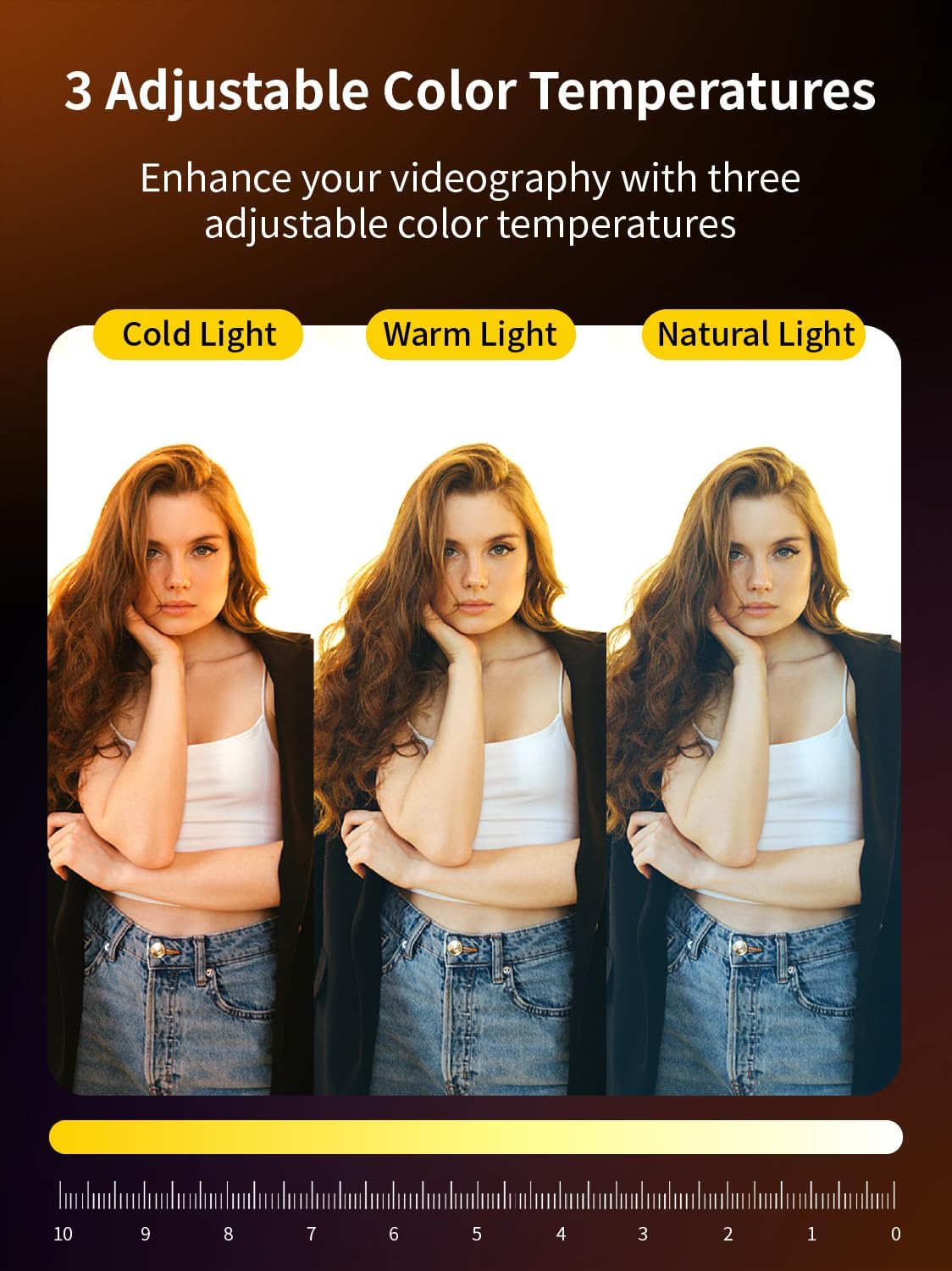
Image Description: Three portraits of a woman, each illuminated with a different color temperature: Cold Light, Warm Light, and Natural Light. This demonstrates the fill light's capability to enhance videography with adjustable color temperatures.
- Power On/Off: Press the power button.
- Adjust Color Temperature: Cycle through Warm Light, Cool Light, and Natural Light modes by pressing the mode button.
- RGB Modes: The fill light features 7 distinct RGB colors. Press the RGB button to cycle through these colors.
- Brightness Adjustment: Use the brightness control button to select from 3 brightness settings.
Maintenance
- Keep the gimbal and fill light clean and free from dust. Use a soft, dry cloth for cleaning.
- Avoid exposing the devices to extreme temperatures, moisture, or direct sunlight.
- Store in a cool, dry place when not in use.
- Do not attempt to disassemble or repair the devices yourself. Contact customer support for assistance.
Troubleshooting
| Problem | Possible Cause / Solution |
|---|---|
| Gimbal not powering on | Battery may be depleted. Charge the gimbal fully. |
| Unstable footage |
|
| Fill light not turning on | Battery may be depleted. Charge the fill light. |
| Cannot connect to smartphone app |
|
Specifications
| Feature | Detail |
|---|---|
| Model | Smart X2 (Gimbal), P02 (Fill Light) |
| Stabilization | 3-Axis, Smart 8.0 Anti-shake Technology |
| Fill Light Type | Magnetic RGB Fill Light |
| Fill Light Colors | 7 RGB colors, Warm, Cool, Natural White Light |
| Fill Light Brightness | 3 levels |
| Extension Rod Length | Approx. 7.8 inches (built-in) |
| Tracking Features | AI Face Tracking, AI Body Tracking, AI Object Tracking |
| Connectivity | Bluetooth (for app control) |
Warranty and Support
For warranty information and technical support, please refer to the documentation included with your product or visit the official AOCHUAN website. Keep your purchase receipt as proof of purchase.
AOCHUAN Official Website: www.aocuan.com
Documents and downloads
Ask a question about this manual
Ask about setup, troubleshooting, compatibility, parts, safety, or missing instructions. Manuals+ will review the question and use this page’s manual context to help answer it.