Sony INZONE H9 II Wireless Noise Canceling Gaming Headset User Manual
Model: WHG910NB.UC
1. Introduction
The Sony INZONE H9 II is a wireless noise-canceling gaming headset designed for an immersive audio experience across multiple platforms including PC, PS5, Switch, and mobile devices. It incorporates advanced audio technology, including drivers from the acclaimed Sony WH-1000XM6 headphones, a detachable cardioid AI microphone, and versatile connectivity options. This manual provides detailed instructions for setting up, operating, and maintaining your headset.
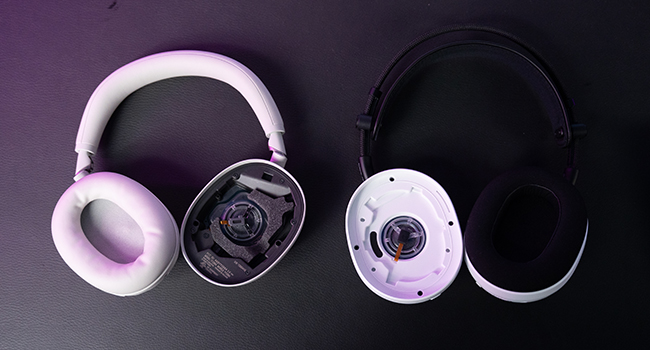
Image: The Sony INZONE H9 II headset emphasizing its superior sound, built with the same drivers as the acclaimed Sony WH-1000XM6 Noise Canceling Headphones.
2. Setup
2.1 What's in the Box
Verify that all components are present:
Headphone Cable
Reference Guide
USB-C cable (USB-A to USB-C)
USB-C Transceiver
Soft Pouch
Warranty Card
2.2 Charging the Headset
Before first use, fully charge the headset using the provided USB-C cable. Connect the USB-A end to a power source (e.g., computer USB port, USB wall adapter) and the USB-C end to the headset's charging port.
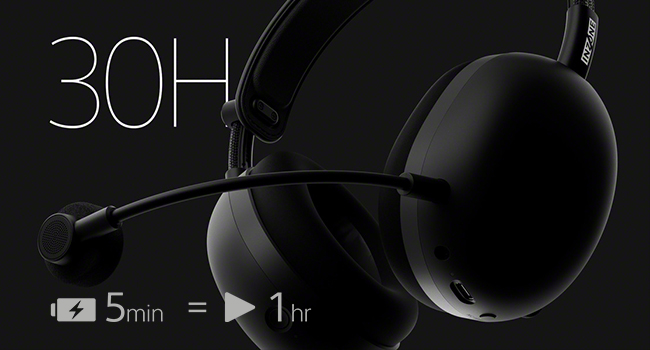
A 5-minute quick charge provides approximately 1 hour of playtime. The headset offers up to 30 hours of battery life on a full charge. You can also use the headset while it is charging.
Image: The Sony INZONE H9 II headset highlighting its 30-hour battery life and the quick charge feature (5 minutes charge for 1 hour play).
Video: An overview of the Sony INZONE H9 II headset, including its features like Fnatic collaboration, WH-1000XM6 drivers, 360 Spatial Sound, noise control, detachable AI mic, headband structure, battery life, quick charge, soft pouch, and multiple connectivity options. This video is provided by Sony Electronics.
2.3 Connecting the Headset
The INZONE H9 II offers multiple connectivity options:
2.4GHz Wireless: For ultra-low latency connection, use the included USB-C transceiver. Plug the transceiver into your PC, PS5, or other compatible device. The headset will automatically connect.
Bluetooth: The headset supports Bluetooth Classic and Bluetooth LE Audio. Refer to your device's Bluetooth settings to pair the headset.
3.5mm Wired: Use the provided headphone cable to connect to devices with a 3.5mm audio jack.
Image: The Sony INZONE H9 II headset illustrating its multiple connectivity options: 2.4GHz wireless via USB-C dongle and Bluetooth for simultaneous connection to different devices.
2.4 Headband Adjustment and Comfort
The headset features a slider-lock headband structure for a fixed headband length and overall stability. Adjust the headband to your preferred size for optimal comfort during long gaming sessions. The lightweight design (approx. 260g without mic) and soft-fit ear cushions contribute to extended comfort.
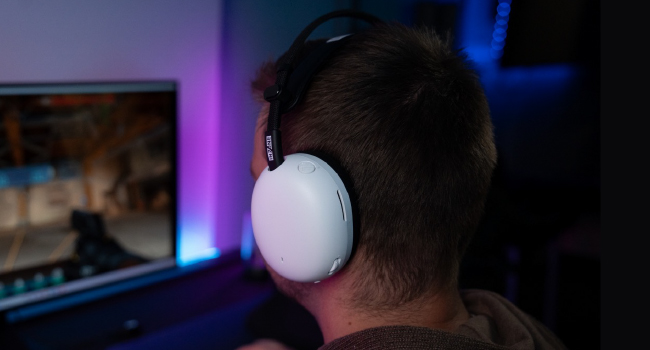
Image: The Sony INZONE H9 II headset showcasing its lightweight design and freely adjustable headband for optimal comfort.
2.5 Attaching the Detachable Microphone
The headset comes with a flexible, detachable cardioid AI microphone. Insert the microphone into the designated port on the left earcup until it clicks into place. Position the boom mic in front of your mouth for clear voice capture.
Image: The Sony INZONE H9 II headset featuring its flexible, detachable cardioid AI microphone for clear voice chat.
3. Operating Instructions
3.1 Power On/Off
Locate the power button on the headset. Press and hold the button for a few seconds to power the headset on or off. An indicator light will confirm the status.
3.2 Noise Control Features
The INZONE H9 II offers Active Noise Cancellation (ANC) and Transparency Mode (Ambient Sound Mode) to manage your audio environment:
Active Noise Cancellation: Blocks out ambient noise, allowing you to focus on your game.
Transparency Mode (Ambient Sound Mode): Allows you to hear your surroundings while still enjoying your audio, useful for awareness.
Switch between these modes using the dedicated button on the headset.
Image: The Sony INZONE H9 II headset demonstrating its noise-canceling capabilities, blocking out external distractions.
3.3 Microphone Mute/Unmute
The microphone mute button is located on the top side of the left earcup. Press this button to mute or unmute your microphone. A red LED indicator on the mic will illuminate when muted and turn off when unmuted.
The AI-powered noise reduction isolates your voice from background distractions, ensuring clear communication.
3.4 Audio Customization with INZONE Hub and Sound Connect App
Personalize your audio experience using the dedicated software:
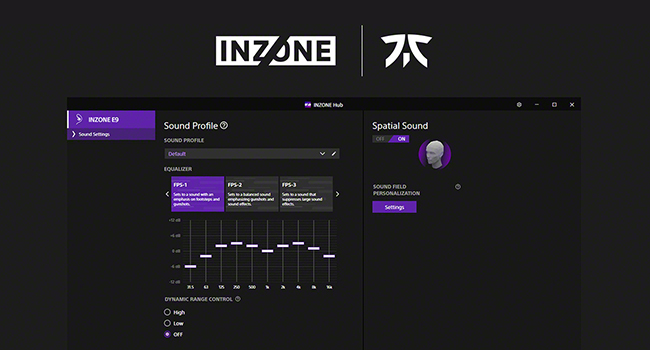
INZONE Hub (PC/Windows): Download and install the INZONE Hub software from the official Sony website. This software allows you to fine-tune EQ settings, adjust game/chat balance, control microphone settings, and customize spatial sound.
Sony | Sound Connect App (Mobile): For mobile devices, download the Sony | Sound Connect App from Google Play or the App Store to customize your headset settings.
The headset also includes FPS EQ presets developed with Fnatic's VALORANT and Apex Legends teams, emphasizing key in-game sounds for a competitive advantage.
Image: Screenshot of the INZONE Hub software interface, showing options for sound profiles, equalizer, spatial sound, volume, game/chat balance, microphone settings, and noise canceling controls.
Image: The Sony INZONE H9 II headset, highlighting its development in collaboration with the Fnatic eSports team, influencing mic tuning, sound isolation, and fit for elite performance.
4. Maintenance
To ensure the longevity and optimal performance of your Sony INZONE H9 II headset, follow these maintenance guidelines:
Cleaning: Gently wipe the earcups and headband with a soft, dry cloth. Avoid using harsh chemicals or abrasive materials.
Storage: When not in use, store the headset in the provided soft pouch to protect it from dust and scratches.
Cable Care: Handle all cables with care. Avoid sharp bends or excessive pulling.
Environmental Conditions: Do not expose the headset to extreme temperatures, humidity, or direct sunlight. The headset is not water resistant.
5. Troubleshooting
If you encounter issues with your headset, refer to the following common solutions:
No Sound/Low Volume:
Check headset volume controls and device volume settings.
Ensure the headset is properly connected (2.4GHz dongle, Bluetooth paired, or 3.5mm cable securely plugged in).
For PC, verify audio output settings in your operating system.
Microphone Not Working:
Ensure the detachable microphone is securely attached.
Check if the microphone is muted (red LED indicator).
Verify microphone input settings on your connected device (PC, console).
Connectivity Issues:
2.4GHz: Ensure the USB-C transceiver is correctly plugged in and the headset is powered on. Try re-pairing if necessary.
Bluetooth: Ensure Bluetooth is enabled on your device and the headset is in pairing mode. Remove previous pairings and try again.
Move closer to the transceiver/device to rule out range issues.
Noise Cancellation Not Effective:
Ensure Active Noise Cancellation mode is selected, not Ambient Sound Mode.
Check for proper fit of the earcups to ensure a good seal around your ears.
Battery Draining Quickly:
Ensure the headset is fully charged before use.
Battery performance can vary based on settings, environmental conditions, and usage.
For further assistance, consult the full reference guide or contact Sony customer support.
6. Specifications
Feature
Detail
Model Name
INZONE H9 II
Item Model Number
WHG910NB.UC
Noise Control
Active Noise Cancellation, Transparency Mode
Connectivity Technology
Wired, Wireless (2.4GHz, Bluetooth)
Wireless Communication Technology
Bluetooth (Version 5.3)
Headphones Jack
3.5 mm Jack
Battery Life
Up to 30 Hours
Charging Time
5 minutes for 1 hour playtime
Item Weight
260 Grams (approx. without mic)
Product Dimensions
10.81 x 4.18 x 11.69 inches
Material
Plastic, Synthetic Fabric
Audio Driver Type
Dynamic Driver (WH-1000XM6 drivers)
Microphone
Detachable Cardioid AI Mic
Compatible Devices
PC, PS5, Switch, Mobile
7. Warranty and Support
Your Sony INZONE H9 II headset comes with a warranty card. Please refer to the warranty card for detailed information regarding warranty coverage, terms, and conditions.
For technical support, product registration, or additional information, please visit the official Sony support website or contact their customer service.
Ask about setup, troubleshooting, compatibility, parts, safety, or missing instructions. Manuals+ will review the question and use this page’s manual context to help answer it.