
BAOFENG GT-5R Mini
BAOFENG GT-5R Mini Dual Band Portable Radio Instruction Manual
Model: GT-5R Mini
1. Introduction and Overview
The BAOFENG GT-5R Mini is a compact and versatile 5W dual-band portable radio designed for reliable communication across various environments. It offers both UHF and VHF transmission and reception capabilities, alongside FM and Airband reception. This radio is equipped with advanced features such as wireless programming via a dedicated mobile application, a large memory capacity for 999 channels, and dual Push-To-Talk (PTT) buttons for enhanced operational flexibility. Its convenient USB-C charging port ensures easy power replenishment, making it suitable for outdoor activities, emergency preparedness, and daily use.

Image 1.1: The BAOFENG GT-5R Mini in an outdoor environment, highlighting its portability.

Image 1.2: Overview of the BAOFENG GT-5R Mini's main features.
2. What's in the Box
Upon opening the package, verify that all the following components are present:
- BAOFENG GT-5R Mini Radio Unit(s)
- Antenna(s)
- Lithium-Ion Battery(ies)
- USB-C Charging Cable(s)
- Belt Clip(s)
- User Manual

Image 2.1: All components included in the BAOFENG GT-5R Mini package.
3. Setup
3.1 Battery Installation
- Align the battery pack with the grooves on the back of the radio unit.
- Slide the battery pack upwards until it clicks securely into place.
- To remove, press the release latch (if present) and slide the battery downwards.
3.2 Antenna Attachment
Screw the antenna clockwise onto the connector at the top of the radio until it is finger-tight. Do not overtighten.
3.3 Initial Charging
Before first use, fully charge the radio's battery. Connect the provided USB-C cable to the radio's USB-C port and the other end to a compatible USB power source (e.g., wall adapter, power bank, car charger, or computer USB port). The charging indicator will typically show charging status and turn off or change color when fully charged.

Image 3.1: USB-C charging options for the BAOFENG GT-5R Mini.
3.4 Programming Options
The BAOFENG GT-5R Mini offers multiple programming methods:
- Wireless App Programming: Use the dedicated iOS/Android application for convenient channel and setting adjustments via Bluetooth.
- PC Software (CPS/CHIRP): For advanced or bulk programming, connect the radio to a computer using a programming cable (sold separately) and use compatible software like CPS or CHIRP.
- Manual Keypad Programming: Basic settings and channel adjustments can be made directly using the radio's keypad.
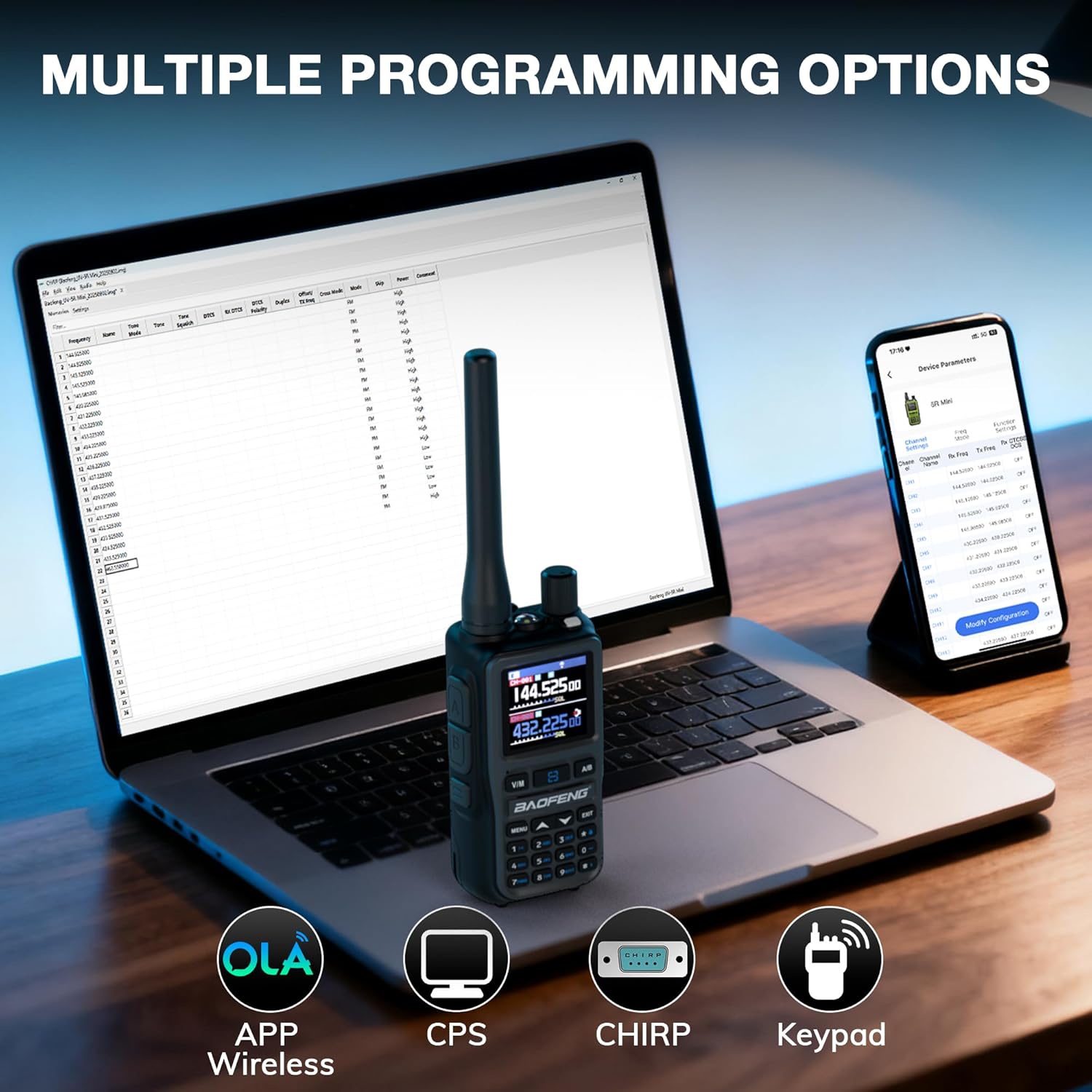
Image 3.2: Various programming methods available for the radio.
4. Operating Instructions
4.1 Power On/Off
To power on the radio, rotate the volume knob clockwise until you hear a click. To power off, rotate it counter-clockwise until it clicks.
4.2 Channel Selection and Frequency Mode
The radio supports up to 999 channels. Use the up/down arrow keys or the numeric keypad to select a channel. Press the V/M button to switch between Frequency (VFO) mode and Channel (Memory) mode.
4.3 Transmitting and Receiving (Dual PTT)
The radio features dual PTT buttons (A and B) for transmitting on two different frequencies or channels. Press the corresponding PTT button for the desired frequency/channel to transmit. Release the PTT button to receive.

Image 4.1: Dual PTT buttons for flexible transmission.
4.4 Multi-Band Reception (FM, Airband, UHF, VHF)
The GT-5R Mini can receive signals across multiple bands. Use the menu options to switch between standard UHF/VHF, FM radio (65-108MHz), and Airband (108-136MHz) reception modes.

Image 4.2: Multi-band transmit and receive capabilities.

Image 4.3: Airband reception feature.
4.5 VOX (Voice Operated Exchange)
Activate the VOX function through the menu to enable hands-free transmission. The radio will automatically transmit when it detects your voice and stop when you cease speaking. Adjust VOX sensitivity as needed.
4.6 Flashlight
The integrated flashlight can be activated via a dedicated button or menu option for illumination in low-light conditions.
4.7 Customizable Side Key
The radio features a customizable side key that can be programmed for quick access to frequently used functions, such as FM radio, alarm, or monitor mode. Refer to the programming section for details on customization.
4.8 Stopwatch
A built-in stopwatch function is available for timing various activities. Access it through the radio's menu.
4.9 Easy Channel Clone
The Easy Channel Clone feature allows you to quickly copy channel settings from one GT-5R Mini radio to another without needing a computer. Follow the on-screen prompts to initiate the cloning process between two compatible radios.

Image 4.4: Easy Channel Clone in action.
4.10 One-Key Reverse Repeater Frequency
This function allows for quick reversal of repeater frequencies, useful for direct communication or checking the repeater's input frequency. Activate this feature via a dedicated button or menu option.

Image 4.5: One-Key Reverse Repeater Frequency function.
5. Maintenance
5.1 Cleaning
Wipe the radio's exterior with a soft, damp cloth. Do not use harsh chemicals or abrasive cleaners. Ensure the USB-C port cover is closed when not charging to prevent dust and moisture ingress.
5.2 Battery Care
- Avoid fully discharging the battery frequently.
- Store the radio and battery in a cool, dry place when not in use for extended periods.
- Do not expose the battery to extreme temperatures.
- If the battery is not used for a long time, charge it periodically to maintain its health.
6. Troubleshooting
| Problem | Possible Cause | Solution |
|---|---|---|
| Radio does not power on. | Battery is low or not installed correctly. | Charge the battery. Reinstall the battery, ensuring it clicks into place. |
| Cannot transmit or receive. | Incorrect frequency/channel, antenna not attached, or low battery. | Verify frequency/channel settings. Ensure antenna is securely attached. Charge the battery. |
| Poor audio quality. | Weak signal, incorrect squelch level, or antenna issue. | Move to an area with better signal. Adjust squelch level. Check antenna connection. |
| App programming issues. | Bluetooth not enabled, incorrect app version, or radio not in pairing mode. | Ensure Bluetooth is active on both devices. Download the latest app. Follow app instructions for pairing. |
7. Specifications
| Feature | Detail |
|---|---|
| Brand | BAOFENG |
| Model | GT-5R Mini |
| Color | Grey |
| Number of Channels | 999 |
| Special Feature | Portable |
| Maximum Talk Range | 3 Kilometers |
| Voltage | 7.4 Volts |
| Batteries Required | 2 Lithium Ion (included) |
| Connectivity Protocol | Bluetooth |
| Broadcast System | Digital |
8. Warranty and Support
The BAOFENG GT-5R Mini radio comes with a standard manufacturer's warranty. Please refer to the warranty card included in your package or visit the official BAOFENG website for detailed warranty terms and conditions.
For technical support, troubleshooting assistance, or inquiries regarding your product, please contact the seller or the official BAOFENG customer service. Contact information can typically be found on the product packaging or the manufacturer's website.
Related documentsGT-5R Mini


Ask a question about this manual
Ask about setup, troubleshooting, compatibility, parts, safety, or missing instructions. Manuals+ will review the question and use this page’s manual context to help answer it.