1. Introduction
Thank you for choosing the INNOCN GA27W1Q 27-inch 4K 240Hz OLED Gaming Monitor. This manual provides essential information for the safe and efficient use of your new monitor. Please read this manual thoroughly before operating the device and retain it for future reference.

Image: Front view of the INNOCN GA27W1Q monitor, showcasing its slim bezels and stand.
2. Safety Information
Observe the following safety precautions to ensure optimal performance and prevent damage to the monitor or injury to yourself.
- Do not expose the monitor to rain, moisture, or extreme temperatures.
- Avoid placing the monitor in direct sunlight or near heat sources.
- Use only the power adapter supplied with the monitor.
- Do not block ventilation openings.
- Disconnect the power cable from the outlet if the monitor will not be used for an extended period.
- Refer all servicing to qualified service personnel.
3. Monitor Overview
3.1 Rear Panel and Ports
The rear panel of the monitor features various ports for connectivity and a power button.

Image: Rear view of the monitor, highlighting the input and output ports.

Image: Detailed diagram of the monitor's connectivity ports, including USB-A 3.0, USB-B 3.0, HDMI 2.1, DisplayPort 1.4, USB-C 65W, Audio Out, and DC Power In.
- USB-A 3.0 Ports: For connecting USB devices.
- USB-B 3.0 Port: For connecting to your computer to enable the USB-A ports.
- HDMI 2.1 Ports: For high-definition video and audio input.
- DisplayPort 1.4 Port: For high-resolution video and audio input.
- USB-C 65W Port: For video input, data transfer, and power delivery (up to 65W) to compatible devices.
- Audio Out Jack: For connecting external speakers or headphones.
- DC Power In: For connecting the power adapter.
4. Setup
4.1 Stand Assembly
The monitor comes with an adjustable stand that allows for height, tilt, swivel, and pivot adjustments. Alternatively, it supports VESA wall mounting (100mm x 100mm).
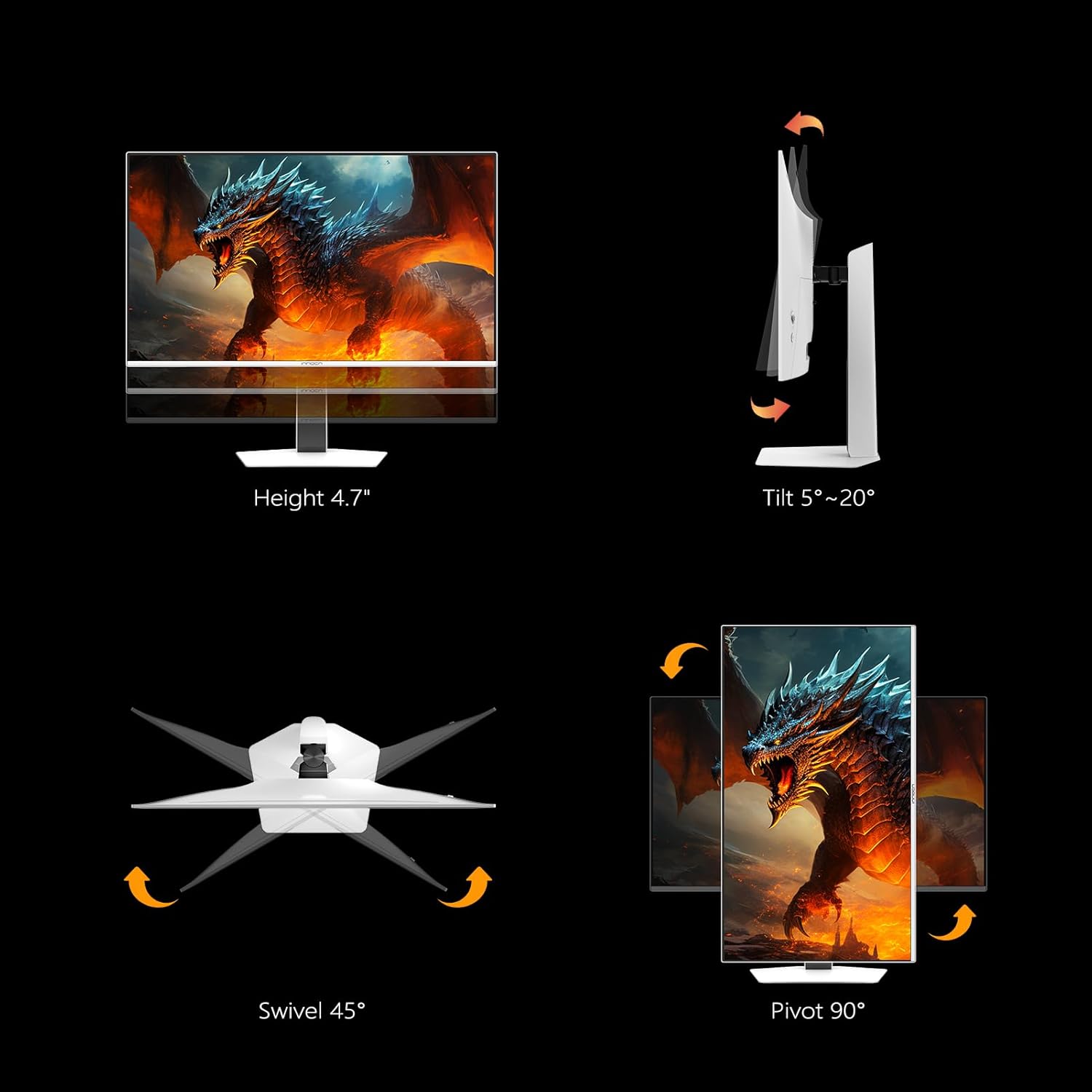
Image: Illustrations demonstrating the monitor stand's adjustable features: height adjustment up to 4.7 inches, tilt from 5° to 20°, 45° swivel, and 90° pivot for portrait mode.

Image: Visual representation of the monitor's adjustable stand, showing height, tilt, swivel, and pivot capabilities.
4.2 Connecting the Monitor
Connect the monitor to your computer or other devices using the appropriate cables.
- Power Connection: Connect the power adapter to the DC Power In port on the monitor and then to a power outlet.
- Video Connection:
- For PC/Laptop: Use a DisplayPort or HDMI cable to connect to your graphics card.
- For USB-C Devices (Laptop, Mac, Phones, Tablets, Gaming Consoles): Use a USB-C cable to the USB-C 65W port for video, data, and power.
- For Gaming Consoles (Switch, PS5/4/3, XBOX Series): Use an HDMI cable.
- USB Hub Connection: If you wish to use the monitor's USB-A ports, connect a USB-B 3.0 cable from the monitor to your computer.
- Audio Output: Connect external speakers or headphones to the 3.5mm Audio Out jack if desired.
5. Operating Instructions
5.1 Power On/Off
Press the power button located on the rear of the monitor to turn it on or off.
5.2 OSD Menu Navigation
Use the joystick or buttons (if present) on the rear of the monitor to navigate the On-Screen Display (OSD) menu. The OSD menu allows you to adjust various display settings.
5.3 Display Settings
Resolution and Refresh Rate
The monitor supports a 4K UHD (3840 x 2160p) resolution and an ultra-fast 240Hz refresh rate, providing smooth and detailed visuals.

Image: Comparison showing the clarity of 4K UHD (3840x2160) resolution versus FHD (1920x1080) on the monitor.
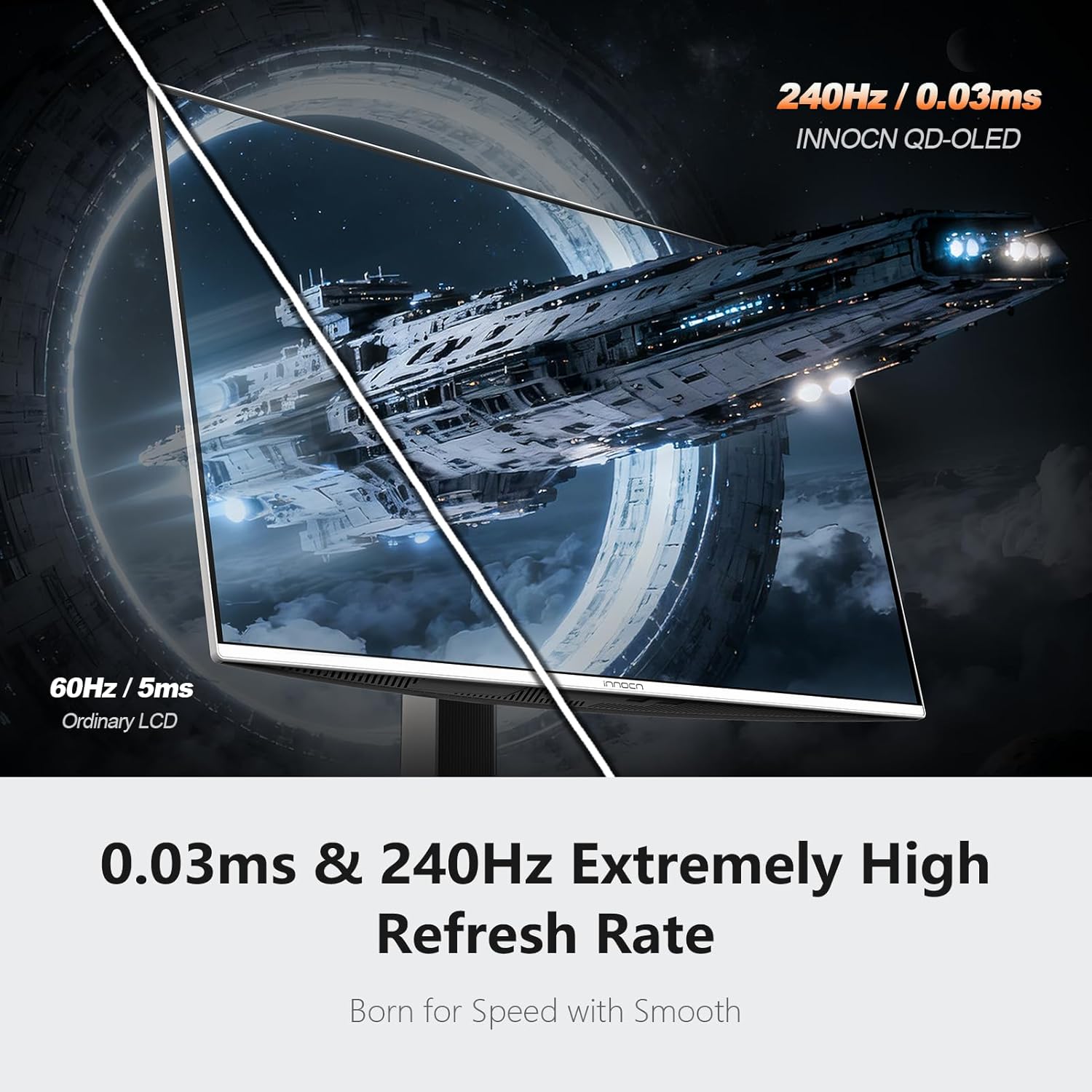
Image: Visual comparison illustrating the smoothness of 240Hz refresh rate and 0.03ms response time on the QD-OLED display, compared to a 60Hz / 5ms ordinary LCD.
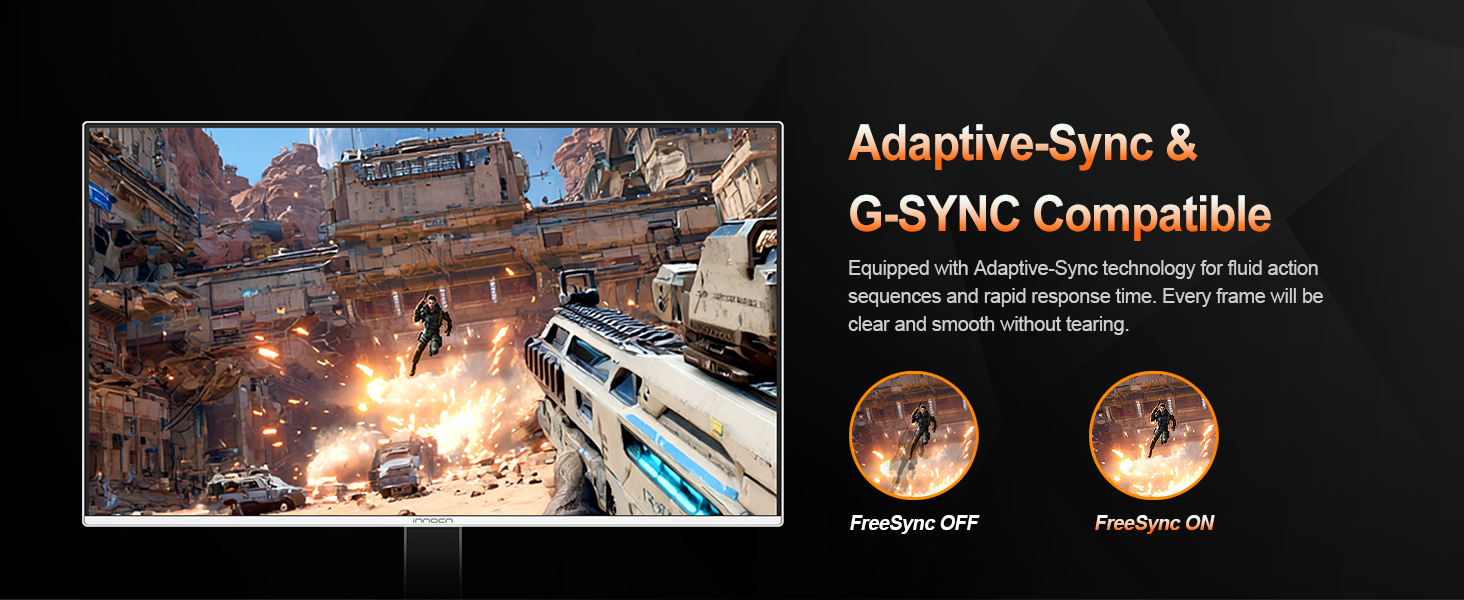
Image: Diagram emphasizing the 240Hz refresh rate for a smooth and immersive experience with lower input lag.
HDR (High Dynamic Range)
The monitor supports HDR400, enhancing visual effects with rich details and diverse contrast, especially in scenes with strong light and dark variations.

Image: Graphic illustrating VESA DisplayHDR 400, highlighting 99% DCI-P3, 99% sRGB, and 95% Adobe RGB color coverage for detailed and lifelike visuals.
Color Settings
The QD-OLED panel delivers 99% DCI-P3 color gamut, 1,500,000:1 contrast ratio, and 1.07 billion (10-bit) colors for detailed and lifelike picture quality.
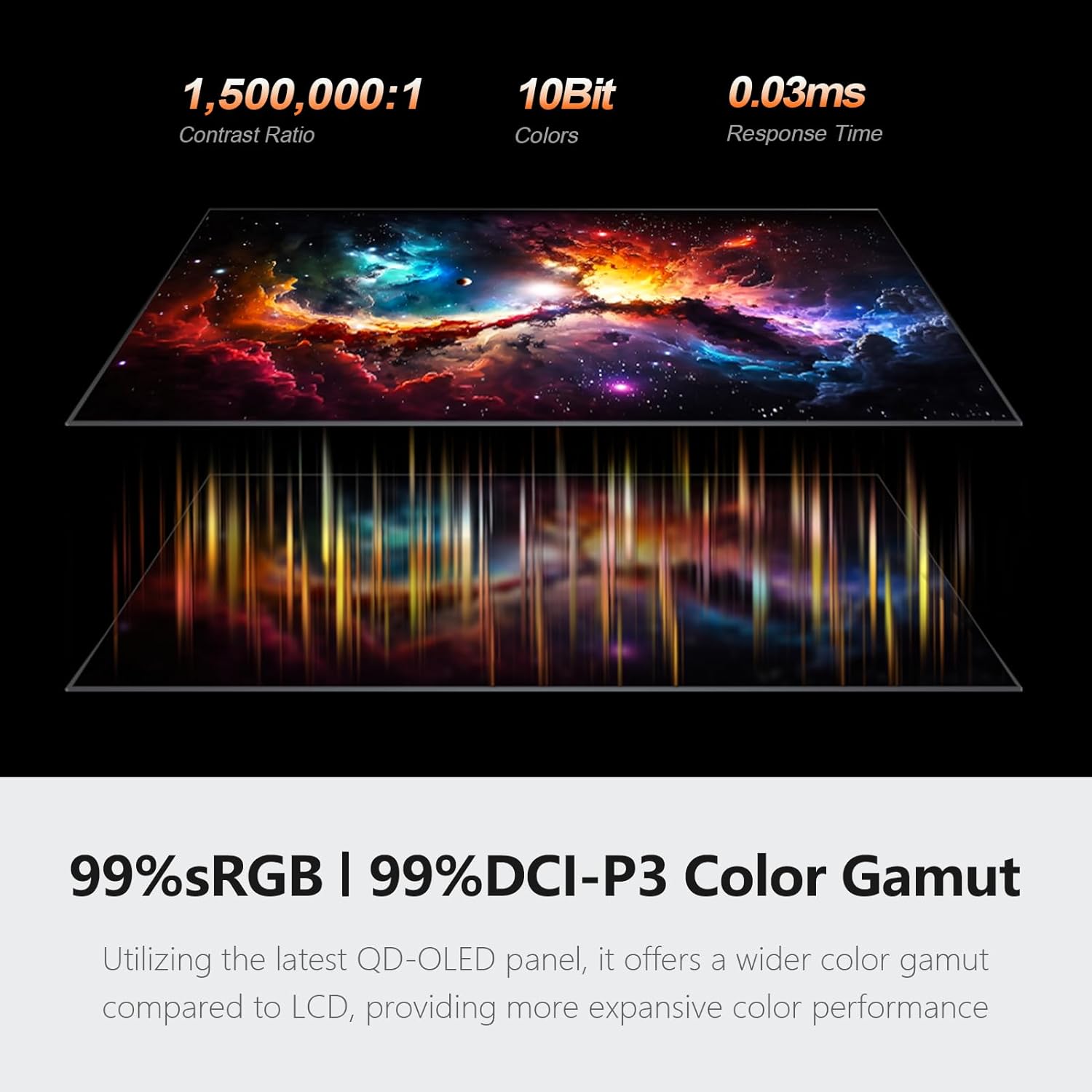
Image: Graphic displaying 1,500,000:1 contrast ratio, 10-bit colors, 0.03ms response time, and 99% sRGB / 99% DCI-P3 color gamut, emphasizing the wide color performance of the QD-OLED panel.

Image: Explanation of Original 10-Bits Color Depth, detailing how it presents more colors and finer transitions, reduces color banding, and improves visual quality.
MAC-VIEW Mode
This mode allows for OSD adjustments to optimize visuals for Mac devices, maximizing color matching and reducing color unevenness when connected to a Mac.
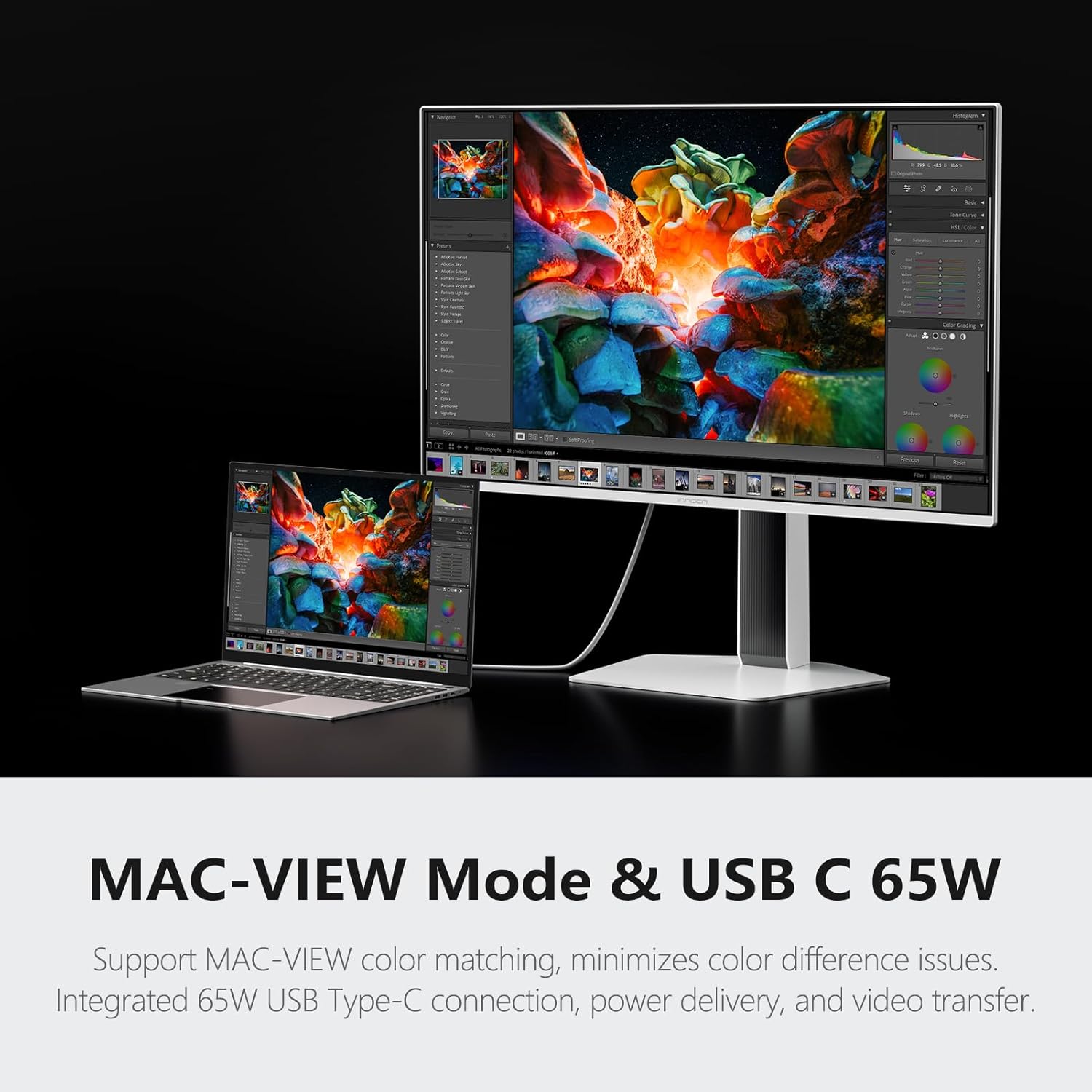
Image: The monitor displaying content from a connected laptop via USB-C, illustrating the MAC-VIEW Mode and USB-C 65W functionality.

Image: Graphic explaining MAC-VIEW Mode support for color matching and minimizing color differences, alongside integrated 65W USB Type-C for power delivery and video transfer.
Adaptive-Sync & G-SYNC Compatible
This monitor is compatible with Adaptive-Sync and G-SYNC technologies, providing a tear-free and low-latency gaming experience by synchronizing the display's refresh rate with the graphics card's output.
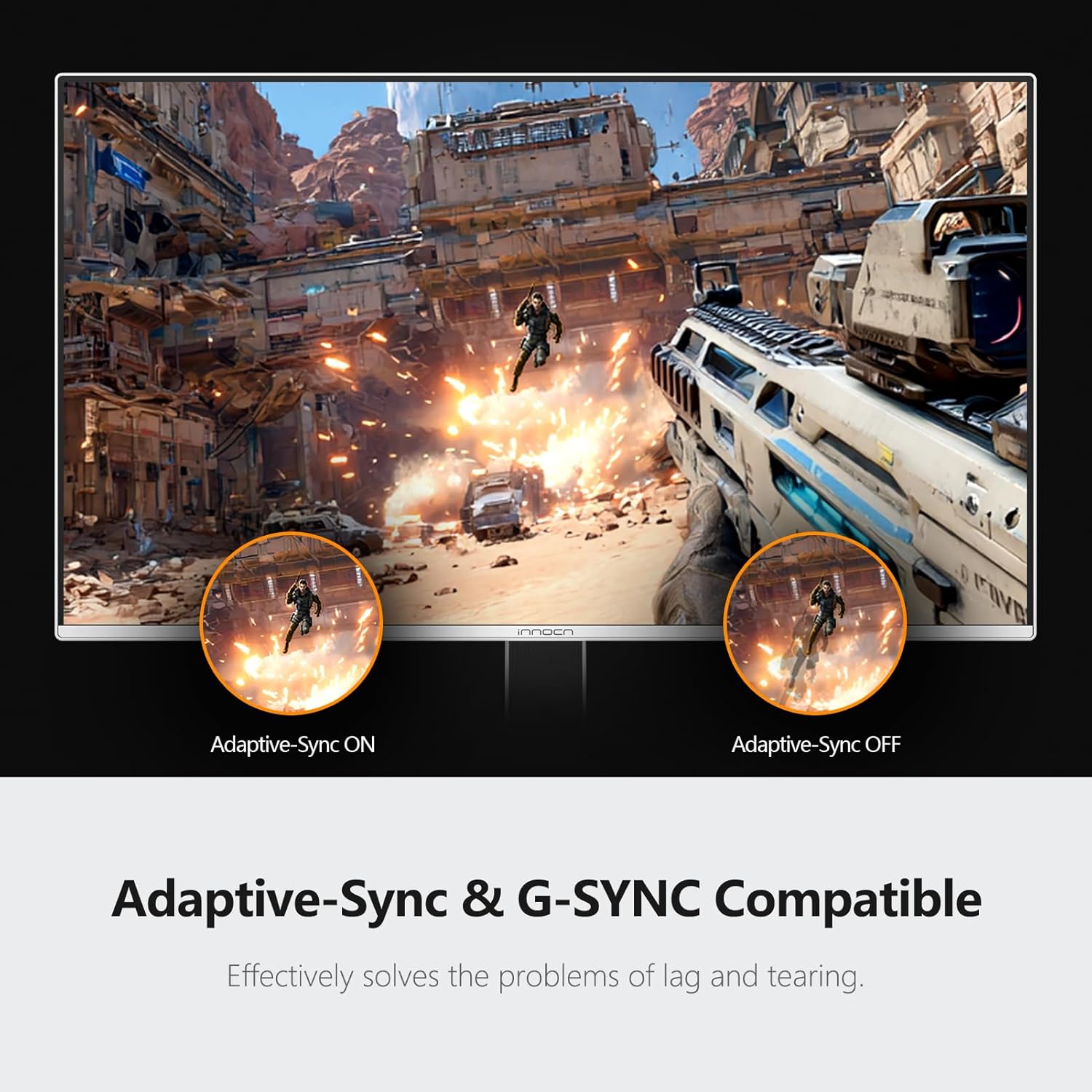
Image: Comparison showing the visual difference with Adaptive-Sync ON (smooth gameplay) versus Adaptive-Sync OFF (screen tearing) during a gaming scene.

Image: Diagram illustrating the benefits of Adaptive-Sync technology for fluid action and rapid response time, ensuring clear and smooth frames without tearing, with a comparison of FreeSync OFF vs. FreeSync ON.
5.4 Built-in Speakers
The monitor includes built-in speakers, providing audio output without the need for external speakers.
6. Maintenance
6.1 Cleaning the Monitor
To clean the monitor screen, gently wipe it with a soft, lint-free cloth. For stubborn marks, dampen the cloth with a small amount of water or a mild, non-abrasive screen cleaner. Avoid using alcohol-based cleaners or spraying liquid directly onto the screen.
6.2 OLED Pixel Care
OLED technology offers superior image quality but requires specific care to prevent image retention or burn-in. The monitor includes features to help mitigate these risks:
- Static Icon, Taskbar, and Boundary Detection: The monitor can detect static elements on the screen and adjust them to prevent image retention.
- Static Screen Detection (Enabled by default): Automatically reduces brightness in static areas to protect pixels.
- Pixel Shift (Enabled by default): Periodically shifts pixels by a small amount to distribute wear evenly across the screen.
- Low Power Consumption at the Corners (Manually enabled): Reduces power to corner pixels, which are often static, to extend their lifespan.
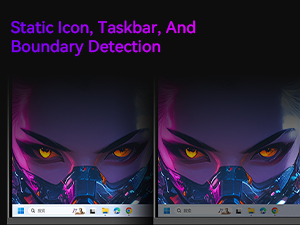
Image: Illustration of the monitor's ability to detect and manage static icons, taskbars, and screen boundaries to prevent image retention.
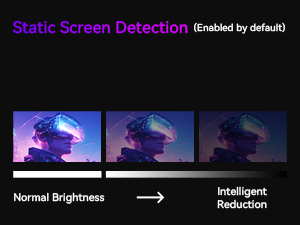
Image: Graphic demonstrating Static Screen Detection, showing how normal brightness is intelligently reduced in static areas.
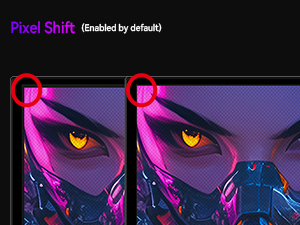
Image: Visual representation of Pixel Shift, showing how the display content subtly moves to prevent static image issues.
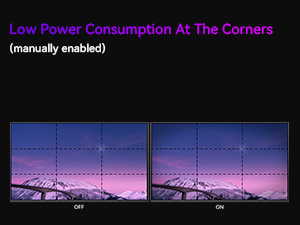
Image: Comparison showing the effect of Low Power Consumption at the Corners when manually enabled, helping to preserve OLED panel integrity.
It is recommended to enable these features and avoid displaying static images for extended periods to maintain optimal display quality.
7. Troubleshooting
If you encounter issues with your monitor, refer to the following common problems and solutions:
| Problem | Possible Cause | Solution |
|---|---|---|
| No image on screen | Power cable disconnected; Video cable disconnected; Incorrect input source selected. | Ensure power and video cables are securely connected. Select the correct input source via the OSD menu. |
| Image flickering or unstable | Loose video cable; Graphics card driver issue; Refresh rate mismatch. | Check video cable connections. Update graphics card drivers. Adjust refresh rate in your computer's display settings. |
| Colors appear incorrect | Color settings misconfigured; Cable issue. | Adjust color settings in the OSD menu. Try a different video cable. |
| No audio | Audio cable disconnected; Volume too low; Incorrect audio output selected on PC. | Ensure audio cable (if used) is connected. Increase monitor volume. Select the monitor as the default audio output on your computer. |
8. Specifications
Technical specifications for the INNOCN GA27W1Q monitor:
| Feature | Specification |
|---|---|
| Model Number | GA27W1Q |
| Screen Size | 27 Inches |
| Panel Type | QD-OLED |
| Resolution | 3840 x 2160 (4K UHD) |
| Refresh Rate | 240Hz |
| Response Time | 0.03ms |
| Aspect Ratio | 16:9 |
| Contrast Ratio | 1,500,000:1 |
| Color Gamut | 99% DCI-P3 |
| Color Depth | 1.07 Billion (10-bit) |
| HDR Support | HDR400 |
| Sync Technology | Adaptive-Sync & G-SYNC Compatible |
| Connectivity | 2x HDMI 2.1, 2x DisplayPort 1.4, 1x USB-C (65W PD), 1x USB-B 3.0, 4x USB-A 3.0, 1x 3.5mm Audio Out |
| Stand Adjustments | Height, Tilt, Swivel, Pivot |
| VESA Mount | 100mm x 100mm |
| Product Dimensions | 2 x 24.06 x 13.9 inches |
| Item Weight | 18.46 pounds |

Image: Diagram showing the physical dimensions of the INNOCN GA27W1Q monitor, including screen size, width, height, and depth.
9. Warranty and Support
INNOCN provides comprehensive support for its products.
- Warranty Coverage: The product typically includes 12 months of coverage.
- Returns: A 30-day free return policy may apply.
- Technical Support: 24-hour specialist support is available.
For further assistance, please refer to the contact information provided with your product or visit the official INNOCN website.

Image: Graphic detailing INNOCN's support services, including 24-hour specialist support, 30-day free return, and 12 months coverage.


