
CHROX H728 4GB+64GB
CHROX Android 14.0 TV Box User Manual
Model: H728 4GB+64GB
Brand: CHROX
1. Introduction
This user manual provides comprehensive instructions for the setup, operation, and maintenance of your CHROX Android 14.0 TV Box. Please read this manual carefully before using the device to ensure optimal performance and safety.

Image: The CHROX Android TV Box and its accompanying remote control. The box is compact and black with a textured top surface, while the remote is sleek and black with clearly labeled buttons for navigation and media control.
2. Package Contents
Please check the box for the following items:
- 1 x CHROX Android 14.0 TV Box
- 1 x Remote Control (batteries not included)
- 1 x HDMI Cable
- 1 x Power Adapter (DC 5V/2A)
- 1 x User Manual
3. Product Features and Specifications
The CHROX Android 14.0 TV Box is designed to provide a superior media experience with its advanced hardware and software capabilities.
Key Features:
- Latest Android 14.0 OS: Offers enhanced compatibility with software, games, and applications, along with an optimized user interface.
- H728 Chipset: Powered by a Quad-core ARM Cortex A53 CPU (RK3528A), providing improved execution speed and professional image processing capabilities.
- 4GB RAM & 64GB ROM: Ensures better performance and larger storage capacity.
- USB 3.0 Connectivity: 10 times faster than USB 2.0, allowing for quick transfer of large files and videos.
- Dual WiFi 2.4G/5G & Bluetooth 5.0: Equipped with integrated WiFi 6 and Bluetooth 5.0 for stable and convenient wireless connections.
- Ethernet Support: Compatible with 100/1000M Ethernet for reliable wired network access.
- 4K/8K Decoding Support: Capable of decoding high-resolution video content up to 8K.

Image: Overview of the Tanix TX7 Android 14.0 TV Box highlighting its key features including the H728 chipset, HDR10+, Bluetooth 5.4, 8K Ultra HD support, Android 14 OS, and dual-band 2.4G & 5G WiFi.
Technical Specifications:
| Component | Specification |
|---|---|
| Operating System | Android 14.0 |
| CPU | H728 Cortex ARM A55 64-bit CPU |
| GPU | G31 MP2 GPU Processor |
| SDRAM | 4GB |
| Flash Storage | 64GB |
| Wi-Fi | 2.4G & 5G Dual-band WiFi 6 |
| Bluetooth | BT 5.0 |
| Ethernet | Standard 10/100M RJ-45 |
| HDMI Output | HDMI 2.0, 8K x 4K @ 60fps Max Resolution Output |
| SPDIF | Digital Audio Interface |
| USB Host | 1 x USB 2.0, 1 x USB 3.0 |
| Video Decoder | H.265 HEVC/MVC, H.264 AVC/MVC, VP9, VP8 |
| Video Coder | H.264/AVC, H.265/HEVC |
| JPEG Decoder | Supports YUV400/411/420/422/440/444, 1920x1080@120fps, MJPEG |
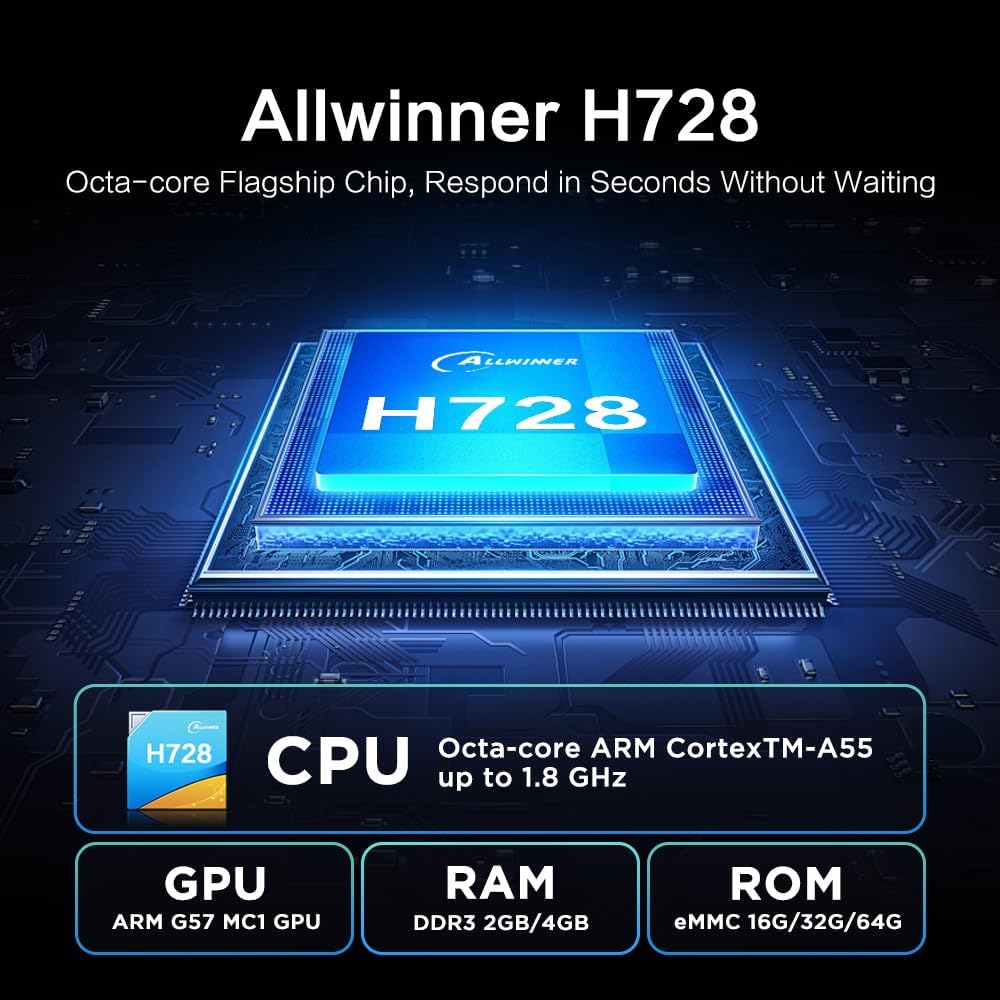
Image: Detailed view of the Allwinner H728 Octa-core Flagship Chip, showing its CPU (ARM Cortex-A55 up to 1.8 GHz), GPU (ARM G57 MC1), RAM (DDR3 2GB/4GB), and ROM (eMMC 16G/32G/64G) specifications.

Image: Illustration demonstrating the TV Box's support for 8K decoding, comparing resolutions of 1080p, 4K, and 8K on a television screen.
4. Setup Guide
Follow these steps to set up your CHROX Android TV Box:
- Connect to TV: Connect one end of the provided HDMI cable to the HDMI port (4) on the TV Box and the other end to an HDMI input on your television.
- Connect Power: Plug the power adapter into the DC 5V/2A port (5) on the TV Box, then plug the adapter into a wall outlet.
- Power On: The TV Box should automatically power on. If not, press the power button on the remote control.
- Select Input: On your TV, select the correct HDMI input source using your TV's remote control.
- Initial Setup: Follow the on-screen instructions to complete the initial setup, including language selection, network connection (Wi-Fi or Ethernet), and Google account login.

Image: Diagram illustrating the various connectivity ports on the CHROX Android TV Box, including AV, SPDIF, Ethernet Port, HDMI Output, Power Input, TF Card Slot, and USB ports (USB 2.0 and USB 3.0).
5. Operating Instructions
5.1. Remote Control Usage
The included remote control allows you to navigate the Android TV Box interface. Insert two AAA batteries (not included) into the remote before use.
- Power Button: Turns the device on/off or puts it into standby.
- Navigation Buttons (Up/Down/Left/Right): Move cursor or selection.
- OK Button: Confirms selection.
- Back Button: Returns to the previous screen.
- Home Button: Returns to the main home screen.
- Volume Buttons (+/-): Adjusts audio volume.
- App Shortcut Buttons (e.g., Netflix, YouTube): Direct access to specified applications.
5.2. Network Connection
To access online content, connect your TV Box to the internet:
- Wi-Fi: Go to Settings > Network & Internet > Wi-Fi. Select your network from the list, enter the password, and connect.
- Ethernet: Connect an Ethernet cable from your router to the Ethernet port (3) on the TV Box. The connection will be established automatically.
5.3. Installing Applications
You can download and install applications from the Google Play Store:
- Ensure the TV Box is connected to the internet.
- From the home screen, open the "Play Store" application.
- Search for your desired application and select "Install".

Image: Screenshot of the Android 14.0 user interface on a TV screen, showing various app icons including Google Play Store, Netflix, and YouTube, with the TV Box positioned below the screen.
5.4. Multi-Screen Interaction
The TV Box supports casting content from your mobile phone or tablet to the TV screen, allowing you to share videos and photos easily.

Image: Depiction of the multi-screen interaction feature, showing a smartphone mirroring its content (a video game) onto a large TV screen, with the TV Box placed nearby.
6. Troubleshooting
If you encounter any issues, please refer to the following common problems and solutions:
- No Power:
- Ensure the power adapter is securely connected to the TV Box and a working power outlet.
- Check if the power indicator light on the TV Box is on.
- No Display on TV:
- Verify the HDMI cable is correctly connected to both the TV Box and the TV.
- Ensure your TV is set to the correct HDMI input source.
- Try a different HDMI cable or HDMI port on your TV.
- No Wi-Fi Connection:
- Check if your router is working correctly.
- Ensure you have entered the correct Wi-Fi password.
- Try restarting the TV Box and your router.
- Move the TV Box closer to your Wi-Fi router.
- Remote Control Not Responding:
- Check and replace the batteries in the remote control.
- Ensure there are no obstructions between the remote and the TV Box.
- Point the remote directly at the TV Box's IR receiver.
7. Maintenance
To ensure the longevity and optimal performance of your TV Box, follow these maintenance guidelines:
- Keep the device in a dry, well-ventilated area, away from direct sunlight, heat sources, and moisture.
- Do not block the ventilation openings on the device.
- Clean the device with a soft, dry cloth. Do not use liquid cleaners or aerosols.
- Avoid dropping or subjecting the device to strong impacts.
- Unplug the power adapter during lightning storms or when unused for long periods.
8. Important Safety Information
Please handle the device with care and avoid drops and impacts. Ensure the product is assembled securely before use.

Image: A warning label with text in multiple languages, advising users to handle the product with care, avoid drops and impacts, and assemble it securely before use.
9. Support
If you have any questions or require further assistance, please contact our customer support. We aim to respond to all inquiries within 24 hours.
For support, please refer to the contact information provided with your purchase or on the official CHROX website.
Ask a question about this manual
Ask about setup, troubleshooting, compatibility, parts, safety, or missing instructions. Manuals+ will review the question and use this page’s manual context to help answer it.