
1. Introduction
The ATTACK SHARK X820 ULTRA is a high-performance mechanical gaming keyboard designed for a superior typing and gaming experience. It features a compact 75% layout, customizable RGB lighting, a unique TFT display, and versatile connectivity options. This manual provides detailed instructions for setting up, operating, and maintaining your keyboard.
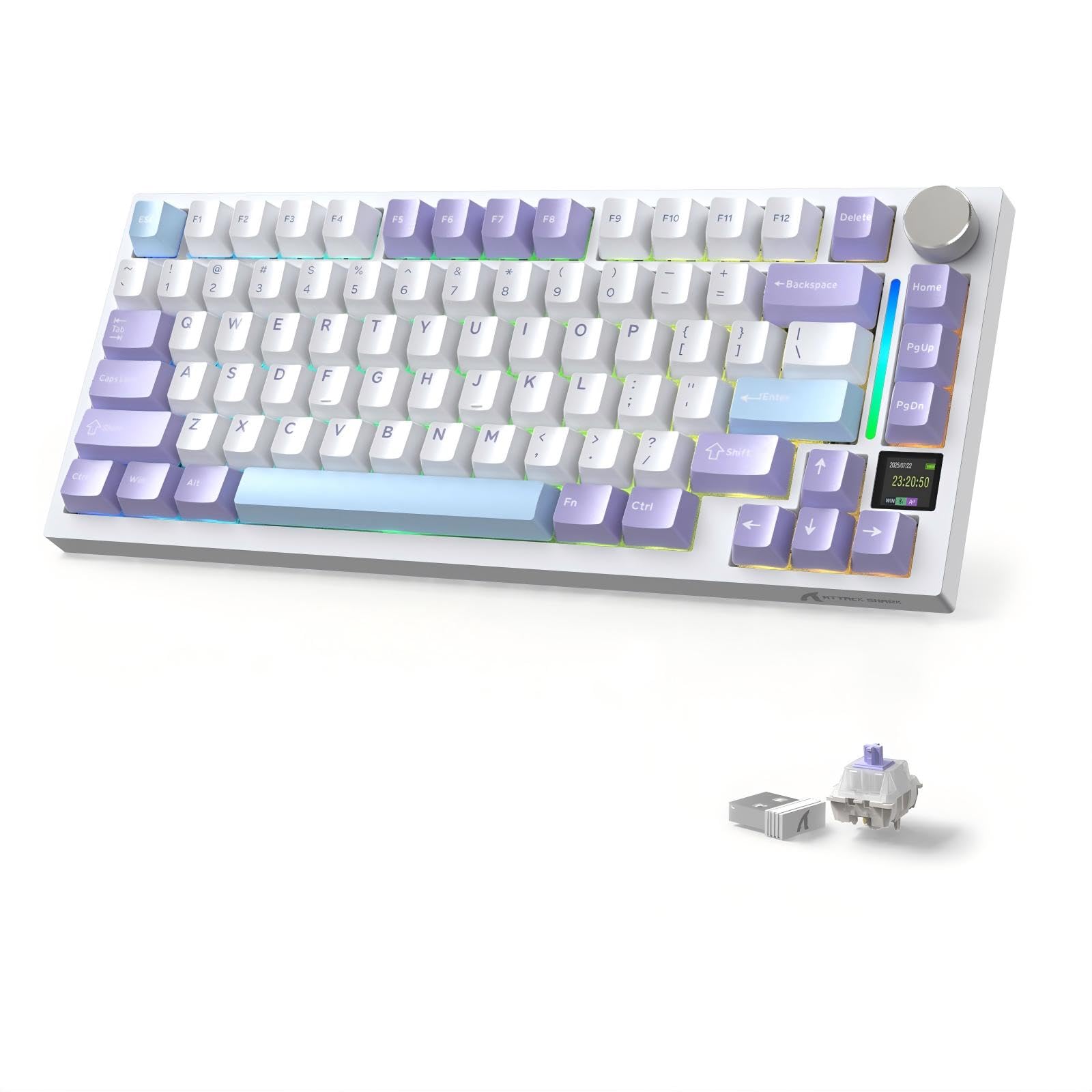
Figure 1: ATTACK SHARK X820 ULTRA Gaming Keyboard (Purple Gift Switch variant)
Key features include:
- Unique Customization: Features Japanese-style samurai design PBT keycaps (or other options) and a TFT screen for custom GIF animations.
- Premium Typing Experience: Gasket-mounted design with 5-layer sound dampening materials (PORON, IXPE, PET, DEPDM, Silicone) for a smooth, quiet typing experience. Includes 1.2mm single-slot PCB, grooved PC plate, and fine-tuned stabilizers.
- Compact 75% Layout with Multimedia Knob: 80-key layout saves desk space while retaining essential keys. An aluminum volume knob allows intuitive control of volume, media playback, and display settings (Fn+Knob).
- Versatile Connectivity & Performance: Supports 3 connection modes (wired Type-C, Bluetooth, 2.4GHz wireless) with ultra-low latency. Full N-key rollover ensures all key presses are registered accurately. Certified for use in Japan (Radio Law Certification Number: 219-259234).
- Long-Lasting Battery: Built-in 4000mAh battery supports extended gaming sessions, even with backlighting. Power-saving design reduces charging frequency. Play and charge simultaneously via the 1.5m Type-C cable.
- Advanced Customization & Compatibility: 16 million color RGB with 19+ dynamic backlight effects. QMK cloud driver and ATTACK SHARK software allow key remapping, macro settings, TFT screen customization, and RGB adjustments. Compatible with Windows, MacOS, Linux. Includes keycap/switch puller and spare switches for immediate customization.
2. Setup
2.1 Package Contents
Before you begin, ensure all items are present:
- ATTACK SHARK X820 ULTRA Gaming Keyboard
- USB Type-C Cable (1.5m, with magnetic ring)
- Keycap Puller
- Switch Puller
- Dust Cover
- Spare Switches (2 pieces)
- User Manual
2.2 Charging the Keyboard
The keyboard comes with a built-in 4000mAh battery. For optimal performance, fully charge the keyboard before first use.
- Connect the supplied USB Type-C cable to the keyboard's Type-C port.
- Connect the other end of the cable to a USB power source (e.g., computer USB port, USB wall adapter).
- The TFT display will indicate charging status.
2.3 Connection Modes
The X820 ULTRA supports three connection modes: Wired (USB Type-C), 2.4GHz Wireless, and Bluetooth.

Figure 2: Tri-mode connectivity for various devices.
2.3.1 Wired Connection
- Ensure the mode switch on the keyboard is set to 'Wired' (usually indicated by a cable icon or 'USB').
- Connect the USB Type-C cable from the keyboard to your computer's USB port.
- The keyboard will be automatically recognized and ready for use.
2.3.2 2.4GHz Wireless Connection
- Locate the 2.4GHz USB receiver (dongle), typically stored in a magnetic compartment on the keyboard's underside.
- Plug the USB receiver into an available USB port on your computer.
- Set the mode switch on the keyboard to '2.4G' (usually indicated by a wireless icon).
- The keyboard should connect automatically. If not, press Fn + 4 to initiate pairing.
2.3.3 Bluetooth Connection
The keyboard supports up to three Bluetooth devices (BT1, BT2, BT3).
- Set the mode switch on the keyboard to 'BT' (Bluetooth icon).
- To enter pairing mode, press and hold Fn + 1 (for BT1), Fn + 2 (for BT2), or Fn + 3 (for BT3) for 3-5 seconds until the indicator light flashes rapidly.
- On your device (computer, tablet, smartphone), enable Bluetooth and search for new devices.
- Select "ATTACK SHARK X820 ULTRA" from the list of available devices to pair.
- Once paired, the indicator light will stop flashing.
- To switch between paired Bluetooth devices, press Fn + 1/2/3 briefly.
3. Operating Instructions
3.1 TFT Smart Display and Multimedia Knob
The X820 ULTRA features a TFT smart display and a multi-functional metal knob for intuitive control.

Figure 3: TFT Display showing various settings and the multimedia knob.
- Default Knob Function: Rotate to adjust volume, press to mute/unmute.
- Fn + Knob Press: Switches the knob's function between volume control and TFT display navigation.
- TFT Display Information: Shows date, time, battery level, connection mode, OS, Caps Lock status.
- Custom GIF/Image: Use the ATTACK SHARK driver software to upload custom GIFs or images to the TFT display.
3.2 RGB Backlighting
The keyboard offers 19+ dynamic RGB backlight effects with 16 million colors.

Figure 4: Keyboard showcasing RGB lighting effects.
- Fn + \|: Switch backlight effects.
- Fn + ]}: Turn backlight on/off.
- Fn + ↑: Adjust backlight brightness.
- Fn + ←: Adjust backlight speed.
- Fn + C: Activate flowing LED strip effect.
3.3 QMK/ATTACK SHARK Driver Software
For advanced customization, use the QMK cloud driver or the dedicated ATTACK SHARK driver software.

Figure 5: ATTACK SHARK driver software interface for customization.
The software allows you to:
- Remap keys.
- Set up macros.
- Customize TFT screen content (e.g., upload GIFs).
- Adjust RGB lighting modes and colors.
- Manage keyboard profiles.
The software is compatible with Windows, MacOS, and Linux. Visit the official ATTACK SHARK website for download links and detailed instructions.
3.4 Hot-Swappable Switches
The X820 ULTRA features hot-swappable sockets compatible with both 3-pin and 5-pin mechanical switches, allowing you to easily change switches without soldering.

Figure 6: Illustration of hot-swappable switch design.
3.5 Ergonomic Design
The keyboard is designed with adjustable feet, offering two levels of height adjustment for ergonomic comfort during extended use.
4. Maintenance
4.1 Cleaning
- Regularly clean the keyboard with a soft, dry cloth.
- Use a can of compressed air to remove dust and debris from between the keycaps.
- For deeper cleaning, use the provided keycap puller to remove keycaps and clean the switches and plate.
- Avoid using harsh chemicals or abrasive materials.
4.2 Switch Replacement
Thanks to the hot-swappable design, you can easily replace switches:
- Using the keycap puller, gently remove the desired keycap.
- Use the switch puller to carefully grip the switch from its top and bottom clips, then pull it straight up to remove it.
- Align the pins of the new switch with the holes on the PCB. Ensure the pins are straight to avoid bending.
- Gently press the new switch into place until it clicks securely.
- Reattach the keycap.
5. Troubleshooting
5.1 Connectivity Issues
- Keyboard not connecting (2.4GHz/Bluetooth): Ensure the mode switch is set correctly. For 2.4GHz, try replugging the dongle. For Bluetooth, ensure the keyboard is in pairing mode (Fn + 1/2/3 long press) and your device's Bluetooth is on.
- Intermittent connection: Ensure the keyboard is charged. Move closer to the receiver/device to reduce interference.
5.2 Key Input Issues
- Keys not responding: Check if the keyboard is properly connected and powered on. If a specific key is not working, try replacing its switch (refer to Section 4.2).
- Ghosting/N-key rollover: The keyboard supports full N-key rollover, so this should not be an issue. If it occurs, ensure the keyboard firmware is up to date via the driver software.
5.3 TFT Display Issues
- Incorrect time/date: The time and date on the TFT display are usually synchronized with the connected computer via the driver software. Ensure the software is running and the keyboard is connected in wired mode for synchronization.
- Display not showing custom GIF: Ensure the GIF was uploaded correctly using the ATTACK SHARK driver software and the keyboard is in the correct display mode.
5.4 RGB Lighting Issues
- Backlight not working: Ensure the backlight is turned on (Fn + ]}). Check brightness settings (Fn + ↑).
- Specific keys not lighting up: This could indicate a faulty LED. Contact support if the issue persists after checking software settings.
6. Specifications
| Feature | Detail |
|---|---|
| Brand | ATTACK SHARK |
| Model | X820Ultra |
| Keyboard Description | Mechanical |
| Connectivity | 3-Mode: Bluetooth, 2.4GHz Wireless, USB-C Wired |
| Special Features | Customizable Display Key, Hot-Swappable, 3-Way Connection |
| Color | Purple |
| Style | Purple-Gift Switch |
| Included Components | USB Cable, Keycap Puller, Switch Puller, Dust Cover, Spare Switches, User Manual |
| Switch Type | Mechanical (Linear) |
| Keyboard Layout | QWERTY (80 keys) |
| Keycap Material | PBT (Double Shot) |
| Battery Capacity | 4000mAh |
| Minimum OS Version | Windows 10 |
| Compatible OS Family | Windows, MacOS, Linux |
| Origin | China |
| UPC | 752010188567 |
7. Warranty and Support
7.1 Warranty Information
This ATTACK SHARK X820 ULTRA Gaming Keyboard comes with a 6-month warranty from the date of purchase. The warranty covers manufacturing defects and malfunctions under normal use. It does not cover damage caused by misuse, accidents, unauthorized modifications, or normal wear and tear.
Please retain your proof of purchase for warranty claims.
7.2 Customer Support
If you encounter any issues or have questions regarding your ATTACK SHARK X820 ULTRA Gaming Keyboard, please contact our customer support team. You can usually find contact information on the official ATTACK SHARK website or through your retailer.
For the latest drivers, firmware updates, and FAQs, please visit the official ATTACK SHARK support page.


