
1. Introduction
This manual provides essential information for the proper setup, operation, and maintenance of your ARZOPA 16.1-inch 2.5K QHD 180Hz Portable Monitor (Model Z3FC). Please read this manual thoroughly before using the product to ensure optimal performance and safety.
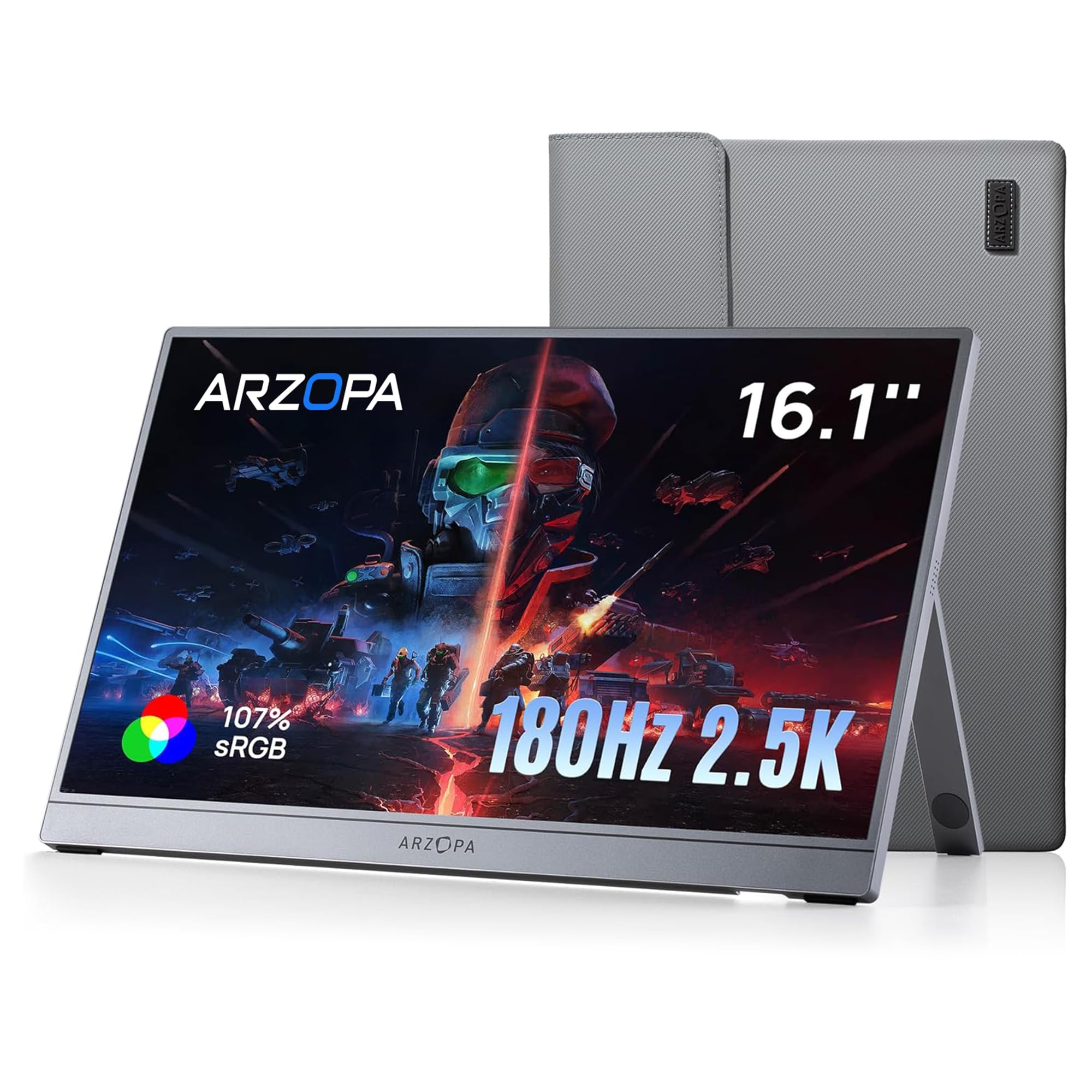
The ARZOPA 16.1-inch 2.5K QHD 180Hz Portable Monitor.
2. What's in the Box
Upon unpacking, please ensure all items listed below are present and in good condition:
- ARZOPA 16.1-inch Portable Monitor
- Carrying Case / Stand
- USB Type-C to Type-C Cable (for power and video)
- USB Type-C to Type-C Cable (for power only)
- HDMI to Mini HDMI Cable

Illustration of the box contents: portable monitor, carrying case, and various connection cables.
3. Product Features
- 2.5K QHD and 180Hz for an immersive experience: Work with greater detail and enjoy exceptional fluidity. The combination of 2560x1440 resolution and 180 Hz allows viewing documents, videos, and games with superior sharpness and much smoother motion than a conventional screen.
- More space for work, creation, or study: Transform any location into an efficient workstation. Use it as a second screen to manage multiple tasks simultaneously, review documents during video calls, or edit content with greater comfort, wherever you are.
- Vivid colors for content that truly stands out: The IPS screen with 100% sRGB coverage and HDR10 offers rich and natural colors, ideal for design, photography, streaming, or simply enjoying your favorite series and movies with a more appealing image.
- Designed to accompany you on every journey: With a lightweight metal body and an ultra-thin profile, it easily fits into a backpack alongside your laptop. Perfect for professionals on the go, students, or those who work from different locations.
- Connect and start in seconds: Thanks to USB-C and Mini HDMI ports, you can easily connect it to Windows laptops, Mac, PS5, Xbox, Nintendo Switch consoles, and other compatible devices. A practical solution for working, gaming, or entertainment at any time.

The 2.5K QHD display offers superior visual clarity and vibrant colors.

Experience ultra-smooth visuals with the 180Hz refresh rate.
4. Setup and Connectivity
The ARZOPA portable monitor offers versatile connectivity options for various devices.
4.1. Monitor Layout and Ports

Overview of the monitor's ports and control buttons.
4.2. Connection Methods
- USB-C (Full Function): If your device has a full-function USB-C port (supporting video and power delivery), you can connect the monitor with a single USB-C to USB-C cable.
- HDMI and Mini-HDMI: If your device does not have a full-function USB-C port, connect the HDMI cable for video and a separate USB-C cable for power.

Visual guide for connecting the monitor to various devices using USB-C or HDMI/Mini-HDMI.
4.3. Device Compatibility
The monitor is compatible with a wide range of devices. Refer to the table below for specific compatibility details:

Detailed compatibility information for various devices.
5. Operating Instructions
5.1. Power On/Off
Press the Power/Return button (refer to Section 4.1) to turn the monitor on or off.
5.2. On-Screen Display (OSD) Menu
Use the OSD Menu button to access the monitor's settings. Navigate through the menu using the Brightness and Volume adjustment buttons, and confirm selections with the Power/Return button.
5.3. Display Orientation
The monitor supports both horizontal and vertical display modes. You can adjust the orientation through your connected device's display settings.

The monitor can be used in both vertical and horizontal orientations.
5.4. Adjustable Stand
The integrated carrying case doubles as an adjustable stand, allowing you to set the monitor at various viewing angles up to 80 degrees for optimal comfort.

The monitor features a versatile stand and a lightweight, ultra-thin design.
6. Maintenance
- Cleaning: Use a soft, lint-free cloth to gently wipe the screen and exterior. Do not use abrasive cleaners or solvents.
- Storage: When not in use, store the monitor in its protective carrying case to prevent scratches and damage.
- Handling: Avoid dropping the monitor or subjecting it to strong impacts. Do not place heavy objects on top of it.
- Environment: Keep the monitor away from extreme temperatures, direct sunlight, and high humidity.
7. Troubleshooting
Refer to the following common issues and their solutions:

Common issues and their troubleshooting steps.
7.1. Connection and No Signal
- How to connect the monitor?
USB-C: Use a multi-function USB-C cable for video and power with a single cable.
HDMI: Connect the HDMI cable for video and a USB-C cable for power. - What to do if the monitor shows "No Signal"?
Check that your device supports video output. Ensure all cables are properly connected. Use a multi-function USB-C cable. If using HDMI, connect an additional power source. Try another cable or device.
7.2. Screen Flickering
- Why does the screen flicker?
Flickering is usually due to: Insufficient power, Incompatible or damaged cables, Incompatible display settings. - How can I fix it?
Use a 5V/3A or higher power adapter. Use a certified, full-function USB-C cable. Set the monitor to its native resolution. Select a compatible refresh rate (60 Hz / 144 Hz / 180 Hz, depending on the model). If the problem persists, you may need additional technical assistance.
7.3. Problems with Bright Spots and Restarts
- What is a bright spot?
A bright spot is a small pixel that appears brighter than the rest of the screen. - Can it be fixed?
You can try the following: Gently massage the affected area. Use a software tool for pixel repair. Do not apply excessive pressure. - What happens if the monitor restarts or changes color?
Ensure the monitor is connected to a stable power source. Press and hold the power button to restart it. Open the OSD menu and select 'Reset'. If the problem persists after resetting, try another cable, device, or power adapter.
8. Specifications
| Feature | Specification |
|---|---|
| Brand | ARZOPA |
| Model Number | Z3FC |
| Screen Size | 16.1 Inches |
| Resolution | 2560 x 1440 Pixels (QHD Wide 1440p) |
| Refresh Rate | 180 Hz |
| Response Time | 9 Milliseconds |
| Panel Type | IPS |
| Aspect Ratio | 16:9 |
| Screen Surface | Matte |
| Brightness | 400 cd/m² |
| Color Gamut | 107% sRGB |
| Image Enhancement | HDR10 |
| Connectivity Technology | HDMI, USB Type-C |
| HDMI Ports | 1 (Mini HDMI) |
| USB Ports | 2 (USB Type-C) |
| Product Dimensions | 0.93 x 36.6 x 22.8 cm |
| Weight | 780 g |
| Country of Origin | China |
9. Warranty and Support
9.1. Product Warranty
The ARZOPA Z3FC Portable Monitor comes with a 1-year product warranty from the date of purchase. This warranty covers manufacturing defects and malfunctions under normal use. Please retain your proof of purchase for warranty claims.
9.2. Customer Support
For technical assistance, warranty claims, or any other inquiries, please contact ARZOPA customer support through the retailer where you purchased the product or visit the official ARZOPA website for contact information.
When contacting support, please provide your product model (Z3FC) and a detailed description of the issue.


