
1. Product Overview
The QIXZOCV MWE 43 Inch Portable Smart Display is a versatile device designed for various entertainment and productivity needs. It features a Full HD IPS touch screen, runs on Android 13 OS, and includes an adjustable stand with wheels for portability. This manual provides instructions for assembly, operation, and maintenance.

Figure 1: QIXZOCV MWE 43 Inch Portable Smart Display
2. Package Contents
Before beginning assembly, ensure all components are present in the package:
- 43-inch Smart Display Screen
- Base with pre-drilled holes for wheels
- Two-part Supporting Rod
- Power Cord (5m wired design)
- Fixing Ring
- Connection Parts (for screen mount)
- Screws and Gaskets
- Screwdriver
- Allen Wrench
- Wi-Fi Antenna
- Wheels (4 units)
- User Manual

Figure 2: All accessories included in the package
3. Setup and Assembly
Follow these steps to assemble your QIXZOCV MWE 43 Inch Portable Smart Display:
- Attach Wheels to the Base: Securely attach the four wheels to the circular base using the provided screws and screwdriver. Ensure the wheels are locked before proceeding.
- Assemble the Supporting Rod: Connect the two parts of the supporting rod. Use the smaller screwdriver to tighten the connection.
- Install Fixing Ring: Place the black fixing ring onto the supporting rod at the desired height. Use the Allen wrench to tighten the screw on the ring, securing it in place. This ring will support the screen mount.
- Attach Connection Parts to Screen: Use the provided screws and gaskets to attach the screen connection parts (bracket) to the back of the 43-inch display.
- Mount Screen to Supporting Rod: Carefully lift the screen and slide the connection parts onto the supporting rod, resting it on the fixed ring. Secure the screen mount to the rod using the Allen wrench.
- Connect Wi-Fi Antenna: Screw the Wi-Fi antenna into its designated port on the back of the display.
- Connect Power: Plug the power cord into the display's power input and then into a power outlet. Turn on the power switch located near the power input.
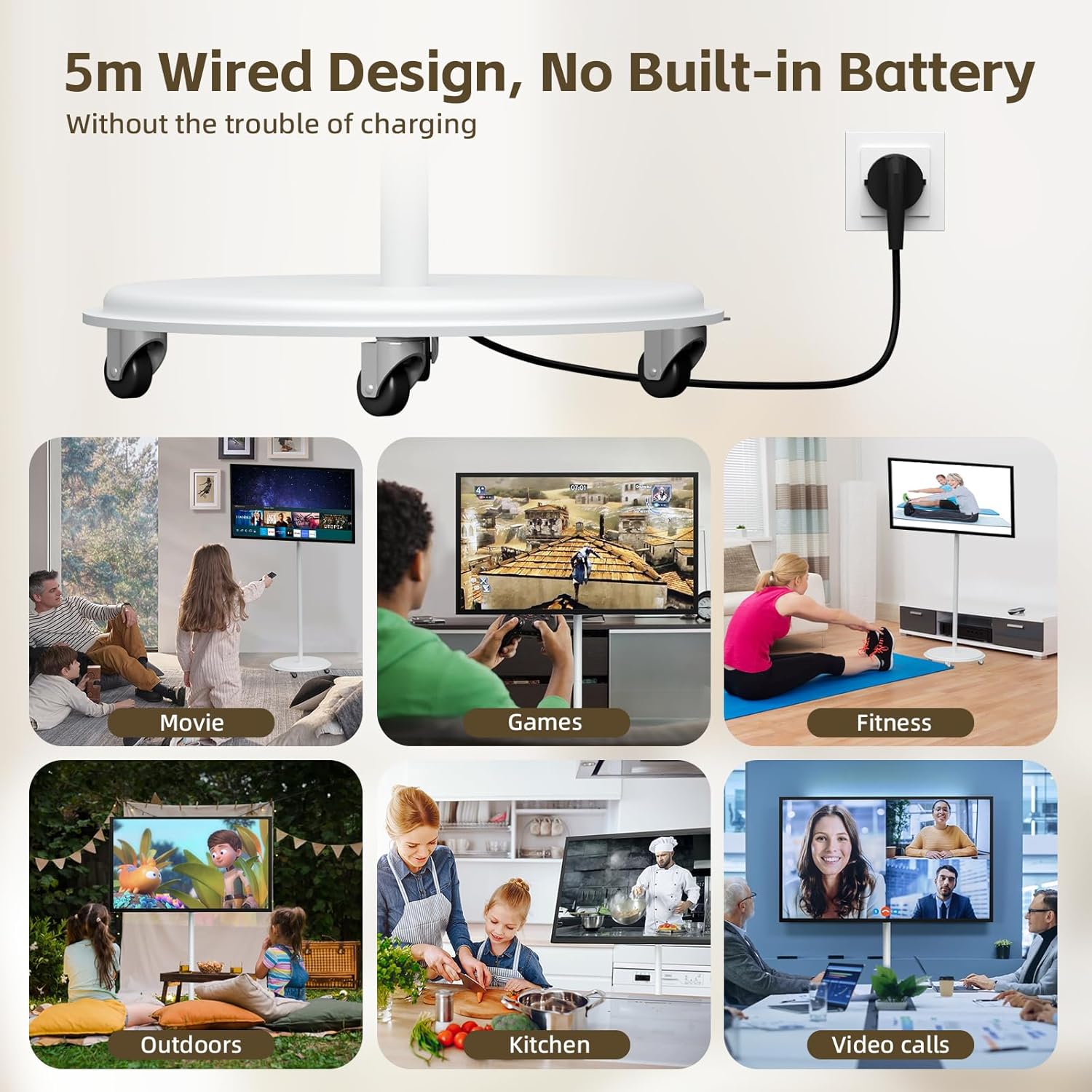
Figure 3: Assembled display with stand and wheels
Video 1: Installation and Use of QIXZOCV MWE 43 Inch Portable Smart Display
4. Operating Instructions
4.1 Initial Power-On and Android OS
Upon first power-on, the display will boot into the Android 13 operating system. The system features 8GB RAM and 128GB storage, allowing for smooth multitasking and app installation from the Google Play Store.

Figure 4: Android 13 OS Home Screen
4.2 Touch Screen Functionality
The 43-inch FHD IPS display is a touch screen, enabling direct interaction with applications and content. This allows for intuitive navigation and use of features like the digital whiteboard.

Figure 5: Interacting with the Touch Screen
4.3 Screen Rotation and Angle Adjustment
The display can be rotated 360 degrees between vertical and horizontal orientations. It also supports a 25-degree tilt up/down and a 10-inch height adjustment, providing flexible viewing angles for various uses.

Figure 6: Screen Rotation and Tilt Capabilities
4.4 Wireless Screen Sharing
The display supports wireless screen sharing from mobile phones, tablets, or laptops. Use the pre-installed EShare application to mirror content. This feature allows for seamless streaming of videos, presentations, or browsing on the large screen.

Figure 7: Wireless Screen Sharing in action
4.5 Digital Whiteboard (MagicBoard)
Utilize the MagicBoard function for interactive drawing and writing directly on the screen. This feature is suitable for presentations, brainstorming, or creative activities.

Figure 8: Digital Whiteboard Function
4.6 Digital Calendar and Digital Frame
The display includes a digital calendar for scheduling and organization. It can also function as a digital photo frame, displaying images to personalize your space.

Figure 9: Digital Calendar and Digital Frame
4.7 USB Media Playback
Content can be played directly from a USB flash drive by plugging it into the back of the screen. This allows for easy display of media files without needing external devices.
5. Maintenance
To ensure the longevity and optimal performance of your QIXZOCV MWE 43 Inch Portable Smart Display, follow these maintenance guidelines:
- Cleaning: Use a soft, lint-free cloth to gently wipe the screen and exterior surfaces. For stubborn marks, slightly dampen the cloth with water or a screen-safe cleaning solution. Avoid harsh chemicals or abrasive materials.
- Storage: When not in use for extended periods, store the display in a cool, dry place away from direct sunlight and extreme temperatures.
- Cable Management: Ensure all cables are neatly organized and not pinched or strained to prevent damage.
- Software Updates: Regularly check for and install system updates to maintain optimal performance and security.
6. Troubleshooting
If you encounter any issues with your QIXZOCV MWE 43 Inch Portable Smart Display, refer to the following common troubleshooting tips:
- No Power: Ensure the power cord is securely connected to both the display and a working power outlet. Check if the power switch on the display is in the 'On' position.
- No Display/Black Screen: Verify the power is on. If using an external input (HDMI, USB-C), ensure the correct input source is selected. Restart the device.
- Touch Screen Unresponsive: Restart the device. Ensure the screen is clean and free from obstructions.
- Wi-Fi/Bluetooth Connectivity Issues: Ensure the Wi-Fi antenna is properly installed. Restart the display and your router/Bluetooth device. Check network settings.
- Screen Sharing Problems: Ensure both devices are connected to the same Wi-Fi network. Verify the EShare app is running on both devices and the correct device is selected for sharing.
For persistent issues, please contact customer support.
7. Specifications
| Feature | Specification |
|---|---|
| Screen Size | 43 Inches |
| Brand | QIXZOCV |
| Display Technology | LCD |
| Resolution | 1080p |
| Refresh Rate | 60 Hz |
| Special Feature | Wired Design, Movable, Large Screen |
| Connectivity Technology | HDMI, USB, Wi-Fi |
| Aspect Ratio | 16:9 |
| Product Dimensions (D x W x H) | 15"D x 35"W x 55"H |
| Supported Internet Services | YouTube, Netflix, Amazon Prime, other Android TV apps |
| Screen Finish | Glossy |
| Response Time | 8 Milliseconds |
| Display Backlight Technology | LED |
| Operating System | Android |
| Control Method | Touch |
| Mounting Type | Table Mount (with included stand) |
| Color | White |
| Model Year | 2022 |
| Model Number | MWE-CS43BHT407 |
| Audio Input | HDMI |
| Signal Format | HDMI, USB, Type-C |
| Hardware Interface | HDMI, USB Type C |
| Wireless Technology | Bluetooth, Wi-Fi |
| Total USB 3.0 Ports | 1 |
| Total USB Ports | 1 |
8. Warranty and Support
The QIXZOCV MWE 43 Inch Portable Smart Display comes with a 1-year manufacturer's limited warranty.
For any setup assistance, troubleshooting, or other inquiries, QIXZOCV offers 24/7 customer support. You can reach the technical support team for quick resolutions.
Additionally, if you require an external camera (as this model does not include a built-in one), please contact QIXZOCV customer support to obtain one at no additional fees.
For further assistance, you may visit the QIXZOCV Direct seller page.