
XTRONS B0FJ1P5N7R
XTRONS Android 14 Car Stereo User Manual
Model: B0FJ1P5N7R for Mercedes Benz SLK Class R171 (2004-2011)
Brand: XTRONS
1. Introduction
This manual provides detailed instructions for the installation, operation, and maintenance of your XTRONS Android 14 Car Stereo. Please read this manual thoroughly before using the product to ensure proper functionality and safety. This unit is specifically designed for Mercedes-Benz SLK-Class R171 models from 2004 to 2011.
2. Safety Information
Always prioritize safety. Do not operate the unit in a way that distracts you from driving. Ensure all connections are secure and properly insulated to prevent short circuits or damage. Consult a professional for installation if you are unsure about any steps.
3. Vehicle Compatibility & Pre-Installation Checks
This unit is compatible with Mercedes-Benz SLK-Class R171 (SLK200 / SLK280 / SLK300 / SLK350 / SLK55) models manufactured between 2004 and 2011. It is a plug-and-play kit designed to integrate with your vehicle's existing systems.

Figure 3.1: Comparison of the dashboard before and after installing the XTRONS car stereo, showing a seamless integration.
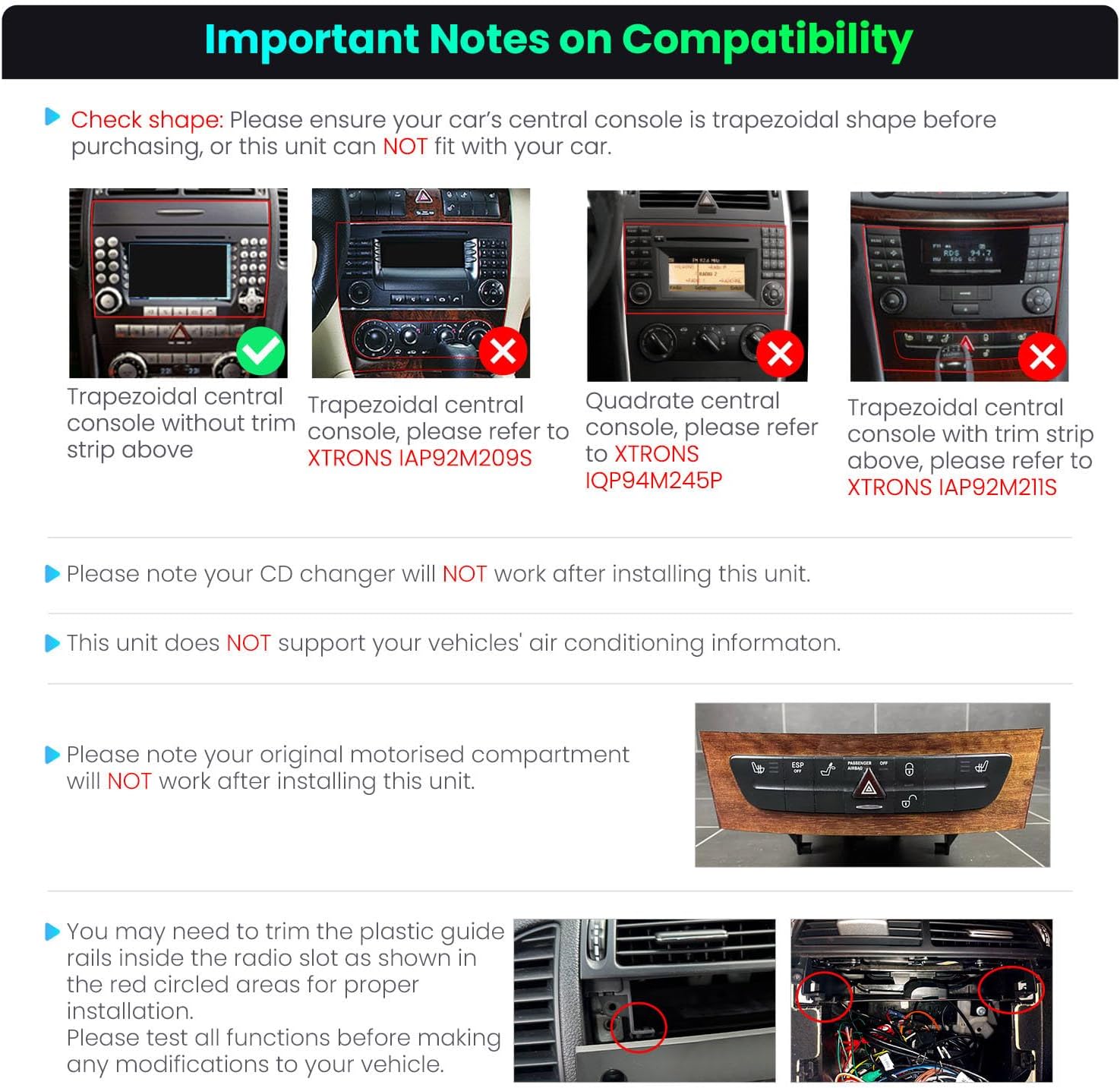
Figure 3.2: Important compatibility notes. Ensure your car's central console is trapezoidal. Note that the original CD changer and air conditioning information display will not work after installation. Trimming of plastic guide rails may be required.
Cables You May Need
To retain your vehicle's original COMAND system, an extra optical decoder box may be required depending on your vehicle's year and system version. Verify your vehicle's power port and radio antenna port to determine if additional adapters are needed.

Figure 3.3: Optical decoder boxes required for specific COMAND systems.
4. Package Contents
Please verify that all items listed below are included in your package:

Figure 4.1: Complete list of accessories included with your XTRONS car stereo.
- 1 × Main Unit
- 1 × Radio Antenna Adapter
- 1 × Radio Antenna Cable
- 1 × Camera Cable
- 2 × USB Cable
- 1 × CANbus Cable
- 1 × SIM Card Slot Cable
- 2 × ISO Wiring Harness
- 1 × 4G Antenna
- 1 × GPS Antenna
- 1 × CANbus Box
- 1 × CANbus Extension Cable
- 1 × User Manual
5. Installation Guide
The XTRONS car stereo is designed for a plug-and-play installation. However, due to the complexity of vehicle electronics, professional installation is recommended if you are not familiar with car audio systems. Ensure the vehicle's power is disconnected before beginning installation.
Physical Installation
- Carefully remove the original head unit from your Mercedes-Benz SLK-Class R171.
- Connect the provided ISO wiring harnesses and CANbus cables to the vehicle's wiring and the new head unit.
- Connect the GPS antenna, 4G antenna, and any other necessary cables (USB, camera, etc.).
- If required, trim the plastic guide rails around the radio slot for a proper fit.
- Secure the new XTRONS head unit into the dashboard opening.
- Reconnect the vehicle's power and test all functions before fully reassembling the dashboard.
CANbus Decoding
The optimized CANbus decoding ensures that original vehicle features such as steering wheel controls, ACC control, reversing control, and door status work perfectly after upgrading.
6. Operating Instructions
6.1 Basic Operation & User Interface (UI)
The unit features a 9-inch 1280x720 HD IPS touch screen for clear visuals and responsive control. It runs on the latest Android 14 OS with an Octa Core CPU, 4GB RAM, and 64GB ROM for a fast and smooth experience.

Figure 6.1: XTRONS Android 14 Car Stereo overview.

Figure 6.2: Advanced IPS Technology for superior viewing angles and color accuracy.
You can explore XTRONS built-in UI themes and download additional themes from the built-in APP platform to personalize your experience.
6.2 Audio Features
The unit includes a built-in DSP (Digital Signal Processor) to enhance your audio experience. It features a 15-band graphic equalizer, 8 preset EQ modes, and smart field sound positioning.

Figure 6.3: Customizable Audio & Powerful Amplifier settings.
6.3 Connectivity
The unit supports dual-band Wi-Fi (2.4GHz and 5GHz) for fast data transmission and strong connections. It also has a built-in 4G module (SIM card needed for 4G networks) and Bluetooth 5.0 for quick and easy connections.
Bluetooth Connection Guide
To connect your phone via Bluetooth:
- On the car stereo, navigate to the Bluetooth settings.
- On your mobile phone, enable Bluetooth and search for available devices.
- Select 'CarBT' (or similar device name) from the list on your phone.
- Enter the PIN '0000' when prompted.
- Once connected, 'phone audio' and 'music audio' will be displayed, indicating a successful connection. If not, restart the Bluetooth on both devices.
Wi-Fi Connection Guide
To connect to Wi-Fi:
- On the car stereo, go to Settings > Network & Internet > Wi-Fi.
- Turn on Wi-Fi and select your desired network from the list.
- Enter the Wi-Fi password if prompted.
- Alternatively, you can use your phone's hotspot. On your phone, enable Personal Hotspot. On the car stereo, search for your phone's hotspot name and connect.
6.4 Smartphone Integration (CarPlay & Android Auto)
The unit supports both wired and wireless CarPlay and Android Auto. This enhances safety by allowing voice commands (e.g., "Hey Siri" or "OK Google") and access to phone functions directly from the head unit.
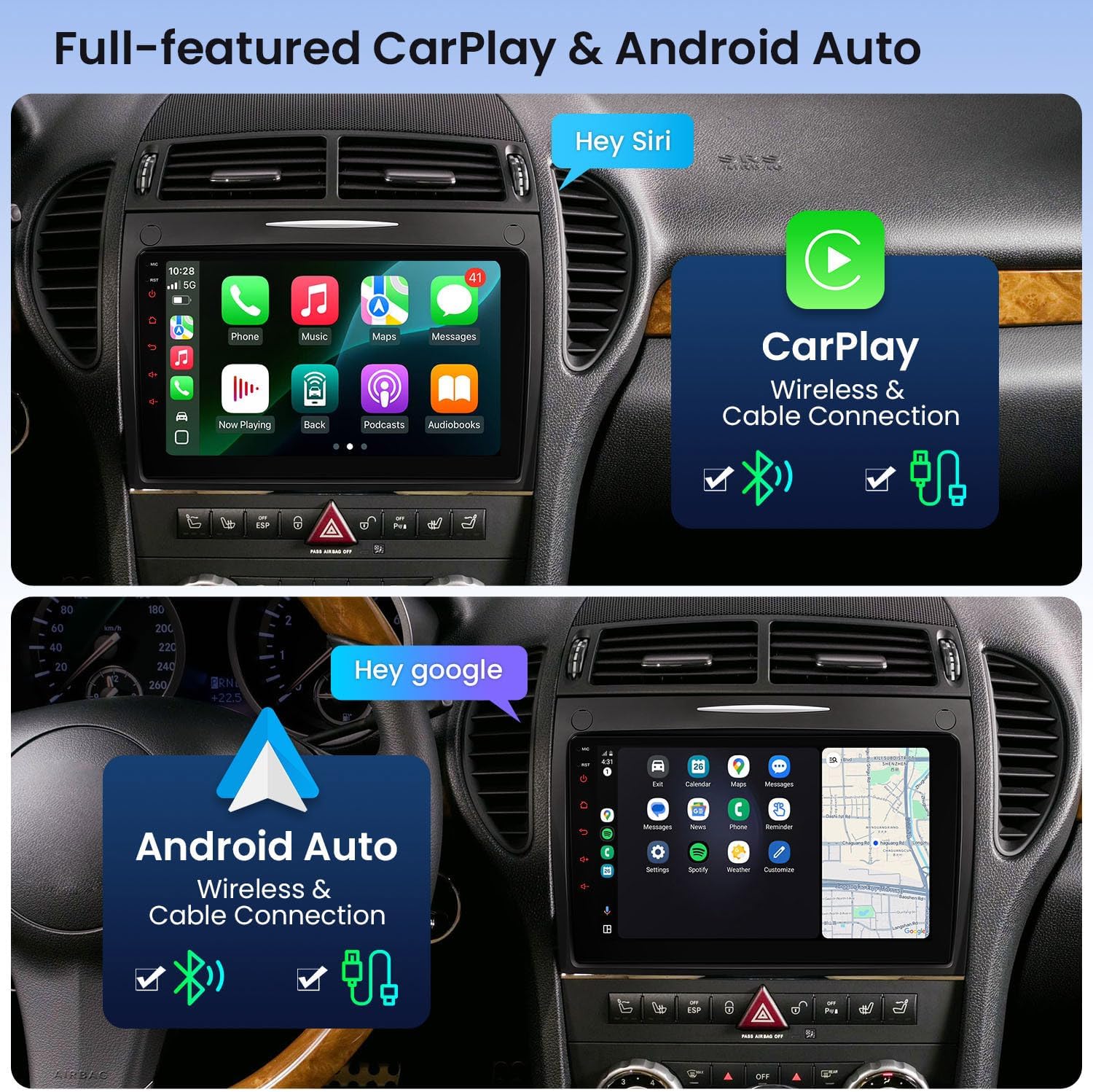
Figure 6.4: Full-featured CarPlay & Android Auto interfaces.
6.5 Navigation & GPS
The unit features built-in GPS for reliable navigation. You can use pre-installed maps or download your preferred navigation apps from the Play Store.
6.6 Multimedia Playback & Screen Mirroring
Enjoy ultra-smooth 4K video playback. The unit also supports Picture-in-Picture (PiP) mode, allowing you to keep a video playing while browsing other apps or navigating. Built-in screen mirroring allows you to display content from your smartphone directly on the car stereo screen.
6.7 Camera Input
The unit supports AHD camera input for clear rear-view or front-view camera display, aiding in parking and maneuvering.
6.8 Radio
A built-in FM/AM radio with RDS (Radio Data System) allows you to listen to your favorite stations and view broadcast information.
6.9 Steering Wheel Control
The optimized CANbus decoding ensures that your original steering wheel controls function seamlessly with the new head unit, allowing you to manage audio and calls without taking your hands off the wheel.
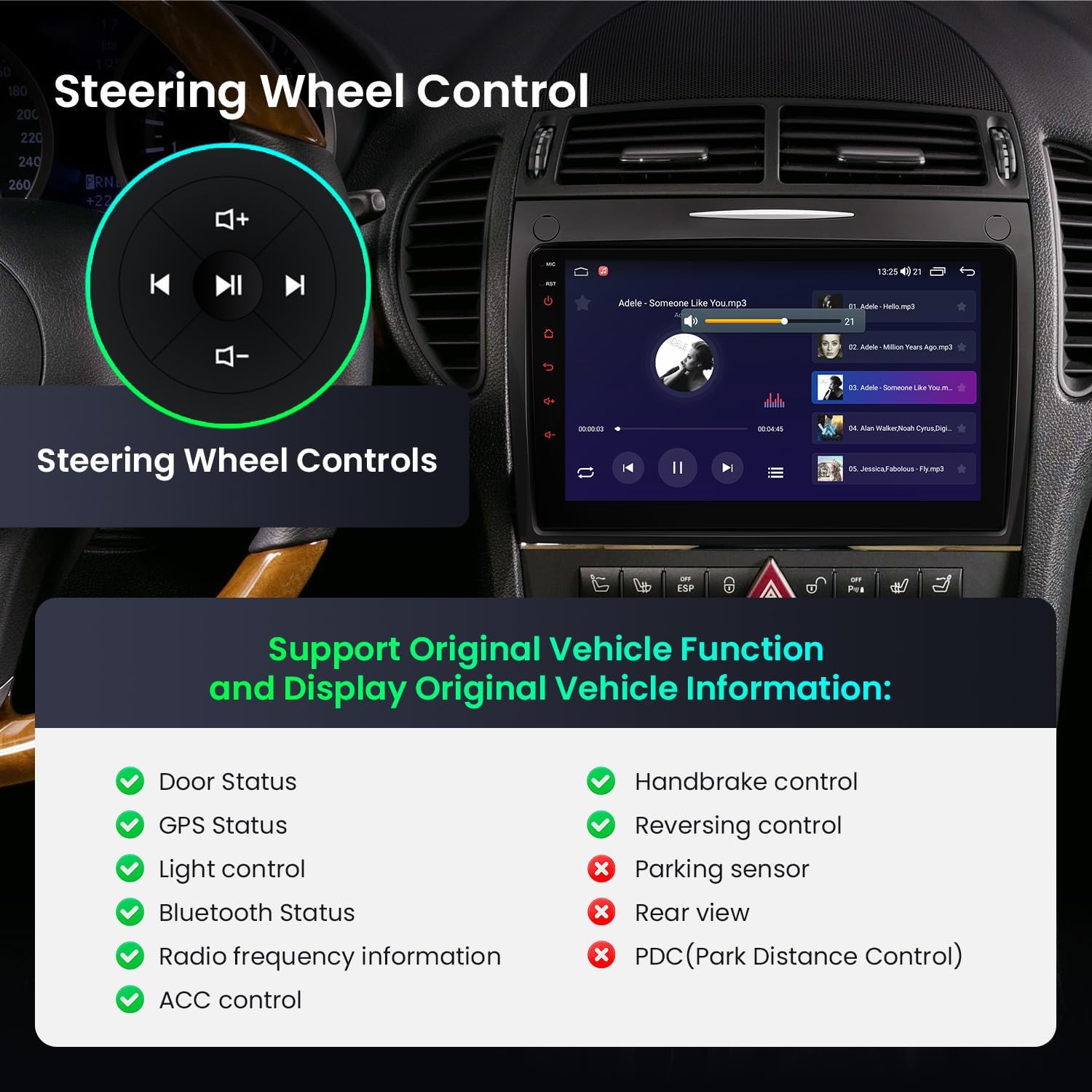
Figure 6.5: Steering Wheel Control and supported vehicle functions.
6.10 Official Product Videos
Video 6.10.1: XTRONS Car Stereo for Mercedes Benz R171 SLK350. This video demonstrates various features including UI, music shortcuts, car model selections, quick display, adding favorite apps, day/night mode, volume control, built-in CarPlay (wireless), built-in Android Auto (wireless & wired), professional-grade DSP chipset, ultra-smooth 4K video playback, split view support, built-in Wi-Fi, built-in 4G module, quick access to Bluetooth calling, AHD camera input, built-in FM/AM radio with RDS, built-in GPS, and screen mirroring.
Video 6.10.2: Android Carplay Radio Functions Display. This video provides a general overview of Android car radio functions, including Bluetooth connection, ZLINK (CarPlay/Android Auto) connection, and manual Wi-Fi connection steps.
Video 6.10.3: How to refresh themes on XTRONS ID series. This video demonstrates how to connect your device to Wi-Fi, open the App Store, navigate to themes, and choose and install your favorite theme to customize the user interface.
7. Troubleshooting
- Unit Freezes or Becomes Unresponsive: Occasionally, the unit may freeze. To resolve this, perform a power cycle by turning off the vehicle's ignition, waiting a few moments, and then restarting. If the issue persists, consult the manufacturer's support.
- Bluetooth Connection Issues: Ensure Bluetooth is enabled on both the car stereo and your mobile device. Verify the correct device name is selected and the PIN (usually 0000) is entered correctly. If connection fails, try restarting Bluetooth on both devices.
- Wi-Fi Connection Issues: Check that your Wi-Fi hotspot is active and broadcasting. Ensure the correct network name and password are entered on the car stereo. Try forgetting the network and reconnecting.
- No Audio: Check volume levels on both the unit and your connected device. Ensure all audio cables are securely connected. Verify the correct audio source is selected.
- Steering Wheel Controls Not Working: Confirm that the CANbus box and associated wiring are correctly installed and configured. The unit's CANbus decoding should automatically enable these functions.
- Display Issues: If the screen is blank or distorted, check power connections. Ensure the unit is properly seated in the dashboard.
8. Specifications
| Feature | Detail |
|---|---|
| Operating System | Android 14 |
| CPU | Octa Core |
| RAM | 4GB |
| ROM | 64GB |
| Screen Size | 9 Inch |
| Display Type | IPS Touch Screen |
| Resolution | 1280x720 HD |
| Bluetooth | Bluetooth 5.0 |
| Connectivity | Bluetooth, USB, Wi-Fi, 4G (SIM card required) |
| Special Features | Built-in DSP, Wireless CarPlay, Android Auto, Picture-in-Picture, Split View, AHD Camera Input, FM/AM Radio with RDS |
9. Warranty & Support
This XTRONS car stereo comes with a 1-Year Manufacturer Warranty. For technical support, troubleshooting assistance, or warranty claims, please contact XTRONS customer service directly. Refer to the contact information provided in your product packaging or on the official XTRONS website.
Related documentsB0FJ1P5N7R


Ask a question about this manual
Ask about setup, troubleshooting, compatibility, parts, safety, or missing instructions. Manuals+ will review the question and use this page’s manual context to help answer it.