
Introduction
Welcome to the user manual for your new BESTTAB W90 Android 15 Tablet. This guide provides essential information to help you set up, operate, and maintain your device. Please read this manual thoroughly to ensure optimal performance and longevity of your tablet.
What's in the Box
Upon opening your BESTTAB W90 Tablet package, please verify that all the following items are included:
- BESTTAB W90 Tablet
- 18W Power Adapter
- USB-C Cable
- User Manual (this document)
- After-sales Card

Image: Contents of the BESTTAB W90 Tablet box, showing the tablet, 18W power adapter, USB-C cable, user manual, and after-sales card.
Product Overview and Features
The BESTTAB W90 is an advanced Android 15 tablet designed for a versatile user experience, from entertainment to productivity. Key features include:
- Operating System: Android 15 with enhanced privacy and app control.
- Processor: MediaTek Unisoc T615 Octa-Core with integrated Gemini AI for intelligent resource allocation.
- Display: 11-inch FHD (1920x1200) display with 120Hz sampling rate, 380 nits brightness, Widevine L1 certification for HD streaming, and TÜV Rheinland Low Blue Light Certification.
- Memory & Storage: 24GB RAM (8GB physical + 16GB expansion) and 256GB internal storage, expandable up to 2TB via MicroSD/TF card.
- Battery: 8000mAh battery with 18W fast charging and AI battery management.
- Cameras: 16MP rear camera and 8MP front camera with AI optimization and Face Unlock.
- Audio: HD Dual Speakers for clear sound, 3.5mm headphone jack, and Bluetooth 5.0.
- Connectivity: Dual-band Wi-Fi (2.4G+5G ac), Bluetooth 5.0, and Four-Mode Satellite Positioning (GPS, Beidou, GLONASS, Galileo).
- Design: Ultra-slim 7.9mm profile.
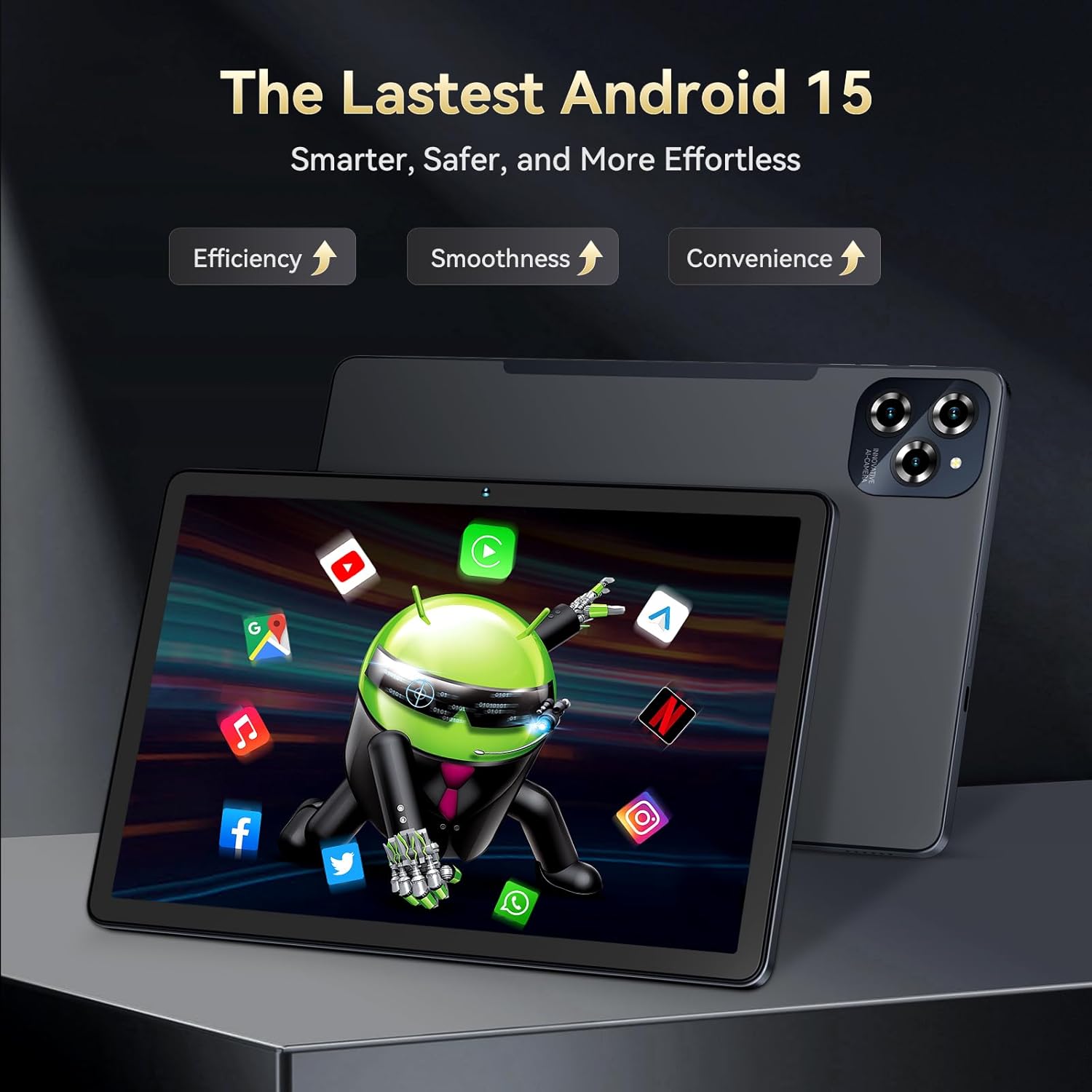
Image: The BESTTAB W90 Tablet showcasing the Android 15 interface.

Image: The tablet highlighting its Gemini AI 2.0 capabilities.

Image: The 11-inch FHD display with Widevine L1 support.

Image: The Unisoc T615 Octa-Core Processor.
Setup
- Initial Charging: Before first use, connect the tablet to the 18W power adapter and USB-C cable. Charge the tablet fully until the battery indicator shows 100%.
- Power On/Off: Press and hold the Power Button (located on the side) for a few seconds to turn the tablet on. To turn off, press and hold the Power Button, then select 'Power off' from the options.
- Initial Setup Wizard: Follow the on-screen instructions to select your language, connect to a Wi-Fi network, sign in with your Google account, and set up basic preferences.
- Inserting SIM/SD Card: Locate the card slot on the side of the tablet. Use the provided ejector tool to open the tray. Carefully place your Nano-SIM card (if applicable) and/or MicroSD/TF card into the designated slots, ensuring correct orientation. Close the tray securely.
Operating Instructions
Basic Navigation
- Touch Gestures: Tap to select, swipe to scroll, pinch to zoom.
- Home Screen: Swipe left or right to access different home screen panels.
- Notifications & Quick Settings: Swipe down from the top of the screen to view notifications and access quick settings toggles.
Connecting to Wi-Fi
- Go to Settings > Network & internet > Wi-Fi.
- Toggle Wi-Fi on.
- Select your desired network from the list and enter the password if prompted.
Using Cameras
Open the Camera app from the home screen or app drawer. You can switch between the 16MP rear camera and 8MP front camera. Tap the shutter button to take photos or record videos.
Face Unlock Setup
- Go to Settings > Security & privacy > Device unlock > Face Unlock.
- Follow the on-screen instructions to register your face. Ensure good lighting conditions.
Split-Screen Mode
To use two apps simultaneously, open an app, then swipe up from the bottom of the screen and hold to access recent apps. Tap the app icon at the top of the app card and select 'Split screen'. Choose a second app to open in the other half of the screen.
Gemini AI Features
The integrated Gemini AI assists with various tasks, including photo editing, real-time translation, and intelligent resource management. Access Gemini AI features through compatible apps or by using voice commands (e.g., "Hey Google").
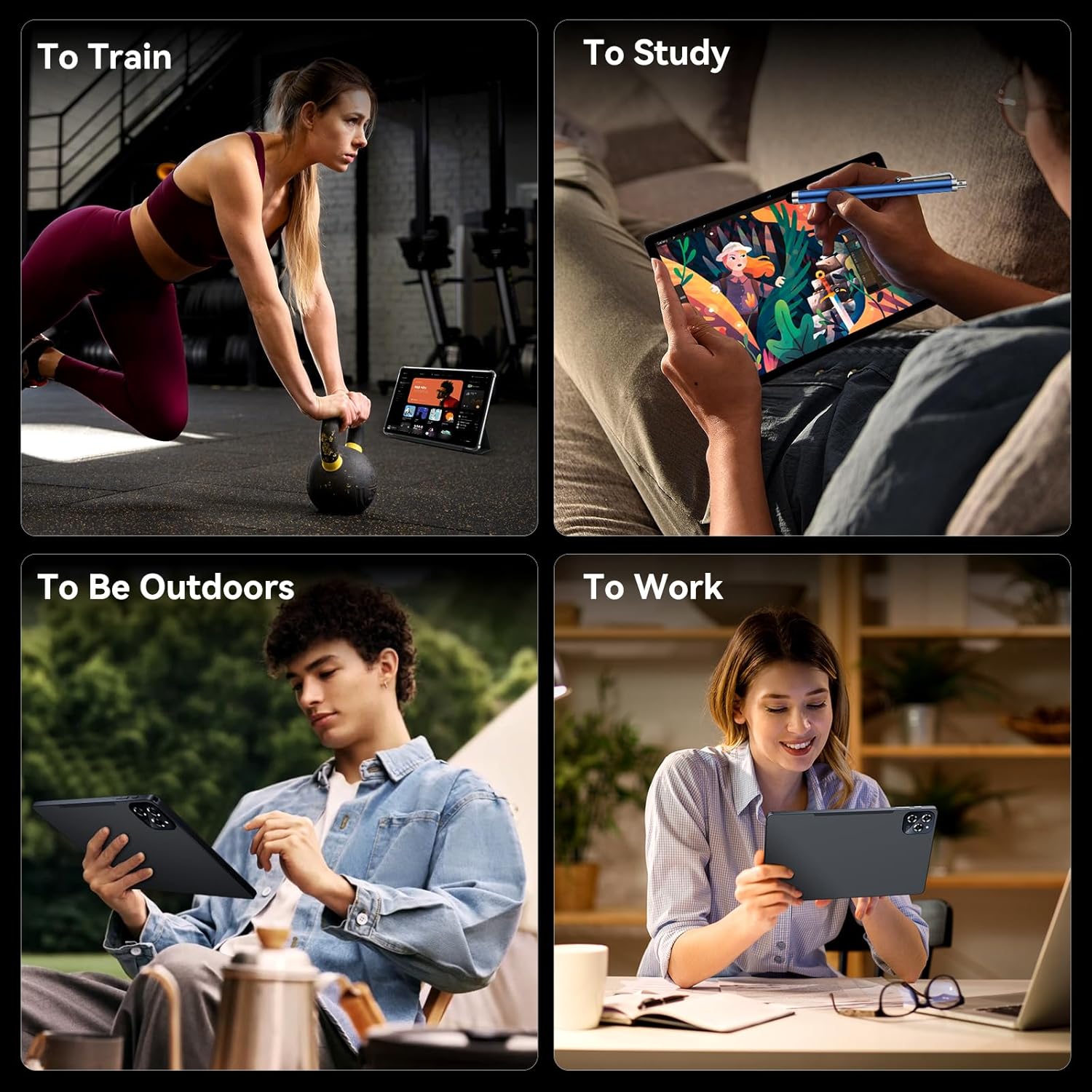
Image: The BESTTAB W90 Tablet in various use cases, including work, study, and leisure.
Maintenance
- Cleaning: Use a soft, lint-free cloth to clean the screen and body of the tablet. Avoid using harsh chemicals or abrasive materials.
- Battery Care: To prolong battery life, avoid exposing the tablet to extreme temperatures. It is recommended to keep the battery charge between 20% and 80% for daily use.
- Software Updates: Regularly check for and install software updates to ensure your tablet has the latest features, security patches, and performance improvements. Go to Settings > System > System update.
- Storage Management: Utilize the built-in Memory Manager to clear junk files and optimize storage. Consider expanding storage with a MicroSD card if needed.
Troubleshooting
| Issue | Possible Solution |
|---|---|
| Tablet won't turn on | Ensure the battery is charged. Connect to the charger for at least 30 minutes. If it still doesn't turn on, try holding the power button for 10-15 seconds. |
| Wi-Fi connection issues | Restart the tablet and your Wi-Fi router. Forget the network in Wi-Fi settings and reconnect. Ensure you are within range of the Wi-Fi signal. |
| Slow performance | Close unused apps. Clear cache and junk files using the Memory Manager. Restart the tablet. Check for system updates. |
| Apps crashing or freezing | Force close the app (Settings > Apps > [App Name] > Force stop). Clear the app's cache (Settings > Apps > [App Name] > Storage & cache > Clear cache). Reinstall the app if the issue persists. |
| Face Unlock not working | Ensure you are in a well-lit environment. Clean the front camera lens. Re-register your face in settings. |
Specifications
| Feature | Detail |
|---|---|
| Brand | BESTTAB |
| Model Name | W90 |
| Operating System | Android 15 |
| Screen Size | 11 Inches |
| Screen Resolution | 1920 x 1200 pixels |
| Processor | Unisoc T615 Octa-Core (2.2 GHz) |
| RAM | 24 GB (8GB physical + 16GB expansion) |
| Flash Memory Size | 256 GB |
| Expandable Storage | Up to 2TB via MicroSD/TF card |
| Rear Webcam Resolution | 16 MP |
| Front Webcam Resolution | 8 MP |
| Battery Capacity | 8000mAh |
| Wireless Type | 802.11ax (Dual-band Wi-Fi), Bluetooth 5.0 |
| GPS | GPS, Beidou, GLONASS, Galileo |
| Item Weight | 2.05 pounds |
| Product Dimensions | 30 x 25 x 6 inches |
| Color | Gray |
Warranty and Support
BESTTAB is committed to providing high-quality products and excellent customer service. Your BESTTAB W90 Tablet comes with comprehensive support:
- Warranty: Enjoy a 24-month free repair warranty from the date of purchase.
- Technical Support: Lifetime technical support is available through the BESTTAB Official Flagship Store.
- Contact: For any inquiries or support needs, please refer to the contact information provided on your After-sales Card or visit the official BESTTAB website.

Image: BESTTAB Two Year Warranty Support details.


