
Relndoo TAB9
Relndoo TAB9 12-inch Android 15 Tablet User Manual
Model: TAB9
1. Introduction
This manual provides essential instructions for setting up, operating, maintaining, and troubleshooting your Relndoo TAB9 12-inch Android 15 Tablet. Please read this guide thoroughly to ensure proper use and to maximize your device's performance and longevity.
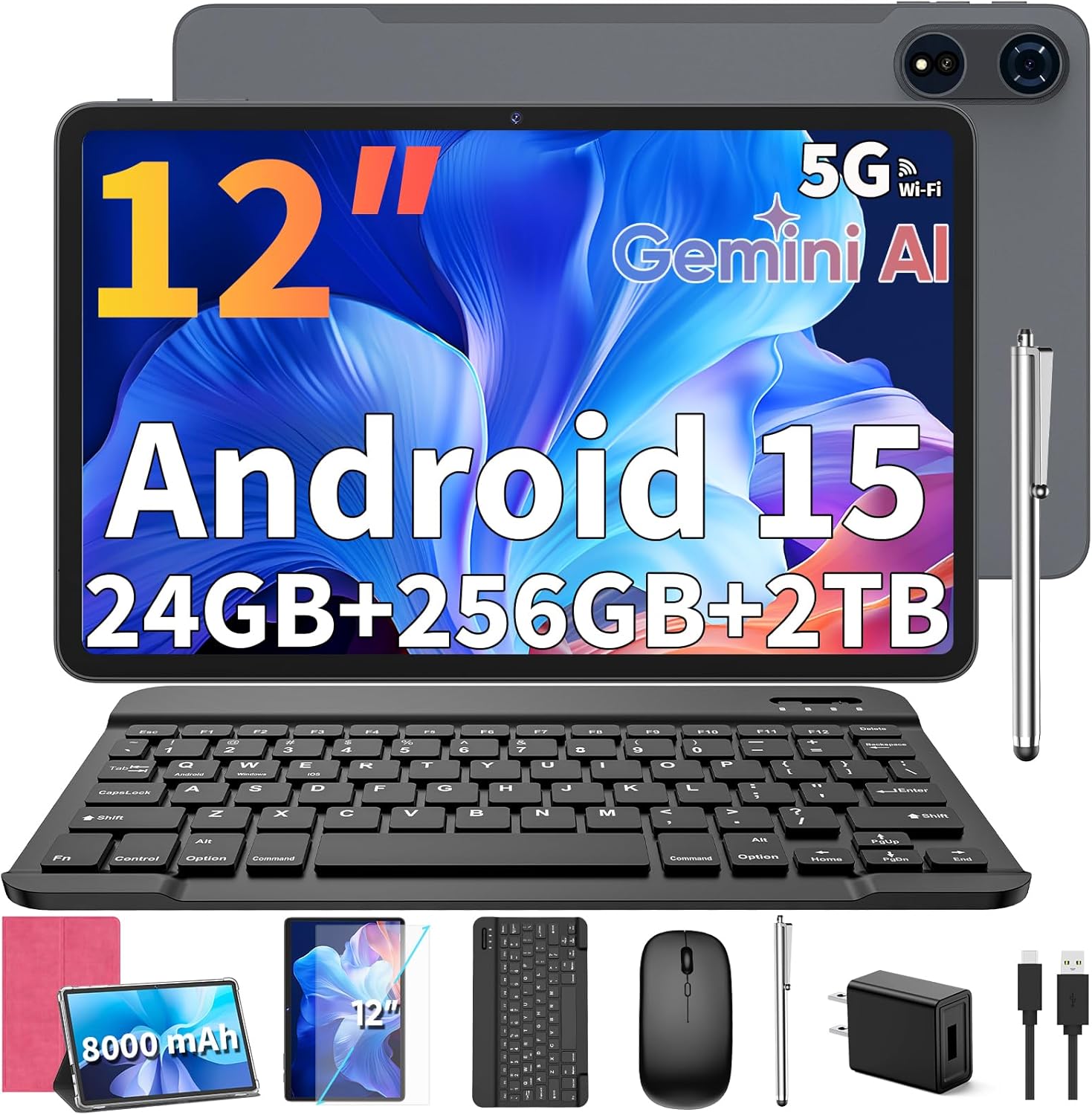
Image 1.1: Relndoo TAB9 Tablet and Accessories. This image displays the tablet, keyboard, mouse, stylus, protective case, charger, and USB-C cable.
2. What's in the Box
Verify that all items are present in the package:
- 1 x Relndoo TAB9 12-inch Android Tablet
- 1 x Bluetooth Keyboard
- 1 x Wireless Mouse
- 1 x Stylus Pen
- 1 x Foldable Protective Case
- 1 x Screen Protector
- 1 x Charging Head (Power Adapter)
- 1 x USB-C Charger Cable
- 1 x User Manual (this document)
3. Product Overview
Familiarize yourself with the physical components of your Relndoo TAB9 tablet.
3.1. Tablet Components
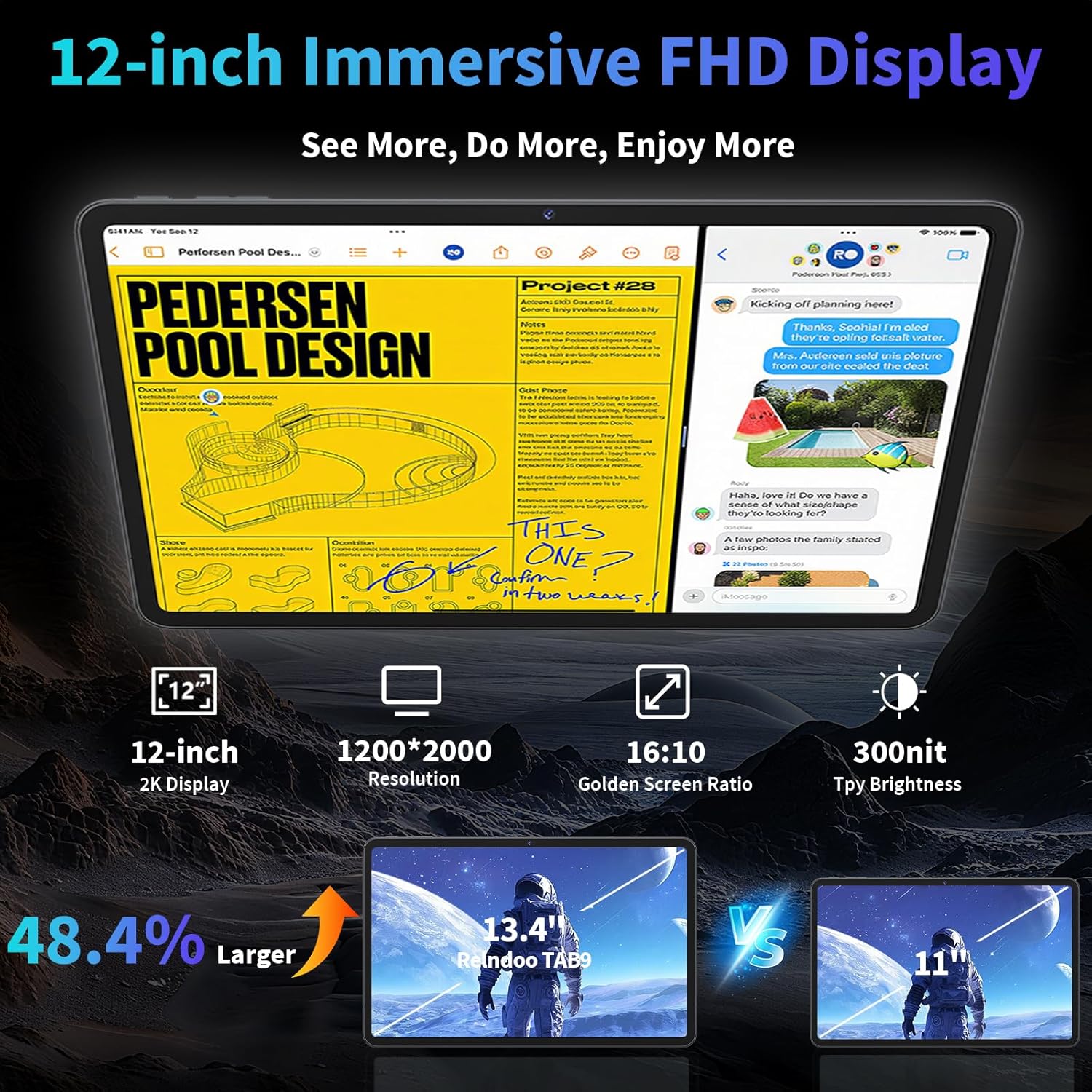
Image 3.1: Front and Rear View of the Relndoo TAB9 Tablet. This image displays the 12-inch display, dual cameras, and overall design.
- 12-inch 2K IPS Display: High-resolution screen for clear visuals.
- Front Camera (8MP): Located on the top bezel for video calls and selfies.
- Rear Cameras (16MP + 8MP): Dual cameras on the back for photography and video recording.
- Power Button: Located on the side, used to power on/off or wake/sleep the device.
- Volume Buttons: Located near the power button, used to adjust audio volume.
- USB-C Port: For charging and data transfer.
- 3.5mm Headphone Jack: For connecting wired headphones or external audio devices.
- Dual Speakers: Provide stereo audio output.
- MicroSD Card Slot: For expanding storage up to 2TB.
4. Initial Setup
4.1. Charging the Tablet
Before first use, fully charge your tablet. Connect the USB-C cable to the tablet's USB-C port and the charging head, then plug the charging head into a power outlet.
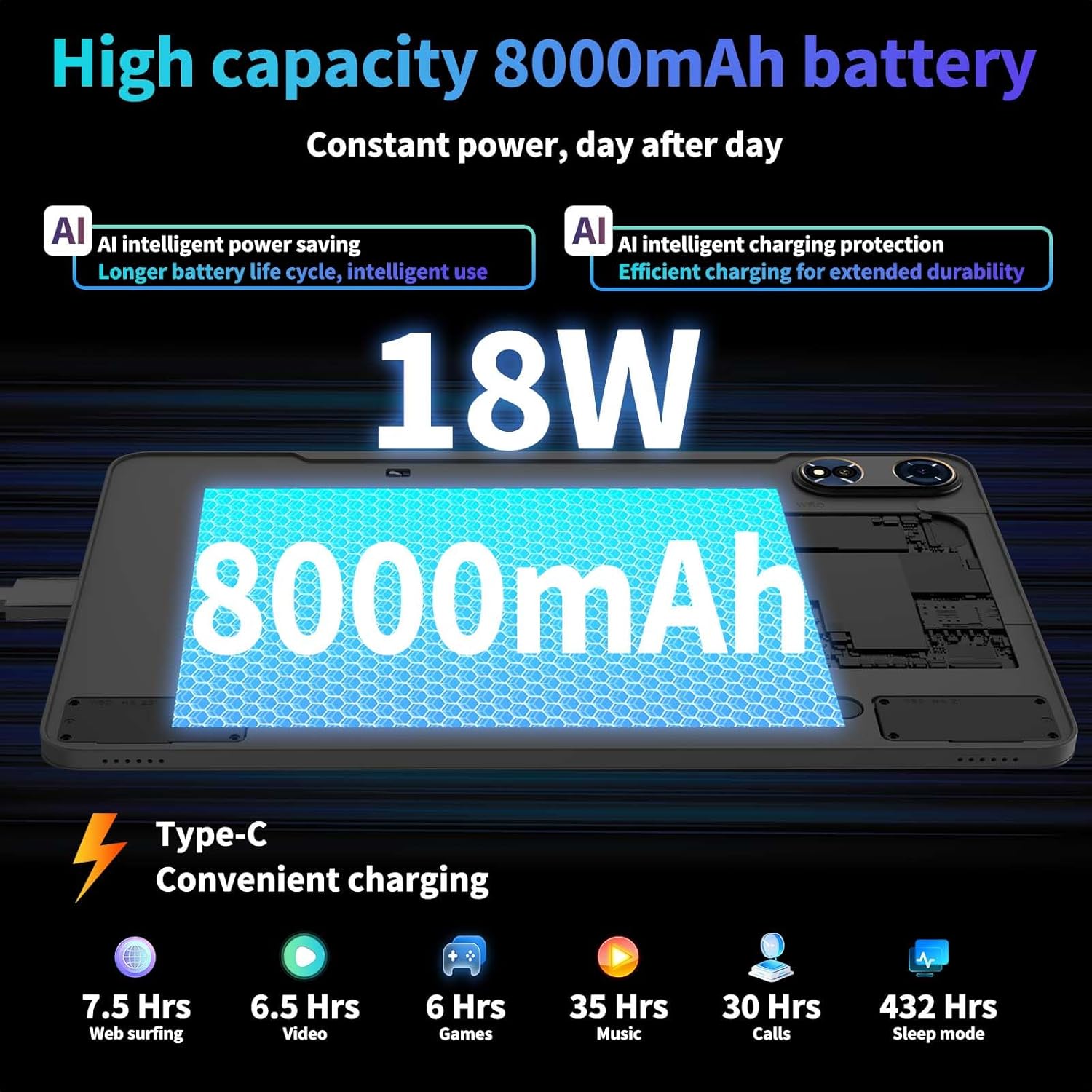
Image 4.1: Tablet Charging. This image illustrates the tablet connected to a charger, highlighting its 8000mAh battery capacity.
4.2. Powering On/Off
- To Power On: Press and hold the Power button until the Relndoo logo appears.
- To Power Off: Press and hold the Power button, then select "Power off" from the options on the screen.
- To Sleep/Wake: Briefly press the Power button.
4.3. Initial Configuration
Upon first power-on, follow the on-screen prompts to set up your tablet:
- Select your preferred language.
- Connect to a Wi-Fi network.
- Sign in with your Google account or create a new one.
- Review and accept the terms and conditions.
- Set up screen lock (PIN, pattern, password, or face unlock).
4.4. Inserting a MicroSD Card
To expand storage, locate the microSD card slot on the side of the tablet. Gently insert a FAT32 formatted microSD card (up to 2TB) until it clicks into place.
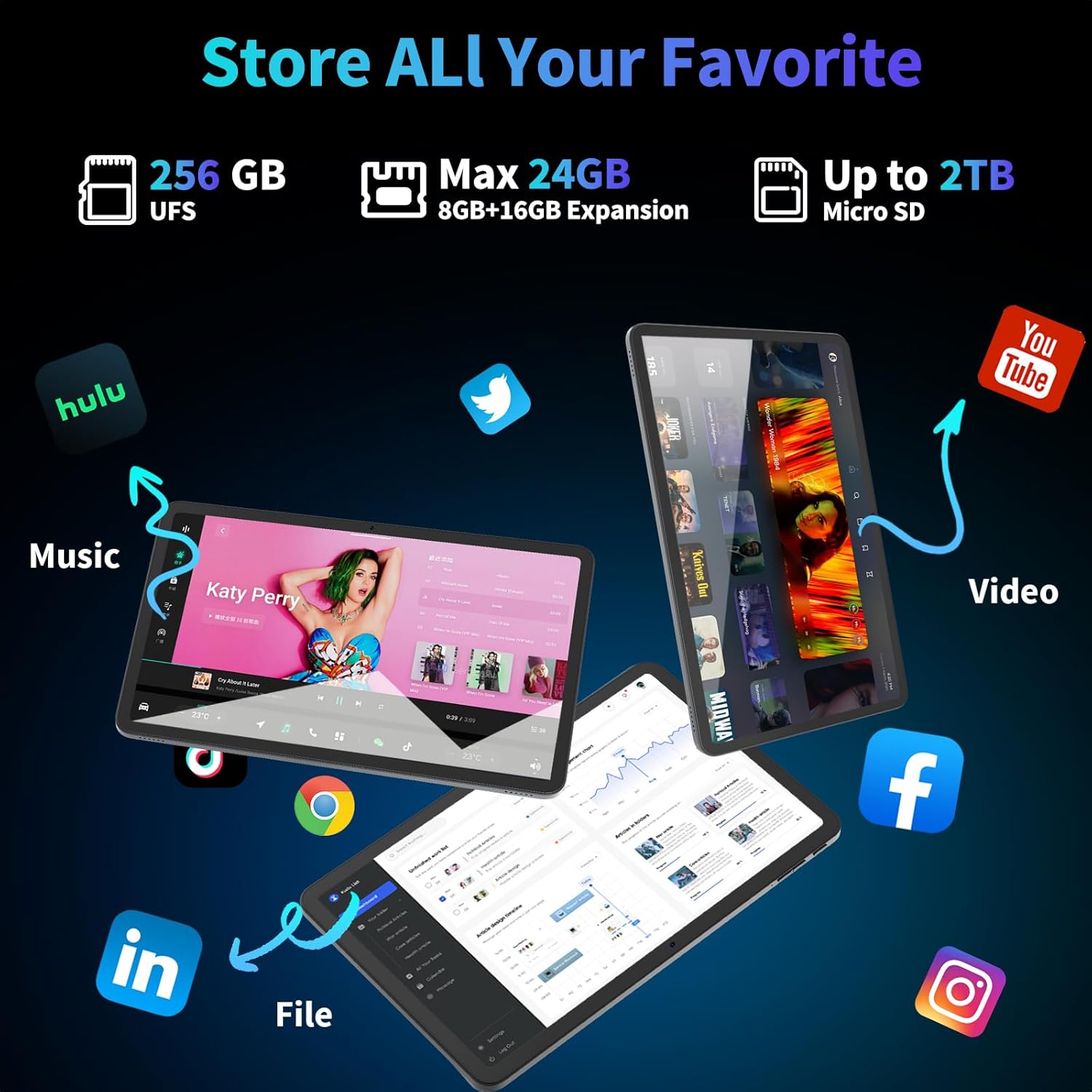
Image 4.2: Storage Options. This image illustrates the tablet's internal storage and expandable microSD card slot.
4.5. Connecting Bluetooth Accessories
The included keyboard and mouse connect via Bluetooth 5.0.
- Go to Settings > Connected devices > Bluetooth.
- Turn on Bluetooth on your tablet.
- Put the keyboard or mouse into pairing mode (refer to their individual manuals if needed).
- Select the accessory from the list of available devices on your tablet to pair.
5. Operating Your Tablet
5.1. Android 15 Features
Your tablet runs on Android 15, offering enhanced privacy, customization, and performance.
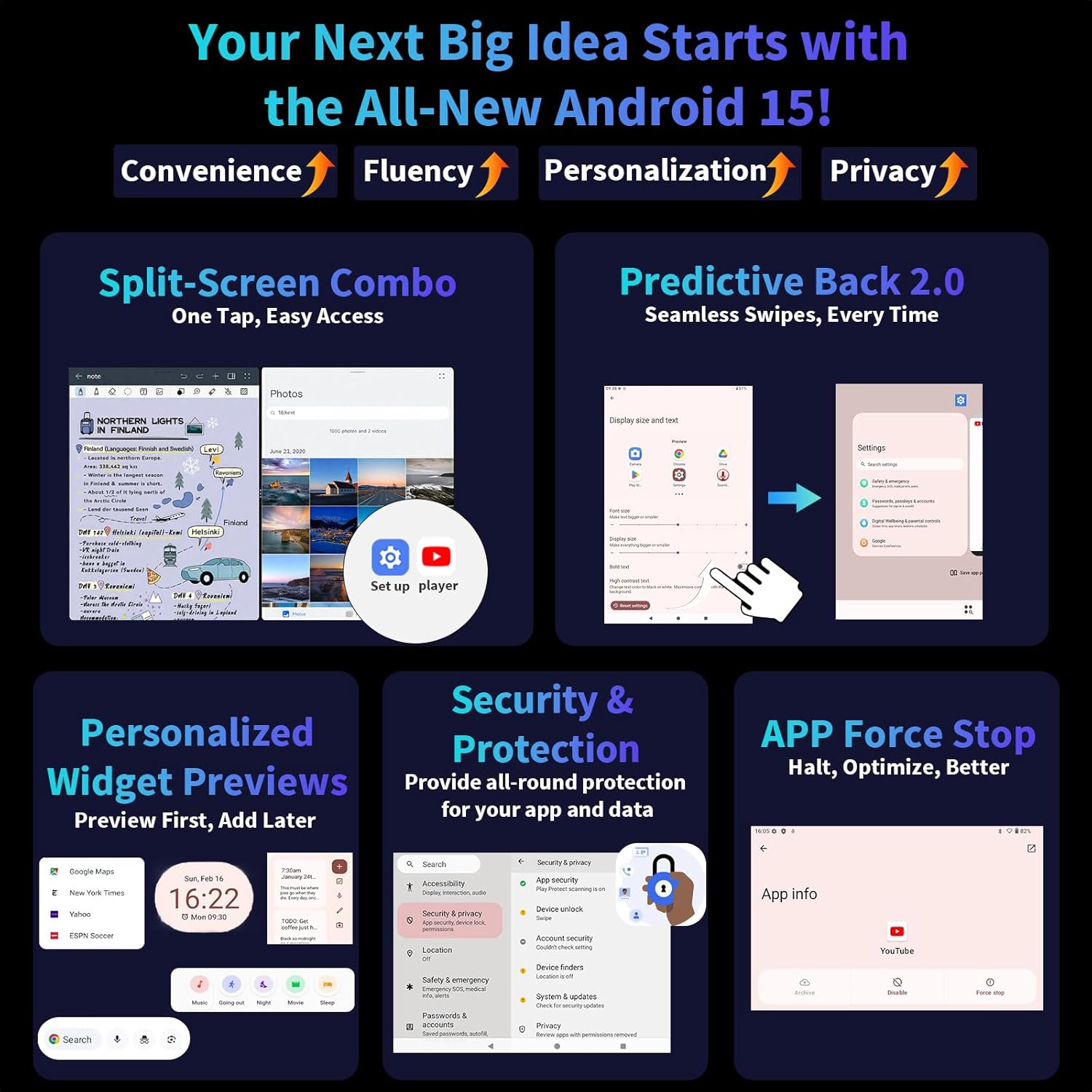
Image 5.1: Android 15 User Interface. This image highlights key Android 15 features such as split-screen, predictive back, and enhanced security.
- Split-Screen: For multitasking, swipe up from the bottom of the screen and hold, then tap the app icon and select "Split top".
- Gesture Navigation: Use intuitive swipes for home, back, and recent apps. Customize in Settings > System > Gestures.
- Global Dark Mode: Enable in Settings > Display > Dark theme for a comfortable viewing experience in low light.
- Parental Controls: Set up usage limits and content restrictions for children via Google Family Link.
5.2. Connectivity
The tablet supports various connectivity options:

Image 5.2: Connectivity Features. This image displays the tablet's support for 4G LTE, Dual-band WiFi, Bluetooth 5.0, and GPS.
- Wi-Fi: Connect to 2.4G or 5G networks for internet access. Go to Settings > Network & internet > Wi-Fi.
- Bluetooth 5.0: For connecting wireless headphones, speakers, keyboards, and mice. Go to Settings > Connected devices > Bluetooth.
- GPS: Integrated GPS for navigation and location services.
5.3. Camera Usage
Capture photos and videos using the tablet's dual cameras.
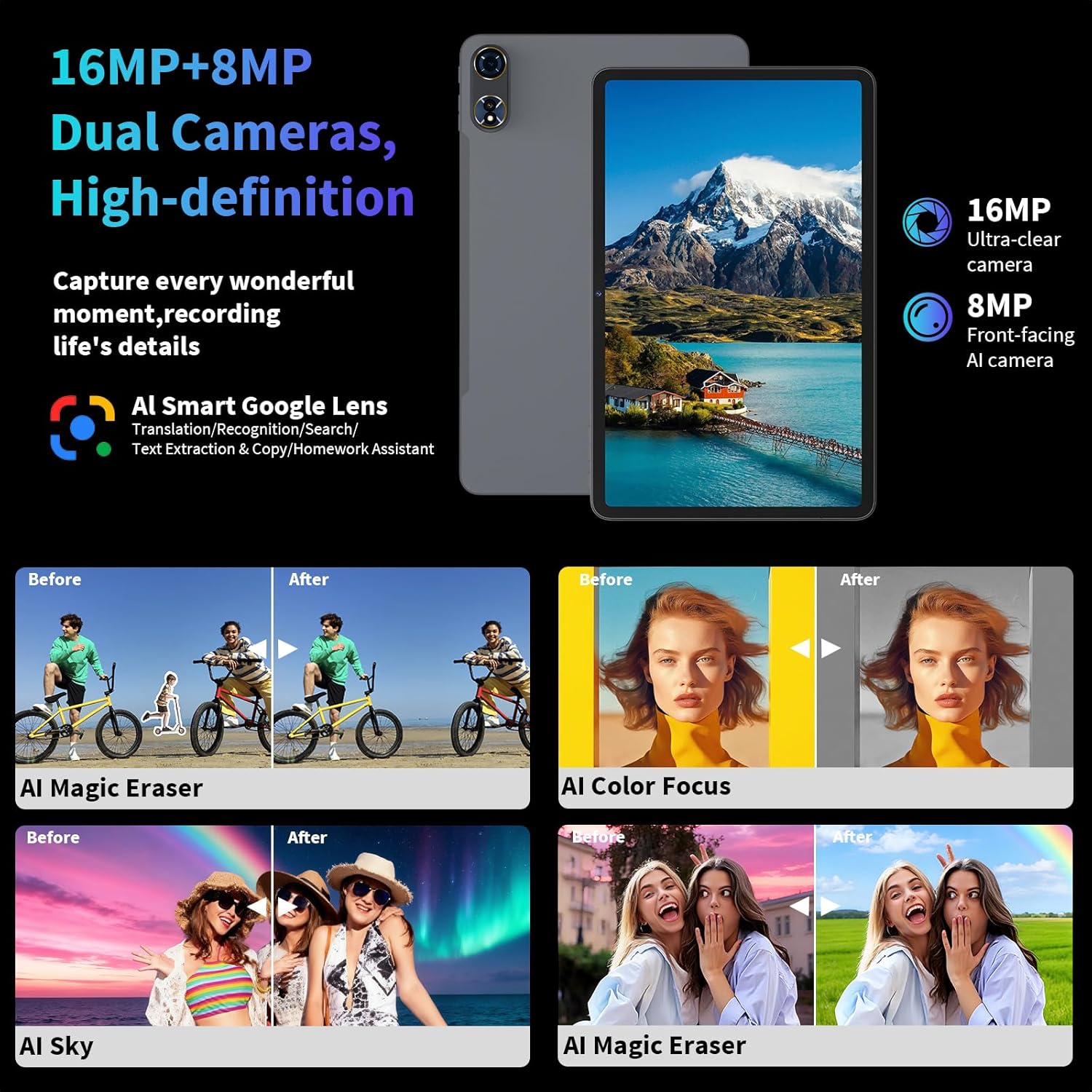
Image 5.3: Dual Camera System. This image highlights the 16MP rear and 8MP front cameras, along with AI enhancement features.
- Open the Camera app.
- Tap the shutter button to take a photo or start/stop video recording.
- Switch between front and rear cameras using the camera toggle icon.
- Utilize AI Smart Google Lens for translation, search, and homework assistance directly from the camera app.
5.4. Gemini AI Integration
The Relndoo TAB9 features integrated Gemini AI to assist with various tasks.
- Content Creation: Generate ideas and drafts for text.
- Information Retrieval and Summarization: Quickly find and condense information.
- Image Analysis: Understand and describe image content.
- Code Development: Assist with programming tasks.
- Language Learning: Support for language practice and translation.
- Intelligent Assistant: General queries and task automation.
6. Maintenance
6.1. Cleaning Your Tablet
- Use a soft, lint-free cloth to clean the screen and body.
- Avoid using harsh chemicals, abrasive cleaners, or aerosol sprays.
- For stubborn smudges, slightly dampen the cloth with water or a screen-specific cleaning solution.
6.2. Battery Care
- Avoid extreme temperatures, as they can degrade battery life.
- Do not leave the tablet fully charged or fully discharged for extended periods.
- Use the provided charger for optimal charging performance.
6.3. Software Updates
Regularly check for and install system updates to ensure optimal performance, security, and access to new features. Go to Settings > System > System update.
7. Troubleshooting
Here are solutions to common issues you might encounter:
| Issue | Possible Solution |
|---|---|
| Tablet does not power on. | Ensure the tablet is charged. Connect it to the charger for at least 30 minutes, then try powering on again. If unresponsive, perform a forced restart by holding the Power button for 10-15 seconds. |
| Wi-Fi connection issues. | Restart your Wi-Fi router and the tablet. Forget the network in tablet settings and reconnect. Ensure you are within range of the Wi-Fi signal. |
| Tablet is running slow. | Close unused apps. Clear cache for frequently used apps (Settings > Apps > [App Name] > Storage & cache > Clear cache). Restart the tablet. Consider uninstalling unnecessary apps or moving large files to the microSD card. |
| Bluetooth accessory not pairing. | Ensure the accessory is in pairing mode and fully charged. Turn Bluetooth off and on again on the tablet. Move the accessory closer to the tablet. |
| Screen is unresponsive. | Perform a forced restart. If the issue persists, ensure the screen is clean and free of debris. |
8. Specifications
Detailed technical specifications for the Relndoo TAB9 tablet:
Image 8.1: Unisoc T615 Octa-Core Processor. This image highlights the tablet's Unisoc T615 processor for enhanced performance.
| Feature | Detail |
|---|---|
| Model | TAB9 |
| Operating System | Android 15 (GMS Certified) |
| Display | 12-inch 2K IPS (2000x1200 pixels) |
| Processor | Unisoc T615 Octa-Core |
| RAM | 24GB (8GB physical + 16GB extended) |
| Internal Storage (ROM) | 256GB |
| Expandable Storage | Up to 2TB via microSD card (FAT32 format) |
| Battery | 8000mAh, 18W Fast Charging |
| Rear Camera | 16MP |
| Front Camera | 8MP |
| Wi-Fi | Dual-Band AC (2.4G/5G) |
| Bluetooth | Bluetooth 5.0 |
| GPS | Integrated GPS/Beidou/Glonass |
| Audio | Dual Speakers, 3.5mm Headphone Jack |
| Dimensions (LxWxH) | 17.5 x 6 x 16.2 inches |
| Item Weight | 3.63 pounds |
9. Warranty and Support
9.1. Product Warranty
Your Relndoo TAB9 tablet comes with a standard manufacturer's warranty. Please refer to the warranty card included in your package for specific terms and conditions, including coverage duration and limitations.
9.2. Customer Support
For technical assistance, troubleshooting beyond this manual, or warranty claims, please contact Relndoo customer support. You can find contact information on the official Relndoo website or through your purchase platform.
Visit the official Relndoo store for more information: Relndoo Store on Amazon
Ask a question about this manual
Ask about setup, troubleshooting, compatibility, parts, safety, or missing instructions. Manuals+ will review the question and use this page’s manual context to help answer it.