
Relndoo TAB9
Relndoo TAB9 12-Inch Android 15 Tablet User Manual
Comprehensive instruction manual for the Relndoo TAB9 12-inch Android 15 Tablet, covering setup, operation, maintenance, troubleshooting, and specifications.
1. Introduction
This manual provides essential information for setting up, operating, and maintaining your new Relndoo TAB9 12-inch Android 15 Tablet. Please read this guide thoroughly to ensure optimal performance and longevity of your device. The Relndoo TAB9 is designed for versatile use, featuring a 12-inch 2K IPS display, 24GB RAM, 256GB storage (expandable to 2TB), an octa-core processor, and an 8000mAh battery, running on Android 15 with GMS certification.
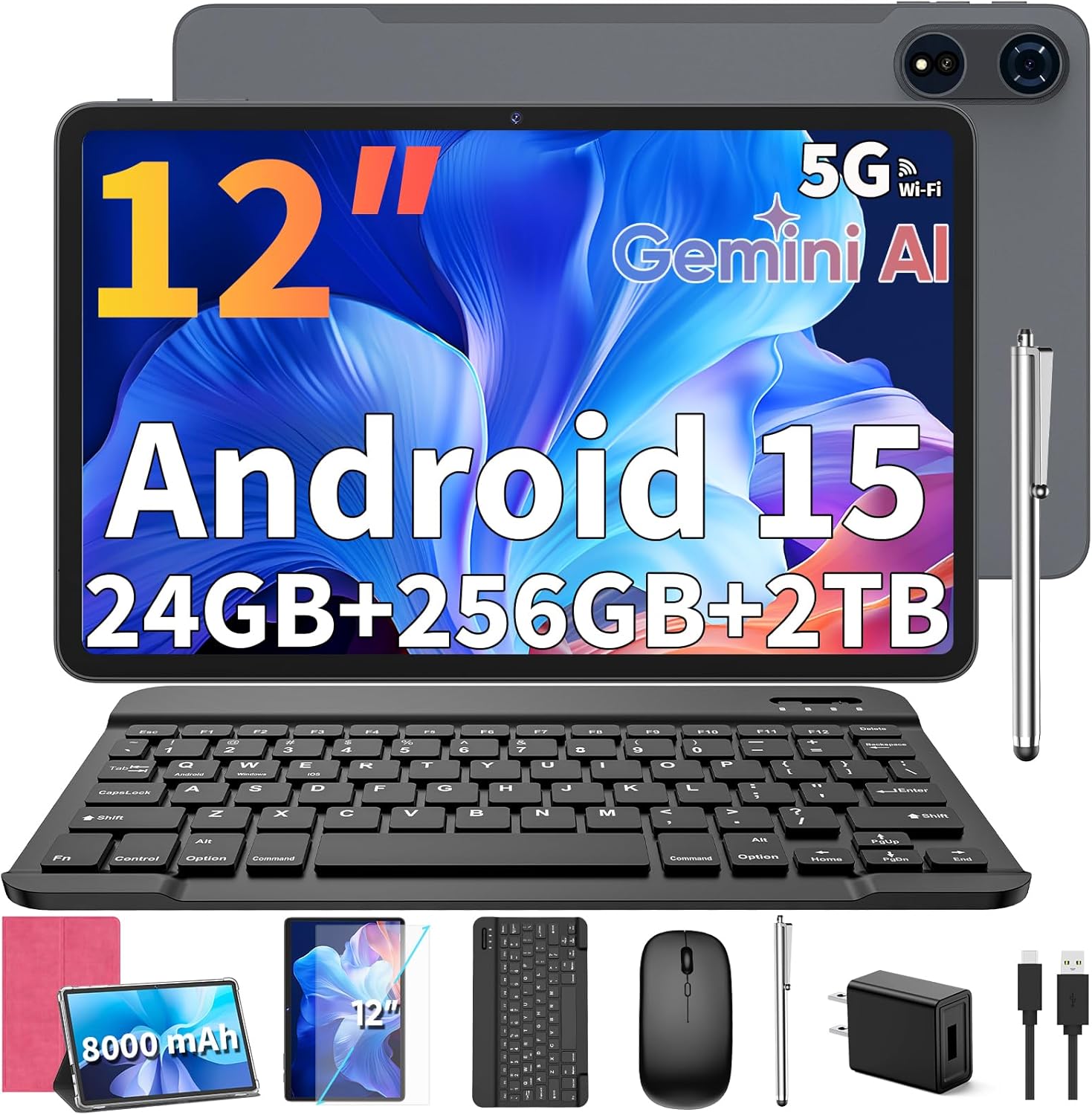
Image: The Relndoo TAB9 tablet shown with its included accessories: keyboard, mouse, stylus, charger, and protective case.
2. What's in the Box
Your Relndoo TAB9 package includes the following items:
- 1 x Relndoo TAB9 12-inch Android Tablet
- 1 x Bluetooth Keyboard
- 1 x Wireless Mouse
- 1 x Stylus Pen
- 1 x Foldable Protective Case
- 1 x Screen Protector (pre-installed or separate)
- 1 x Charging Head (AC Adapter)
- 1 x USB-C Charger Cable
- 1 x User Manual
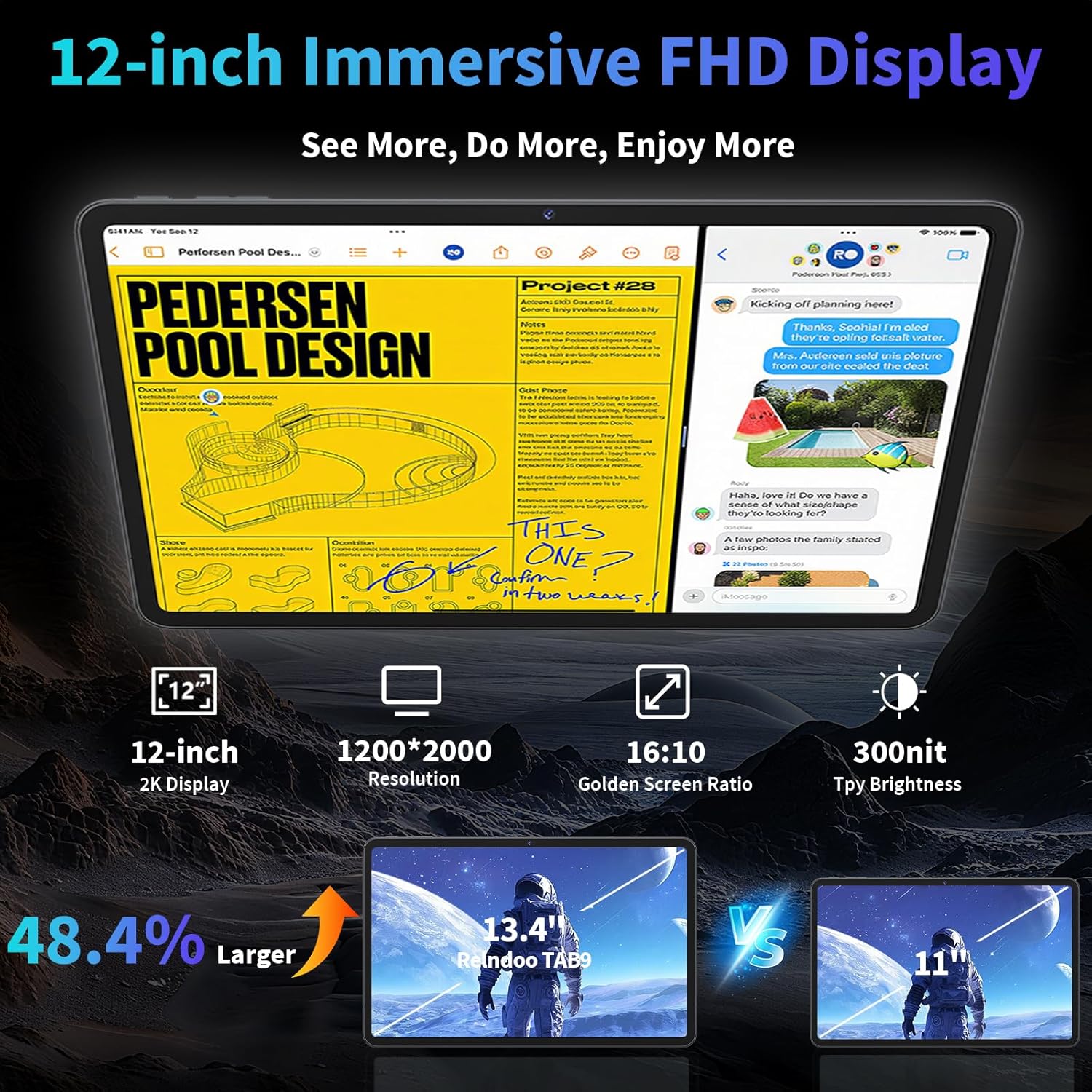
Image: An overview of the items included in the Relndoo TAB9 package, neatly arranged on a table.
3. Setup
3.1 Initial Power On and Basic Configuration
- Charge the Tablet: Before first use, ensure the tablet is fully charged using the provided USB-C cable and charging head.
- Power On: Press and hold the Power button (located on the side) for 2-3 seconds until the Relndoo logo appears.
- Language and Region: Follow the on-screen prompts to select your preferred language and region.
- Wi-Fi Connection: Connect to a stable Wi-Fi network to complete the setup process and access online features.
- Google Account: Sign in with your Google account or create a new one to access the Google Play Store and other Google services.
3.2 Connecting Accessories
The Relndoo TAB9 supports various accessories for enhanced productivity.
- Bluetooth Keyboard:
- Turn on the keyboard using its power switch.
- On your tablet, go to Settings > Connected devices > Bluetooth and enable Bluetooth.
- Select the keyboard from the list of available devices and follow any pairing instructions.
- Wireless Mouse:
- Insert AAA batteries into the mouse (not included).
- Turn on the mouse.
- Pair the mouse via Bluetooth in the same manner as the keyboard.
- Stylus Pen: The stylus pen is a passive device and does not require pairing. Simply use it directly on the screen for navigation or writing.
- Protective Case: Carefully insert the tablet into the foldable protective case. The case can be folded to act as a stand for hands-free viewing.
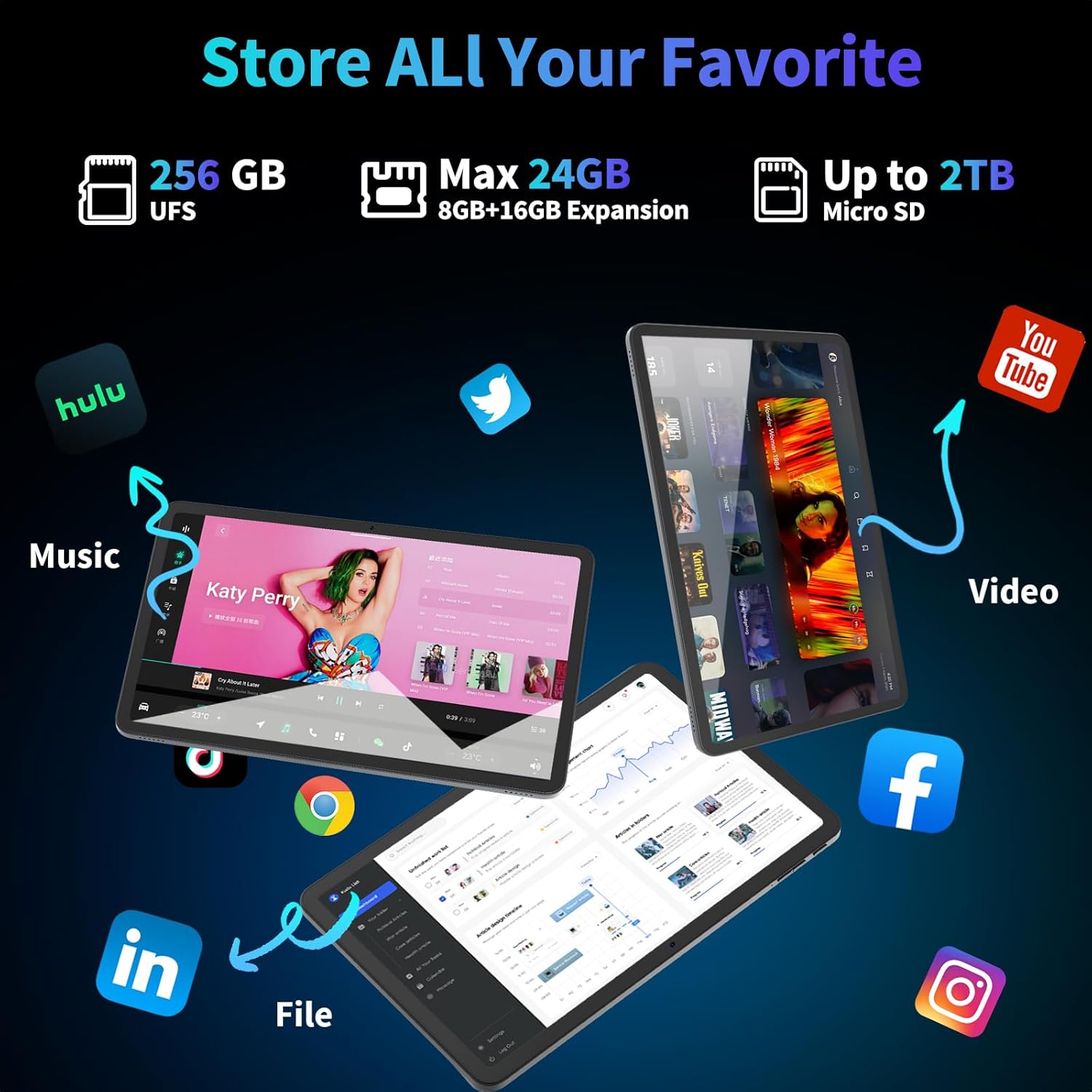
Image: The Relndoo TAB9 tablet configured with its keyboard and mouse, ready for productivity tasks.
4. Operating Instructions
4.1 Basic Navigation and Interface
The Relndoo TAB9 runs on Android 15, offering an intuitive and customizable user experience.
- Touchscreen Gestures: Use standard Android gestures such as tap, swipe, pinch-to-zoom, and long-press to interact with the interface.
- Home Screen: Customize your home screen with widgets and app shortcuts.
- Notification Panel: Swipe down from the top of the screen to access notifications and quick settings.
- Split-Screen Mode: For efficient multitasking, long-press an app icon in the recent apps view and select the split-screen option.
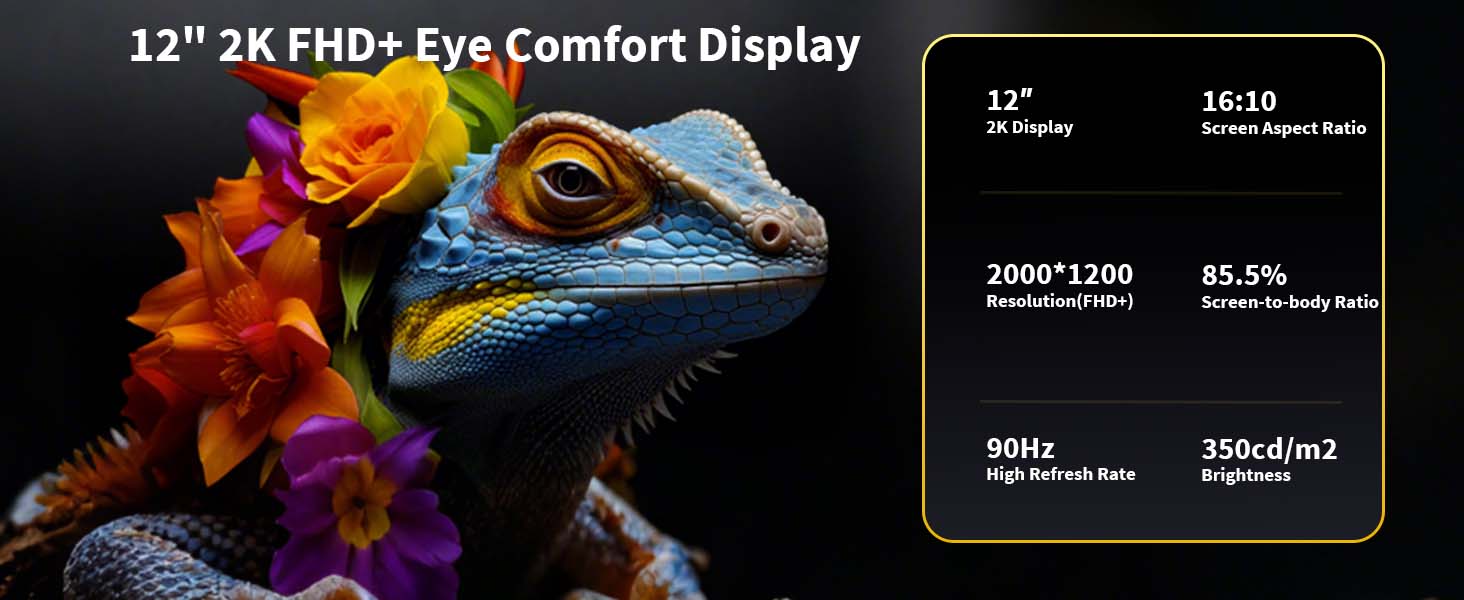
Image: The Android 15 interface on the Relndoo TAB9, highlighting split-screen functionality.
4.2 Connectivity
- Wi-Fi: Supports dual-band 2.4G/5G Wi-Fi for stable and fast internet access. Manage connections via Settings > Network & Internet > Wi-Fi.
- Bluetooth 5.0: Connect wireless headphones, speakers, and other Bluetooth devices. Access settings via Settings > Connected devices > Bluetooth.
- GPS: Built-in GPS provides precise navigation and location services. Ensure location services are enabled in Settings > Location for optimal performance.

Image: Visual representation of the tablet's connectivity options, including Wi-Fi, Bluetooth, and GPS.
4.3 Camera Usage
The tablet features an 8MP front camera and a 16MP rear camera for photos and video calls.
- Taking Photos/Videos: Open the Camera app. Tap the shutter button to take a photo or the video icon to record.
- Switching Cameras: Tap the camera switch icon to toggle between the front and rear cameras.
- AI Features: Utilize AI Smart Google Lens for translation, recognition, and homework assistance.
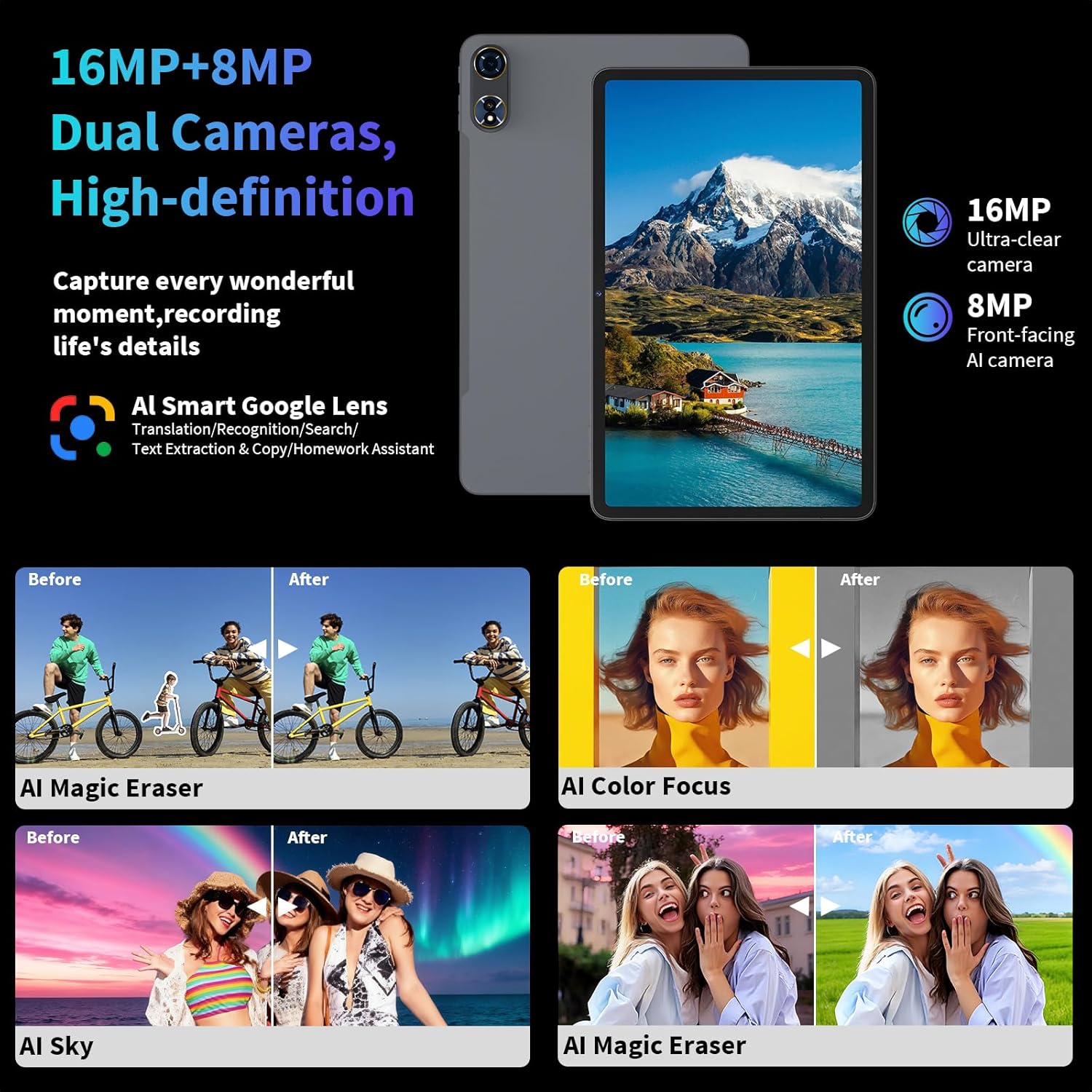
Image: The tablet's camera capabilities, including dual cameras and AI features for image enhancement.
4.4 Media Consumption
Enjoy a rich multimedia experience on the 12-inch 2K IPS display with Widevine L1 support.
- Streaming: With Widevine L1 certification, stream 1080P HD content from platforms like Netflix, YouTube, HBO, and Amazon Prime Video.
- Audio: The dual-speaker design provides immersive audio. A 3.5mm headphone jack is also available for private listening.

Image: The tablet's display quality and support for high-definition streaming services.
4.5 Storage Management
The tablet comes with 256GB of internal storage, expandable up to 2TB via a microSD card (FAT32 format, sold separately).
- Inserting a MicroSD Card: Locate the microSD card slot on the side of the tablet and gently insert the card until it clicks into place.
- Managing Storage: Go to Settings > Storage to view storage usage and manage files.
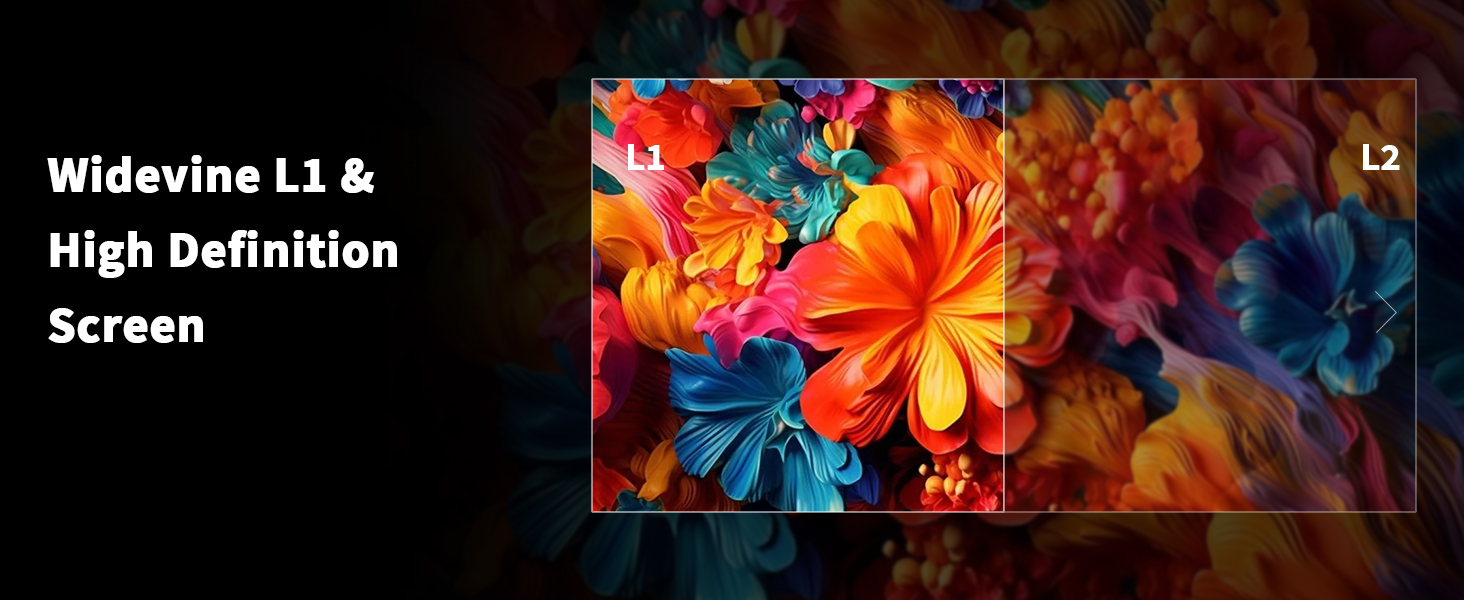
Image: Visual representation of the tablet's ample and expandable storage for various media types.
4.6 Gemini AI Integration
The tablet integrates Gemini AI for enhanced user experience and productivity.
- Intelligent Assistance: Gemini AI assists with content creation, information retrieval, image analysis, code development, and language learning.
- Personalized Customization: AI intelligent optimization combines with new features like sidebars, floating balls, gesture controls, and global dark mode.
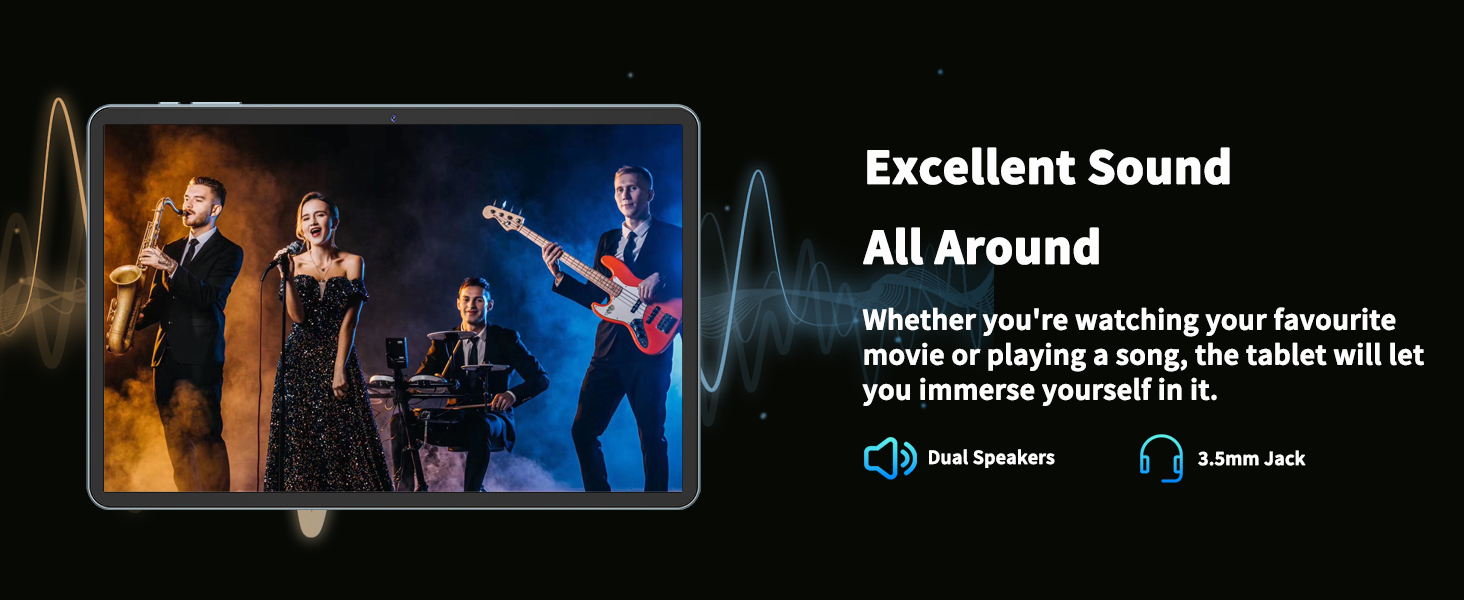
Image: The Gemini AI interface and its diverse applications on the tablet.
4.7 Parental Controls
Built-in parental controls allow you to create a safe browsing environment for children.
- Accessing Controls: Navigate to Settings > Digital Wellbeing & parental controls to configure usage limits, content restrictions, and app access.
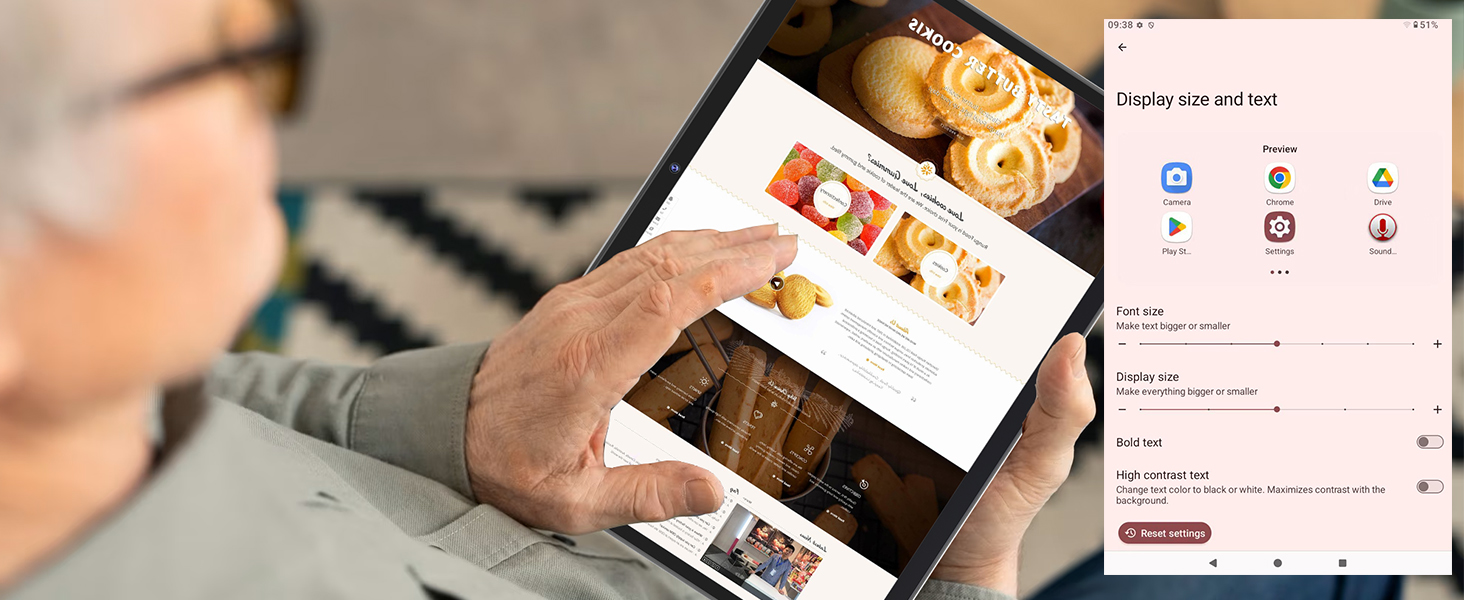
Image: The tablet's parental control features for managing screen time and content access.
5. Maintenance
5.1 Battery Care
The 8000mAh high-capacity battery provides extended usage. Follow these tips for optimal battery life:
- Regular Charging: Fully charge the tablet once a month, even if not in regular use, to maintain battery health.
- Avoid Extreme Temperatures: Do not expose the tablet to very high or low temperatures, as this can degrade battery performance.
- Intelligent Power Saving: The tablet features AI intelligent power saving for longer battery life.
- Intelligent Charging Protection: AI intelligent charging protection ensures efficient charging and extended durability.
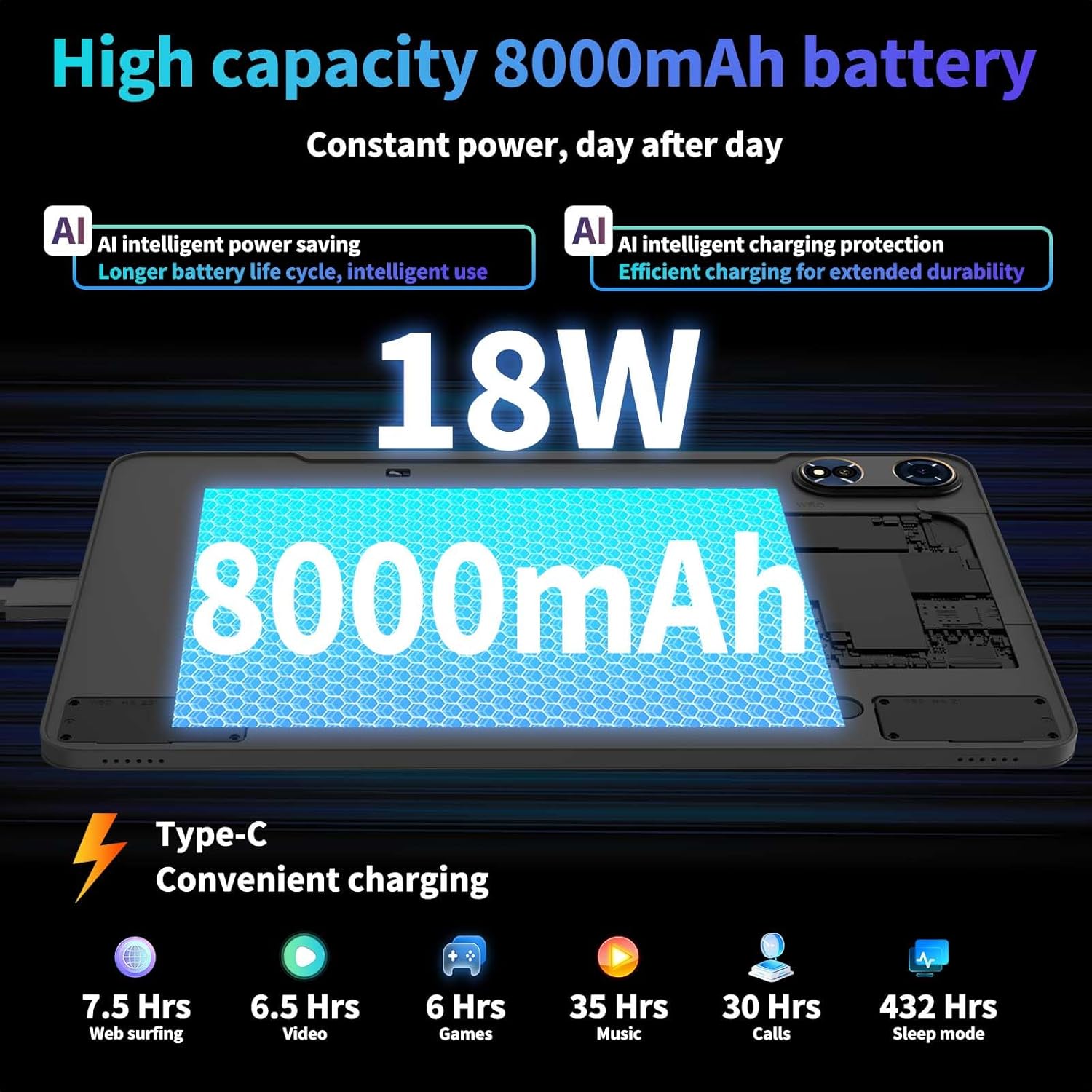
Image: The tablet's battery features and charging capabilities.
5.2 Cleaning and Storage
- Cleaning the Screen: Use a soft, lint-free cloth, slightly dampened with water or a screen cleaner, to wipe the display. Avoid harsh chemicals.
- Cleaning the Body: Wipe the tablet's body with a soft, dry cloth.
- Storage: Store the tablet in a cool, dry place away from direct sunlight and extreme temperatures.
5.3 Software Updates
- Checking for Updates: Regularly check for system updates to ensure your tablet has the latest features and security patches. Go to Settings > System > System updates.
6. Troubleshooting
| Problem | Possible Solution |
|---|---|
| Tablet does not power on. | Ensure the battery is charged. Connect the charger and try again. If unresponsive, press and hold the Power button for 5 seconds for a forced shutdown, then restart. |
| Screen is unresponsive. | Restart the tablet. If the issue persists, perform a factory reset (backup data first). |
| Wi-Fi connection issues. | Check if Wi-Fi is enabled in settings. Restart your router and the tablet. Forget the network and reconnect. |
| Bluetooth accessories not connecting. | Ensure Bluetooth is enabled on both devices. Make sure accessories are in pairing mode. Forget and re-pair the device. |
| Apps are slow or freezing. | Close background apps. Clear app cache (Settings > Apps > [App Name] > Storage & cache). Ensure sufficient free storage space. |
7. Specifications
| Feature | Detail |
|---|---|
| Display Size | 12 Inches |
| Screen Resolution | 2000x1200 pixels (2K IPS) |
| Operating System | Android 15 (GMS Certified) |
| Processor | Unisoc T615 Octa-Core (ARM Processor) |
| RAM | 24GB (8GB physical + 16GB extended) |
| Internal Storage | 256GB Flash Memory |
| Expandable Storage | Up to 2TB via microSD card (FAT32 format) |
| Rear Camera | 16MP |
| Front Camera | 8MP |
| Battery Capacity | 8000mAh (Average 12 hours life) |
| Wireless Connectivity | 5G Wi-Fi (802.11ax), Bluetooth 5.0 |
| Navigation | GPS |
| Audio | Dual Speakers, 3.5mm Headphone Jack |
| Dimensions (LxWxH) | 17.5 x 6 x 16.2 inches |
| Item Weight | 3.63 pounds |
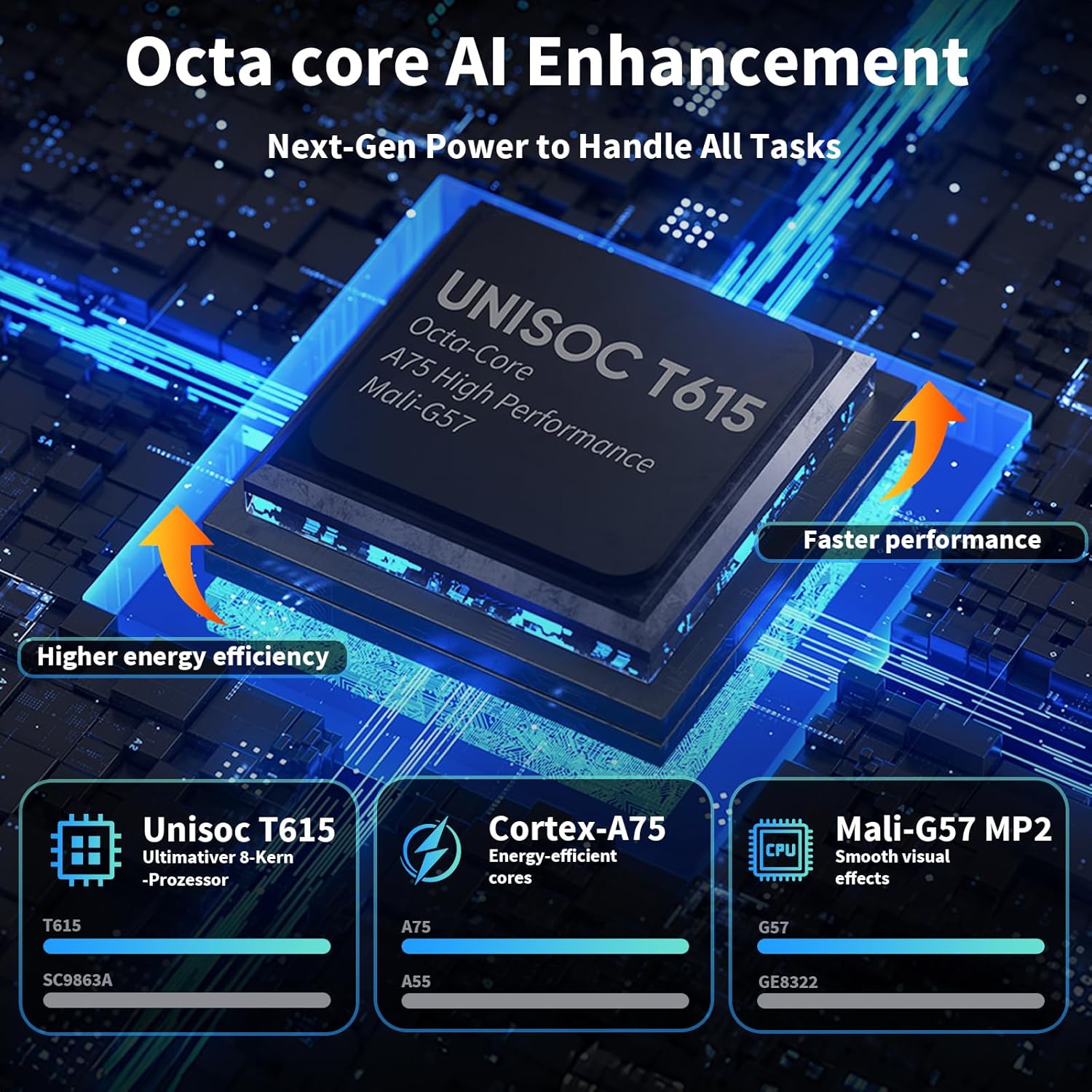
Image: Detailed view of the tablet's Unisoc T615 Octa-Core processor.
8. Warranty and Support
For warranty information and technical support, please refer to the warranty card included in your package or visit the official Relndoo website. Keep your purchase receipt as proof of purchase for warranty claims.
For additional assistance, you may contact Relndoo customer service through their official channels.
9. Official Product Videos
9.1 Android 15 Tablet with Keyboard Overview
Video: An overview of the Android 15 tablet, demonstrating its features and the included keyboard. This video is provided by a seller.
9.2 S10 Android 15 Tablet Overview
Video: A detailed overview of the S10 Android 15 tablet, showcasing its functionalities and design. This video is provided by a seller.
9.3 11-Inch Android 15 Tablet with Keyboard
Video: A demonstration of an 11-inch Android 15 tablet, highlighting its use with a keyboard. This video is provided by a seller.
Ask a question about this manual
Ask about setup, troubleshooting, compatibility, parts, safety, or missing instructions. Manuals+ will review the question and use this page’s manual context to help answer it.