
1. Introduction
The ORICO 12-in-1 USB-C Docking Station with Dual-Slot SSD Enclosure (Model D35M2) is designed to expand your device's connectivity and storage capabilities. It integrates a high-performance docking station with a dual-slot M.2 SSD enclosure, providing a comprehensive solution for port expansion, external display connectivity, and data storage management. This device supports M.2 NVMe/SATA SSDs and 2.5-inch/3.5-inch SATA drives, offering versatile storage options up to 26TB. It features 10Gbps USB ports, 4K HDMI output, Gigabit Ethernet, and an SD/TF card reader, making it compatible with Windows and macOS operating systems.
2. Package Contents
Please verify that all items are present in the package:
- ORICO 12-in-1 USB-C Docking Station with Dual-Slot SSD Enclosure x 1
- USB-C to USB-C Cable x 1
- Instruction Book x 1
- DC Power Supply (12V) x 1
- Heatsink x 1
- Thermal Pad x 1
- Snap x 1

3. Product Overview
The ORICO D35M2 docking station features a comprehensive array of ports and storage options:
- Host Connection: 1x USB-C (connects to your computer)
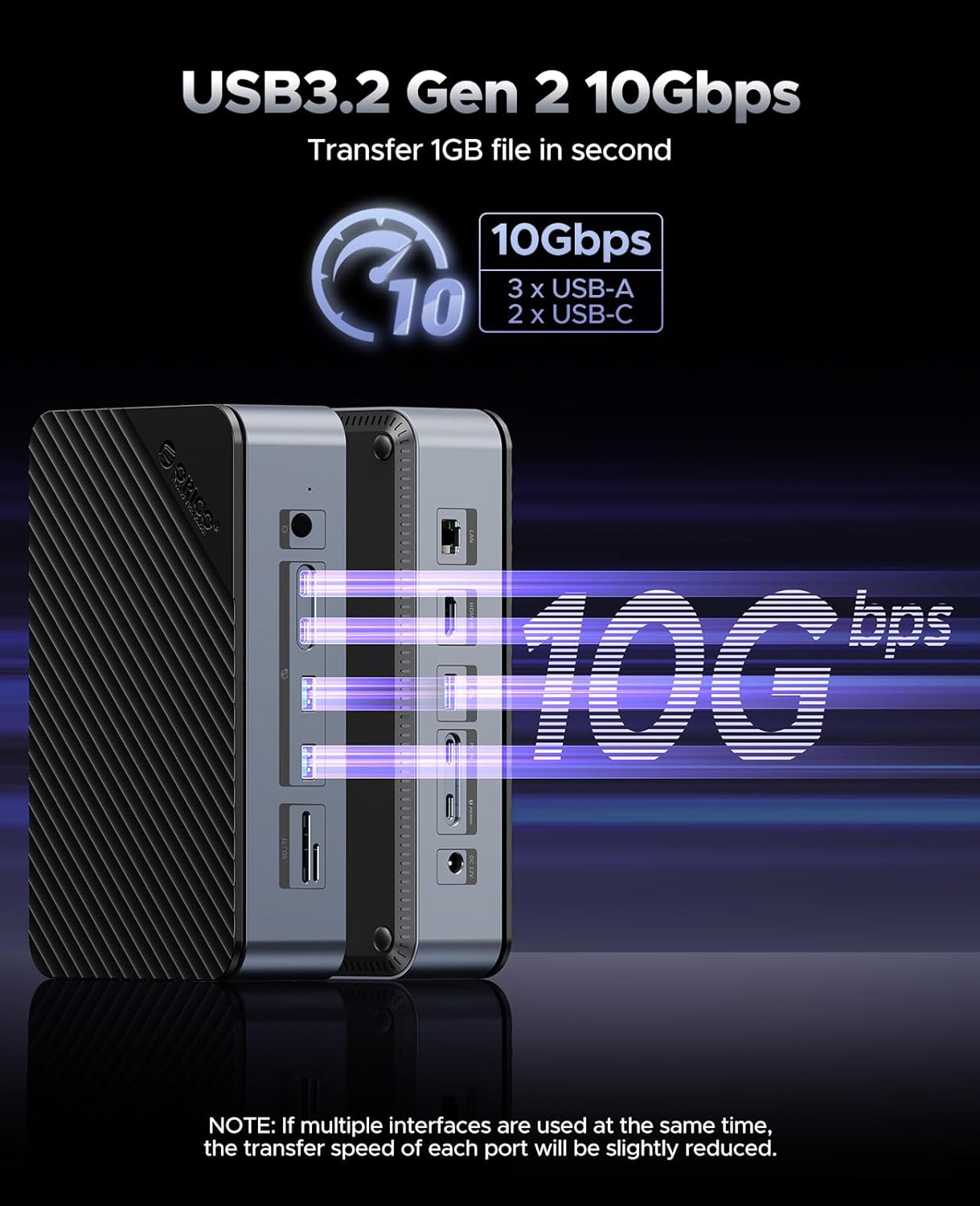
- Data Ports: 2x 10Gbps USB-C, 3x 10Gbps USB-A
- Video Output: 1x HDMI 4K@60Hz
- Network: 1x Gigabit Ethernet (RJ45)
- Card Reader: 1x SD/TF 3.0 (simultaneous use)
- Power Input: 1x DC 12V
- Storage Slots: Dual-slot M.2 (NVMe/SATA, up to 8TB), 2.5"/3.5" SATA (up to 18TB)
- Control: Individual power button for 3.5" HDDs
4. Setup
4.1. Installing M.2 SSD
- Open the M.2 SSD enclosure cover on the docking station.
- Insert your M.2 NVMe or SATA SSD (compatible with 2280, 2260, 2242, 2230 form factors) into the designated slot.
- Secure the SSD with the provided snap.
- Apply the thermal pad to the SSD and place the heatsink on top to ensure optimal cooling.
- Close the enclosure cover.
4.2. Installing 2.5"/3.5" SATA Drive
- Open the 2.5"/3.5" SATA drive enclosure cover.
- Gently slide your 2.5-inch or 3.5-inch SATA HDD/SSD into the slot until it is firmly seated.
- Close the enclosure cover.


4.3. Connecting to Host Device
Connect the docking station to your computer using the provided USB-C to USB-C cable. Ensure the cable is securely plugged into both the docking station's host port and your computer's USB-C port.
4.4. Power Connection
Connect the DC 12V power adapter to the docking station's DC input port and then plug it into a power outlet. A stable power supply is crucial for consistent drive operation, especially when using 3.5-inch HDDs or multiple devices simultaneously.
5. Operating Instructions
5.1. Data Transfer
The docking station features 10Gbps USB-C and USB-A ports, allowing for rapid data transfers. You can transfer 1GB of data in approximately 1 second. The SD/TF card reader supports speeds up to 100MB/s. When multiple interfaces are used simultaneously, the transfer speed of each port may be slightly reduced.

5.2. Video Output
Connect an external monitor to the HDMI port for 4K resolution at 60Hz. This feature requires your computer's USB-C host port to support video output (DisplayPort Alternate Mode).

5.3. Network Connection
Utilize the Gigabit Ethernet port for a stable and wired internet connection, supporting 10/100/1000Mbps speeds. This ensures reliable network performance for online activities.

5.4. Card Reader
The integrated SD/TF 3.0 card reader allows for simultaneous access to both SD and microSD cards, ideal for transferring photos and videos from cameras or drones.
5.5. Power Button for 3.5" HDD
An individual power button is provided to safely power off 3.5-inch HDDs without disconnecting the entire docking station. This helps protect your data and prolong drive lifespan.
6. Maintenance
To ensure the longevity and optimal performance of your ORICO D35M2 docking station, follow these maintenance guidelines:
- Keep the device clean and free from dust. Use a soft, dry cloth for cleaning.
- Avoid exposing the device to extreme temperatures, humidity, or direct sunlight.
- Ensure proper ventilation around the docking station. The built-in turbo fan and M.2 heatsink are designed to manage heat during extended use, especially during large data transfers. The fan activates when the internal temperature exceeds 50°C to reduce noise and energy consumption.
- Handle the device and connected drives with care to prevent physical damage.
7. Troubleshooting
If you encounter issues with your ORICO D35M2 docking station, refer to the following common troubleshooting steps:
- Device Not Recognized: Ensure the USB-C cable is securely connected to both the docking station and your computer. Try a different USB-C port on your computer. Verify that the power adapter is correctly connected and providing power.
- Drives Not Appearing: Check if the M.2 SSD or SATA drive is correctly installed in its slot. For 3.5" HDDs, ensure the individual power button is pressed. For new drives, they may need to be initialized and formatted in your operating system's Disk Management (Windows) or Disk Utility (macOS).
- Slow Data Transfer Speeds: Ensure you are using 10Gbps compatible cables and devices. Note that simultaneous use of multiple high-bandwidth ports can slightly reduce individual port speeds.
- No Video Output: Confirm that your computer's USB-C port supports video output (DisplayPort Alternate Mode). Try a different HDMI cable or monitor.
- Network Connection Issues: Check the Ethernet cable connection. Ensure your computer's network settings are configured correctly.
- Loose Connections: Ensure all cables (USB-C, HDMI, Ethernet, Power) are fully and securely inserted into their respective ports.
8. Specifications
| Model Number | D35M2 |
| Product Dimensions | 5.55"L x 8.66"W x 2.34"H (14.1 x 22 x 5.94 cm) |
| Item Weight | 2.22 pounds (1.01 kg) |
| Brand | ORICO |
| Color | Black |
| Hardware Interface | USB |
| Total USB Ports | 7 (2x USB-C 10Gbps, 3x USB-A 10Gbps, 1x Host USB-C, 1x USB-C PD) |
| Total HDMI Ports | 1 (4K@60Hz) |
| Number of Ports | 12 (including storage slots and card reader) |
| Compatible Devices | Windows 10/11, Mac OS 10.13+, Linux, Android, Tablets (iPad Pro), Mini PCs |
| Storage Compatibility | M.2 NVMe/SATA SSD (up to 8TB), 2.5"/3.5" SATA HDD/SSD (up to 18TB) |
9. Warranty and Support
ORICO products come with a standard manufacturer's warranty. For specific warranty details, please refer to the warranty card included in your package or visit the official ORICO website. If you require technical assistance, troubleshooting, or have any questions regarding your ORICO D35M2 docking station, please contact ORICO customer support through their official channels. Keep your purchase receipt for warranty claims.


