
Relndoo TAB9
Relndoo TAB9 12 Inch Android 15 Tablet User Manual
Model: TAB9
Introduction
This manual provides detailed instructions for the setup, operation, and maintenance of your Relndoo TAB9 12 Inch Android 15 Tablet. Please read this guide thoroughly to ensure optimal performance and longevity of your device.
What's in the Box
Verify that all items are present in your package:
- 1 x 12 inch Relndoo Android Tablet
- 1 x Bluetooth Keyboard
- 1 x Wireless Mouse
- 1 x Stylus Pen
- 1 x Foldable Protective Case
- 1 x Screen Protector
- 1 x Charging Head
- 1 x USB-C Charger Cable
- 1 x User Manual
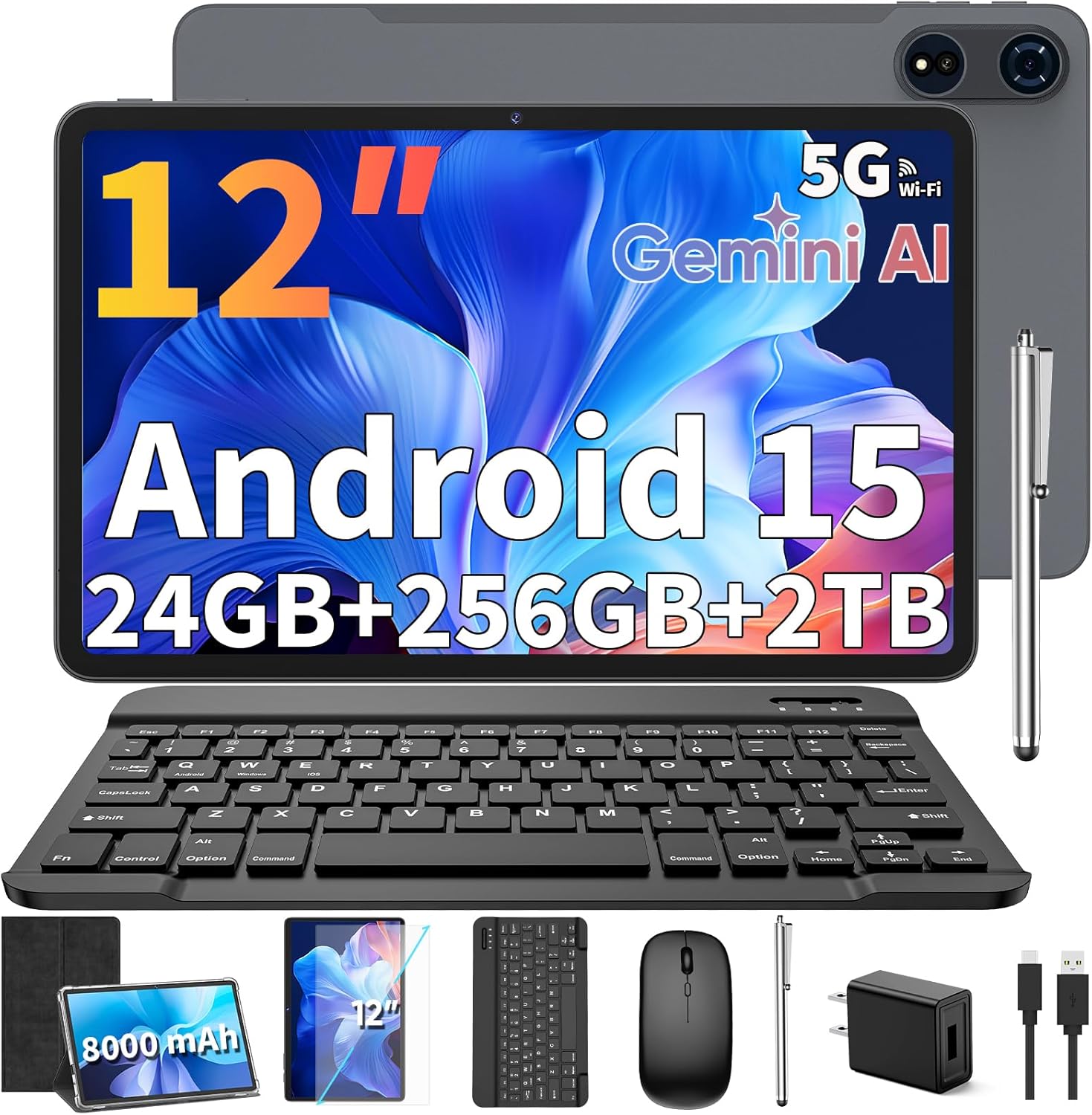
Image: The Relndoo TAB9 tablet displayed with its full set of accessories, including the keyboard, mouse, stylus, protective case, charger, and cables.
Setup
1. Initial Charging
Before first use, fully charge your tablet using the provided USB-C charger cable and charging head. The tablet features an 8000mAh battery.
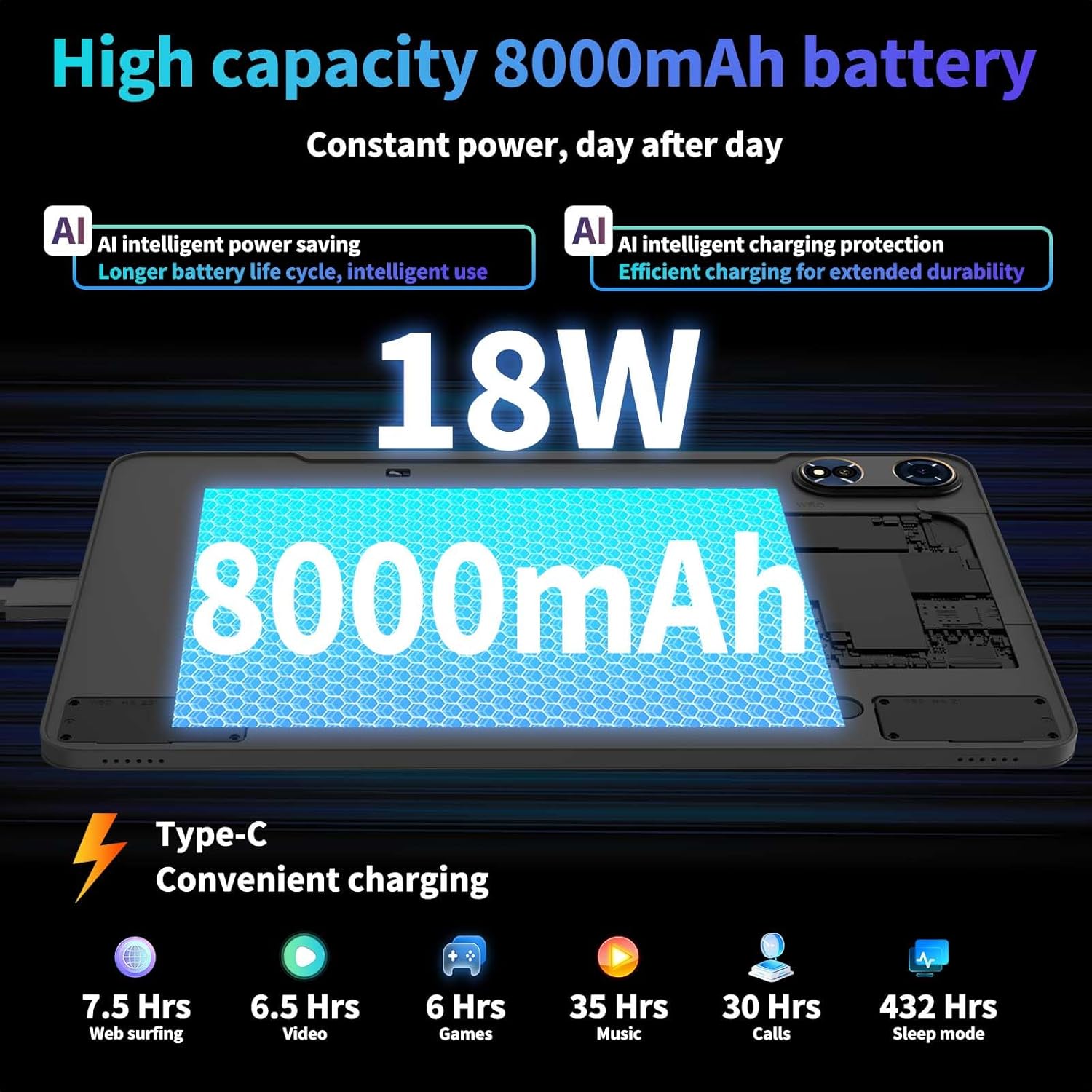
Image: The Relndoo TAB9 tablet displaying a charging screen with an 8000mAh battery capacity highlighted.
2. Powering On/Off
- To Power On: Press and hold the power button located on the side of the tablet until the screen illuminates.
- To Power Off: Press and hold the power button, then select 'Power Off' from the options that appear on the screen.
3. Connecting Accessories
The Relndoo TAB9 comes with a Bluetooth keyboard and wireless mouse for enhanced productivity.
- Bluetooth Keyboard/Mouse: Turn on the keyboard/mouse. On your tablet, navigate to Settings > Connected devices > Bluetooth. Ensure Bluetooth is enabled, then select the accessory from the list of available devices to pair.
- Protective Case: Attach the foldable protective case to the tablet for protection and to use as a stand.
4. Initial Android Setup
Follow the on-screen prompts to complete the initial setup of your Android 15 tablet. This includes selecting your language, connecting to Wi-Fi, and signing in with your Google account.
Operating Instructions
1. Display Features
The tablet features a 12-inch 2K (2000x1200) IPS display with Widevine L1 certification, allowing for high-definition streaming from services like Netflix and YouTube.
- Split-Screen Multitasking: Utilize the split-screen feature for efficient multitasking. This allows two applications to run side-by-side.
- Eye Protection: The display is designed with eye protection features for comfortable viewing.
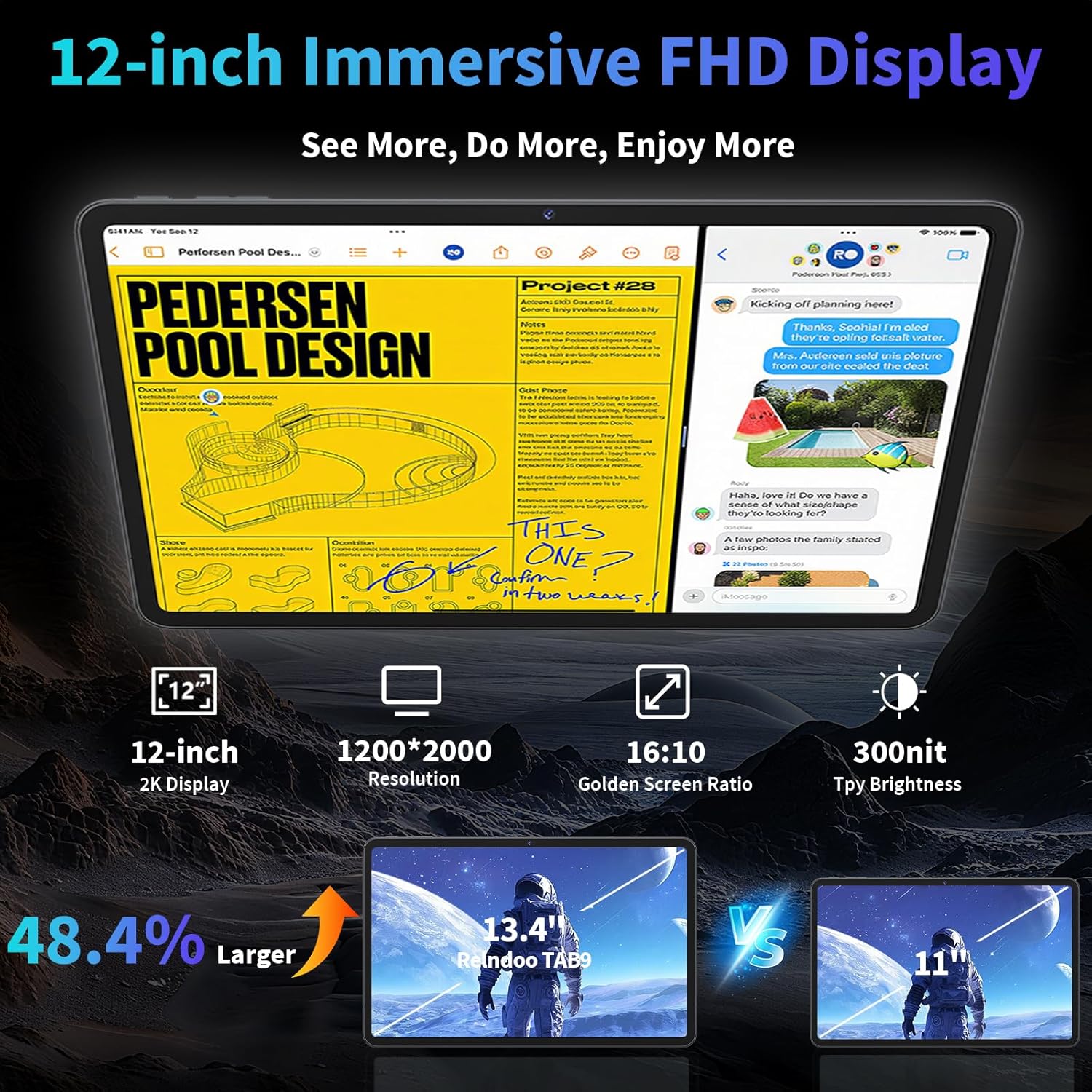
Image: The Relndoo TAB9 tablet showcasing its 12-inch 2K display with two applications open side-by-side in split-screen mode, demonstrating multitasking capabilities.
2. Performance and Storage
The TAB9 is powered by an Unisoc T615 octa-core processor, ensuring smooth operation for various tasks.
- RAM: Equipped with 24GB RAM (8GB physical + 16GB extended) for efficient app handling.
- Internal Storage: Comes with 256GB of internal storage.
- Expandable Storage: The microSD card slot supports expansion up to 2TB (FAT32 format, card sold separately).

Image: A diagram illustrating the Unisoc T615 Octa-Core processor within the Relndoo TAB9 tablet, highlighting its components and performance benefits.
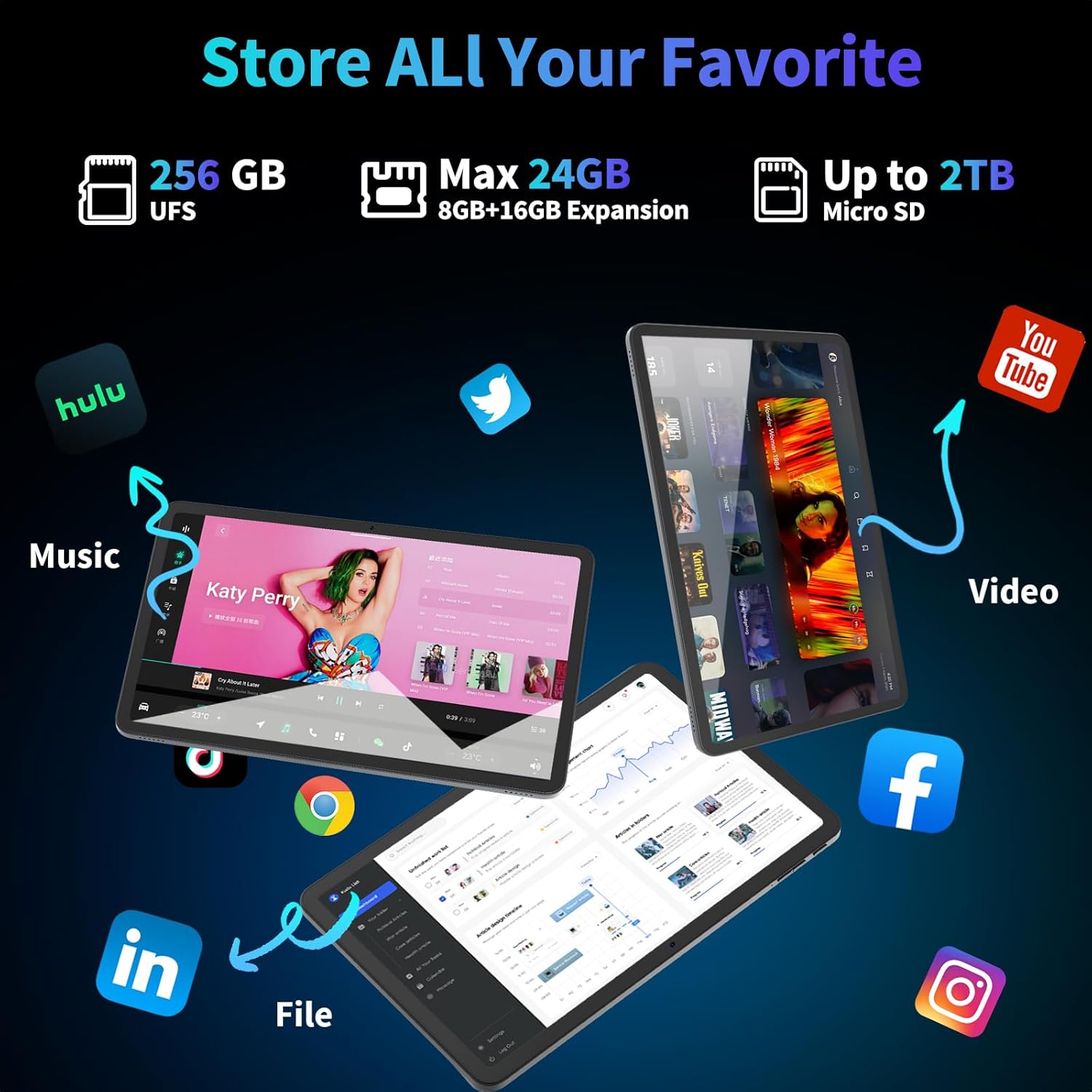
Image: The Relndoo TAB9 tablet displaying its storage options, including 256GB UFS, up to 24GB RAM (8GB+16GB expansion), and up to 2TB Micro SD expansion, with various apps shown.
3. Connectivity
The tablet offers comprehensive connectivity options:
- Wi-Fi: Supports dual-band AC 2.4G/5G Wi-Fi for stable and fast internet access.
- Bluetooth: Features Bluetooth 5.0 for connecting wireless peripherals.
- GPS: Built-in GPS provides precise navigation and location services.

Image: A collage demonstrating the Relndoo TAB9 tablet's connectivity, including use with a keyboard, gaming with dual-band Wi-Fi, Bluetooth headphones, and GPS navigation.
4. Camera Usage
The tablet is equipped with dual cameras:
- Rear Camera: 16MP for capturing photos and videos.
- Front Camera: 8MP for video calls and selfies.
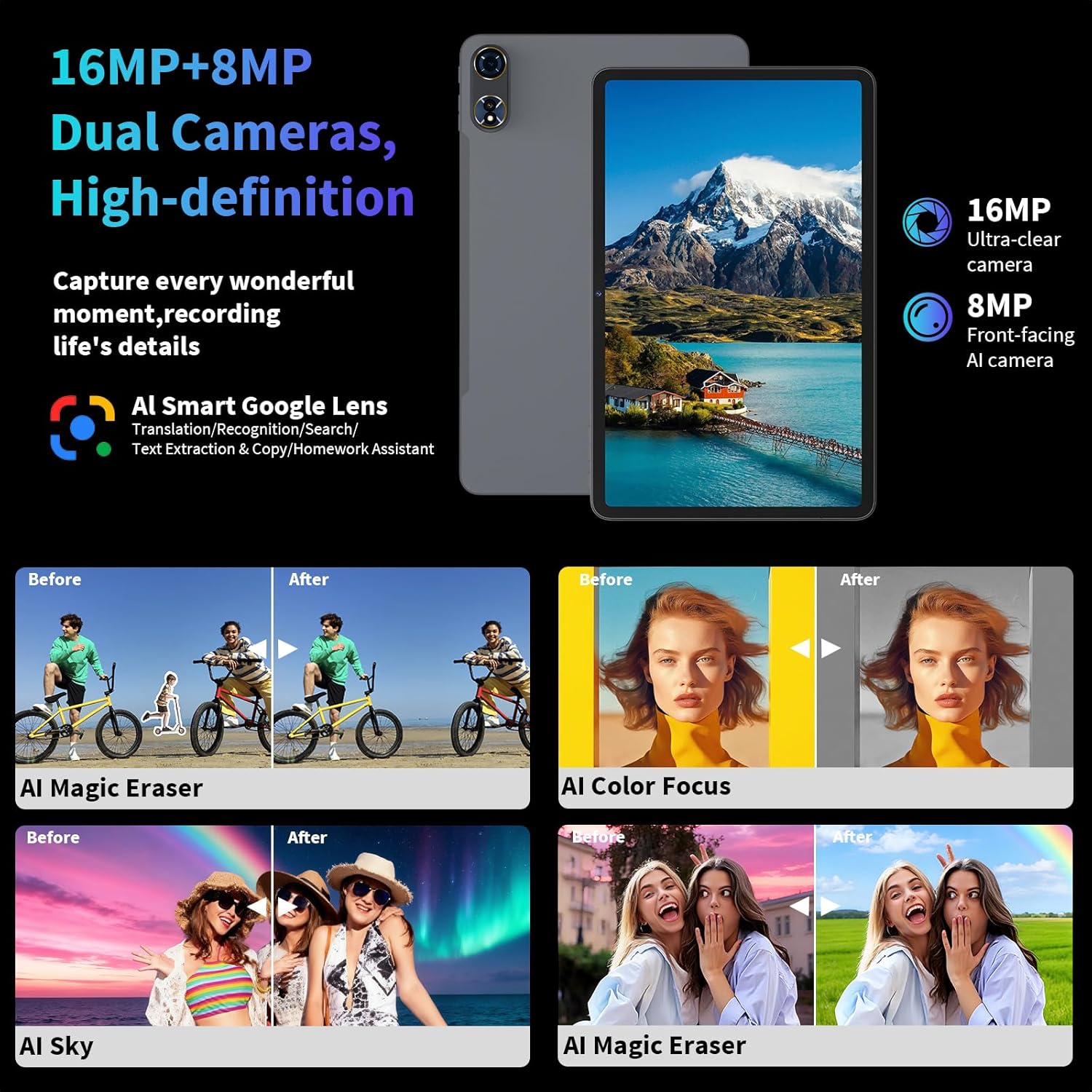
Image: The Relndoo TAB9 tablet highlighting its 16MP rear and 8MP front cameras, along with examples of AI-enhanced photo editing features like Magic Eraser and Color Focus.
5. Android 15 Features
The tablet runs on GMS-certified Android 15, offering enhanced privacy and new features:
- AI Intelligent Optimization: Improves system smoothness and speed.
- New Features: Includes sidebars, floating balls, gesture controls, and global dark mode for personalized customization.
- Parental Controls: Built-in features to create a safe browsing environment for children.

Image: A visual representation of new features in Android 15 on the Relndoo TAB9 tablet, including split-screen, predictive back, personalized widget previews, security features, and app force stop.
6. Gemini AI Integration
The tablet integrates Gemini AI to assist with various tasks:
- Content Creation: Generate ideas and drafts.
- Information Retrieval and Summarization: Quickly find and condense information.
- Image Analysis: Understand and process visual content.
- Code Development: Assist with programming tasks.
- Language Learning: Support language acquisition.
- Intelligent Assistant: General assistance and task management.
Maintenance
1. Battery Care
- Avoid extreme temperatures, which can degrade battery life.
- For optimal battery health, avoid frequently discharging the battery completely or keeping it at 100% charge for extended periods.
- Use only the provided charger or a certified compatible charger.
2. Storage Management
- Regularly clear unnecessary files and cache to maintain performance.
- Utilize the microSD card slot for large media files to free up internal storage.
3. Cleaning the Device
- Use a soft, lint-free cloth to clean the screen and body of the tablet.
- Avoid using harsh chemicals or abrasive materials.
- Ensure the tablet is powered off before cleaning.
Troubleshooting
Common Issues and Solutions
| Issue | Possible Solution |
|---|---|
| Tablet does not power on | Ensure the battery is charged. Connect the charger and wait a few minutes before attempting to power on again. |
| Slow performance | Close unused applications, clear cache, or restart the tablet. Check for system updates. |
| Wi-Fi connection issues | Restart the tablet and your Wi-Fi router. Ensure you are within range of the Wi-Fi signal. Verify Wi-Fi password. |
| Bluetooth device not pairing | Ensure the Bluetooth device is in pairing mode and within range. Restart Bluetooth on the tablet and the accessory. |
| Screen unresponsive | Perform a forced restart by holding the power button for approximately 10-15 seconds. |
Factory Reset
If persistent issues occur, a factory reset may be necessary. This will erase all data on your tablet. Back up important data before proceeding.
- Go to Settings > System > Reset options.
- Select Erase all data (factory reset).
- Confirm your choice and follow the on-screen instructions.
Specifications
| Feature | Specification |
|---|---|
| Brand | Relndoo |
| Model Name | TAB9 |
| Operating System | Android 15 |
| Screen Size | 12 Inches |
| Screen Resolution | 2000 x 1200 pixels (2K) |
| Processor | Unisoc T615 Octa-Core (ARM) |
| RAM | 24 GB (8GB + 16GB extended) |
| Flash Memory Size | 256 GB |
| Expandable Storage | Up to 2TB via microSD (FAT32) |
| Battery Capacity | 8000mAh |
| Average Battery Life | 12 Hours |
| Wireless Type | 802.11ax (Dual-band 2.4G/5G Wi-Fi) |
| Bluetooth | Bluetooth 5.0 |
| Front Camera | 8MP |
| Rear Camera | 16MP |
| Item Weight | 3.58 pounds |
| Product Dimensions | 17.5 x 6 x 16.2 inches |
| Color | Black |
Warranty and Support
Warranty Information
Please refer to the warranty card included in your product packaging for specific warranty terms and conditions. Typically, Relndoo products come with a limited manufacturer's warranty covering defects in materials and workmanship.
Customer Support
For technical assistance, troubleshooting, or warranty claims, please contact Relndoo customer support through the official website or the contact information provided in your product documentation. Keep your purchase receipt and product serial number handy when contacting support.
Ask a question about this manual
Ask about setup, troubleshooting, compatibility, parts, safety, or missing instructions. Manuals+ will review the question and use this page’s manual context to help answer it.